
The Experlogix Bill of Materials (BOM) and Route Generator creates BOMs and routes from configurations on sales orders, sales quotations, and project quotations in Microsoft Dynamics 365 F&O. Once set up, the BOM/route generation triggers automatically whenever the Configurator user selects the Save or Save and Close buttons. Microsoft Dynamics 365 F&O users may also trigger BOM/route generation manually from the Product and Supply dropdown menu on the entity page. This page describes the prerequisites for enabling BOM/route generation, its limitations, and the work flow for triggering it automatically and manually.
Prerequisites
-
In Process Designer, you must set up Process Maps for XplBrgItemConfigEntity and XplBrgConfigValueEntity entities. See Set up Cloud Connect for Microsoft Dynamics 365 F&O for more information.
-
If you wish to use automatic processing, you must set Allow automated processing to Yes on the BOM Route Generation Parameters pages. See Enable Automated Processing for more information.
Best Practices
When setting up the BOM Route Generator, we recommend enabling logging when using the Experlogix BOM Route Generator. Logging ensures that BOM and Route Generation attempts are recorded, which can be useful in troubleshooting any issues that arise. See Logging for more information.
In a production system, logging is discouraged as it has a negative impact on performance.
Limitations
-
When multi-host functionality is required, if you copy a Microsoft Dynamics 365 CE configuration to Microsoft Dynamics 365 F&O and process it, it does not trigger the BOM Route generator.
-
Copied configurations do not trigger the BOM Route Generator.
Procedures
Enable Automated Processing
For the BOM/route generator to run automatically, it must be enabled globally and on a company-by-company basis using two distinct settings.
Enable Allow Automated Processing Globally
Setting "Allow automated processing" to Yes turns on the automated processing globally. However, no BOM/routes will be automatically generated unless the individual company's setting is also set to allow it. See Enable Company-specific Automated Processing for more information.
-
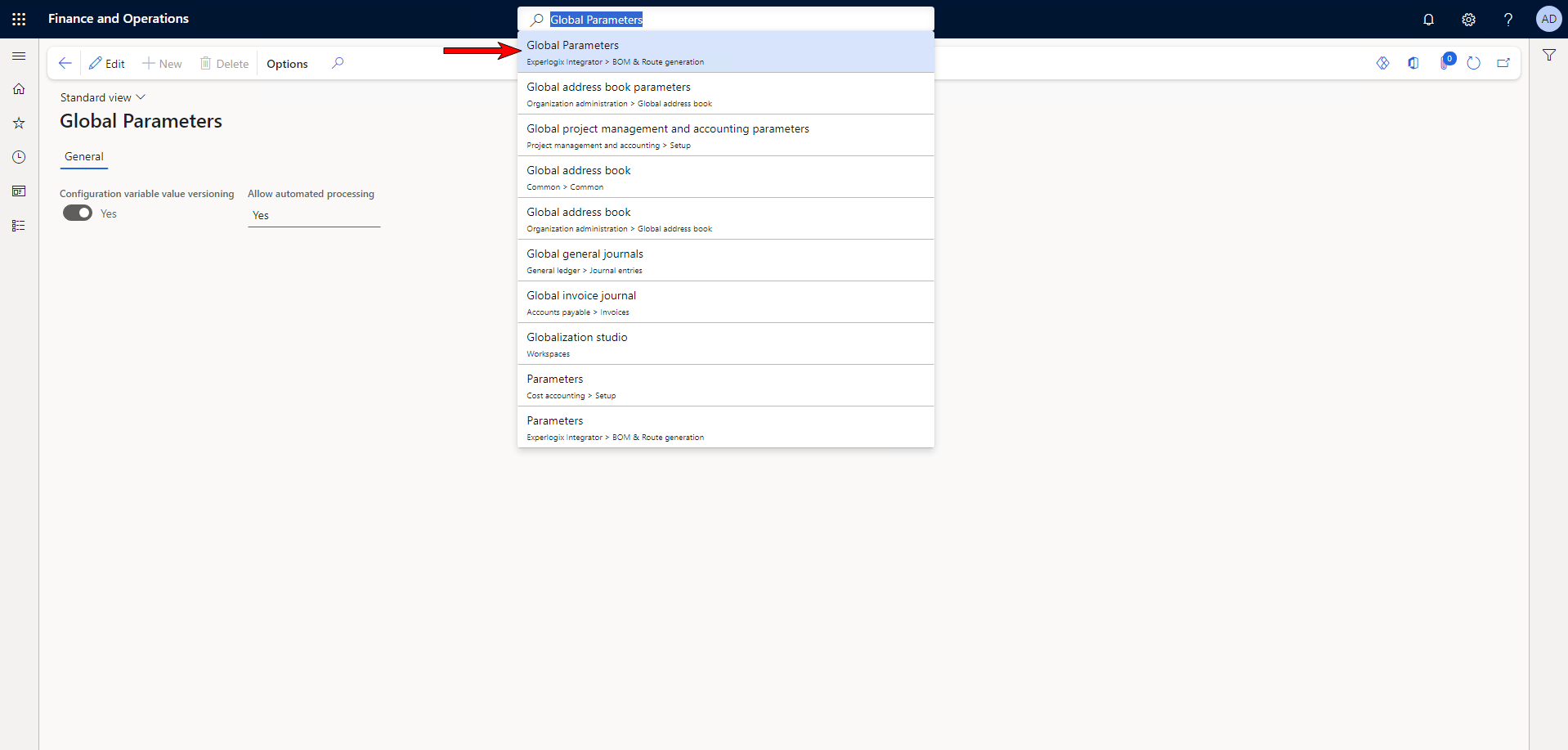
In the search bar, search for and select Global Parameters (Experlogix Integrator > BOM & Route generation).
-
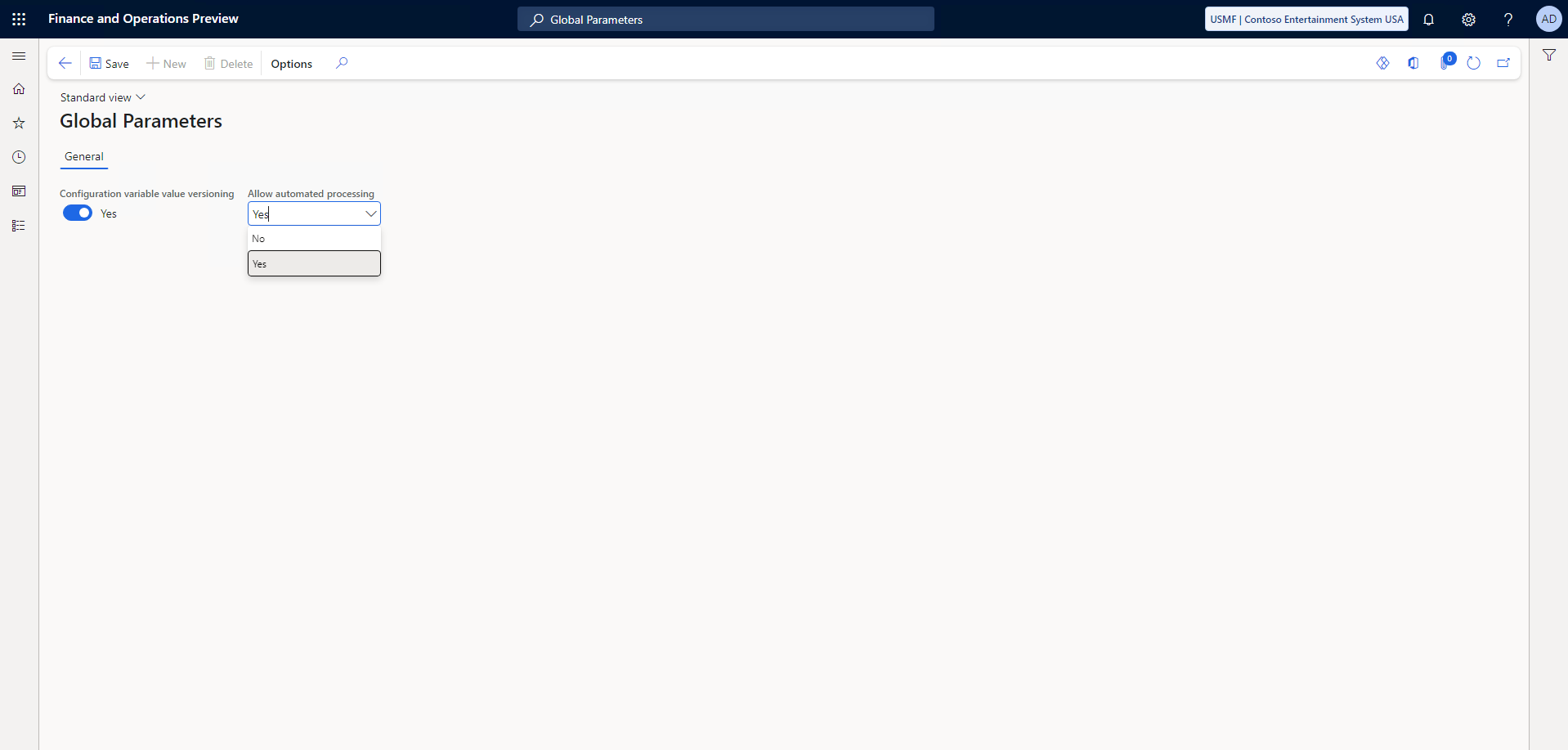
In the Allow automated processing dropdown, select Yes.
-
Select the Save button.
You've readied the system to trigger the Experlogix BOM Route Generator.
Enable Company-specific Automated Processing
The steps below provide instructions for enabling automated processing in your current Microsoft Dynamics 365 F&O company. This setting has no effect unless the automated processing is enabled globally. See Enable Allow Automated Processing Globally for more information.
-
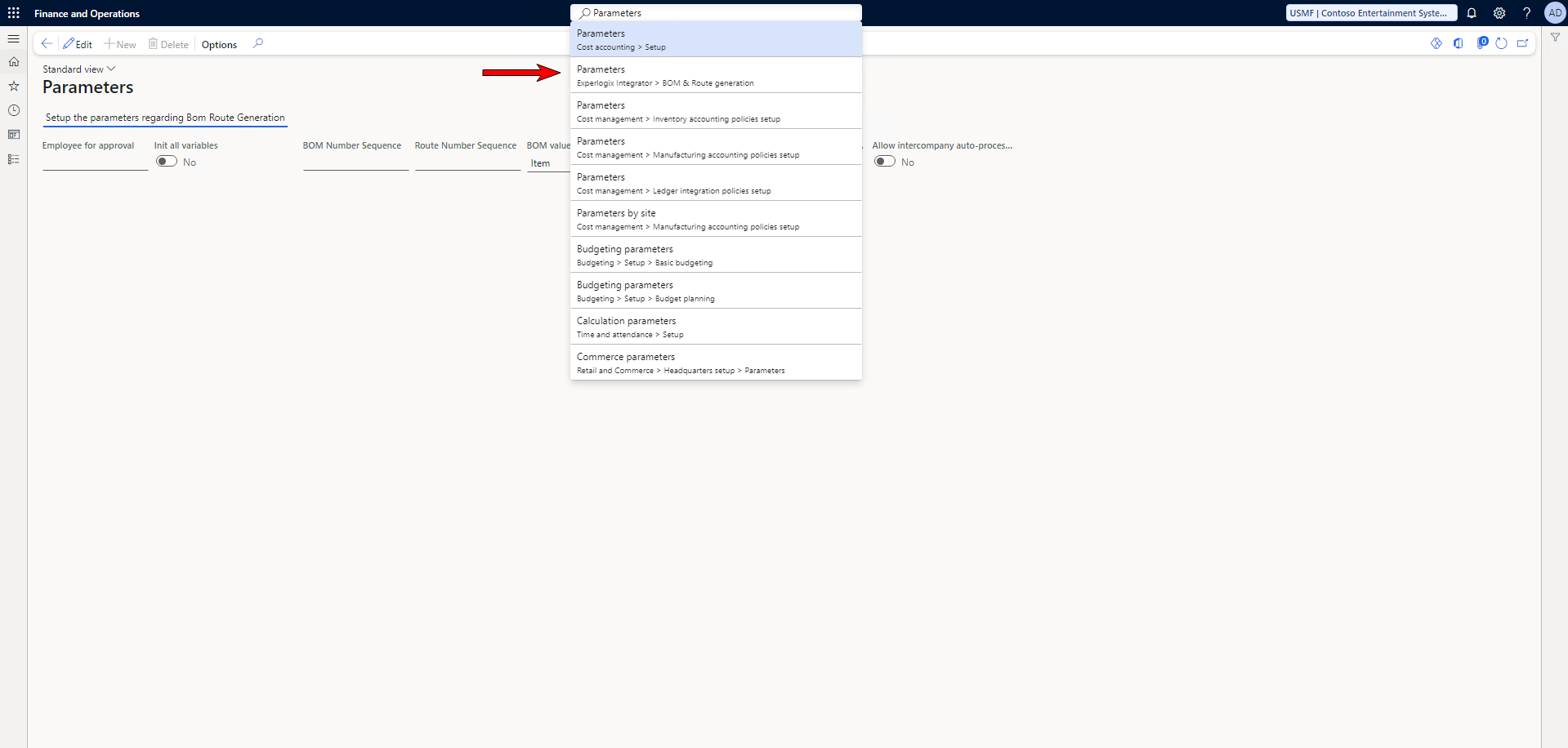
In the search bar, search for and select Parameters (Experlogix Integrator > BOM & Route generation).
-
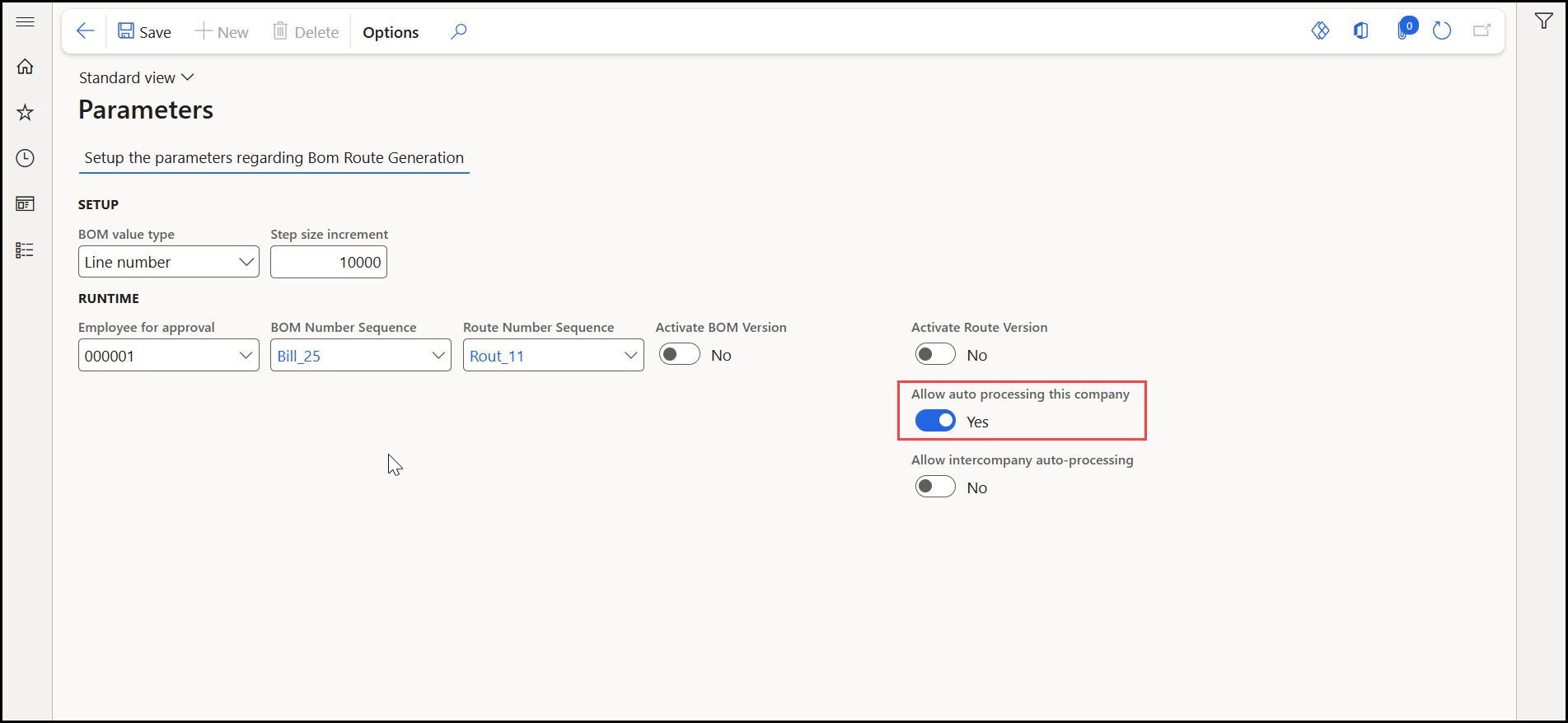
On the Parameters page, enable automated processing for the current company by setting Allow auto processing this company to Yes.
Trigger Experlogix BOM Route Generation After Processing a Configuration
-
In the search bar, search for and select a configurable entity.
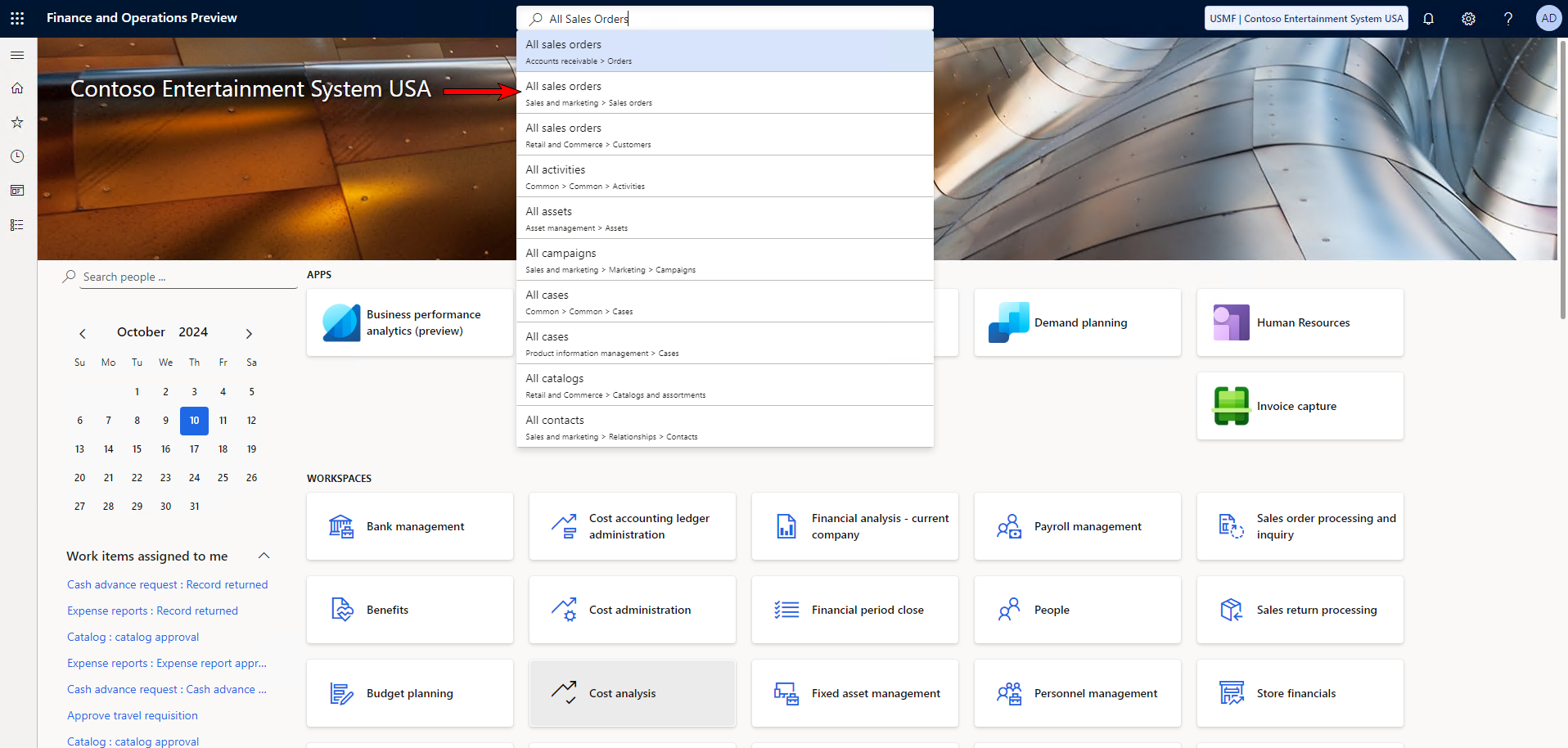
-
Select the record on which you want to trigger the BOM/route generation.
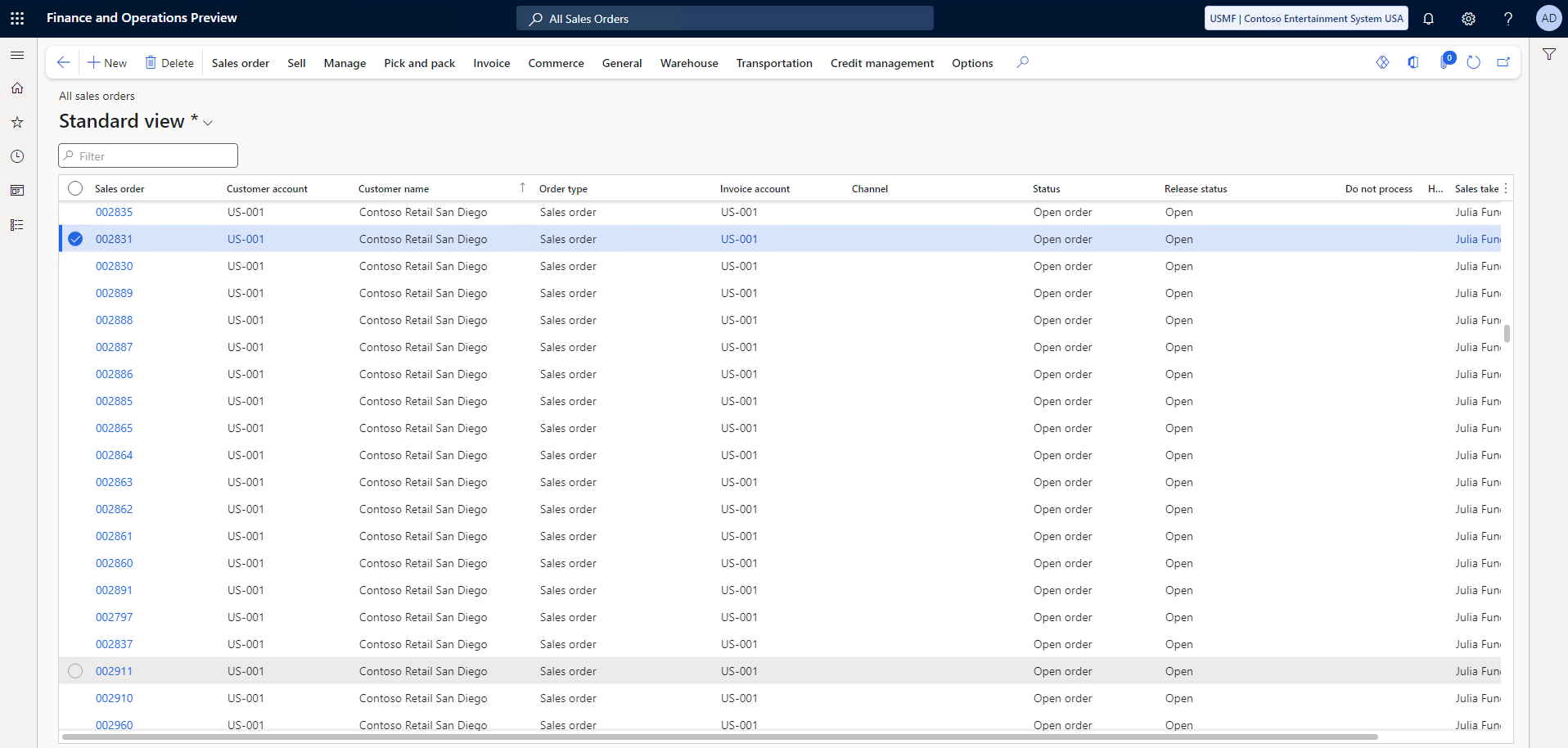
-
On the toolbar, select CPQ.
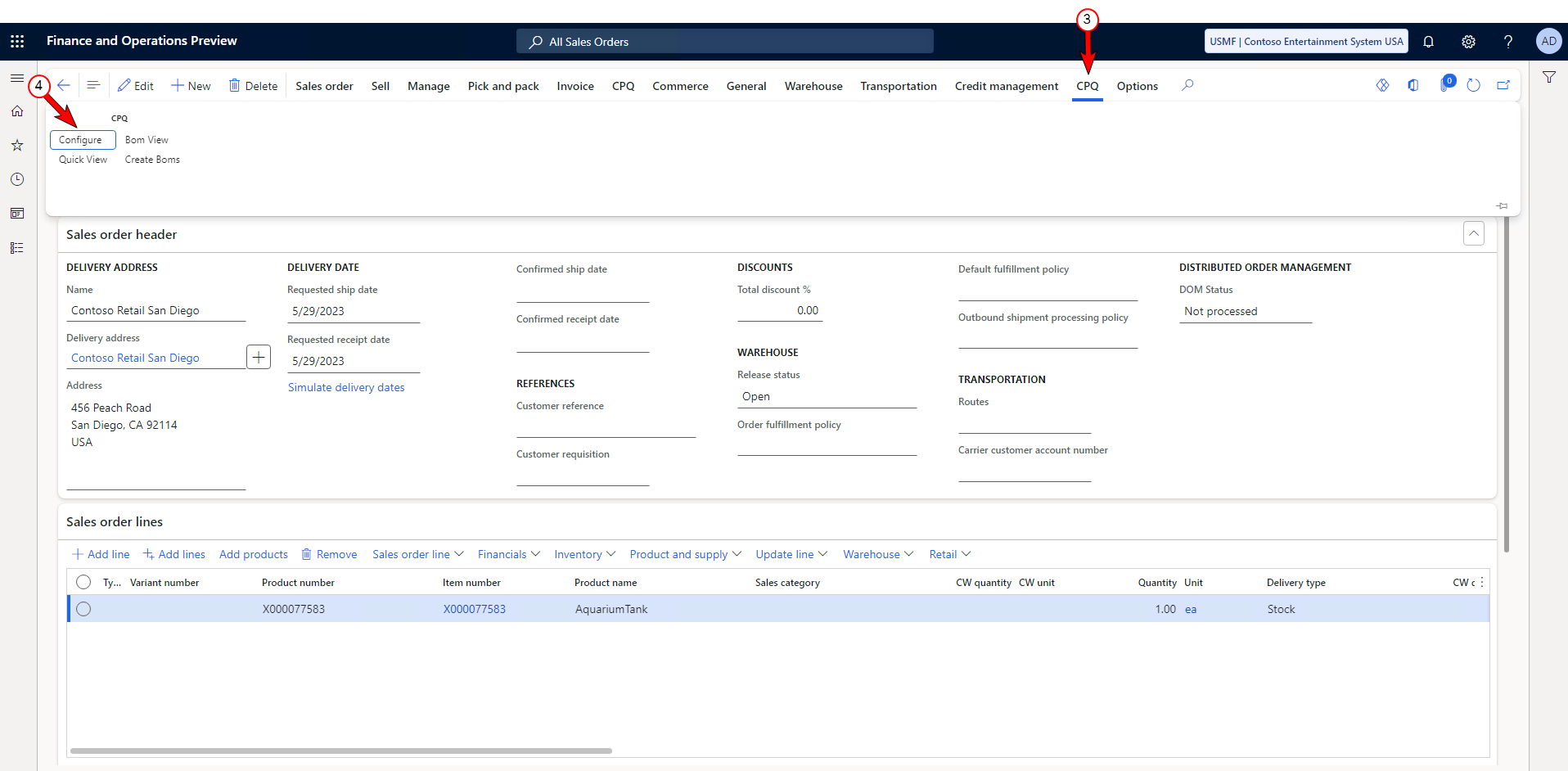
-
Select the Configure .
The Configurator launches.
-
Perform the configuration and select Save or Save and Close.
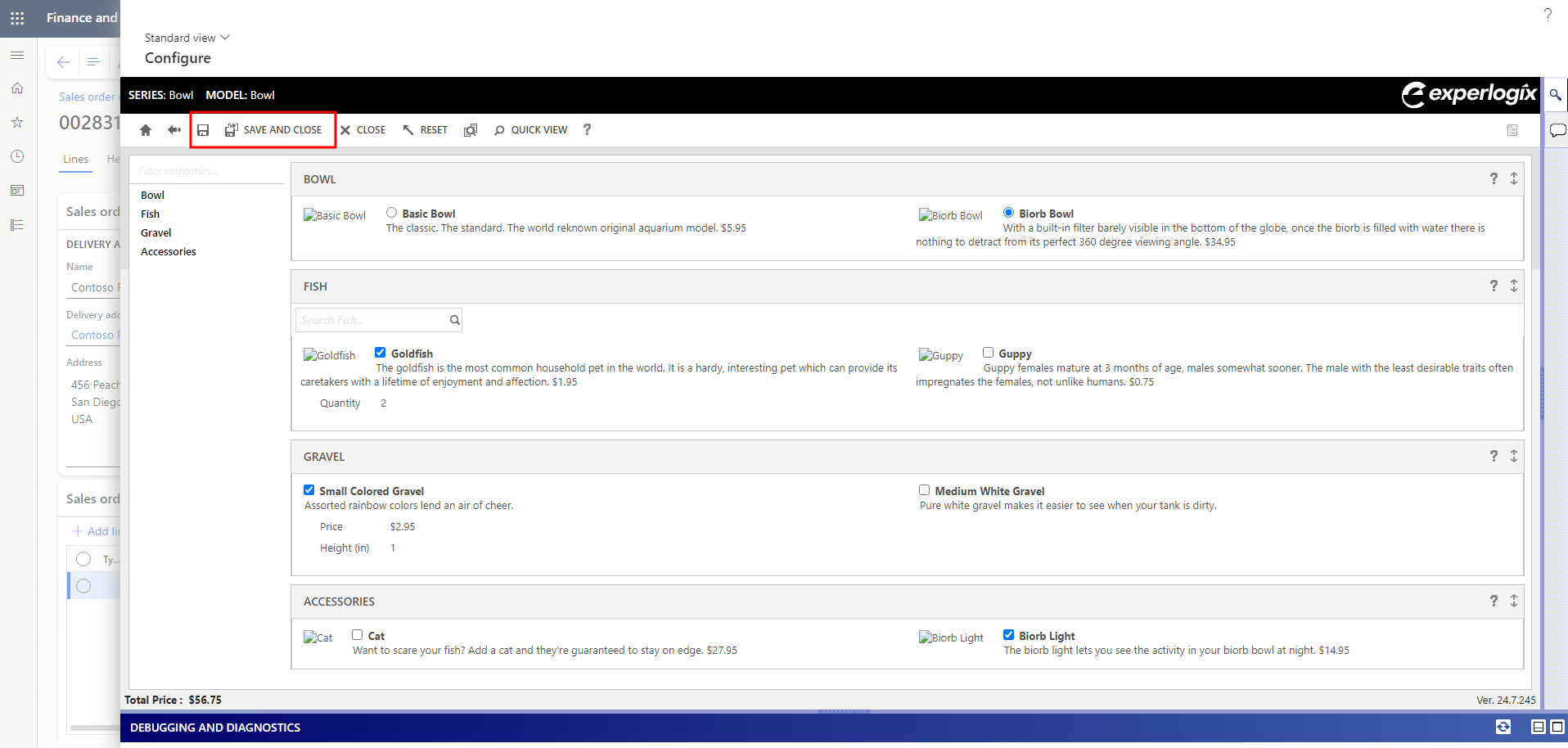
-
Trigger BOM/route generation in one of the two following ways:
-
If automatic processing is enabled, the BOM/route generation occurs automatically any time a relevant record is processed in F&O. For more information on setting up automated processing, see Enable Automated Processing.
-
-
Select CPQ/ BOM View to review the generation.
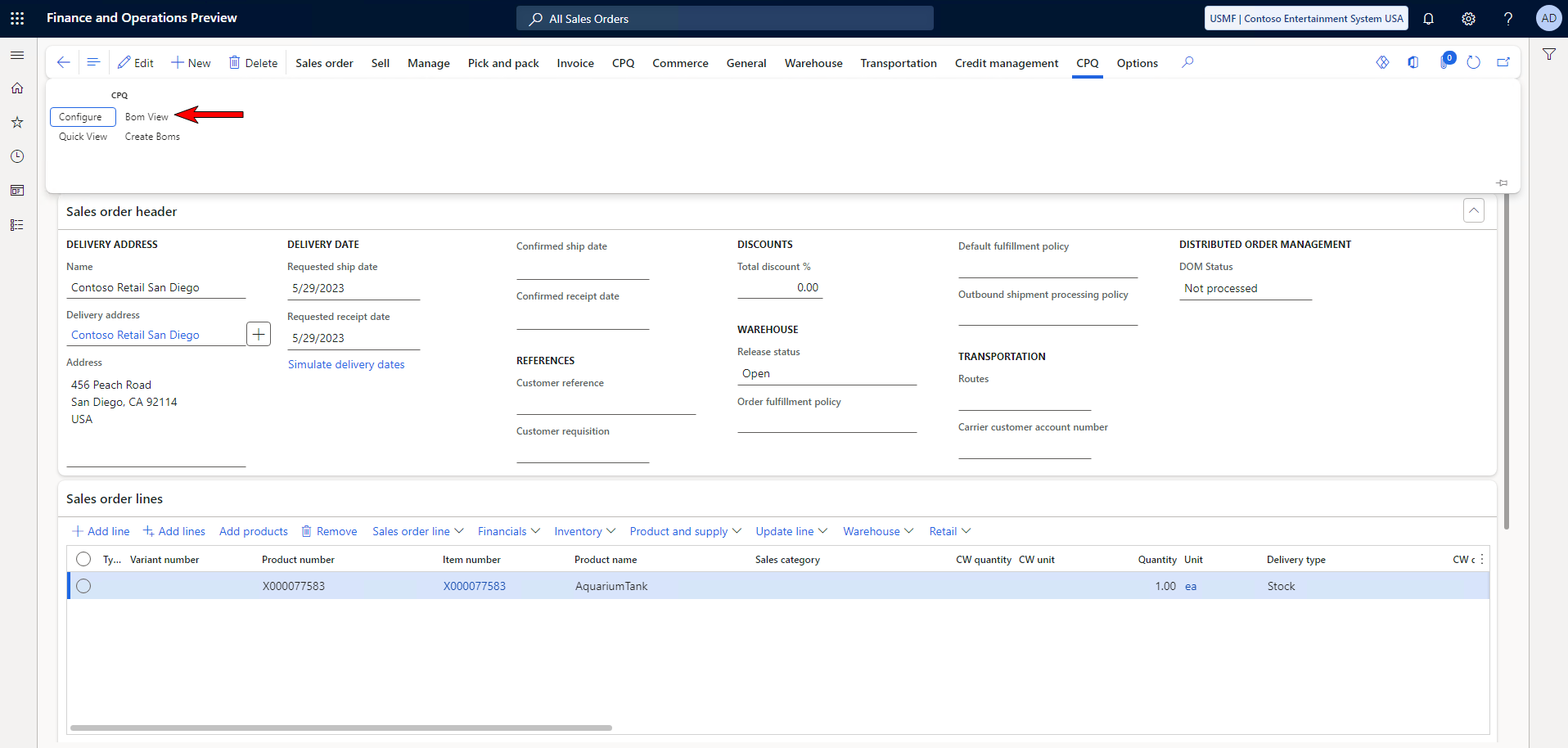
In previous releases of Cloud Connect for F&O, automated BOM - route generation was tied to a configuration event. As of the 25.12.19 release, it is now tied to the processing of a record. This means automated BOM - route generation now also happens in circumstances where records are processed into F&O, such as using Power Automate to copy records from CE to F&O.
-
If manual processing is required, select BOM - Route Generator from the Product and Supply dropdown menu to trigger BOM/route generation.
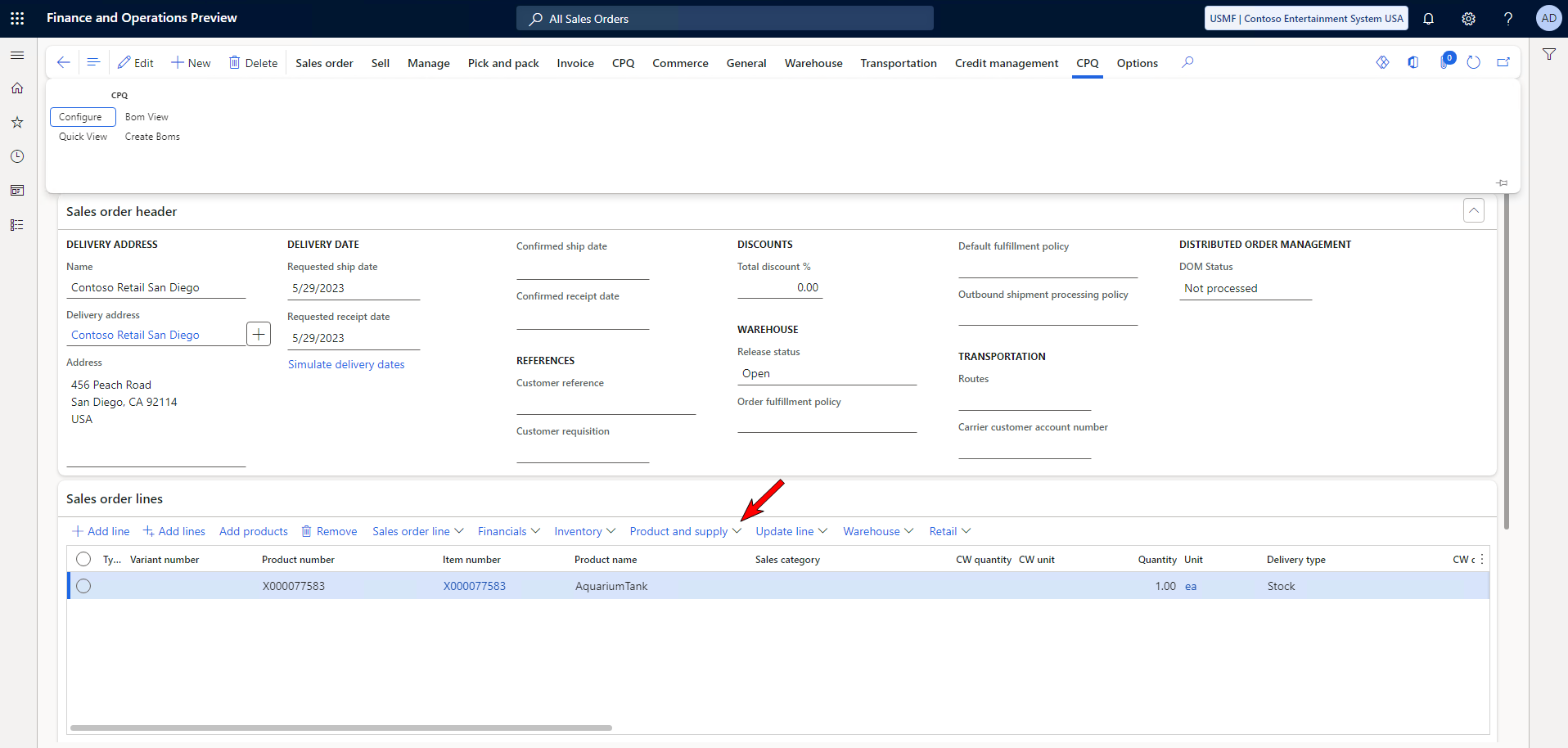
BOM/route generation transactions can be logged in the Experlogix logging form. See Logging for more information.
We recommend checking the generation results to ensure that they match your expectations for the BOM and Route. If they do not match your expectations, you'll want to make any modifications or fine-tuning before sharing the BOM Route Generator for wider adoption.
Once the generation process is completed, the system will display success or failure messages.
Success Message: "Line with item [item ID] and lotid [inventory lot ID] created successfully."
Failure Message: "Line with item [item ID] and lotid [inventory lot ID] failed to generate a BOM and/or Route."
Review Item Configuration
The Item configuration (Navigation: Experlogix Integrator > BOM Route Generator > Item configuration) page displays data from saved configurations used by the BOM Route Generator. The page is global, so all configurations across all Microsoft Dynamics 365 F&O companies are shown. You can use the data on this page to verify the number sequencing applied to derive the Configuration ID value, check the processing status of the configuration, and view the variable values used for any given configuration.
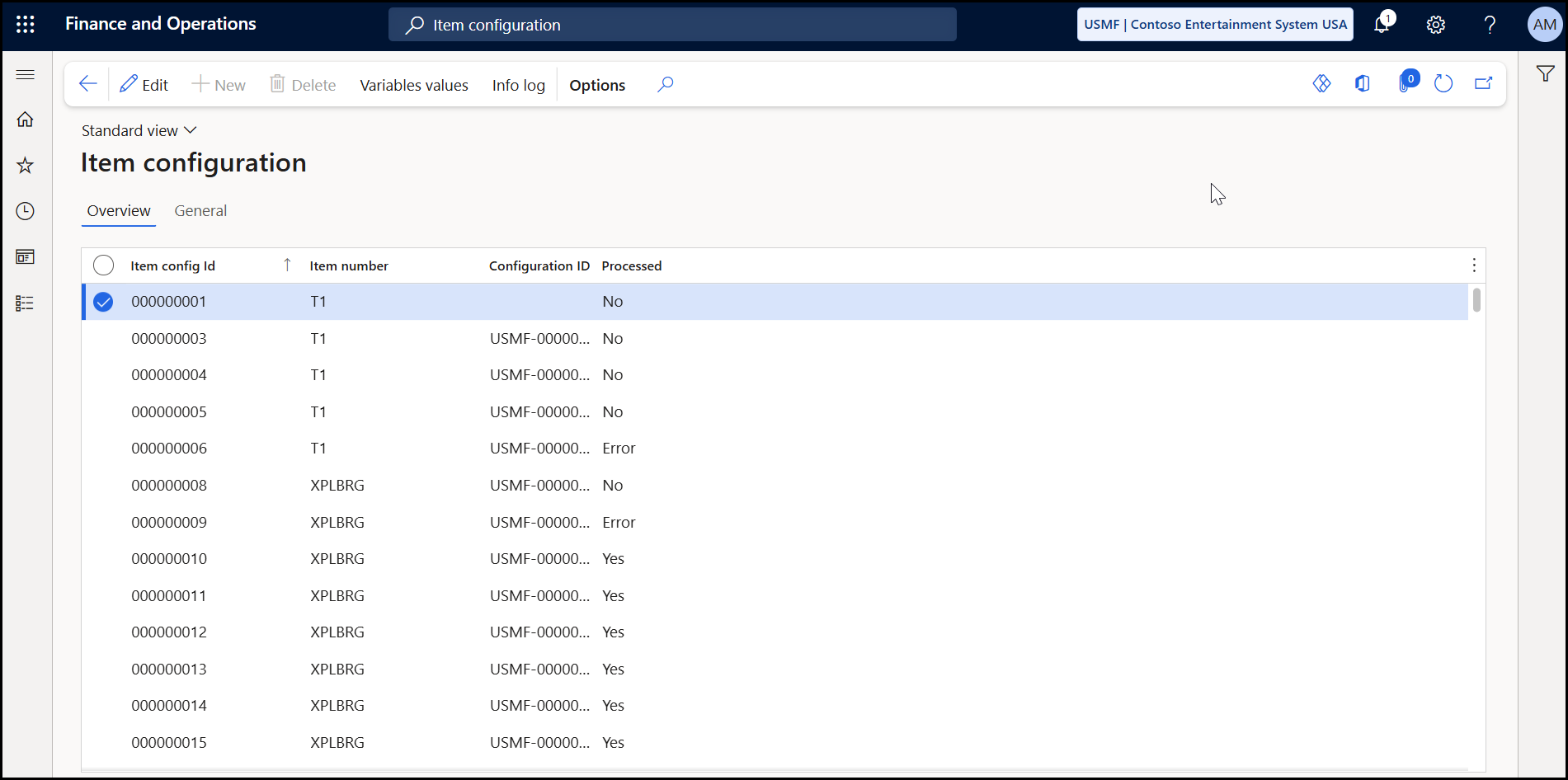
For more information on Experlogix variables in Microsoft Dynamics 365 F&O, see Set up Cloud Connect for Microsoft Dynamics 365 F&O