In Microsoft Dynamics 365 F&O, item attributes describe product characteristics such as color, size, material, or style. Cloud Connect is able to write to these attributes, provided the Microsoft Dynamics 365 F&O Setup Requirements are met and your Process Maps properly identify the attribute and provide the value.
Microsoft Dynamics 365 F&O Setup Requirements
Before item attribute values can be written via Cloud Connect, the following must be in place in Microsoft Dynamics 365 F&O:
-
The attribute must exist. For instance, define the attribute "Length" and its data type.
-
The attribute must be linked to a product category. This determines which products can use the attribute.
-
The product must be assigned to a category in the appropriate category hierarchy . This enables the product's access to the attribute.
-
The attribute must be writable. Microsoft Dynamics 365 F&O must allow writing values to the attribute for released products.
Attribute Restrictions
The attribute type must not be of type Reference. These are not supported due to Microsoft Dynamics 365 F&O validation restrictions. Additionally, You cannot write to the unit of measure attribute. This attribute is defined by the attribute type and is not writable.
Process Designer Setup
The sections below show example Process Maps and Process Structure. With this in place, you can add custom Properties to your Categories to supply the Process Document with the desired attribute data. See the table below for key data.
Process Designer Mapping Information
|
Field Mapping |
Microsoft Dynamics 365 F&O Entity |
Mapping Description |
|---|---|---|
|
ProductNumber |
EcoResProductAssignmentEntity |
The unique identifier for the product. |
|
ProductCategoryName |
EcoResProductAssignmentEntity |
The name of the product category to which the product is assigned. |
|
ProductCategoryHierarchy |
EcoResProductAssignmentEntity |
The product category hierarchy to which the category belongs. |
|
ProductNumber |
EcoResProductAttributeValueEntity |
The unique identifier for the product. |
|
AttributeTypeName |
EcoResProductAttributeValueEntity |
The attribute type. Not required if the attribute name is unique in the company. |
|
AttributeName |
EcoResProductAttributeValueEntity |
The name of the attribute being written to. |
|
Attribute Value |
EcoResProductAttributeValueEntity |
The value to write to the attribute. Its data type in the Configurator must match the data type of the attribute type in Microsoft Dynamics 365 F&O. |
EcoResProductAssignmentEntity
This entity associates the configured product with a specific product category and hierarchy. The category setup in Microsoft Dynamics 365 F&O then defines which attributes are available on the configured product. See the image below for example mappings.
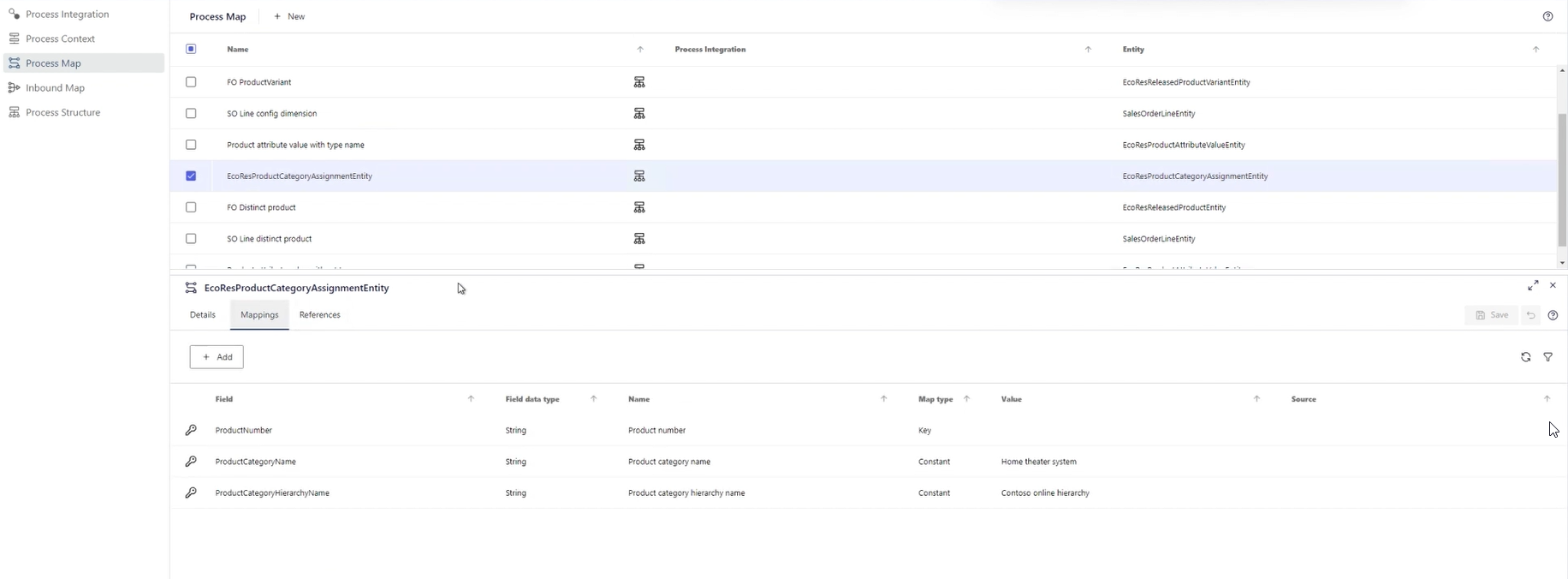
EcoResProductAttributeValueEntity
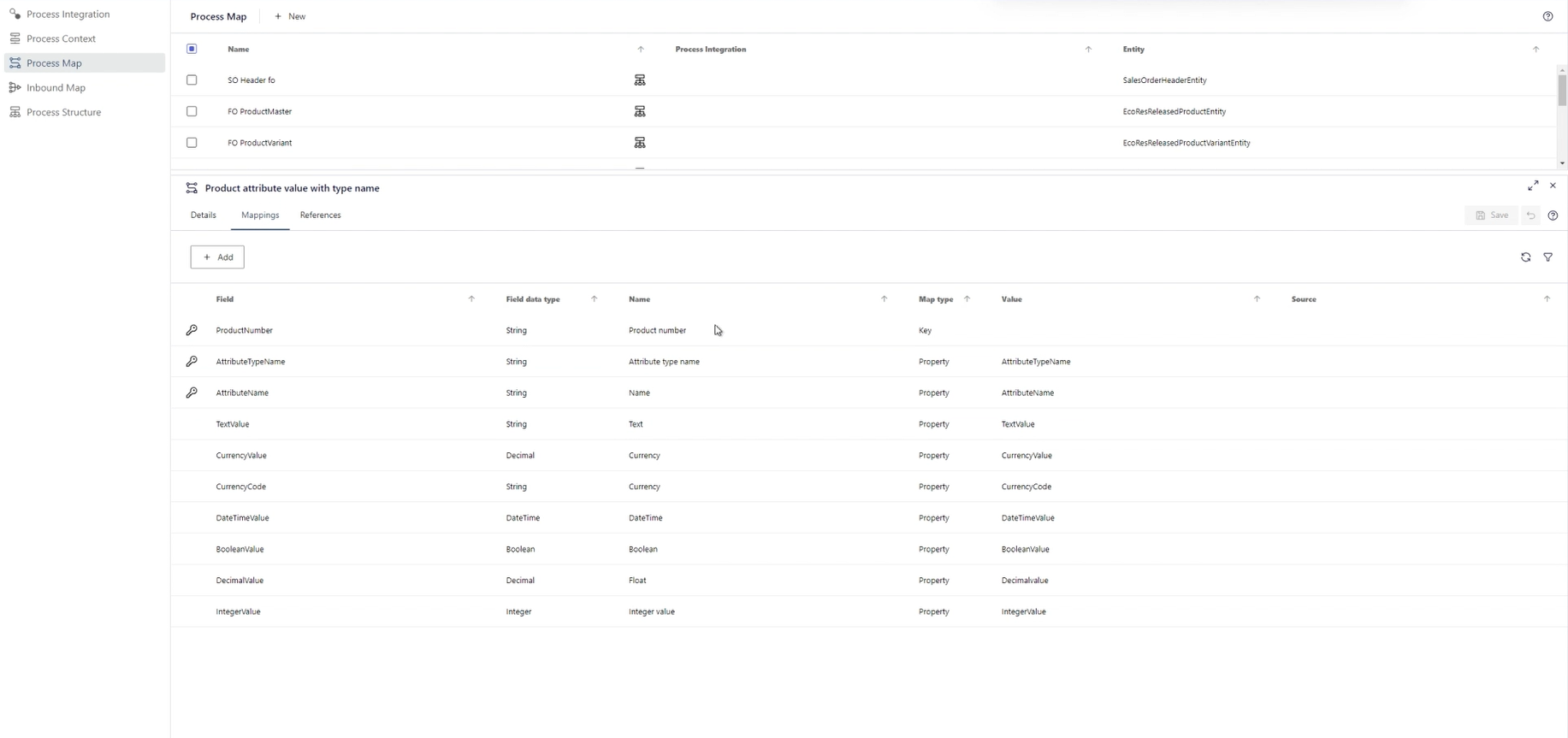
This entity identifies the specific attribute you're writing to using the ProductNumber, AttributeName, and if needed, the AttributeTypeName. It then carries the value for the attribute(s). See the image below for example mappings.
Attribute names are not required to be unique in Microsoft Dynamics 365 F&O. The combination of the attribute name and its type functions as a key to ensure each attribute can be identified uniquely, so the attributes must have a unique name or type within a given company. If your attribute name is unique, you do not need to provide the type in your Process Map. Cloud Connect finds and populates the type as needed.
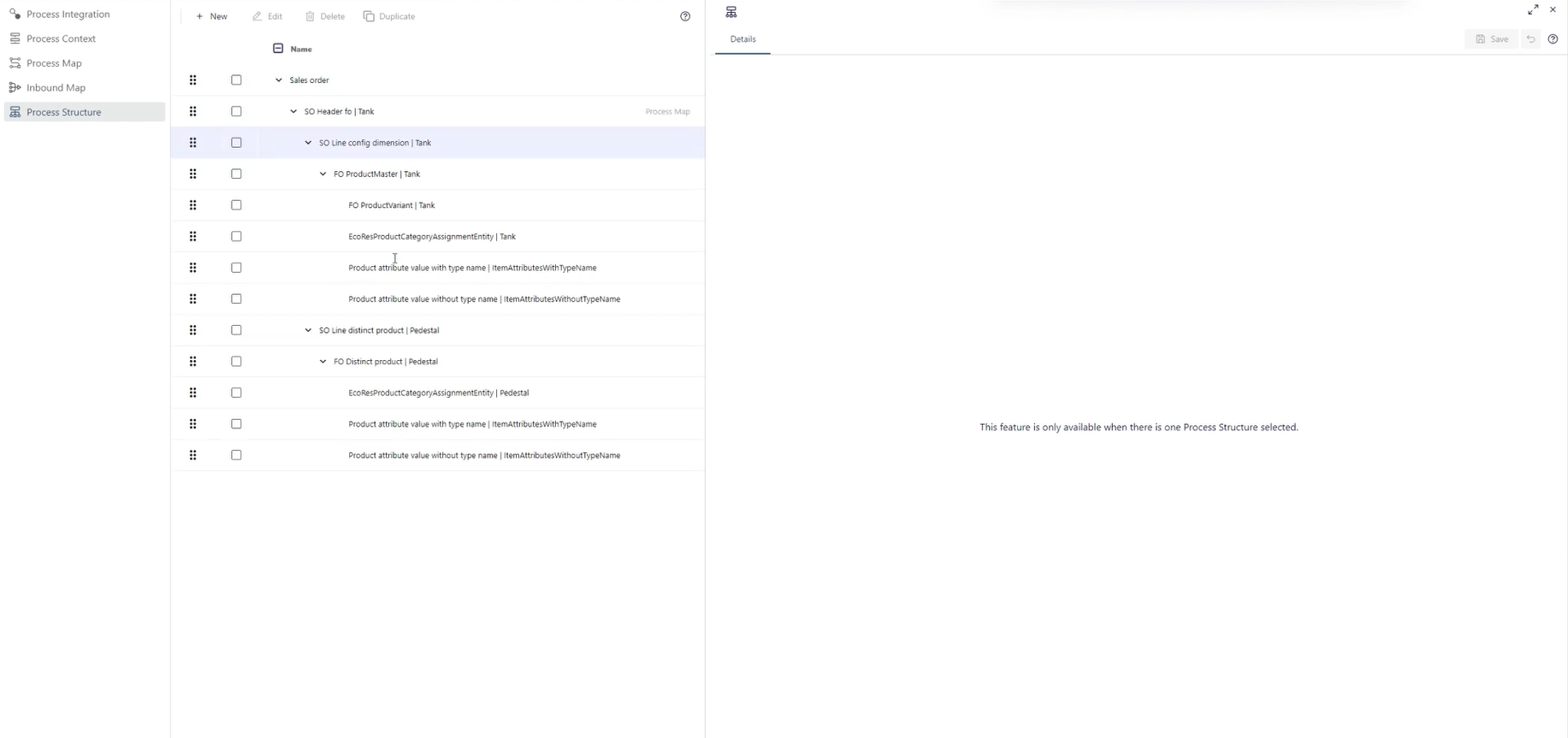
Process Structure
In the example below, the saved configuration data is used to create a new product master as well as a new distinct product. In both cases, the newly created product is added to a product category and hierarchy using the EcoResProductCategoryAssignmentEntity Process Map and the attributes are identified and their values written using the Product attribute value with type name and Product attribute without type name Process Maps.