
Using the Integration API, it is possible to reconfigure a Microsoft Dynamics 365 F&O sales quote and convert it to a Microsoft Dynamics 365 F&O sales order after the quote is confirmed and closed.
Reconfiguring the quote to a sales order requires Experlogix CPQ version 23.12 or later.
Prerequisites
-
The SalesQuotationHeaderEntity entity is set to connection type Company configuration/state.
-
The SalesOrderHeaderEntity Process entity is set to connection type Company configuration/state.
-
Power Automate is installed.
-
Experlogix CPQ version 23.12 or later.
-
The following Process structure is available:
-
Sales quotation header and sales quotation line
-
Sales order header and sales order line
-
-
Any entity that needs to be considered must have an integer property with numberseries set to auto for Microsoft Dynamics 365 F&O in a process map.
-
Experlogix Integration API version 23.12.15.
Any record that does not have an integer property with number series set as auto is currently unsupported. An error message will be displayed in Power Automate as 500 InternalServerError.
Setup Reconfigure Quote to Sales Order
In the Process Design, update the Process Designer URL and organization. Any master record needs to have the following properties.
|
Field Data Type |
Map Type |
Value |
|---|---|---|
|
Integer |
NumberSeries |
auto |
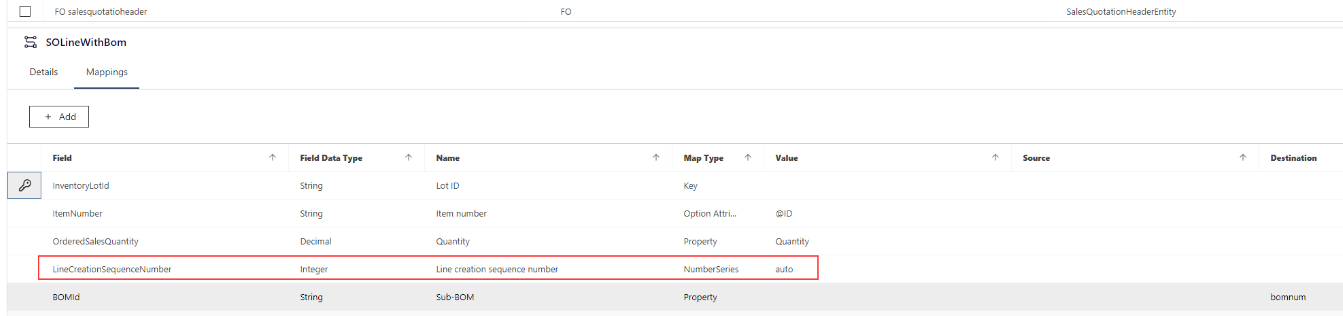
Reconfigure Microsoft Dynamics 365 F&O Quote to Sales Order Flow
For this example, Fish are selected as part of the sales quote.
-
In Microsoft Dynamics 365 F&O, navigate to the All quotations page.
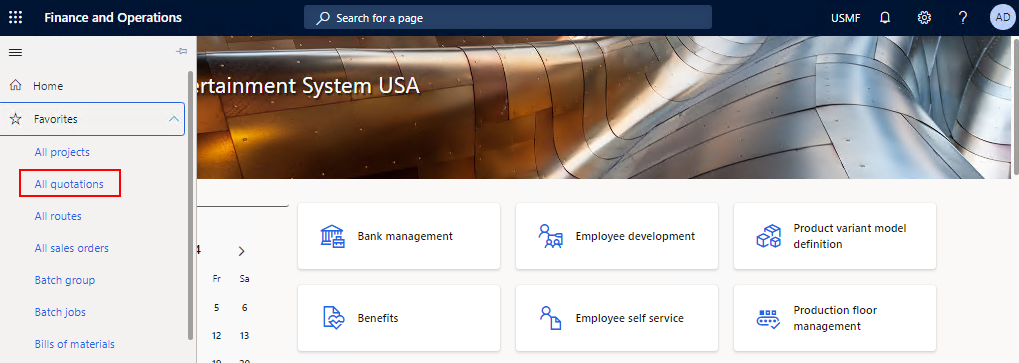
-
At the upper-left corner, select New.
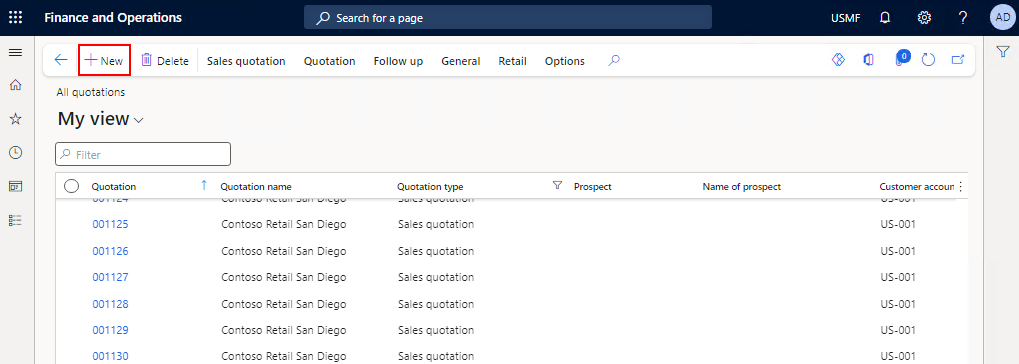
-
Enter information in the Create quotation form and then select the OK button.
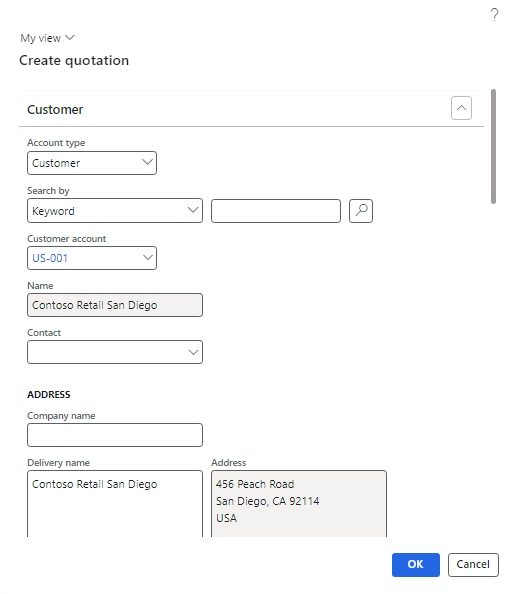
-
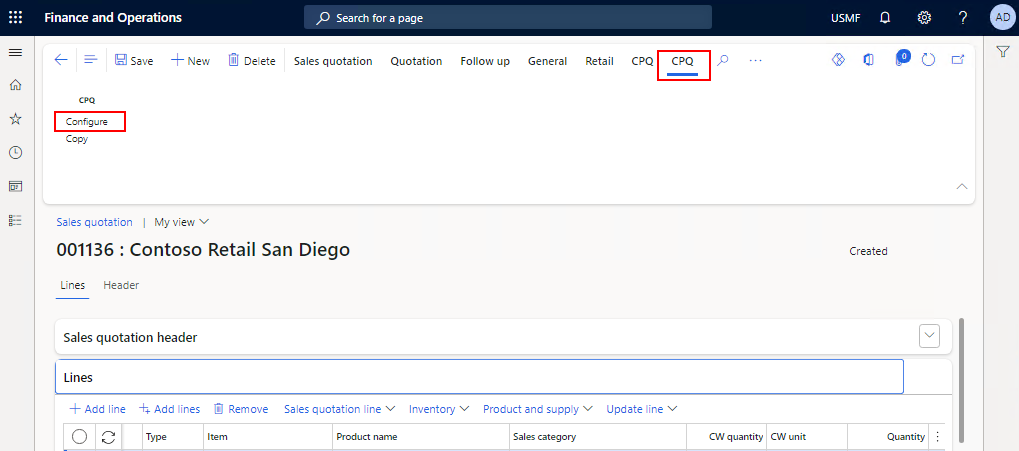
At the top, select CPQ and then select Configure.
-
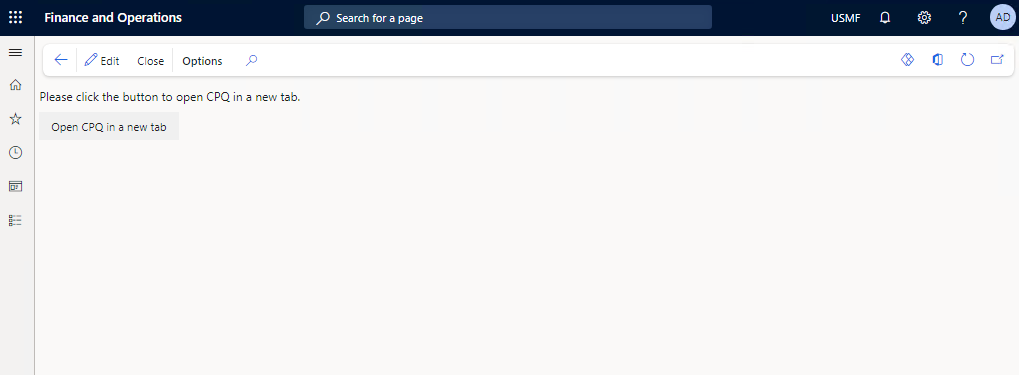
Select the Open CPQ in a new tab button.
-
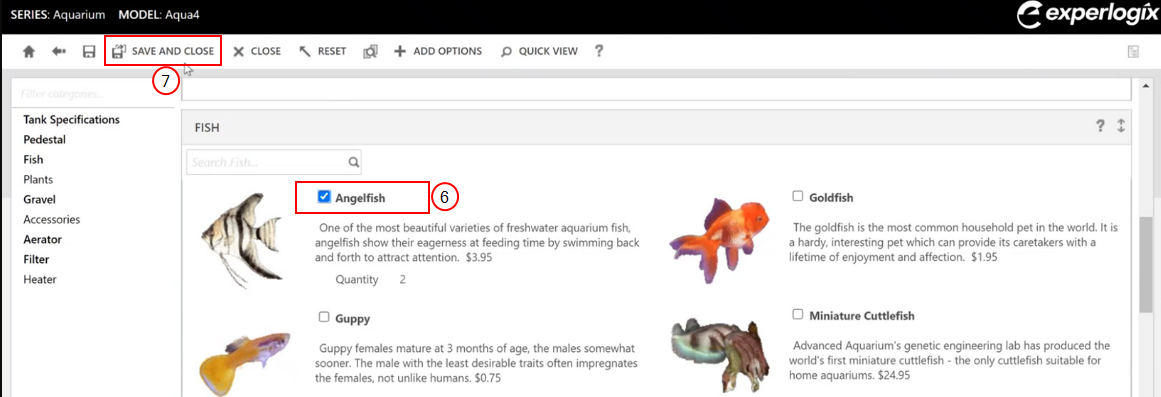
In the Configurator, select a fish from the available options.
-
Select Save and Close to save the configuration.
-
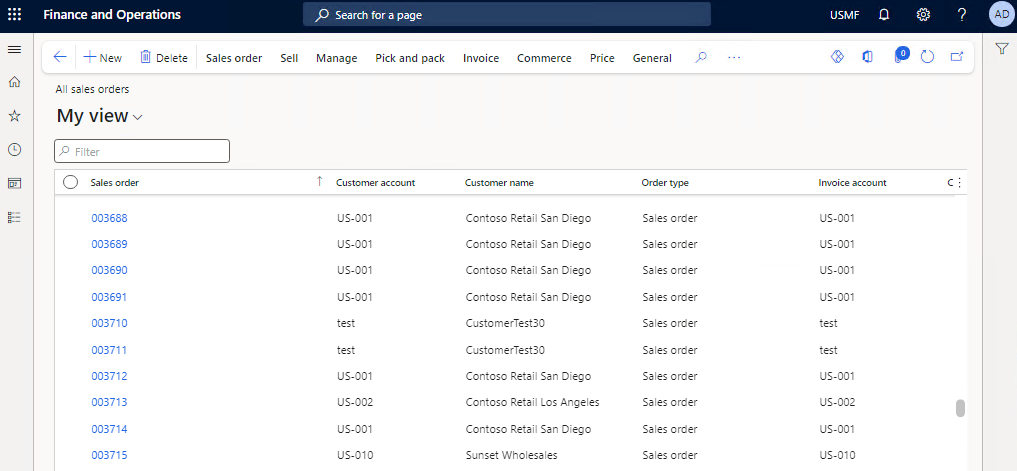
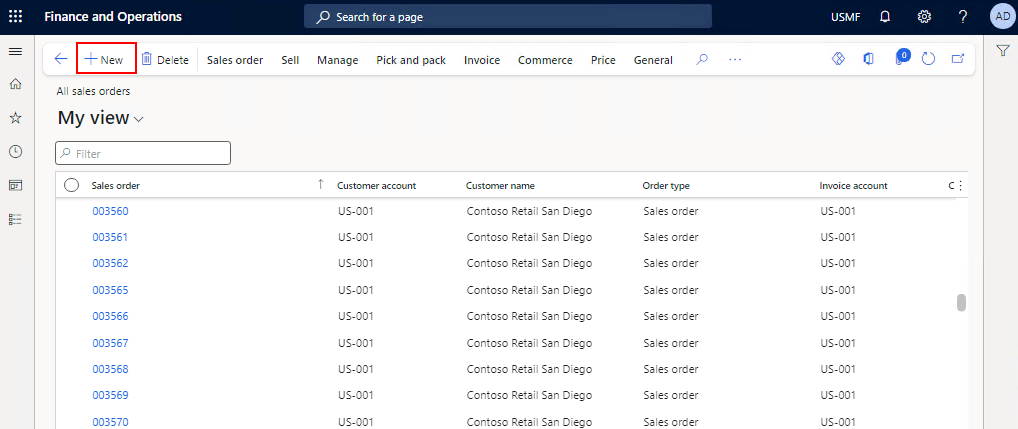
Navigate to the All sales orders page.
-
At the upper-left corner, select New.
-
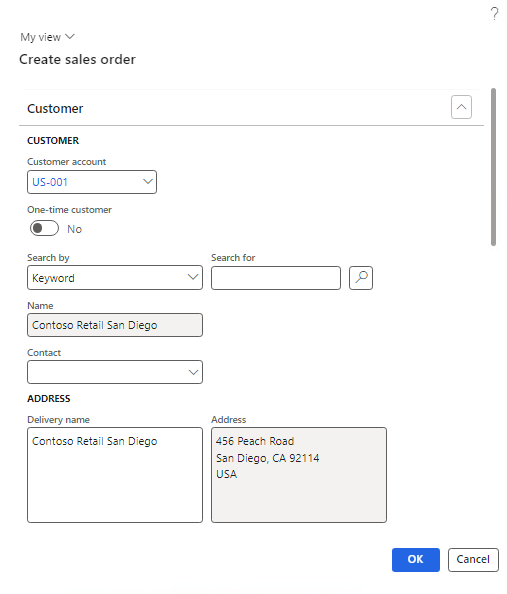
Enter information in the Create sales order form and then select the OK button.
-
Select Save.
-
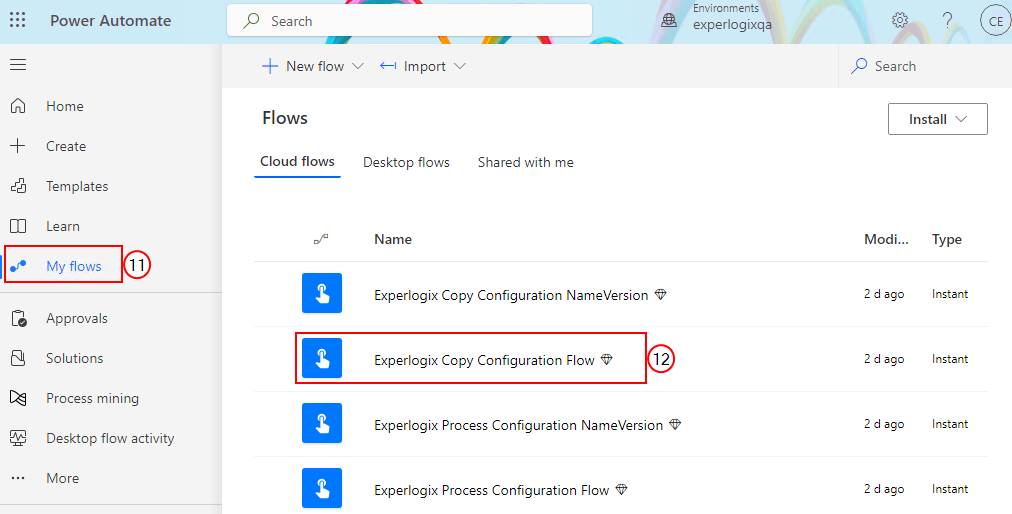
In Power Automate, open the My Flows page.
-
Select the Experlogix Copy Configuration flow.
-
At the top, select Run.
-
Enter the following values in the Run flow dialog box.
|
Property |
Example |
|---|---|
|
Source Entity Name |
SalesQuotationHeaderEntity |
|
Source Record Id |
001126 |
|
Source Company |
USMF |
|
Destination Connection Id |
c988433e-f36b-1410-895a-0079cb5c644c |
|
Destination Entity Name |
SalesOrderHeaderEntity |
|
Destination Record Id |
004178 |
|
Destination Company |
USMF |
|
Replace |
true |
|
Process State |
true |
|
Source Connection Id |
c988433e-f36b-1410-895a-0079cb5c644c |
-
Select the Run flow button.
-
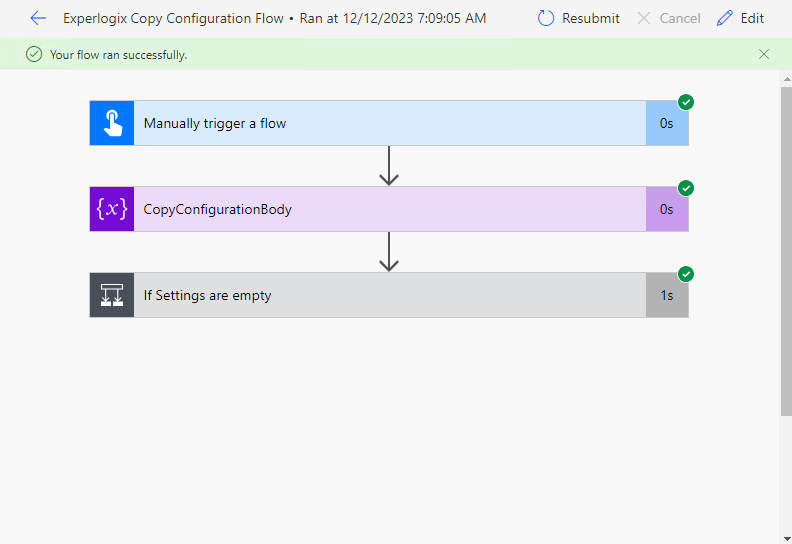
Select the entry for the flow in the flow run history.
-
Navigate to the Microsoft Dynamics 365 F&O Sales order page.
-
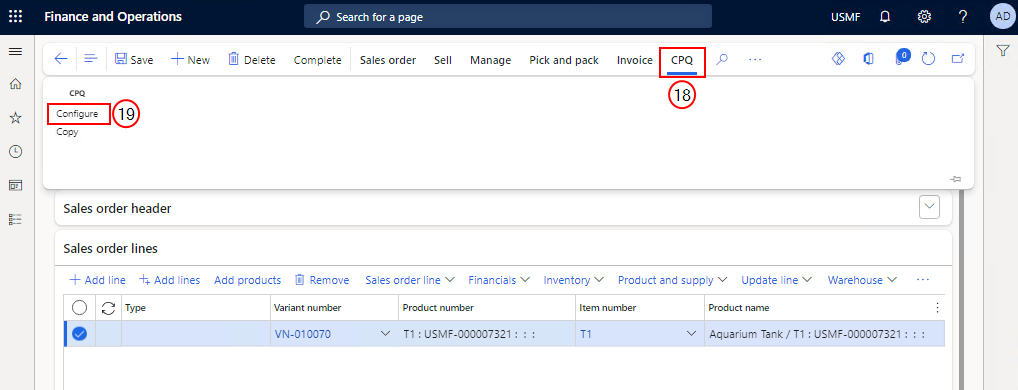
At the top, select CPQ and then select Configure.
-
In Configurator, update the quantity of an existing fish and select another fish.
-
Select Save and close.
The existing sales order line gets updated, and a new line is added.