
The Copy Configuration endpoint for Microsoft Dynamics 365 F&O is used to copy the Experlogix configuration and process state from the source record to the destination record of the corresponding entity. This endpoint is used to copy a configuration attached to an existing record and to connect it to another record of the same type. This reduces the time to create an entity by allowing users to leverage existing configurations.
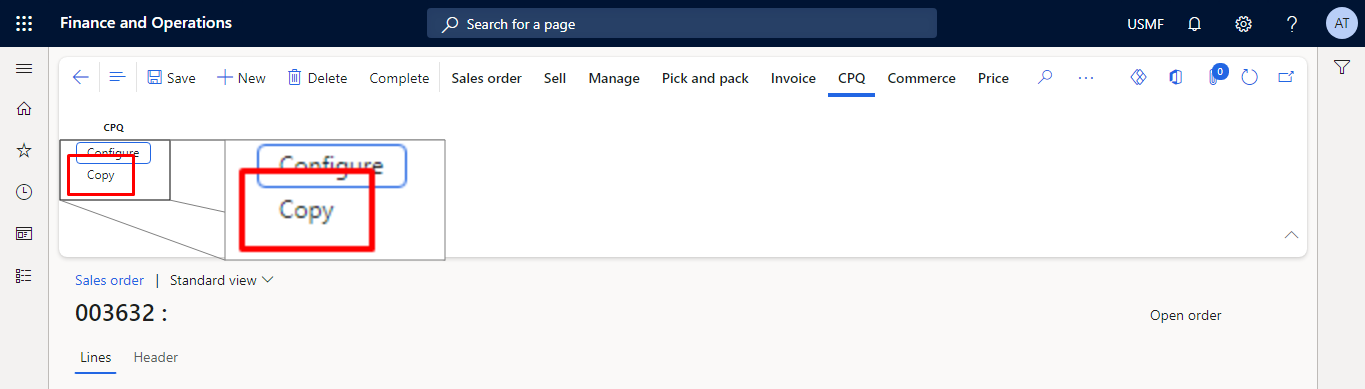
Copy Button
The Copy button displays in records, where the user can leverage the copy function. Only users with the Experlogix administrator or Experlogix configurator roles in Microsoft Dynamics 365 F&O can see the Copy button. Even if the records support copying, the button is absent if the user doesn't have the required role. The Copy button displays to authorized users after setup without additional configuration; see set up in Set up Cloud Connect for Microsoft Dynamics 365 F&O for more information.
Requirements
-
The record to be copied must already be configured
-
Copy in Microsoft Dynamics 365 F&O supports the following entity types:
-
Sales order
-
Sales quotation
-
Project
-
Project quotation
-
Limitations
-
The copy function does not process the configuration. It is designed to copy a configuration, allowing you to make changes and save the updated configuration for processing.
-
There cannot be a configuration already attached to the record.
-
Configurations can only be copied to entities of the same type. For example. from one Quote to another Quote.
Functionality Highlights
-
The system saves the record before initializing the copy function.
-
If you close the Configurator after a successful copy, the configuration stays linked to the record. If you reopen the record, the configuration displays.
-
The copy function supports logging.
Copy Selection Form for Sales Order
Use the following steps to copy an existing sales order record.
-
In Microsoft Dynamics 365 F&O, at the top, search for All Sales orders.
-
From the search results, select All sales orders. The All sales orders page displays.
-
Select a sales order number to open the sales order page. The Sales order details page displays.
-
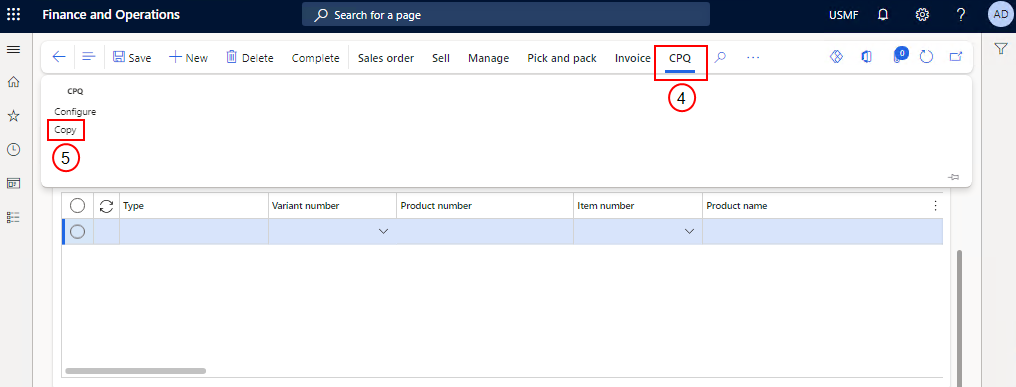
At the top, select CPQ.
-
From the CPQ options, select Copy. The Select a sales order to copy page displays.
-
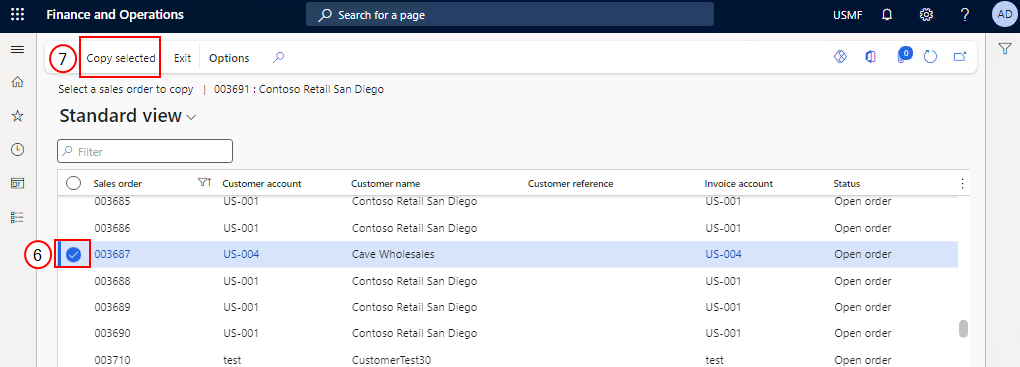
From the available sales orders, select a Sales order.
-
Select the Copy selected button. The sales order is copied, displaying the page with a link to open CPQ.
-
Select the Open CPQ in a new tab button.

The sales order is copied, and CPQ opens in a new browser tab.
Copy Selection Form for Sales Quotation
Use the following steps to copy an existing sales quotation record.
-
In Microsoft Dynamics 365 F&O, at the top, search for All quotations.
-
From the search results, select All quotations. The All quotations page displays.
-
Select the Quotation to open the Sales quotation page. The Sales quotation page displays.
-
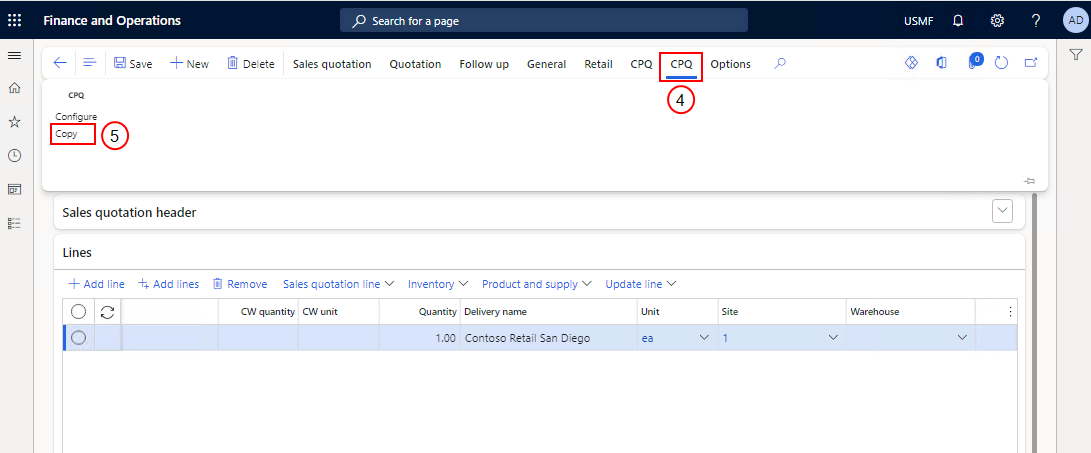
At the top, select CPQ.
-
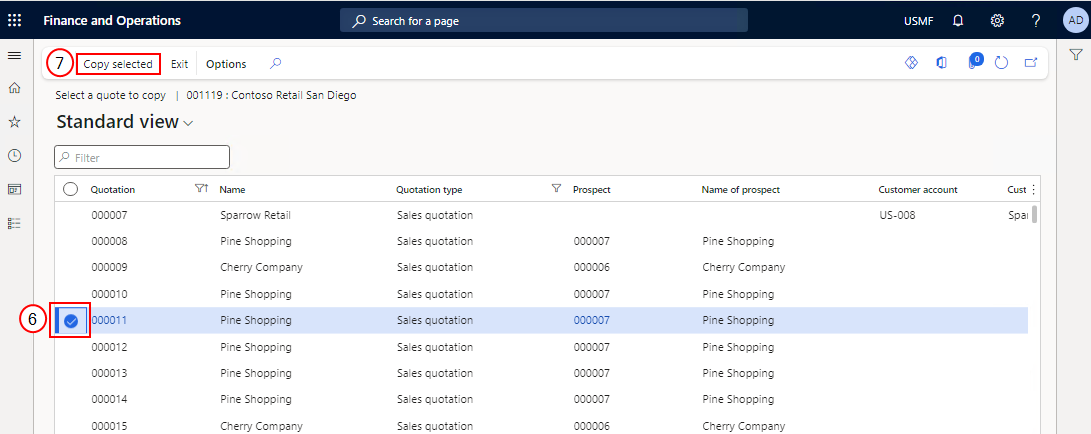
From the CPQ options, select Copy. The Select a quote to copy page displays.
-
From the available projects, select a Quotation.
-
Select the Copy selected button.
The sales quotation is copied and CPQ opens in a new browser tab.
Copy Selection Form for Project
Use the following steps to copy an existing project record.
-
In Microsoft Dynamics 365 F&O, at the top, search for All Projects.
-
From the search results, select All Projects. The All projects page displays.
-
Select a Project to open the Projects page. The Projects page displays.
-
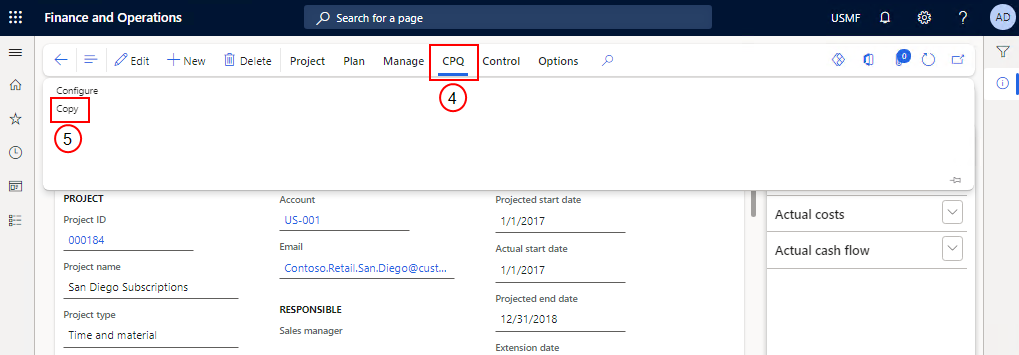
At the top, select CPQ.
-
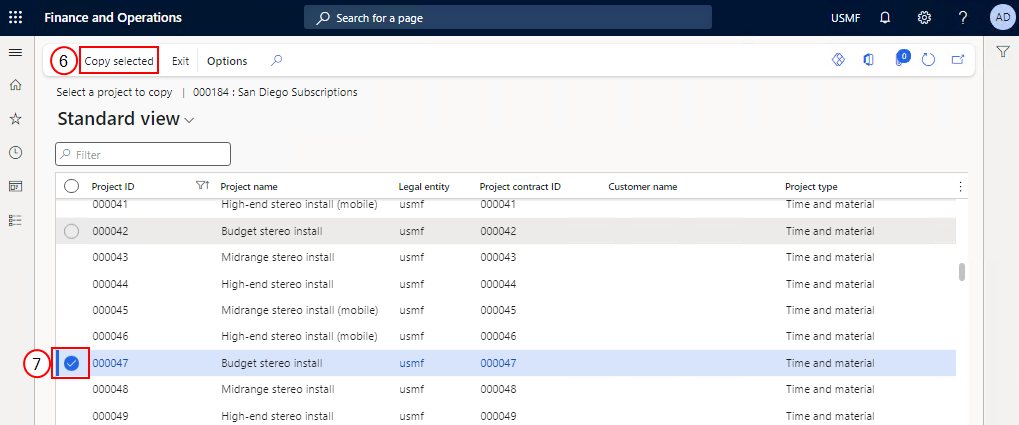
From the CPQ options, select Copy. The Select a project to copy page displays.
-
From the available projects, select a Project ID.
-
Select the Copy selected button. The Project is copied, displaying the page with a link to open CPQ.
-
Select the Open CPQ in a new tab button.
The Project is copied and CPQ opens in a new browser tab.
Copy Selection Form for Project Quotation
Use the following steps to copy an existing project quotation record.
-
In Microsoft Dynamics 365 F&O, at the top, search for Project quotations.
-
From the search results, select Project quotations. The Project quotations page displays.
-
Select a Quotation to open the project page. The Project quotations page displays.
-
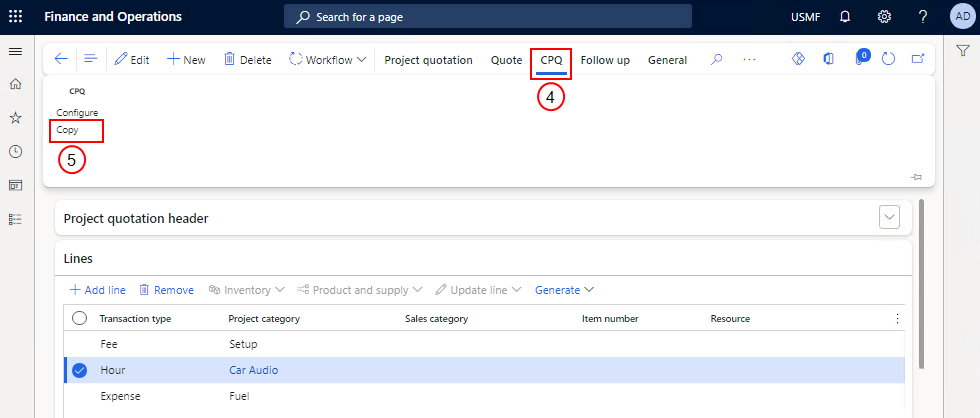
At the top, select CPQ.
-
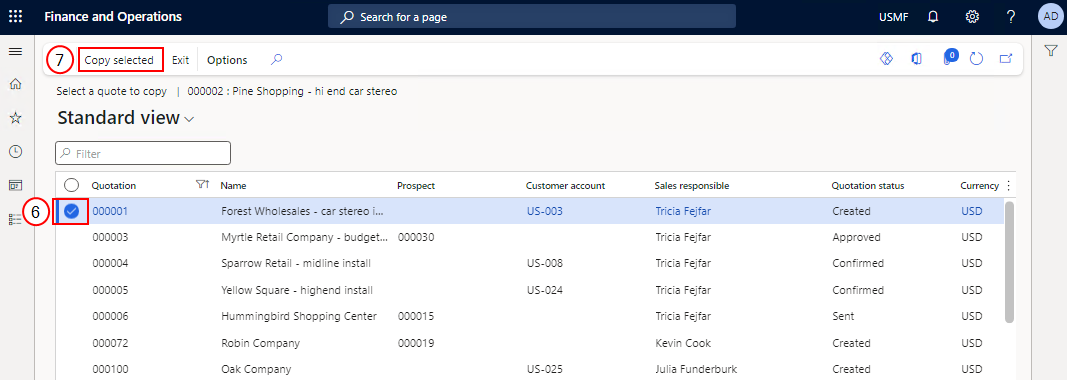
From the CPQ options, select Copy. The Select a quote to copy page displays.
-
From the available projects, select a Quotation.
-
Select the Copy selected button.
The project quotation is copied and CPQ opens in a new browser tab.