
The standard behavior of the Configure button in Dynamics 365 Finance & Operations is as follows:
-
Locate the root table of the form.
-
Identify the related Data Entity using the associated Processing Entity form.
-
Launch the Configurator using that Data Entity.
This logic applies to most forms, except for the Project Quotation and Sales Quotation forms, which require special handling.
Project Quotation / Sales Quotation Header Special Handling
The Configure buttons on the Project Quotation and Sales Quotation forms are implemented differently due to overlapping root tables. Both ProjQuotationHeaderEntity (Project Quote) and SalesQuotationHeaderEntity (Sales Quote) use the same root table: SalesQuotationTable. The standard Configure button logic typically selects a Processing Entity based on this root table, but since both entities share the same root table, the system cannot automatically distinguish between them.
To solve this, a parameter was added to the Configure button on both forms. This parameter explicitly defines which Processing Entity to use:
-
Project Quotation form: uses
ProjQuotationHeaderEntity -
Sales Quotation form: uses
SalesQuotationHeaderEntity
This ensures the correct configuration process is triggered based on the context of the form.
Customizing Configure Button Behavior
If you need a Configure button that uses a different Processing Entity, follow these steps:
-
Copy the existing CPQ (Configure Price Quote) button.
-
Change the Parameters value to reference the name of the desired Processing Entity.
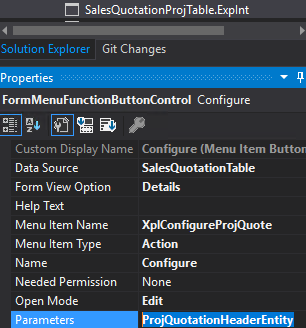
This approach allows for flexible configuration tailored to specific scenarios.