
Microsoft Dynamics 365 F&O administrators can enable batch processing at the company level to save configurations asynchronously. Using batch processing can improve the user experience for Configurators whose process documents are large enough that saving to the host system in a synchronous manner presents an inconvenience to the Configurator user. For instructions on enabling batch processing, see Enable Batch Processing.
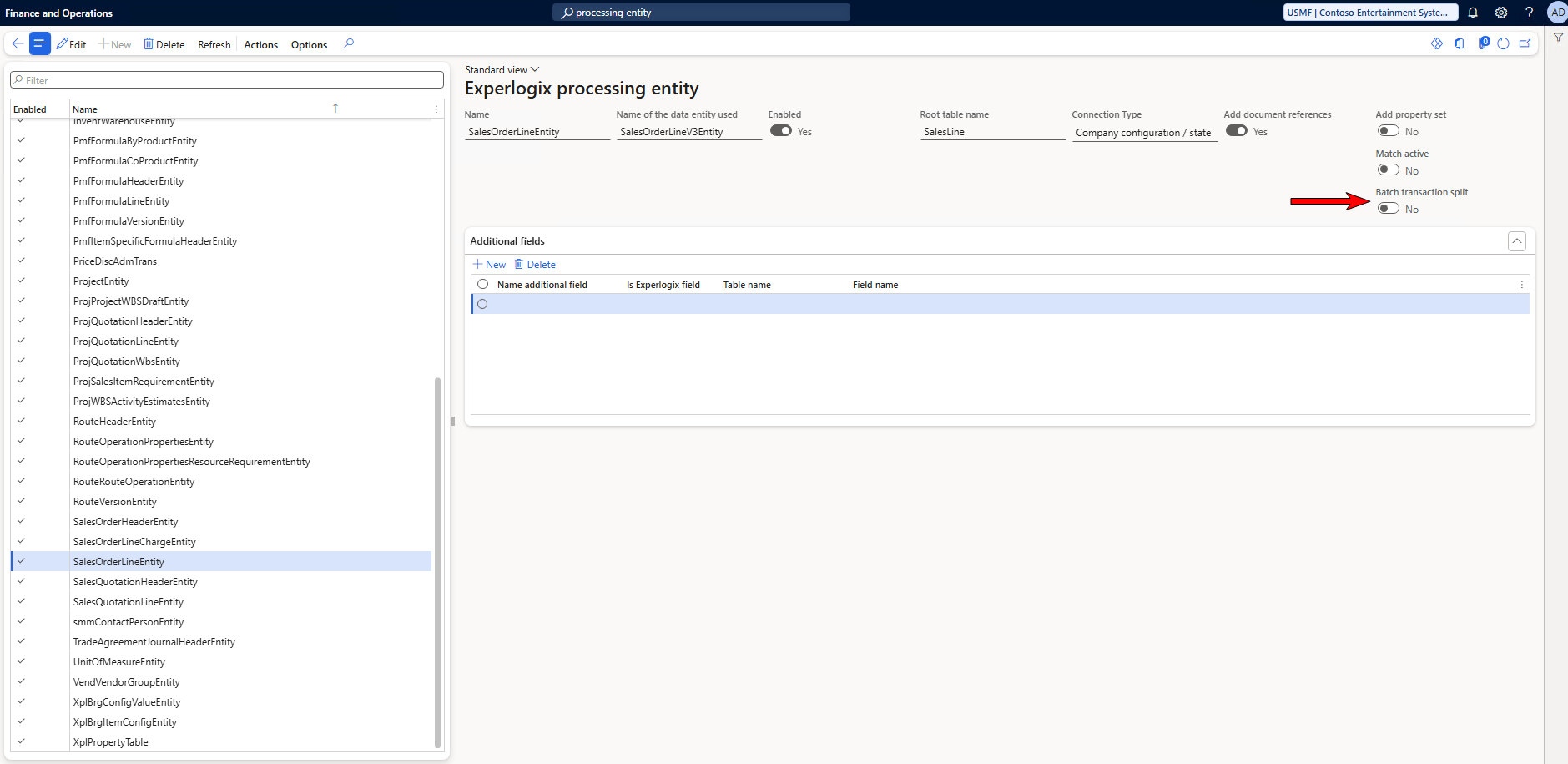
Batch processing is transactional, meaning that if the job is not completed for any reason, the entire transaction is rolled back to its previous state. Normally, batch processing occurs in a single transaction, but, by enabling Batch Transaction Split on a processing entity (see image below) and adding a value for Batch Transaction Split Threshold on the Experlogix Parameters page, you can split the batch processing into multiple timed segments. See Experlogix Parameters for more information.
Simultaneous Batch Process Request Handling
Experlogix's implementation of batch processing expects batch jobs to be initiated under a variety of circumstances. You may add a configuration to the processing queue under the following circumstances:
-
The configuration is not known in the queue yet.
-
There's no configuration for the same entity and index with a process state save failure.
-
The configuration exists in the processing queue, but there's no batch job with a status of Executing or Partial success.
Configuration Batch Process Page
You can use the Configuration Batch Process Page to view and work with existing batch processes.

|
Index |
Name |
Description |
|---|---|---|
|
1 |
Edit |
Allows you to alter the system-generated name of the batch process. |
|
2 |
Delete |
Deletes the selected batch process record. |
|
3 |
Show error |
If the selected batch process is in an error state, provides details on the error. |
|
4 |
Save process state |
Send the process state to the integration API, effectively resaving the configuration. |
|
5 |
Process in batch |
Manually restarts the selected batch process record when applicable. See Manually Execute a Batch Process for more information. |
|
6 |
Options |
Opens a sub-menu of options relating to other Microsoft Dynamics 365 F&O functionality, such as creating alerts or filtering the table. |
|
7 |
Batch process record |
Displays information about current and previous configuration batch processes. |
Procedures
Enable Batch Processing
This section provides step-by-step instructions for enabling batch processing in Microsoft Dynamics 365 F&O. It also covers how to access the Configuration Batch Process page to manage and monitor batch processes.
-
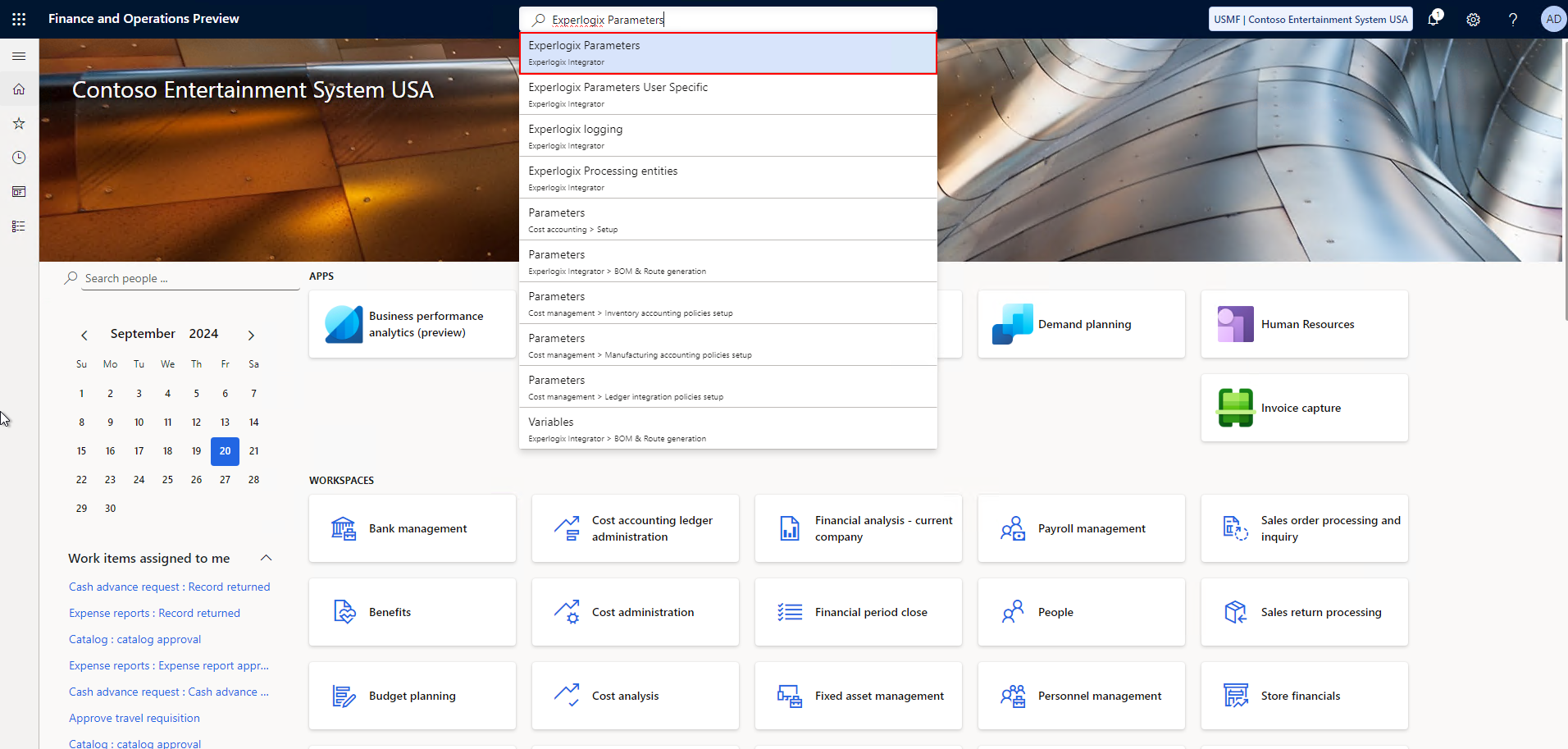
In Microsoft Dynamics 365 F&O, search for and navigate to the Experlogix Parameters page.
-
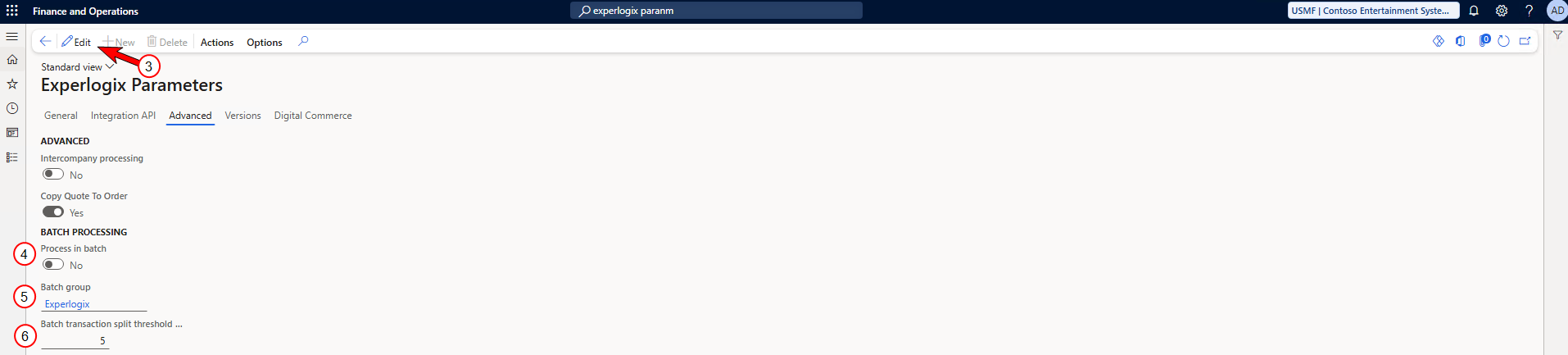
Select the Advanced tab.
-
Select the Edit button.
-
Set Process in batch to Yes.
-
Specify a Batch Group to use.
Batch groups allow Microsoft Dynamics 365 F&O users to categorize tasks and run batch jobs on specific servers to segregate data or prioritize certain groups of batch processes. For more information on Batch groups, see Microsoft's Batch processing overview and Microsoft's Batch Processing and Batch Servers.
-
If you want your batch processes split into multiple time-locked transactions, specify the number of seconds each transaction should be limited to in the Batch Transaction Split Threshold parameter.
While the Batch Transaction Split Threshold parameter provides the time segment by which batch process will be divided, the Batch Transaction Split toggle must be set to Yes on the individual processing entity if you wish for the batch processes to be split. Otherwise, batch processing will still occur in a single transaction.
-
Save your settings.
Batch processing is now enabled for your Microsoft Dynamics 365 F&O environment company-wide.
Manually Execute a Batch Process
You may select a record on the Configuration Batch Process page and start a batch job for it without having to open the Configurator and resave the configuration. If a previous version of the configuration record is in process, the system will queue the manual batch job until the initial job is completed. If the previous version is in an error state due to an API failure, the system notifies the user when they attempt to initiate the job manually.
If the user selects multiple records or does not have the required user role, Experlogix Administrator, the Process in batch button will be disabled.
-
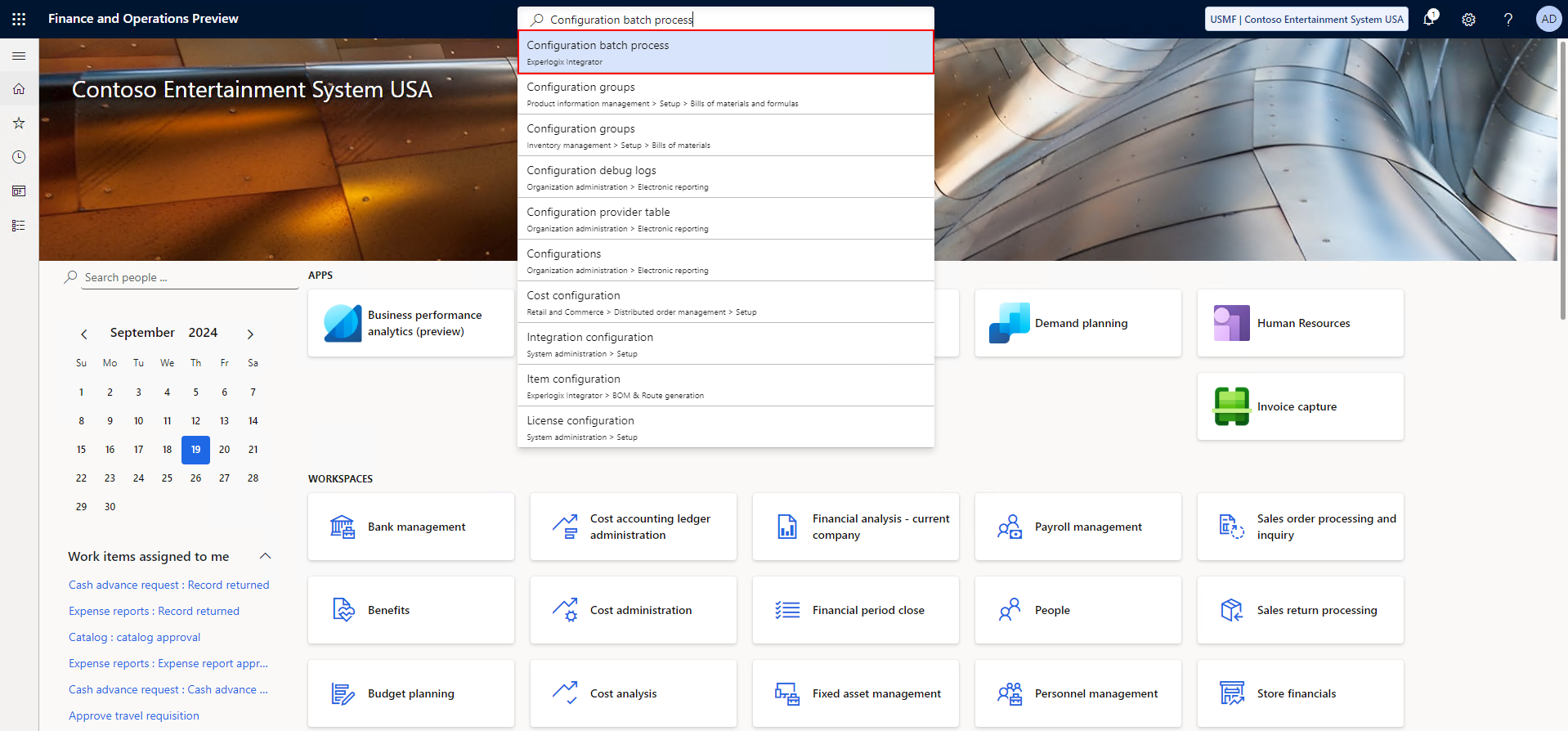
In Microsoft Dynamics 365 F&O, search for and navigate to the Configuration Batch Processing page.
-
Select a batch process record.

-
Select the Process in batch button.
The Process in batch button is disabled if an the record currently has a Process Status of Partial success.
Statuses and Exception Handling
Due to the asynchronous nature of batch processing, monitoring and troubleshooting the process can be more complex. There are two statuses you use to understand what's happening with a batch processing request:
|
Status Type |
Description |
|---|---|
|
Batch Status |
|
|
Process Status |
|
Errors
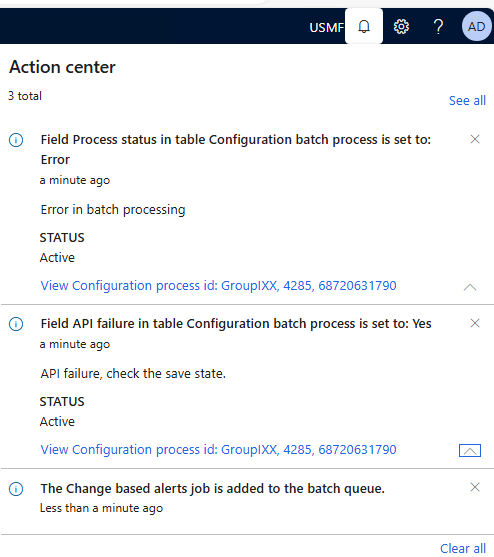
Errors can arise as processing is happening in the background and after the user has moved on to other actions. It's important to understand when and where errors may present themselves. Generally speaking, errors are displayed in the Configurator or in Microsoft Dynamics 365 F&O's Action center.
|
Error Occurrence |
User Experience |
|---|---|
|
In the integration API, before passing the request to Microsoft Dynamics 365 F&O |
This portion of the save process is synchronous, like the more traditional form of processing, therefore the Configurator user is informed immediately that an exception happened. |
|
In the Configurator, while a batch job for the record is currently being processed |
This will result in an error message in the Configurator, informing the Configurator user that it was not possible to save the configuration. |
|
During the execution of the batch job |
At this point, direct interaction with the user is not possible. The exception details are stored with the failed batch job in Microsoft Dynamics 365 F&O and an error message is added in the Action center. |
|
After the processing was successful, but the process state could not be saved |
This will result in an error message in the Configuration batch process record in Microsoft Dynamics 365 F&O and an error in the message in the Action center. Until the issue is resolved, the Configurator user may not save a new configuration for the same entity and recordid. |
It is possible to set up notifications / messaging when an error occurs during processing using Microsoft Dynamics 365 F&O alerts. See Microsoft's documentation on creating alerts for more information.
Add a Status Button
When batch processing is used it is possible to retrieve the status of the batch(es) linked to a Sales Order, Sales Quotation, Project Quotation or Project. This section describes what button to add to both standard and custom forms and how to parametrize it.
To create a status button, add a Menu Item Button to the desired form. This button should link to Menu Item: XplStatusCheck (type: Action). The Data Source should be filled with the table that is the Root table of the Context used to open the Configurator.
For example, when configuring Sales Orders, the Context used in the Process Design will be SalesOrderHeaderEntity. The root table of this entity is SalesTable, which implies that the SalesTable must be set in the Data Source property of the Button on the form.
It may be that multiple entities use the same root table. In that case, the button should have as value of the property Parameters set to the ID of the Processing Entity being used.
For example, SalesQuotationTable is the Root table of both SalesQuotationHeaderEntity and ProjQuotationHeaderEntity. If the status of a batch that processes a Project Quotation should be retrieved, use ProjQuotationHeaderEntity as the value in the property Parameters.
-
Adding a status button is an advanced operation that is usually performed by developer or experienced users.
-
Upon selecting the Status button, the corresponding form automatically refreshes and dsiplays all the results from processing.