
With the installation of the Experlogix integrator, several settings forms are added to your Microsoft Dynamics 365 F&O environment. The settings include connection parameters, authentication/authorization details, and various methods to adjust the default behaviors of the integration and Cloud Connect Omni tools.
Experlogix Parameters
To find the Experlogix Parameters page, in the Microsoft Dynamics 365 F&O search bar, search for and select Experlogix Parameters (Experlogix Integrator > Experlogix Parameters).
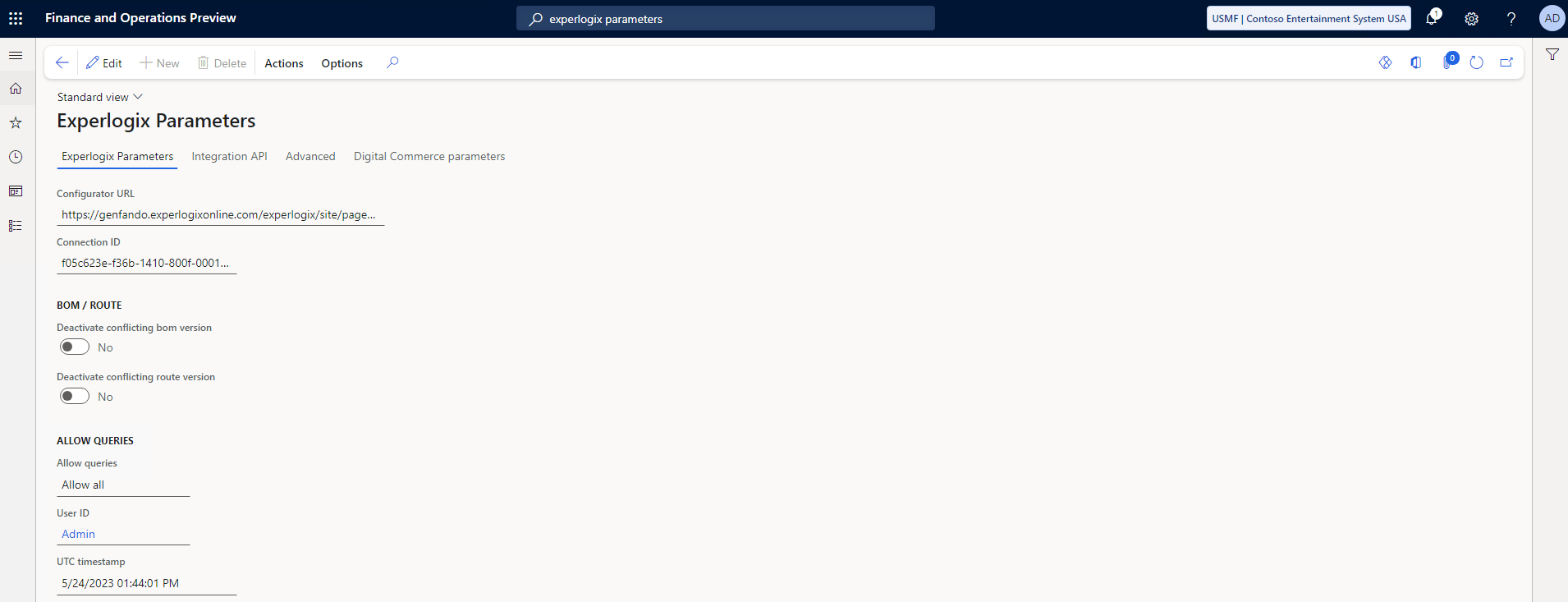
Experlogix Parameters Main Tab
The main tab of the Experlogix Parameters page includes connection parameters and settings related to BOM, route, and query behavior.
|
Field/Setting |
Description |
|---|---|
|
Configurator URL |
Specifies the URL to launch the Configurator from configurable entities in Microsoft Dynamics 365 F&O. |
|
Connection ID |
Specifies the Connection ID derived from the string on the Admin Center Integrations Connections Tab. |
|
Deactivate conflicting bom version |
If Yes, when a new BOM is active, any BOMs of the same version are deactivated. |
|
Deactivate conflicting route version |
If Yes, when a new route is made active, any routes of the same version are deactivated. |
|
Allow queries |
Indicates in queries against the host Microsoft Dynamics 365 F&O environment are permitted. Options include:
|
|
User ID |
States the user that changed the 'Allow queries' field/setting. |
|
UTC Timestamp |
Displays a timestamp for the last time the query settings were altered. |
Integration API
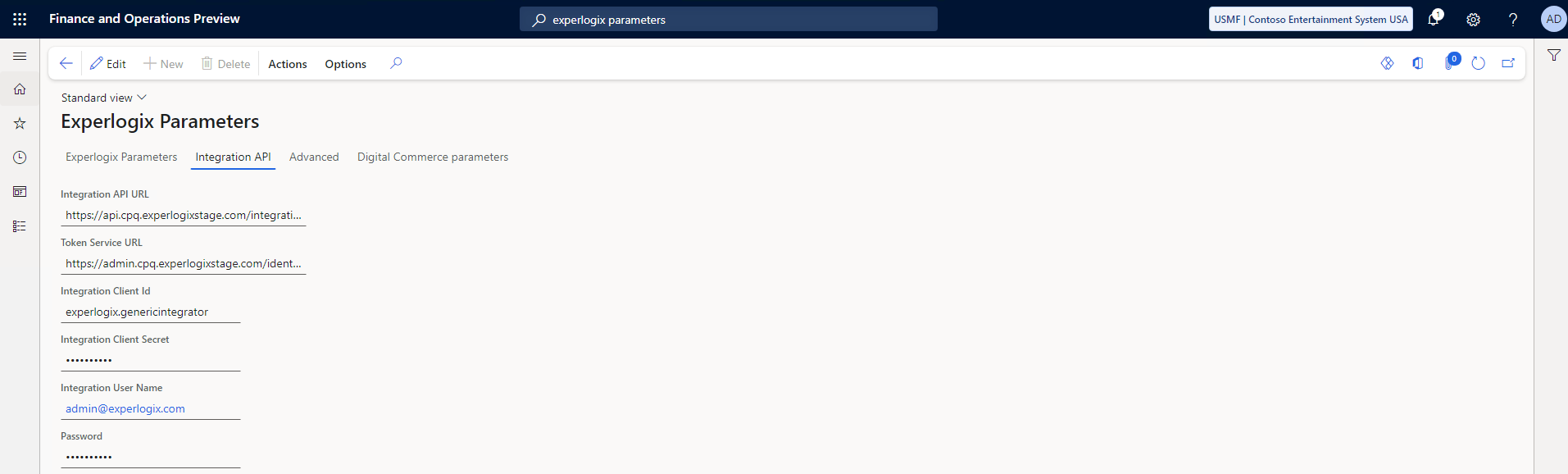
The Integration API tab includes API URLs and authentication/authorization details.
|
Field |
Description |
|---|---|
|
Integration API URL |
Specifies the URL used to issue requests to the Integration API |
|
Token Service URL |
Specifies the URL used to issue requests to the Identity API |
|
Integration Client Id |
Specifies the ClientID associated with the integration. This value comes from the Manage Client Id page in Admin Center. If this value and Integration Client Secret are present and neither Integration User Name or Password are present, grant type client_credentials is used for authentication. |
|
Integration Client Secret |
Specifies the Client Secret associated with the integration. This value comes from the Manage Client Id page in Admin Center. If this value and Integration Client Id are present and neither Integration User Name or Password are present, grant type client_credentials is used for authentication. |
|
Integration User Name |
Specifies the user name used by the integration. This must match the service account user name used for the Admin Center. If either this value or Password is present, grant type password is used for authentication. |
|
Password |
Species the password used by the integration. This must match the service account password used for the Admin Center . If either this value or Integration User Name is present, grant type password is used for authentication. |
Authentication Type Logic
If Password or Integration Username is empty then granttype client_credentials are used, otherwise granttype password is used. You may empty either field to switch to client_credentials authentication.
Advanced
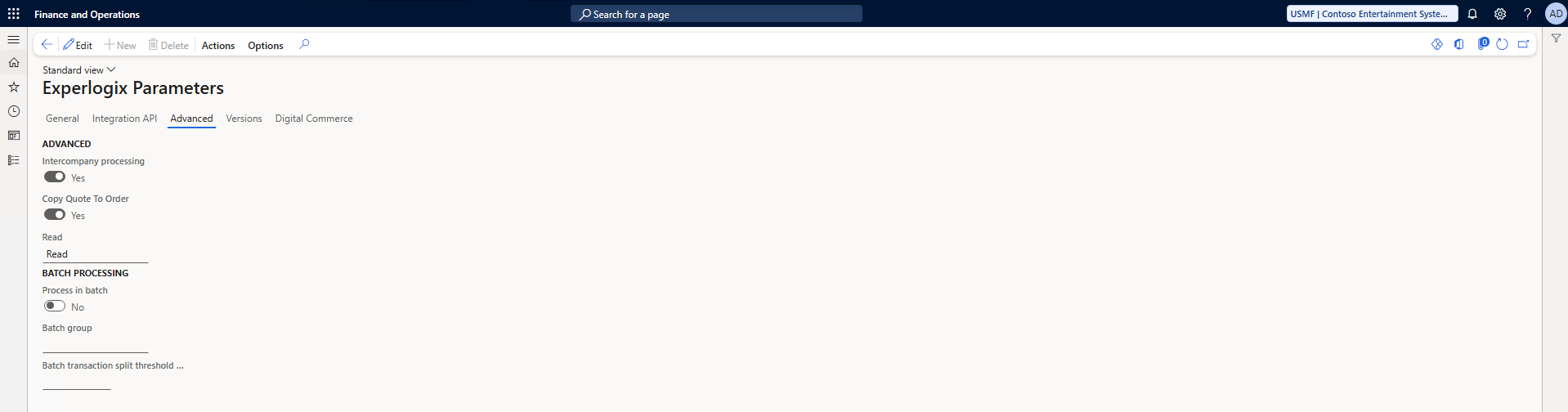
The Advanced tab includes settings related to Microsoft Dynamics 365 F&O batching behavior.
|
Field/Setting |
Description |
|||||||||||||||
|---|---|---|---|---|---|---|---|---|---|---|---|---|---|---|---|---|
|
Intercompany processing |
If Yes, allows the Cloud Connect processor to create information in multiple Companies in the same Process Document. |
|||||||||||||||
|
Copy quote to order |
If Yes, when generating a sales order from a quote, any configurations on the quote are copied to the sales order automatically. Creating a sales order from a quote is standard Microsoft Dynamics 365 F&O functionality. Experlogix simply uses this action as a trigger for copying configuration data if the Copy quote to order parameter is set to Yes. Create a Sales Order from a Quote
Log records are generated for the copy sales quote to order process. They can be viewed in the logger. 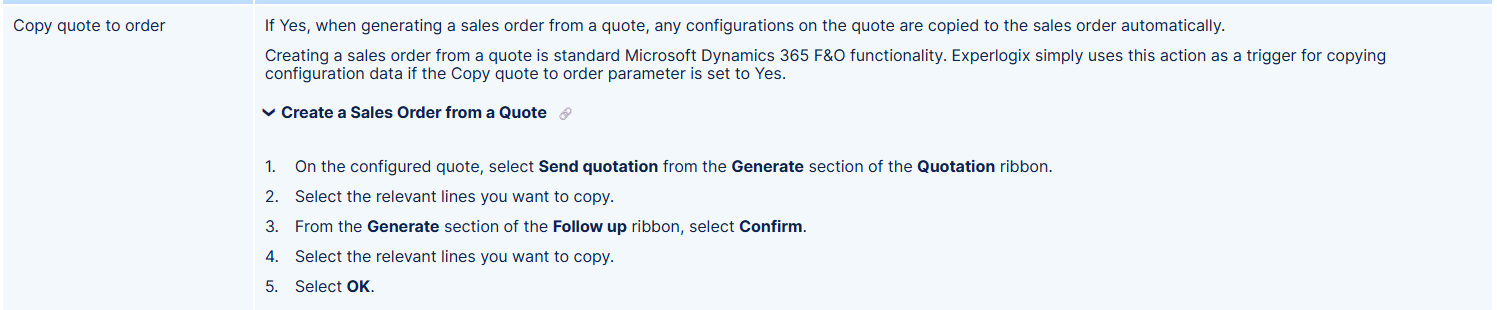
|
|||||||||||||||
|
Read |
Controls the behavior on a read action in the Process Document. Options include:
|
|||||||||||||||
|
Process in batch |
If Yes, it allows sufficiently large configurations to be batched and processed asynchronously. |
|||||||||||||||
|
Batch group |
Specifies which group configuration batch jobs are assigned to. |
|||||||||||||||
|
Batch transaction split threshold (sec) |
After this number of seconds, the batch process will commit the transaction and start a new one. This will only occur on detail level of a master-detail relation when the master process entity has "Batch transaction split" enabled. |
Digital Commerce Parameters
The Digital Commerce parameters tab includes settings related to the Microsoft Dynamics 365 F&O integration with Experlogix Digital Commerce using Cloud Connect.

|
Setting |
Description |
|---|---|
|
Calculate sales order totals |
If Yes, Microsoft Dynamics 365 F&O calculates the sales order total after adding a sales order header record. |
|
Calculate sales quotation totals |
If Yes, Microsoft Dynamics 365 F&O calculates the sales quotation total after adding a sales quotation header record. |
Global BOM Route Generator Parameters
To find the global BOM Route Generator parameters, in the Microsoft Dynamics 365 F&O search bar, search for and select Global Parameters (Experlogix Integrator > BOM & Route generation > Global Parameters).

|
Parameter |
Definition |
|---|---|
|
Configuration variable value versioning |
If Yes, creates a new version of the variables and values every time data get saved to the Experlogix Item Config table. |
|
Allow automated processing |
Specifies whether or not automatic BOM Route Generator processing is done after a save and close of the Configurator. Must be set to Yes in order for the BOM Route Generator to function. |
Company-Specifc BOM Route Generator Parameters
To find the global BOM Route Generator parameters, in the Microsoft Dynamics 365 F&O search bar, search for and select Parameters (Experlogix Integrator > BOM & Route generation > Parameters).
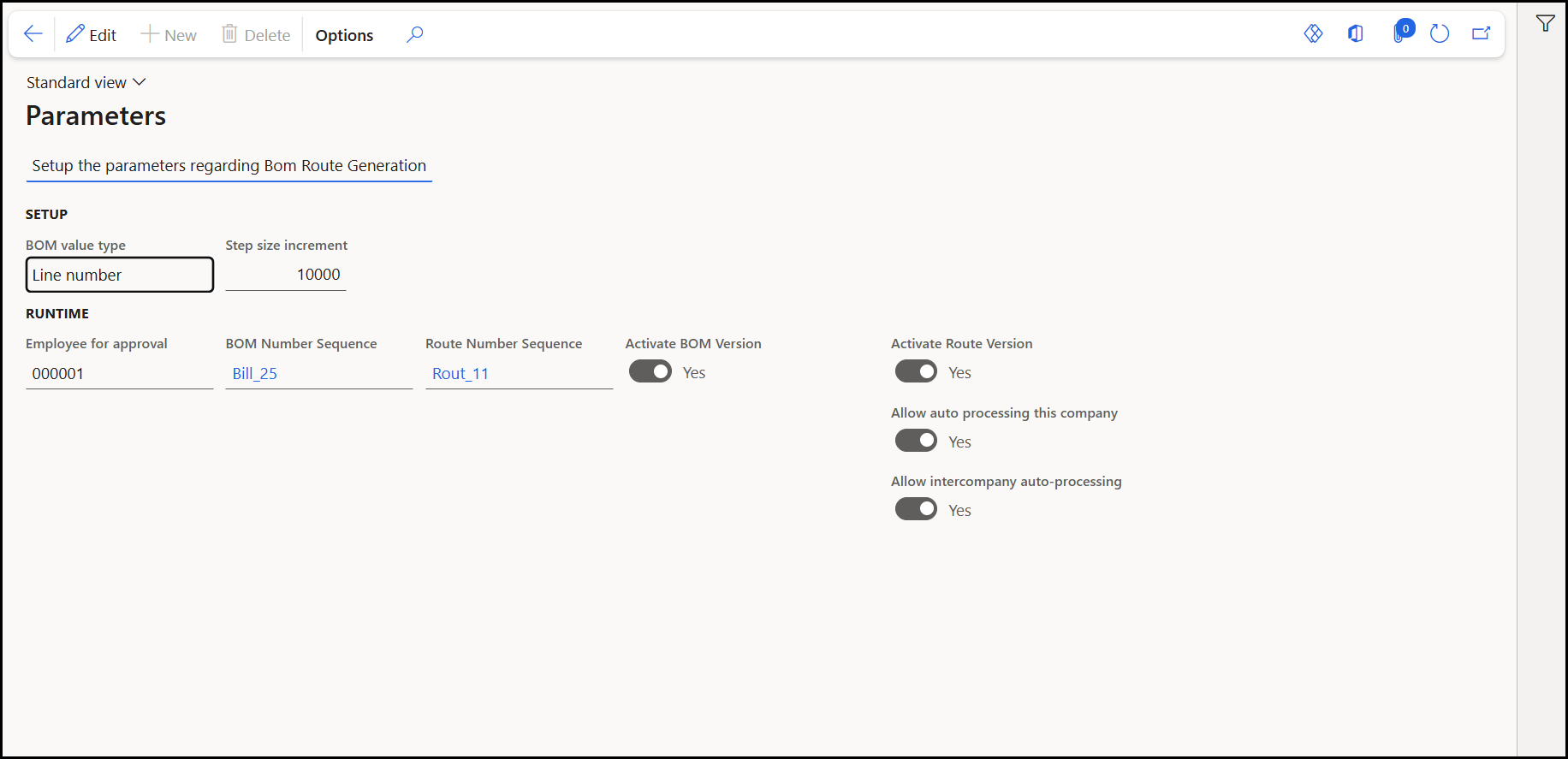
|
Sections |
Parameter |
Definition |
|---|---|---|
|
SETUP |
BOM value type |
Specifies the type by which the link between the BOM line and the BOM values will be defined. Options include:
BOM value type is the key which links the BOM lines from your configuration to the Microsoft Dynamics 365 F&O BRG BOM Values. When changing BOM value types, you must migrate all your existing BOMs to the new type. Search for and select the Migrate BOM Values action (Experlogix Integrator > BOM & Route Generation > Periodic). If the type is unchanged and no BOM migration is needed, you will receive the following notification in Microsoft Dynamics 365 F&O's Action Center: "Bom value has not change: migration is not needed." Otherwise, the Action Center notification informs you when the migration has been completed successfully. |
|
Step size increment |
Specifies the value by which the new lines on the BOM and/or Route value form will increment. |
|
|
RUNTIME |
Employee for approval |
Specifies the user that serves as an approver for BOMs and routes. |
|
BOM Number Sequence |
Specifies the number sequence used when the BOM Route Generator creates new BOMs. |
|
|
Route Number Sequence |
Specifies the number sequence used when the BOM Route Generator creates new routes. |
|
|
Activate BOM Version |
Allows the administrators to control whether the BOM Route Generator automatically activates newly created BOM Versions during generation. The default value is No. |
|
|
Activate Route Version |
Allows the administrators to control whether the BOM Route Generator automatically activates newly created Route Versions during generation. The default value is No. |
|
|
Allow auto processing this company |
If Yes, on a successful save and close of the Configurator, the BOM Route Generator triggers automatically. |
|
|
Allow intercompany auto-processing |
If Yes, triggers the BOM Route Generator when an intercompany sales order is created in this company. For intercompany auto-processing to work, the Allow automated processing parameter must be set to Yes in the Global BOM Route Generator Parameters. |
BOM Route Generator Logging Settings
Logging for the BOM Route Generator can be enabled on any log/trace by using the toggle on the Experlogix Logging page in Microsoft Dynamics 365 F&O. See Logging for more information.
Best Practices
When setting up the BOM Route Generator, we recommend enabling logging when using the Experlogix BOM Route Generator. Logging ensures that BOM and Route Generation attempts are recorded, which can be useful in troubleshooting any issues that arise. See Logging for more information.
In a production system, logging is discouraged as it has a negative impact on performance.