
BOM Route Generator parameters are located on two separate forms. The Global Parameters page features settings that affect BOM route generation in all Microsoft Dynamics 365 F&O companies while the Parameters form is limited to affecting BOM route generation behavior for the current Microsoft Dynamics 365 F&O company only. This page provides details on all the parameters available in both of these forms as well as information about BOM Route Generator logging.
Global BOM Route Generator Parameters
To find the global BOM Route Generator parameters, in the Microsoft Dynamics 365 F&O search bar, search for and select Global Parameters (Experlogix Integrator > BOM & Route generation > Global Parameters).

|
Parameter |
Definition |
|---|---|
|
Configuration variable value versioning |
If Yes, creates a new version of the variables and values every time data get saved to the Experlogix Item Config table. |
|
Allow automated processing |
Specifies whether or not automatic BOM Route Generator processing is done after a save and close of the Configurator. Must be set to Yes in order for the BOM Route Generator to function. |
Company-Specific BOM Route Generator Parameters
To find the global BOM Route Generator parameters, in the Microsoft Dynamics 365 F&O search bar, search for and select Parameters (Experlogix Integrator > BOM & Route generation > Parameters).
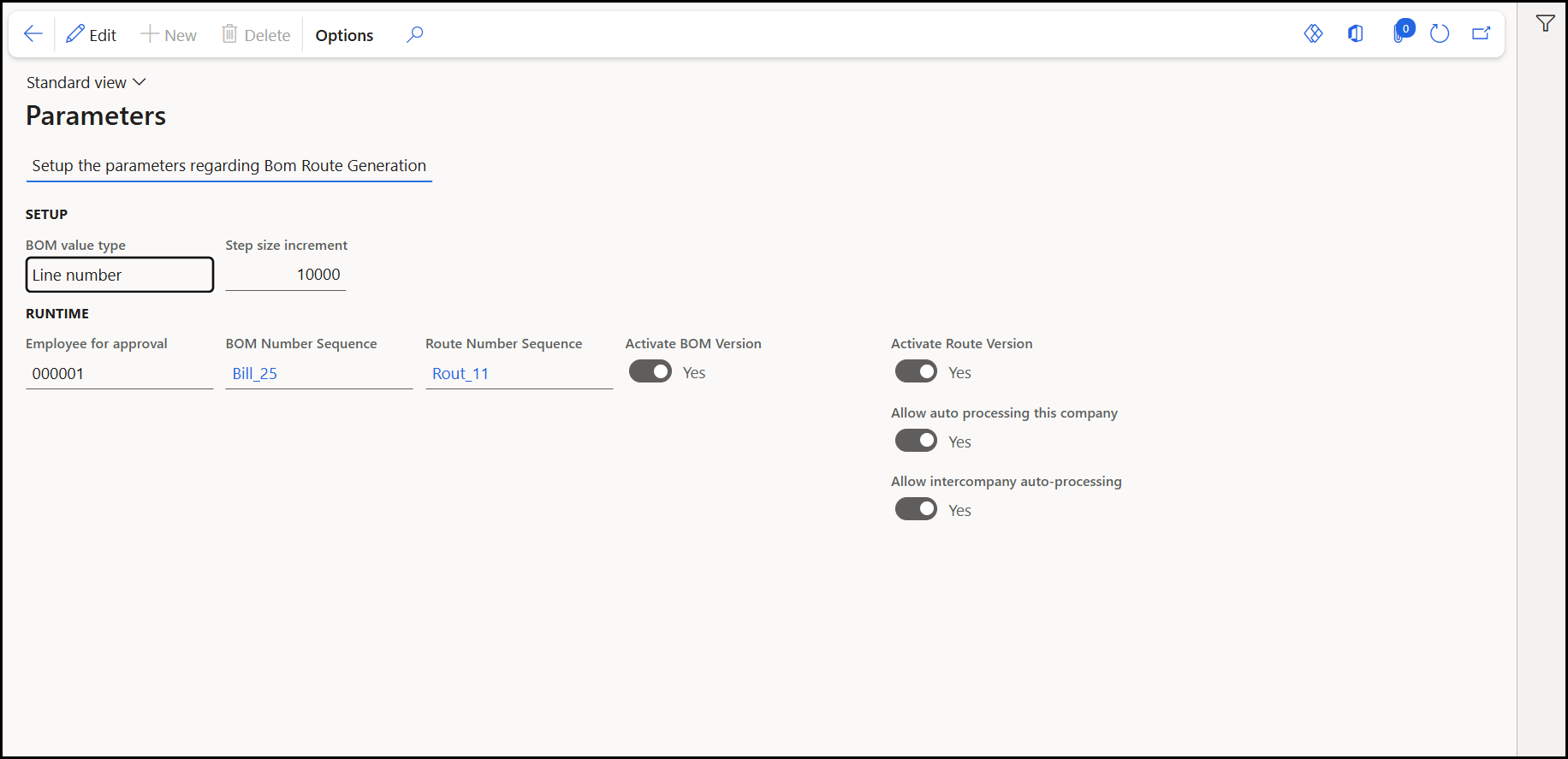
|
Sections |
Parameter |
Definition |
|---|---|---|
|
SETUP |
BOM value type |
Specifies the type by which the link between the BOM line and the BOM values will be defined. Options include:
BOM value type is the key which links the BOM lines from your configuration to the Microsoft Dynamics 365 F&O BRG BOM Values. When changing BOM value types, you must migrate all your existing BOMs to the new type. Search for and select the Migrate BOM Values action (Experlogix Integrator > BOM & Route Generation > Periodic). If the type is unchanged and no BOM migration is needed, you will receive the following notification in Microsoft Dynamics 365 F&O's Action Center: "Bom value has not change: migration is not needed." Otherwise, the Action Center notification informs you when the migration has been completed successfully. |
|
Step size increment |
Specifies the value by which the new lines on the BOM and/or Route value form will increment. |
|
|
RUNTIME |
Employee for approval |
Specifies the user that serves as an approver for BOMs and routes. |
|
BOM Number Sequence |
Specifies the number sequence used when the BOM Route Generator creates new BOMs. |
|
|
Route Number Sequence |
Specifies the number sequence used when the BOM Route Generator creates new routes. |
|
|
Activate BOM Version |
Allows the administrators to control whether the BOM Route Generator automatically activates newly created BOM Versions during generation. The default value is No. |
|
|
Activate Route Version |
Allows the administrators to control whether the BOM Route Generator automatically activates newly created Route Versions during generation. The default value is No. |
|
|
Allow auto processing this company |
If Yes, on a successful save and close of the Configurator, the BOM Route Generator triggers automatically. |
|
|
Allow intercompany auto-processing |
If Yes, triggers the BOM Route Generator when an intercompany sales order is created in this company. For intercompany auto-processing to work, the Allow automated processing parameter must be set to Yes in the Global BOM Route Generator Parameters. |
Automatic BOM and Route Version Activation Setup
-
Before enabling automatic activation, ensure that no overlapping BOM Versions or Route Versions exist.
-
For sales order line generated configurations, this is typically handled automatically because a new product variant is created and assigned to the generated BOM Version and Route Version.
-
For generated sub-BOMs or sub-routes, use the Create product variant feature on the relevant Quantity or Time variable. Ensure that the variable is assigned to a BOM line that generates a BOM and/or Route.
-
The automatic activation functionality only considers valid master BOMs and Routes that contain linked Experlogix data during generation and activation.
-
If activation fails for either the BOM or Route Version, the BOM Route Generator maintains existing transactional behavior by canceling the transaction and returning an error.
BOM Route Generator Logging Settings
Logging for the BOM Route Generator can be enabled on any log/trace by using the toggle on the Experlogix Logging page in Microsoft Dynamics 365 F&O. See Logging for more information.
Best Practices
When setting up the BOM Route Generator, we recommend enabling logging when using the Experlogix BOM Route Generator. Logging ensures that BOM and Route Generation attempts are recorded, which can be useful in troubleshooting any issues that arise. See Logging for more information.
In a production system, logging is discouraged as it has a negative impact on performance.