
Microsoft Dynamics 365 F&O can link records between related but distinct companies, such as a selling company and a manufacturing subsidiary. If a sales order created in a selling company has an item that is delivered by a separate vendor, then Microsoft Dynamics 365 F&O's intercompany capabilities allow the creation of a linked purchase order and the automatic creation of an intercompany sales order in the linked manufacturing company.
These orders (sales order and purchase order in the selling company and the intercompany sales order in the manufacturing company) are all linked together and can be easily managed using the intercompany tracing in the sales order menu bar in Microsoft Dynamics 365 F&O. See Microsoft's Documentation for more information on intercompany records.
When the configuration is written in the selling company, the Experlogix BOM Route generator can use these linked orders to create BOMs and routes in the production company.
Throughout this article, companies will be referred to as having the following two roles in the intercompany BOM/route generation process:
-
Sales company: The company where the initial configuration of a sales order occurs
-
Manufacturing company: The company where the sales order is created as a result of the purchase order in the Sales company. BOM/route generation occurs in this company. In the end, the generated BOM/route will be used in this company to create a production order.
Requirements
To use intercompany BOM/route generation, the following must be true:
-
BOM/route generation is set up in the manufacturing company. See and Set up Cloud Connect for Microsoft Dynamics 365 F&O for more information on setting up and using BOM/route generation. See BOM Route Generation Parameters for information on relevant settings that affect BOM Route Generator behavior.
-
The manufacturing company is set up as a vendor in the sales company. See Microsoft's Set up vendors, customers, and items for intercompany trade article for more information.
-
The sales company is set up as a customer in the manufacturing company. See Microsoft's Set up vendors, customers, and items for intercompany trade article for more information.
-
In the sales company, the configured product master must be released and have the vending company listed in its Vendor field.
Intercompany BOM/Route Flow
Once your Microsoft Dynamics 365 F&O environment setup meets the Requirements outlined above, intercompany BOMs/route generation is possible, but not automatic. For each configuration, you must follow a specific Microsoft Dynamics 365 F&O workflow to create the Purchase order in the sales company, Sales order in the manufacturing company, and generate the BOMs/routes in the manufacturing company.
Experlogix intercompany BOM/route generation leverages existing Microsoft Dynamics 365 F&O intercompany functionality. The process outlined below is intended to serve as a general guide rather than an exact set of steps. The process may vary slightly depending on your business needs.
-
Use the Configurator to create a configuration on a Sales order.
-
Release the created product(s):
-
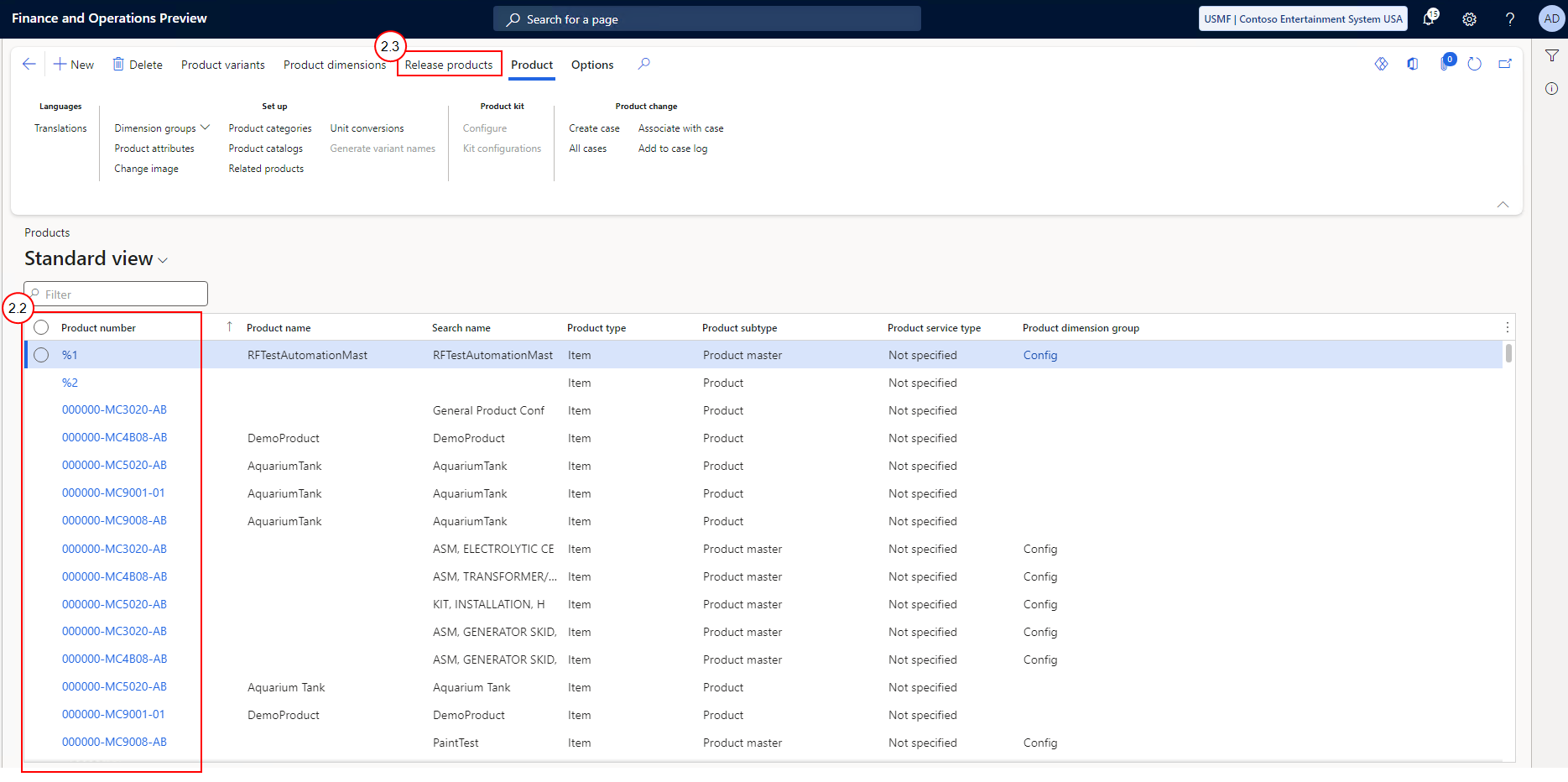
Navigate to the All products and product masters page.
-
Select the product(s) you want to release.
-
Select Release products and follow the wizard to release the product variant(s) to the manufacturing company.
-
-
Derive a Production order from the Sales order:
-
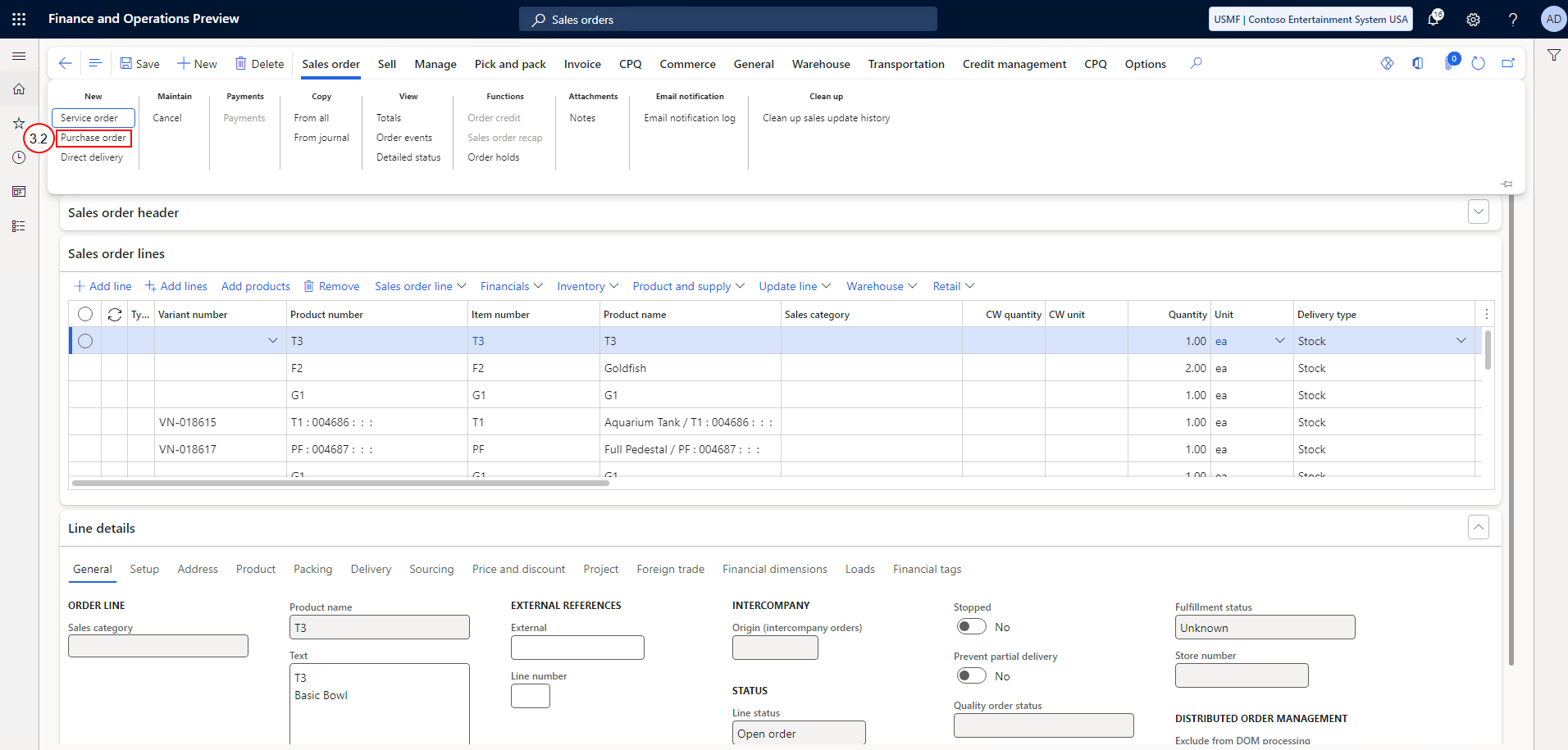
Open the Sales order where you want to generate a BOM/route.
-
From the Sales order ribbon, select Purchase order.
-
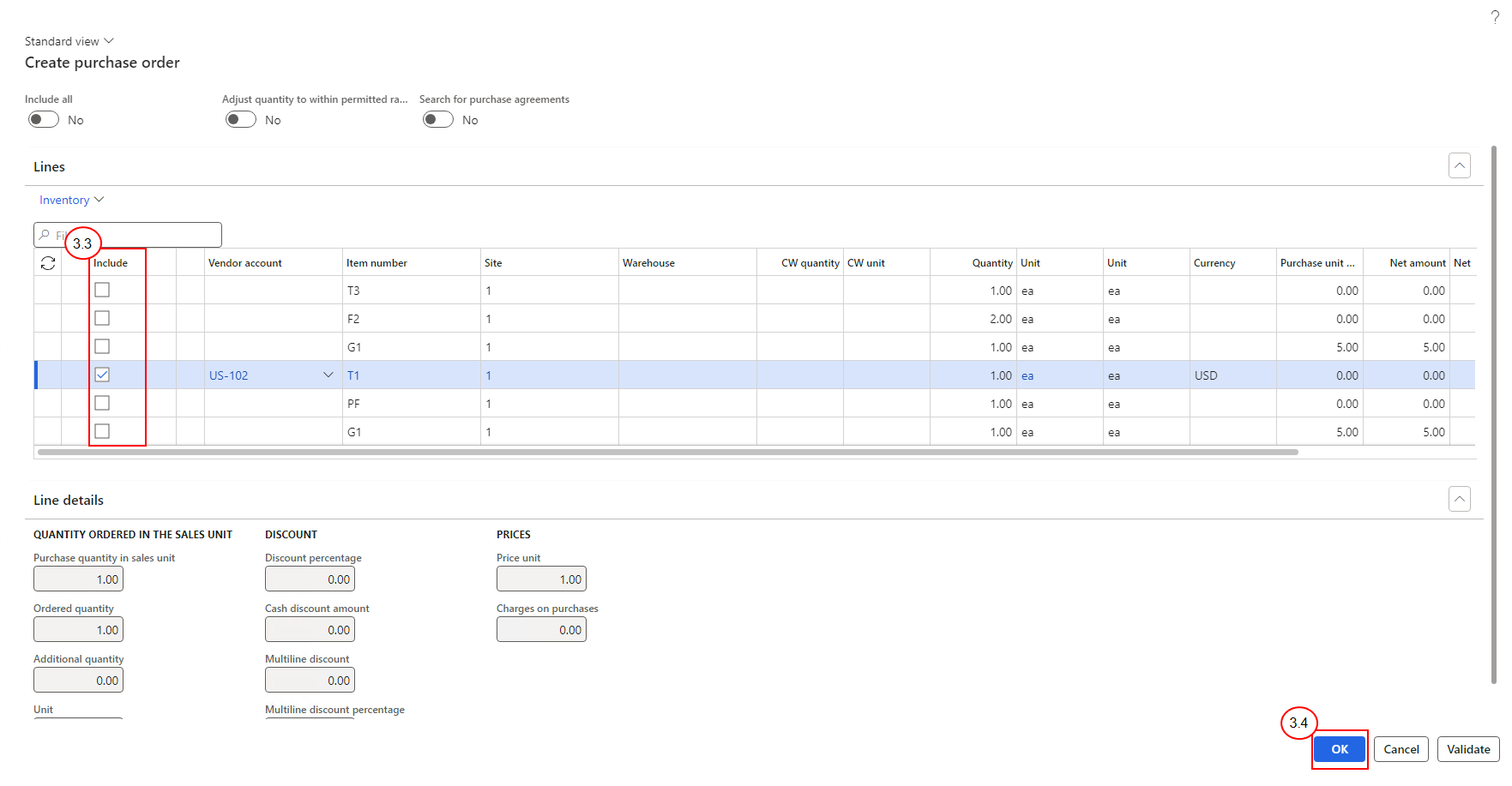
Select the checkboxes for each line you would like added to the Purchase order.
-
Select OK to create the Purchase order and trigger the creation of an intercompany Sales order in the manufacturing company.
-
Enabling automatic intercompany processing in Microsoft Dynamics 365 F&O
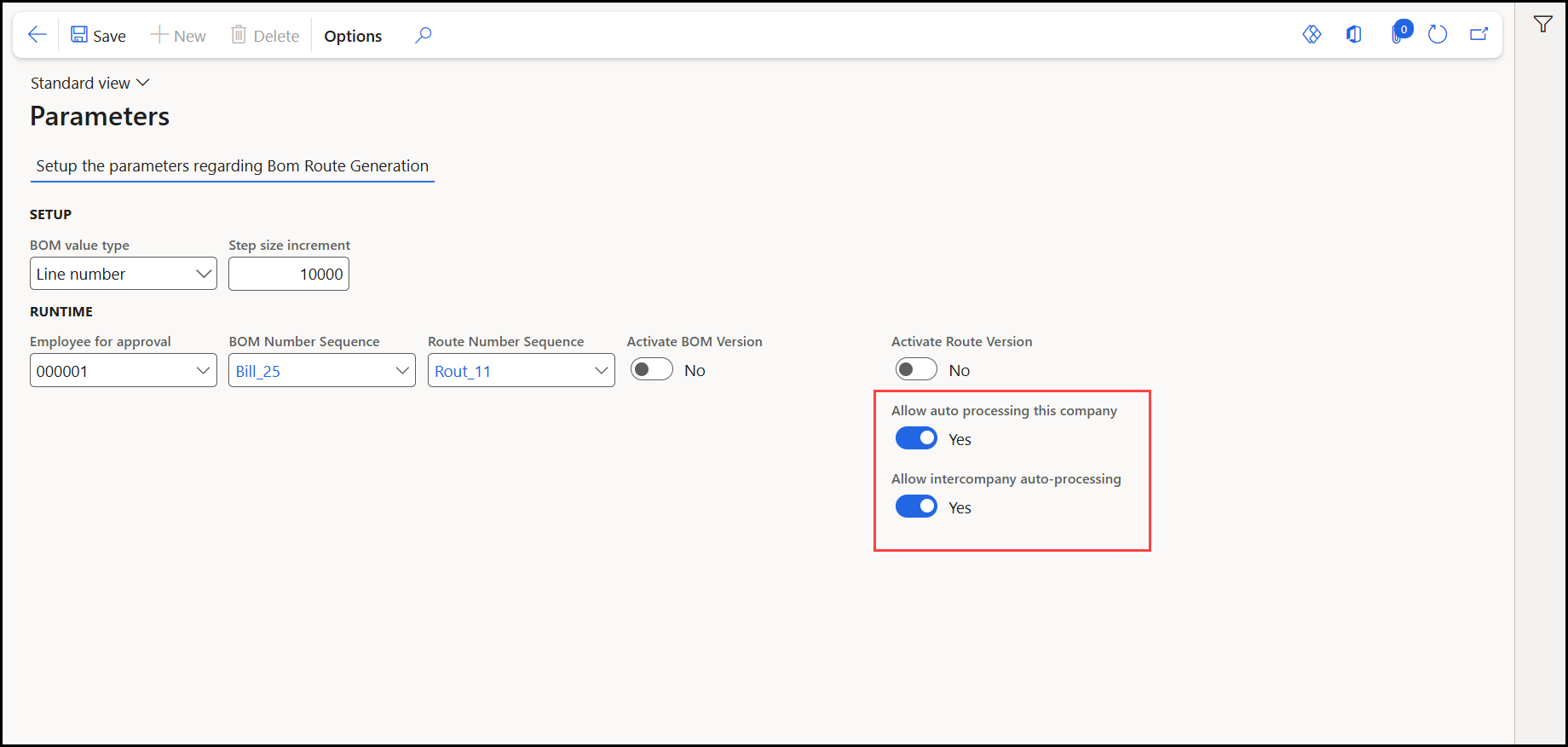
If on the Experlogix Integrator > BOM & Route Generation > Parameters page, Allow intercompany auto-processing is set to Yes and the global parameter Allow automated processing is set to allow auto-generation, the BOM/Route generator triggers when an intercompany sales order is created in the manufacturing company. For more details on these settings, see Triggering the Experlogix F&O BOM Route Generator After Processing a Configuration.
-
If you do not have automatic generation configured, generate the BOM/routes in the manufacturing company:
-
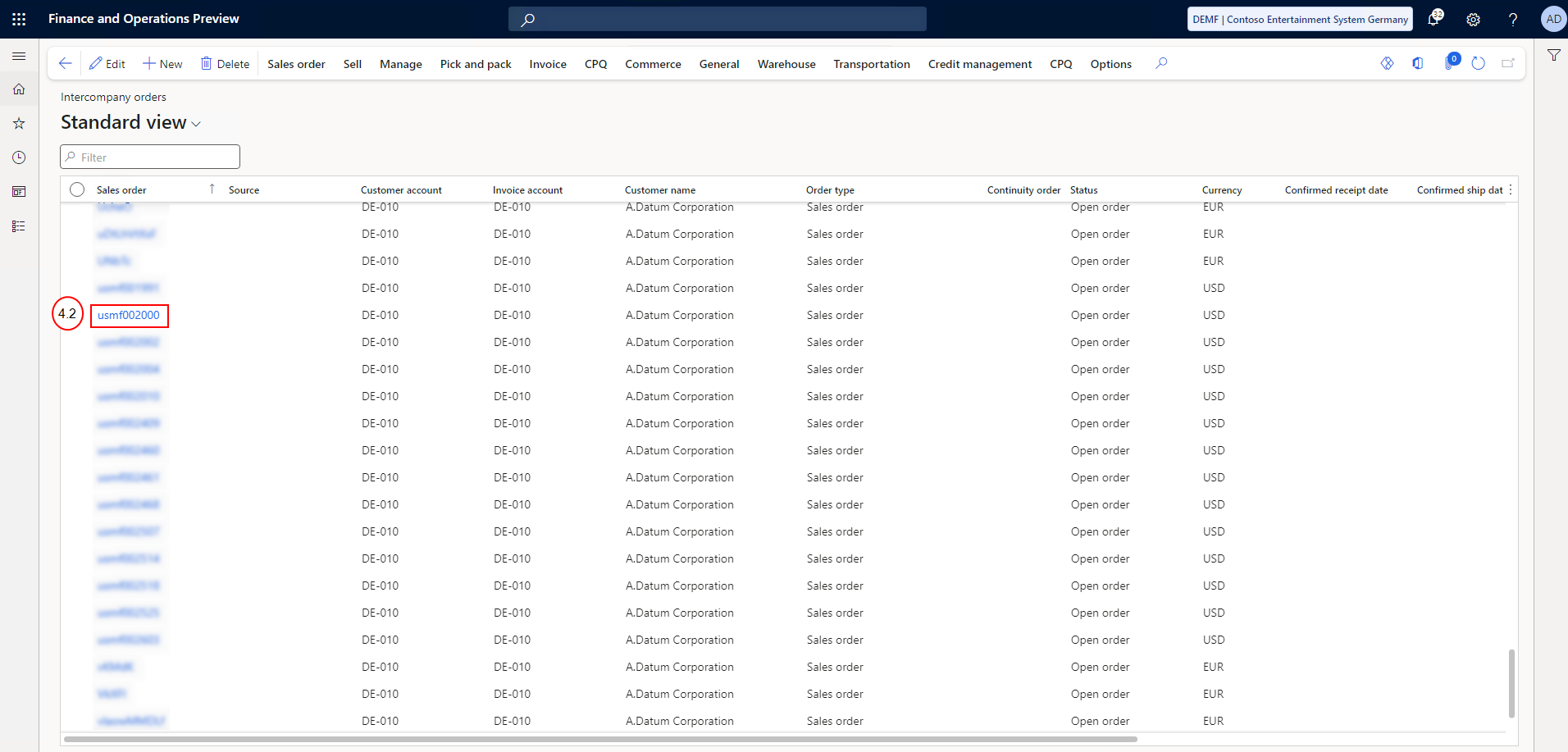
In the manufacturing company, navigate to Intercompany orders.
-
Select the Sales order for which you want to generate a BOM/route.
-
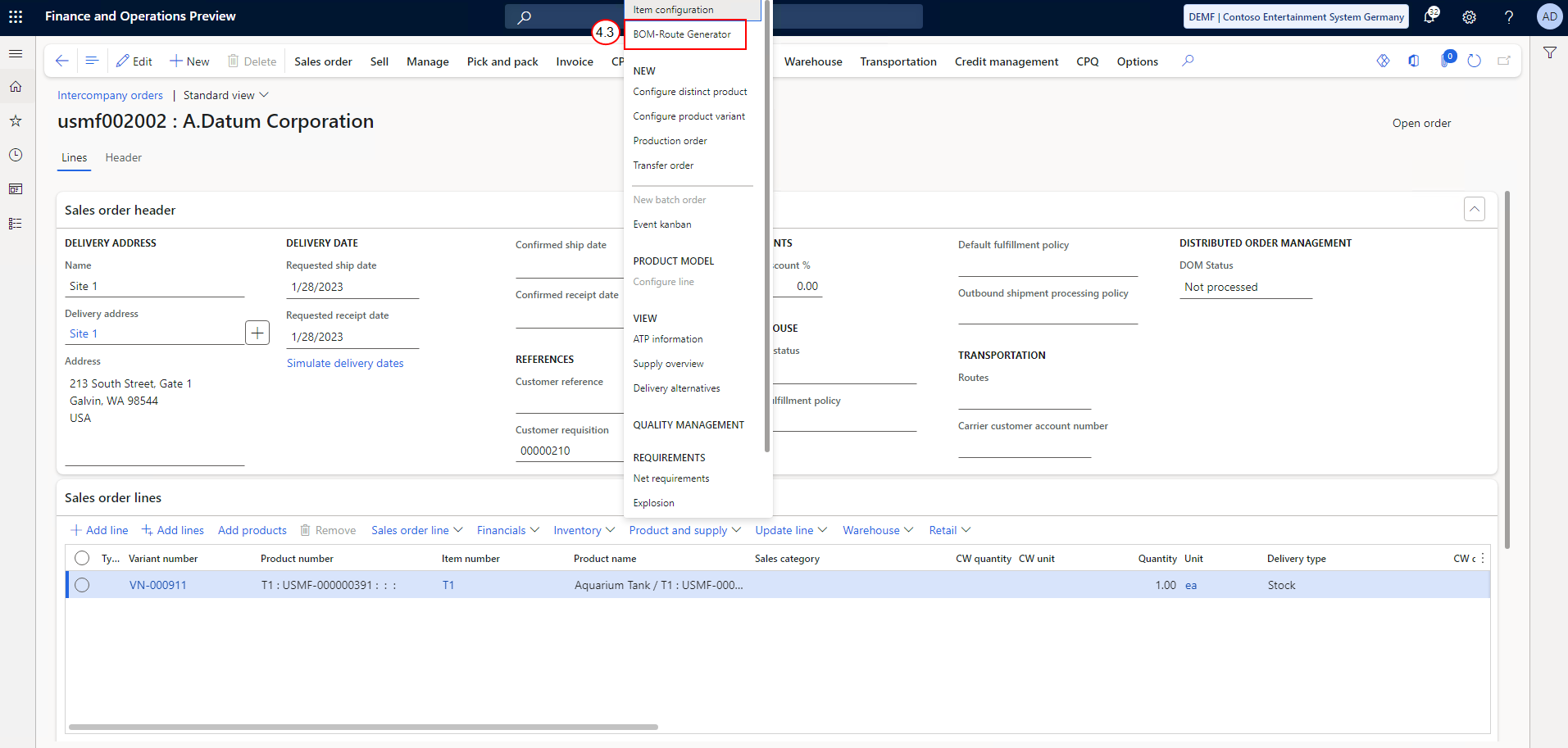
From the Product and supply dropdown, select BOM-Route Generator.
-
The BOM/route is generated from the intercompany Sales order.