
This topic provides information on the STS configuration required for setting up Cloud Connect for Salesforce.
Prerequisite
The connected app is setup in Salesforce. See Salesforce Setup in Host System for more information.
IIS Setup
The IIS setup requires updating the web.config file.
-
Create a folder C:\inetpub\sitename\experlogix.sts and copy the site files.
-
In the experlogix.sts folder, make the following updates to the web.config file:
-
Delete all the authentications except Salesforce.
-
Replace siteName in setting logPath: %ALLUSERSPROFILE%\Application Data\Experlogix\Log\siteName with your site name.
-
Replace created-DNS-name in setting experlogixSiteUrl: https://created-DNS-name/experlogix/ui/Login.aspx?action=return.
-
Put the consumer key of the configured connected app in setting ClientId.
-
Put the consumer secret of the configured connected app in setting Secret tags.
-
This file is a copy of the Web OAuth2.config file.
Create application
-
From the Start menu, open the Internet Information Services (IIS) Manager.
-
Create a separate application pool that runs as a Networkservice.
-
Right-click on the Experlogix.sts folder and select Convert to Application.
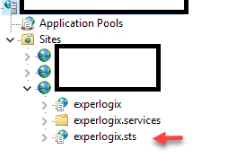
This completes the STS configuration for Salesforce.