
Set Up an App Registration in Azure Portal and Dynamics
Setting up an integration with Experlogix Cloud Connect requires both a one-time configuration in the Azure Portal and additional product-specific setup. In Azure Portal, you will create an app registration, assign API permissions, grant administrator consent, and generate a client secret. These values are then used to connect the app registration as an application user in your environment. The later sections of this topic provide steps for completing that connection in Dynamics 365 Customer Engagement, Finance & Operations, and Business Central, including assigning the appropriate security roles and permissions for each product.
Setup in Azure Portal
Perform the following steps to set up an Organization in Azure Portal:
-
Sign in to the Azure Portal with an account in the organization’s tenant with the rights to create an app registration.
-
Create an IntegrationClient app registration. For more information on app registration, see Register an app by using the Azure portal.
Ensure you record the Application (client) ID in the Overview section. It is required while adding app registration for Microsoft Dynamics 365 CE, Microsoft Dynamics 365 BC, and Microsoft Dynamics 365 F&O.
-
Add API permissions for Microsoft Dynamics 365 F&O, Microsoft Dynamics 365 CE, or Microsoft Dynamics 365 BC.
-
Microsoft Dynamics 365 BC API Permissions
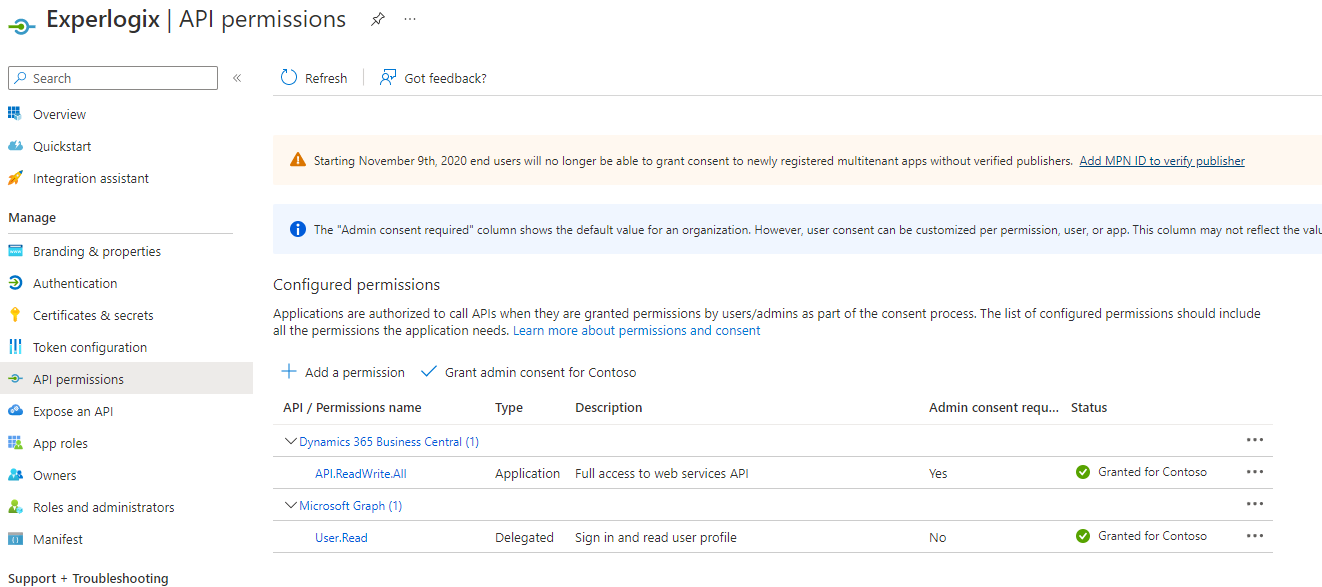
-
Microsoft Dynamics 365 F&O API Permissions
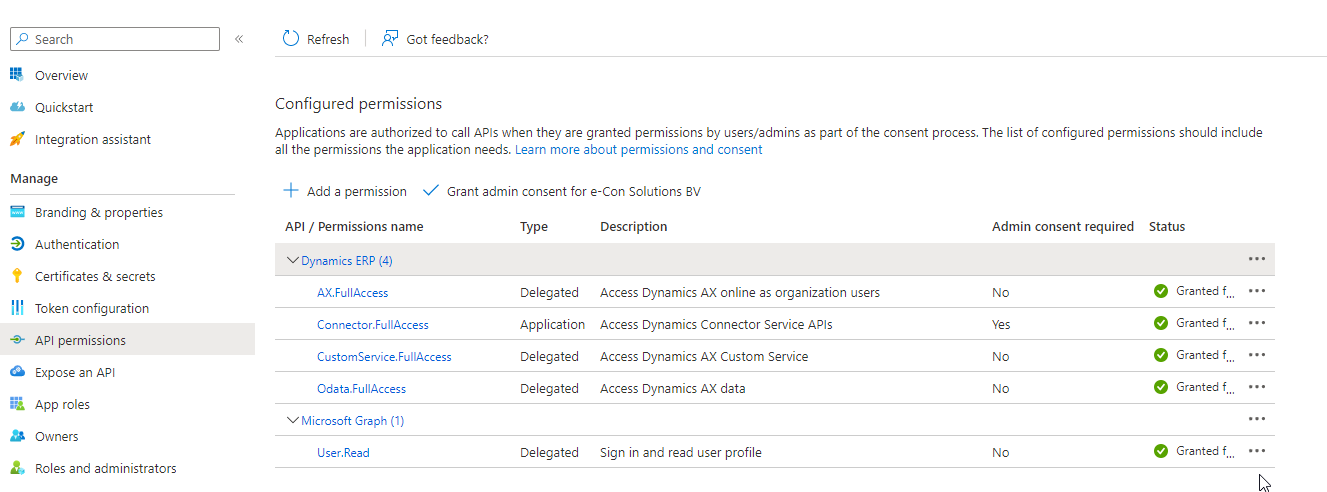
-
Microsoft Dynamics 365 CE API Permissions
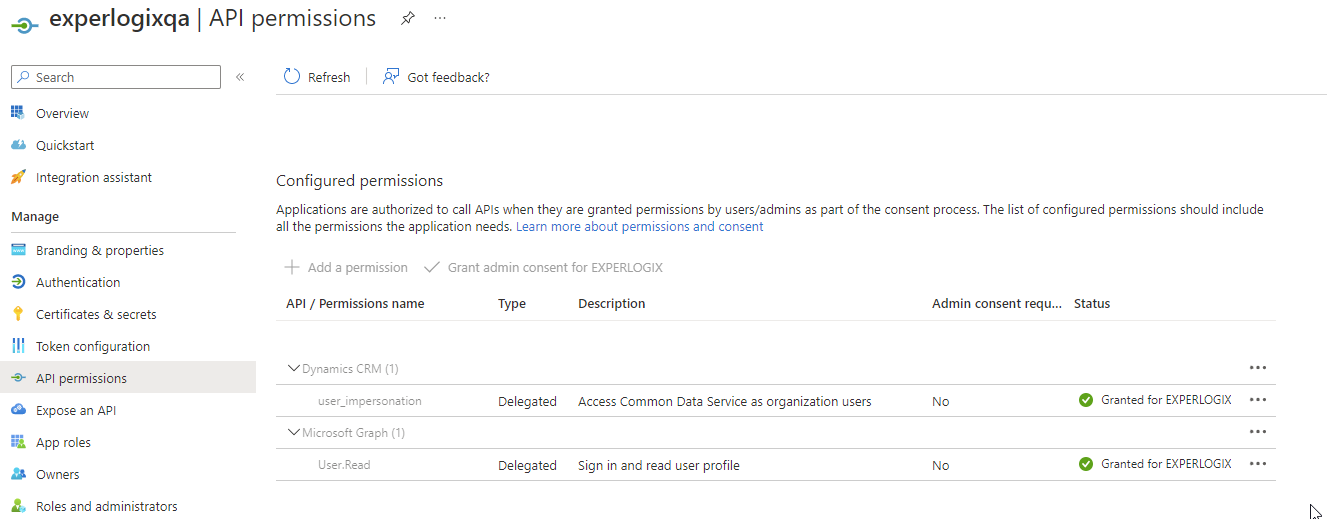
-
-
Grant Administrator consent for the registered app.
-
Create a Client Secret. For information on creating a Client Secret, see Add a client secret.
Record the Client Secret value for future reference. This value won't be displayed again or be retrievable by any other means.
Adding an App Registration as an Application User
After creating the App registration, you must add it as an Application user in Microsoft Dynamics 365 F&O, Microsoft Dynamics 365 CE, or Microsoft Dynamics 365 BC.
Microsoft Dynamics 365 CE
To create an Application user in Microsoft Dynamics 365 CE, see Create an application user. The application user requires the following roles:
Prior to Microsoft Dynamics 365 CE 24Q3 - Add the System Administrator and all Experlogix roles to the application user.
For Microsoft Dynamics 365 CE 24Q3 and later - Add Experlogix modeler and one or more roles below depending on your business needs:
-
To configure Sales entities, add the Sales manager role.
-
To configure Project operations entities, add the Project manager role.
-
To configure Field service entities, add the Field service - manager role.
Microsoft Dynamics 365 F&O
To create an Application user in Microsoft Dynamics 365 F&O, see Register your external application. In the Client Id field, enter the Application (client) ID noted down when completing the Setup in Azure Portal. The user connected to the application requires the following roles:
Prior to Microsoft Dynamics 365 F&O 24Q3, the application user requires the System Administrator role.
For Microsoft Dynamics 365 F&O 24Q3 and later, the application user requires the Experlogix Administrator, System user, and System external user roles.
Microsoft Dynamics 365 F&O supports setting up rights for records or even specific fields. If you use rights to limit access to any of the records or fields Experlogix interacts with, you must additionally give these rights to the application user.
Microsoft Dynamics 365 BC
To create an Application user in Microsoft Dynamics 365 BC, see Set up the Microsoft Entra application in Business Central.
-
In the Client Id field, enter the Application (client) ID noted down when completing the Setup in Azure Portal.
-
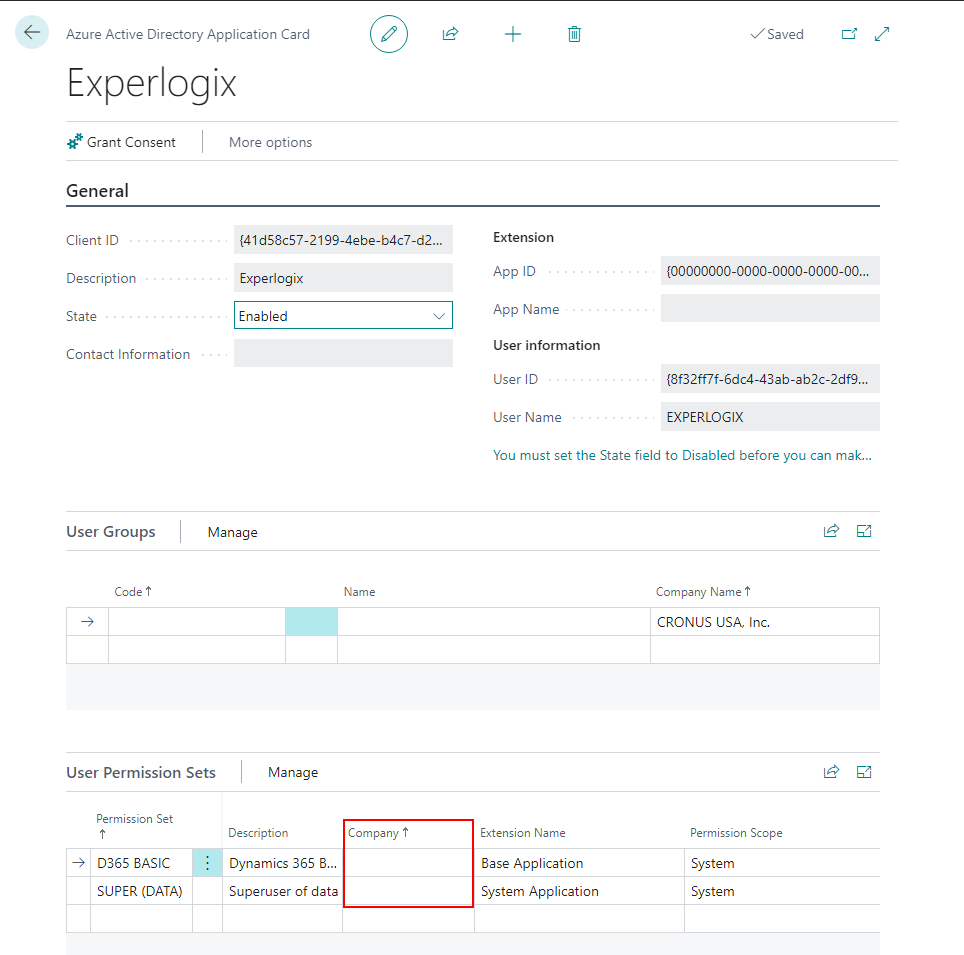
In the step where Microsoft Dynamics 365 BC is linked to Azure, ensure that the user permission set below role is added:
-
Super (Data)
-
- D365 BUS FULL ACCESS
-
The value for the Company field must be empty, to allow access to any company in Microsoft Dynamics 365 BC.
Properties required for Admin Center Configuration
The values for the following properties are needed while creating a new connection. These are required later while configuring in Admin Center:
|
Property |
Description |
|---|---|
|
Tenant |
The tenant in which the app registration is created. This is often the part after the '@' character of the user account used for creating the app registration e.g. johnsmith@example.com. |
|
ClientId |
The Application (client) ID of the app registration. |
|
ClientSecret |
The value of the Client secret of the app registration |