
Configuring Microsoft Dynamics 365 CE Cloud Connect requires adding the Configurator URL, managing button visibility, and adjusting security roles to control user permissions. This topic provides an overview of how to add the Configurator URL, manage the visibility of the Copy, Configure, and View buttons, and assign the necessary security roles for each action.
Adding the Configurator URL
In Microsoft Dynamics 365 CE, adding the Configurator URL is required as it helps linking the Microsoft Dynamics 365 CE. This topic provides an overview on adding the Configurator URL in Microsoft Dynamics 365 CE.
-
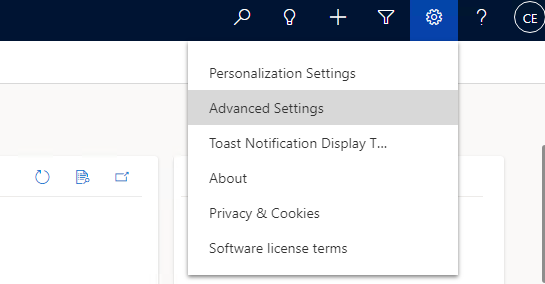
On the Microsoft Dynamics 365 CE home screen, at the upper-right corner of the screen, click the Settings icon.
-
Select Advanced Settings. The Settings screen displays.
-
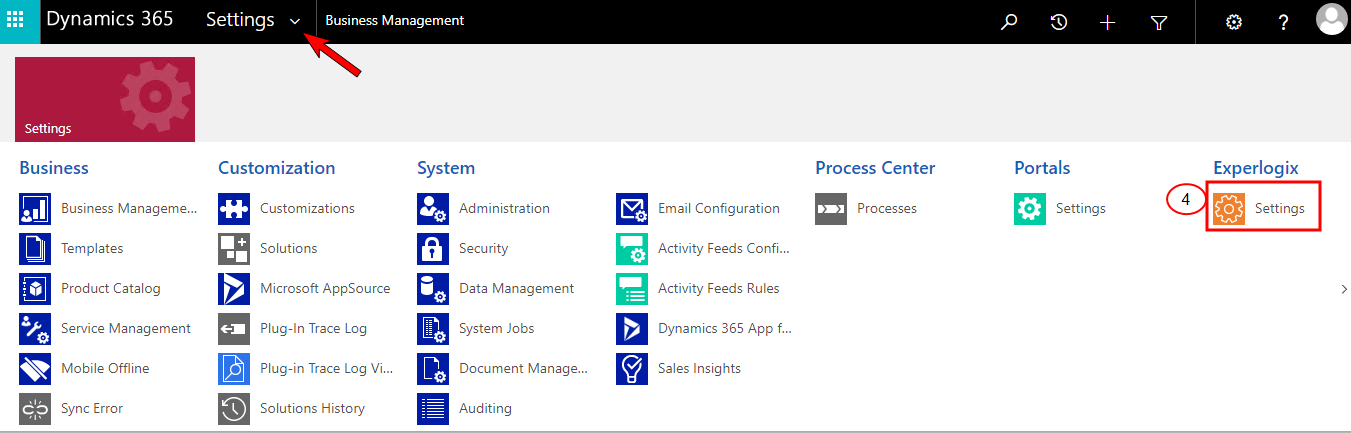
At the upper-left corner, click the Settings dropdown arrow to view the Settings options.
-
Under the Experlogix column, click Settings.
-
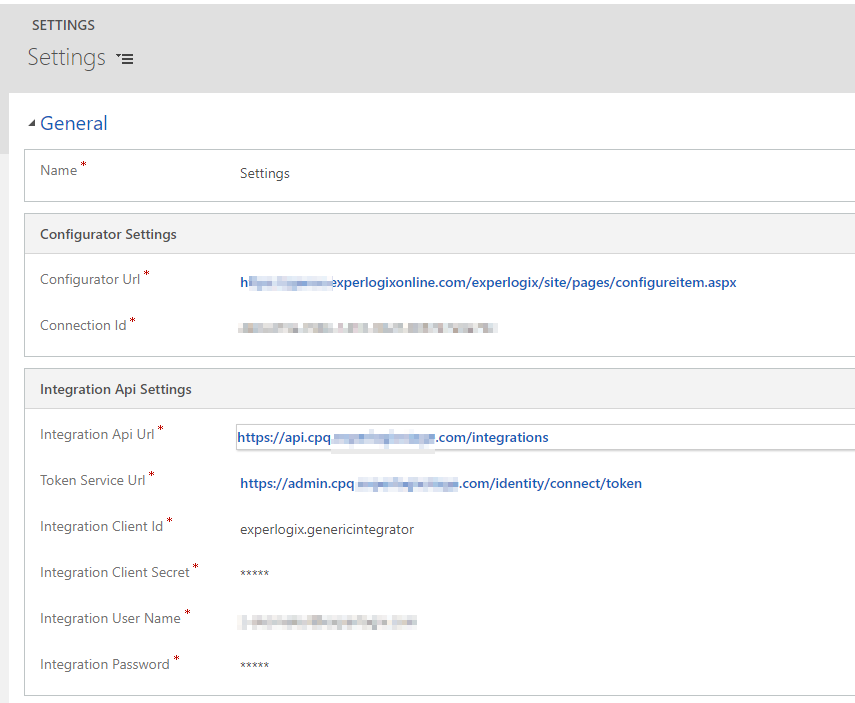
In the Configuration Url field, enter the Configurator URL.
-
In the Connection Id field, enter the Connection Id.
-
In the Integration Api Settings section, use the following table for mapping CE Settings with the Web Integration Settings:
Microsoft Dynamics 365 CE Configuration Parameters
Experlogix supports two authentication methods for Salesforce integration:
-
Password Type
-
Requires Integration User Name and Integration Password.
-
-
Client Credentials Type
-
Leave Integration User Name and Integration Password empty.
-
Use an organization-specific Integration Client Id from Experlogix settings.
-
-
At the lower-right corner of the screen, click the Save icon.
This completes the Microsoft Dynamics 365 CE setup in the host system for Cloud Connect.
Managing Button Visibility in Microsoft Dynamics 365 CE
In Microsoft Dynamics 365 CE, you can control the visibility of various buttons in such as Configure, Copy, and View, to streamline user interactions and enhance productivity.
Managing the Copy and Configure Buttons in Microsoft Dynamics 365 CE
In this section, you will manage the visibility and functionality of the Copy and Configure buttons within Microsoft Dynamics 365 CE. This setup streamlines user interactions and enhances productivity by allowing users to duplicate records and customize products or services efficiently on standard forms. Use the steps below to manage these buttons.
-
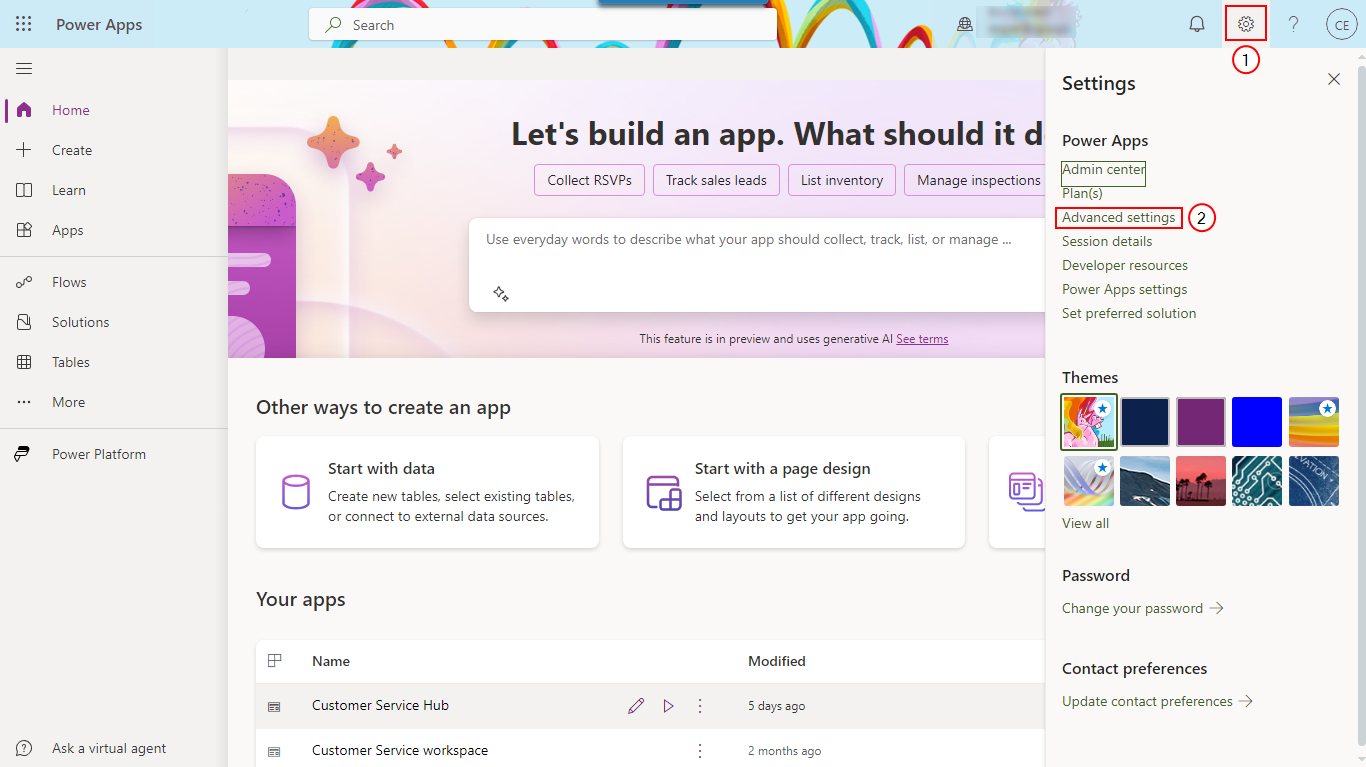
On the Microsoft Dynamics 365 CE, at the upper-right corner of the screen, select the Settings icon.
-
Select Advanced Settings.
-
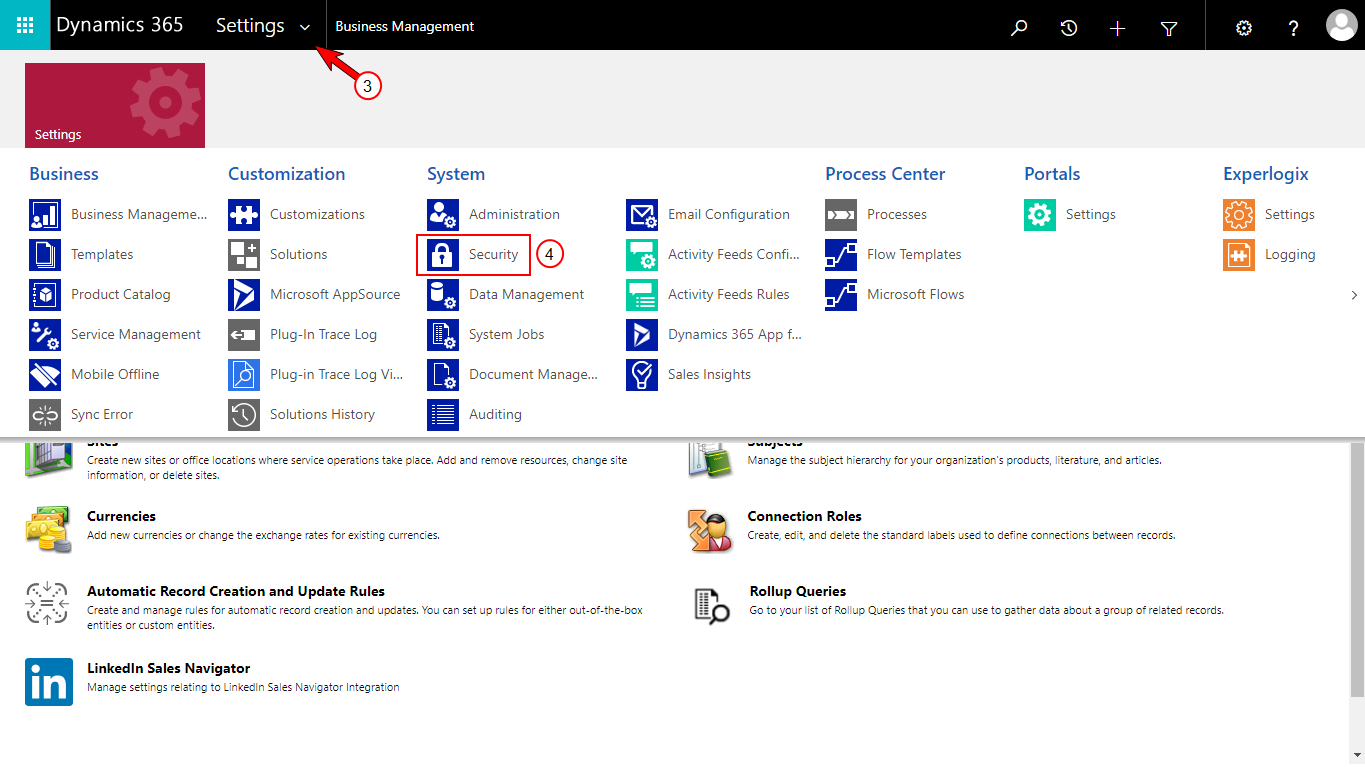
At the upper-left corner, select the Settings dropdown arrow to view the Settings .
-
Under the System column, select Security. The Security screen displays.
-
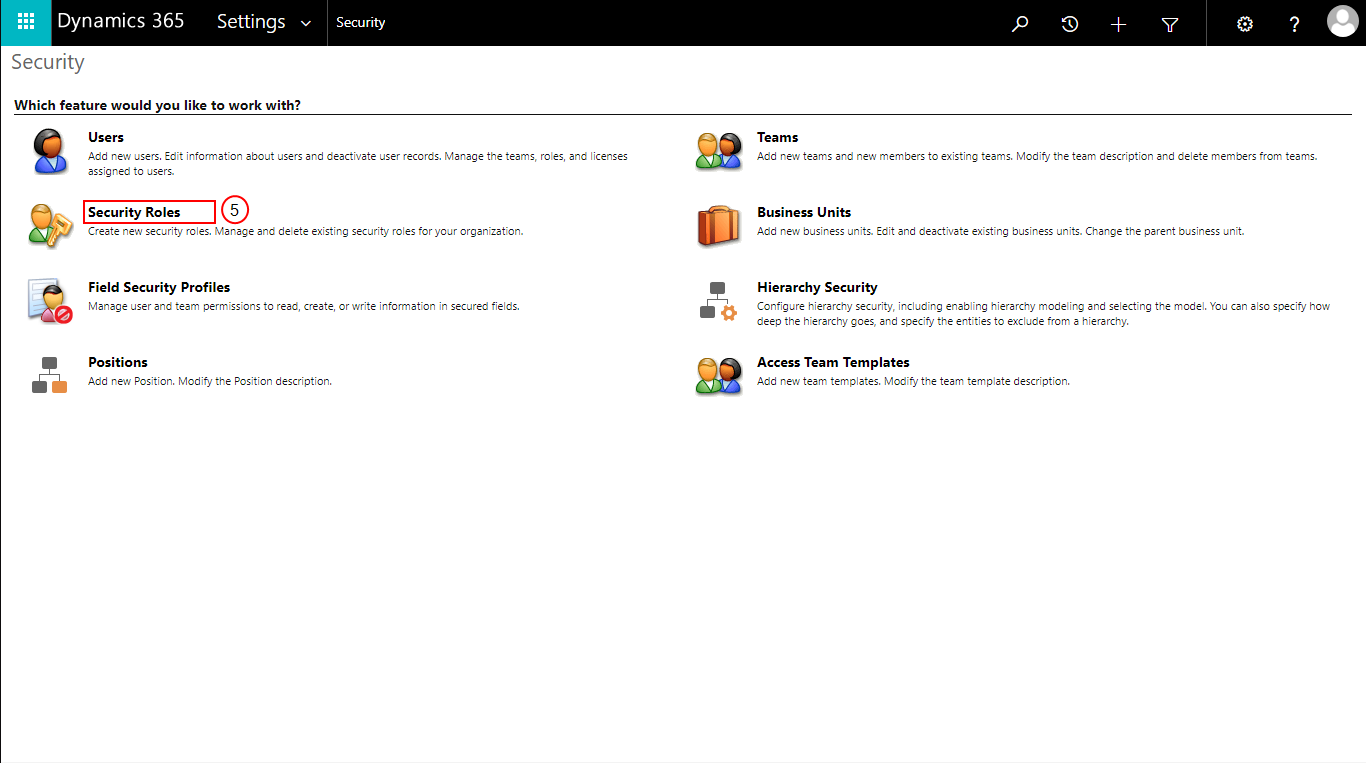
Select Security Roles.
-
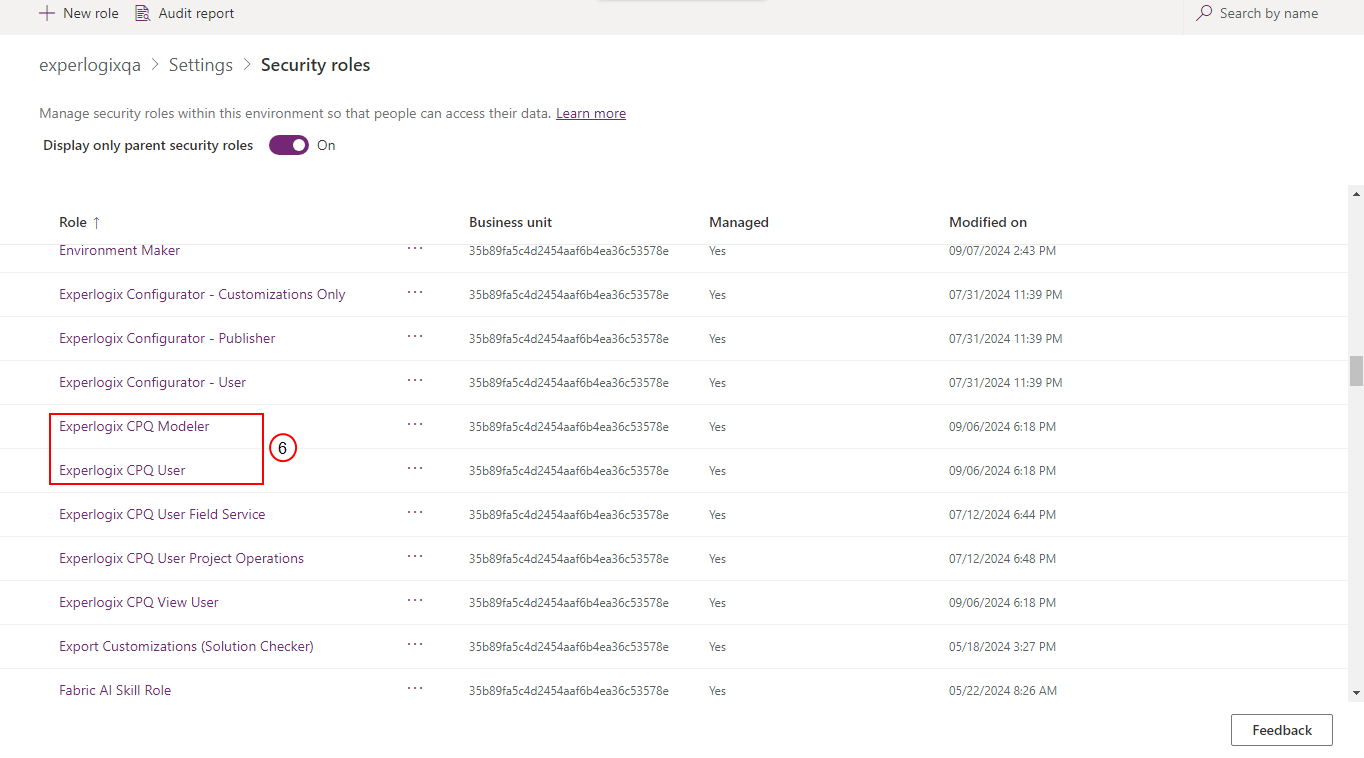
Select either Experlogix CPQ User or Experlogix CPQ Modeler, depending on which role you need to modify.
Ensure that individuals who need the Copy, Configure or View buttons have the appropriate role assigned or inherited.
Microsoft Dynamics 365 CE User Roles
The Microsoft Dynamics 365 CE integration has the following user roles for Experlogix:
-
Experlogix CPQ Modeler
-
Experlogix CPQ User
-
Experlogix CPQ View User
-
Experlogix CPQ User Field Service
-
Experlogix CPQ User Project Operations
See User Roles for more information.
-
Select the Create actions for the Invoice, Order, Quote, and Opportunity entities, which the selected user can copy or configure.
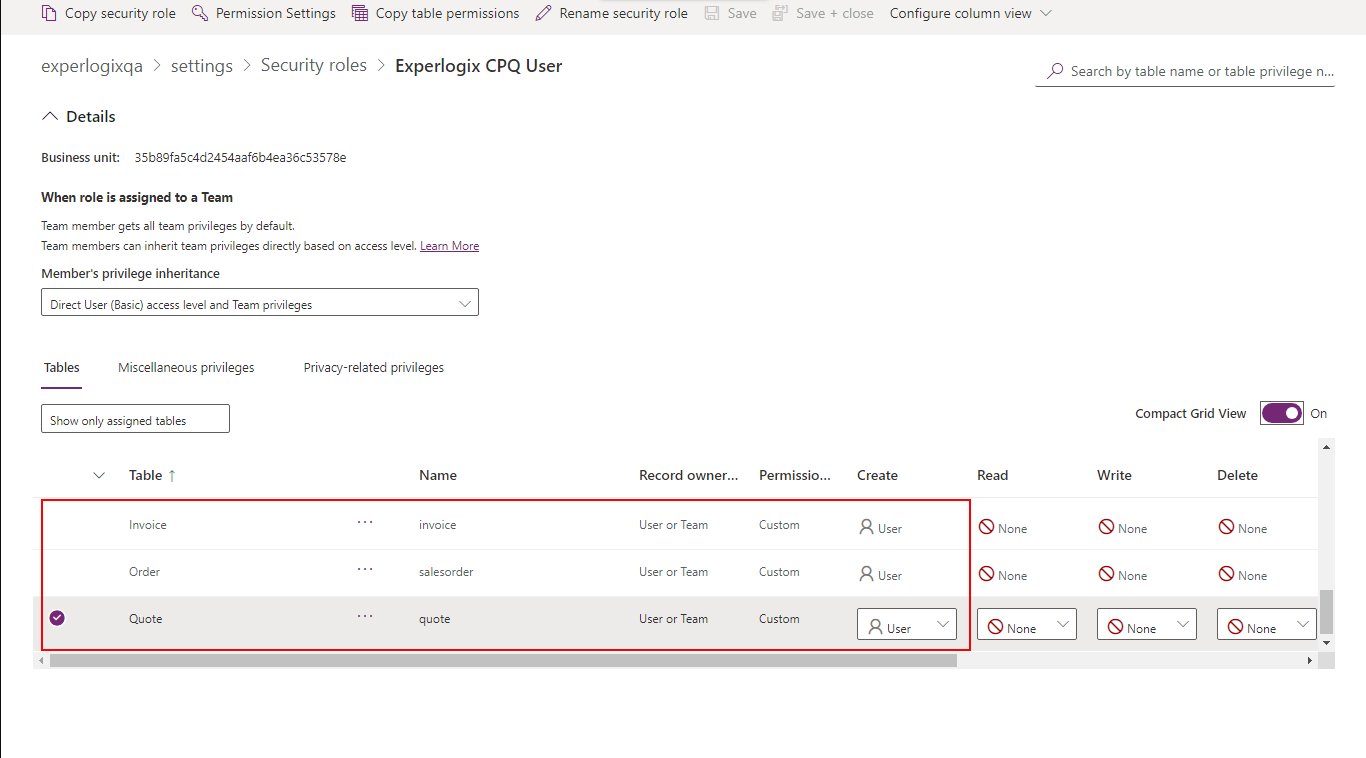
The selected user can now Copy or Configure an Invoice, Order, Quote and Opportunity. Ensure that individuals who need to Configure and Copy buttons have the appropriate role assigned or inherited, see Control Button Visibility and Behavior by Role, Status, and Rules for more information
This setting determines whether the user can copy and configure the buttons to create new records. Selecting the setting again hides the entity from the selected user.
Managing the View Button in Microsoft Dynamics 365 CE
In Microsoft Dynamics 365 CE, you can manage the visibility of the ExperlogixView button on standard forms such as opportunity, quote, and sales order. The View button allows users to access detailed information and specific views of the data, enhancing their ability to analyze and manage records efficiently. Use the steps below to manage this button.
-
On the Security Roles screen, select Experlogix CPQ View User.
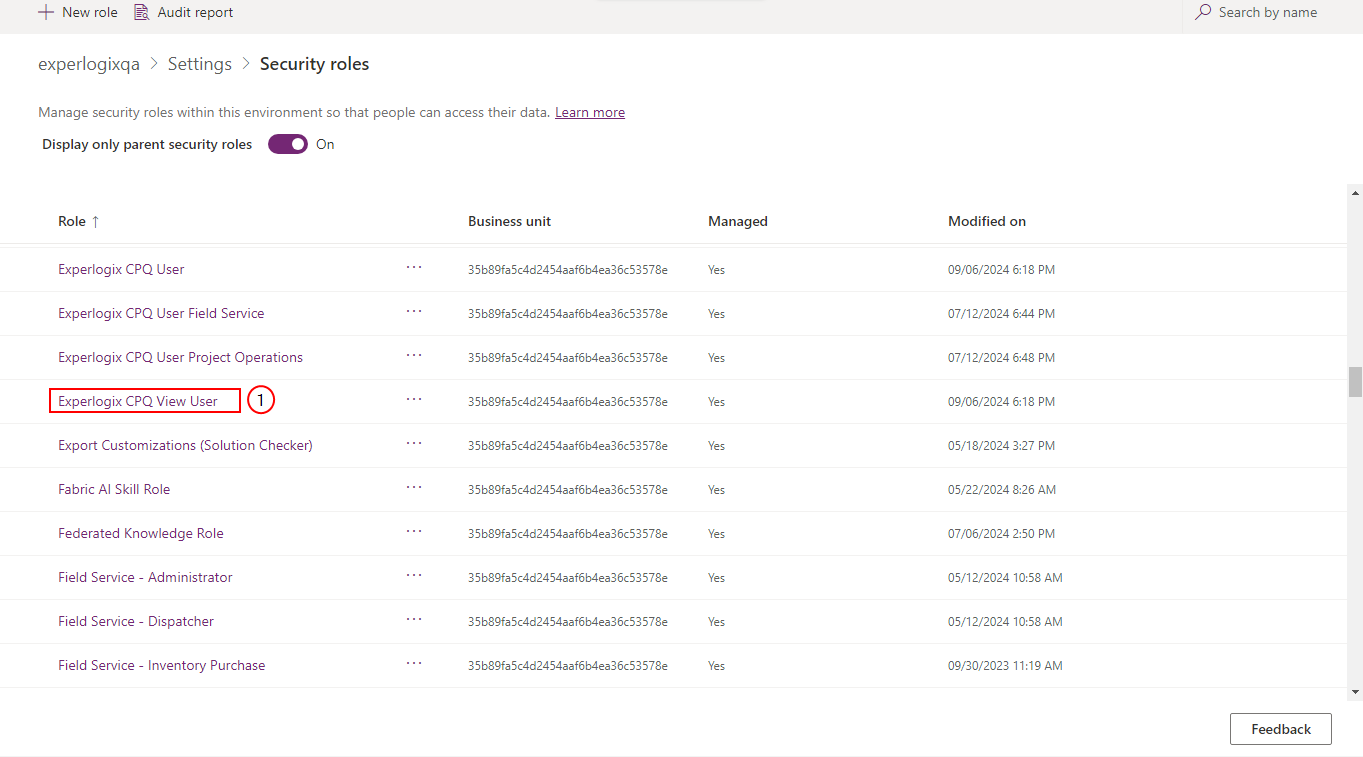
Ensure that individuals who need the Copy, Configure or View buttons have the appropriate role assigned or inherited.
Microsoft Dynamics 365 CE User Roles
The Microsoft Dynamics 365 CE integration has the following user roles for Experlogix:
-
Experlogix CPQ Modeler
-
Experlogix CPQ User
-
Experlogix CPQ View User
-
Experlogix CPQ User Field Service
-
Experlogix CPQ User Project Operations
See User Roles for more information.
-
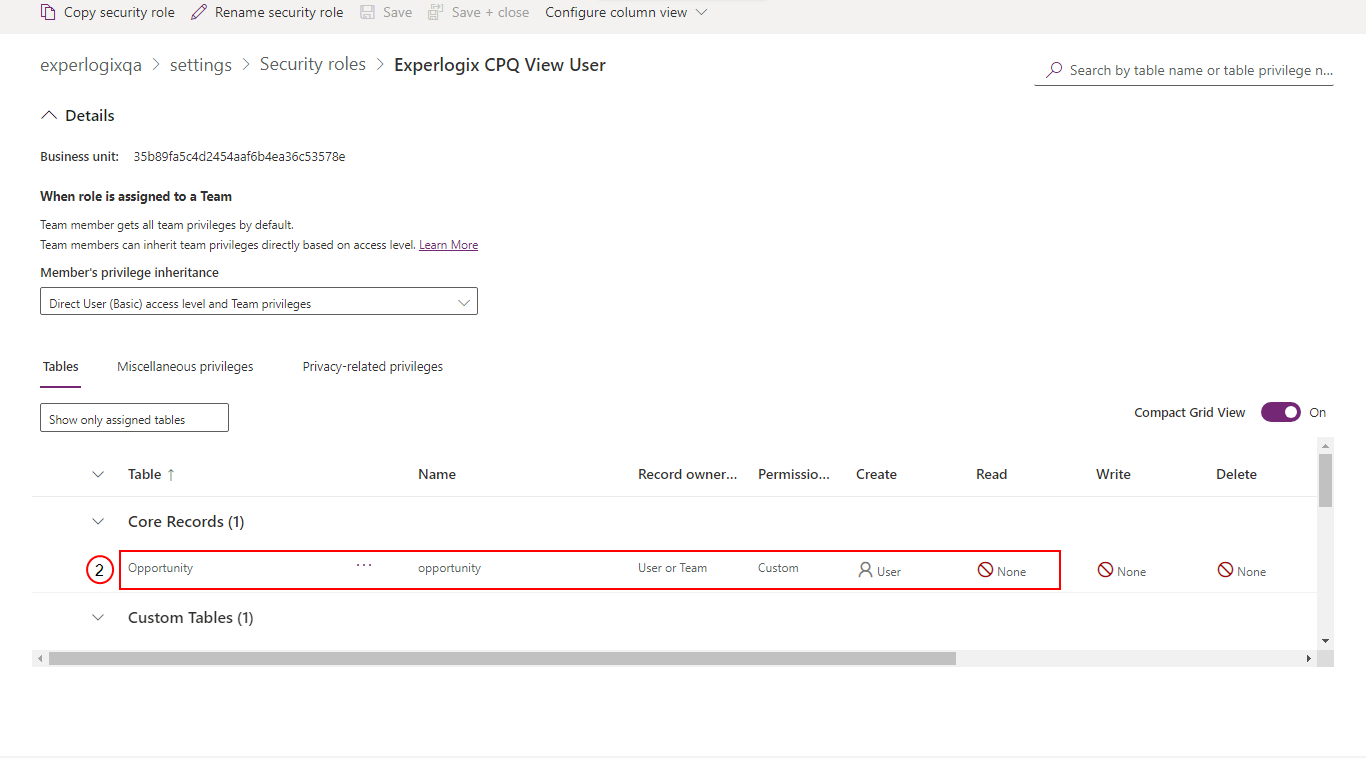
Select the Create actions for the entities visible to the selected user.
-
Select the Create action for the entities that the selected user can view. The Create action determines whether the user can view the buttons to create new records. Selecting the Create action again hides the entity from the selected user.
The selected user can now view an Invoice, Order, Quote and Opportunity. Ensure that individuals the View view the button have the appropriate role assigned or inherited, see Control Button Visibility and Behavior by Role for more information.