
Cloud Connectenables seamless integration betweenMicrosoft Dynamics 365 BCand Experlogix CPQ, allowing users to configure, price, and quote products directly withinMicrosoft Dynamics 365 BC. To establish this connection, you need to configure key settings such as the Configurator URL and Integration API details. These settings ensure thatMicrosoft Dynamics 365 BCcommunicates effectively with Experlogix CPQ services.
-
On the Microsoft Dynamics 365 BC home screen, at the upper-right corner of the screen, select the Search icon.

-
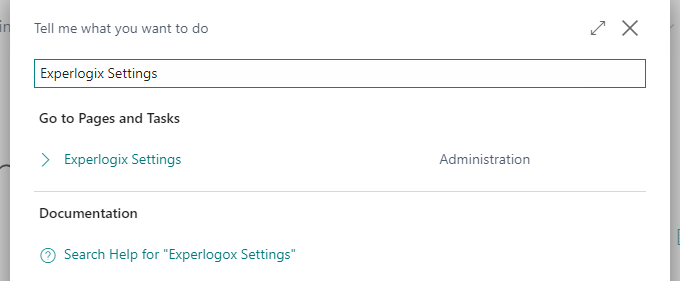
In the Search field, enter Experlogix Settings.
-
Select theExperlogix Settings link. The Experlogix Settings screen displays.
-
Enter the values below into the Microsoft Dynamics 365 BC Parameters form:
|
Parameter |
Type |
Description/Example Value |
|---|---|---|
|
Configurator URL |
Mandatory |
http://localhost:8080/experlogix/site/pages/ConfigureItem.aspx |
|
ConnectionId |
Optional |
Connection ID as listed in the discovery API / Admin center. It is a GUID. |
|
Allow Obsolete fields |
Optional |
Toggle to enable the use of obsolete fields/tables as a part of Process Designer metadata. Refer to the ObsoleteState Property page for information on the obsolete fields. |
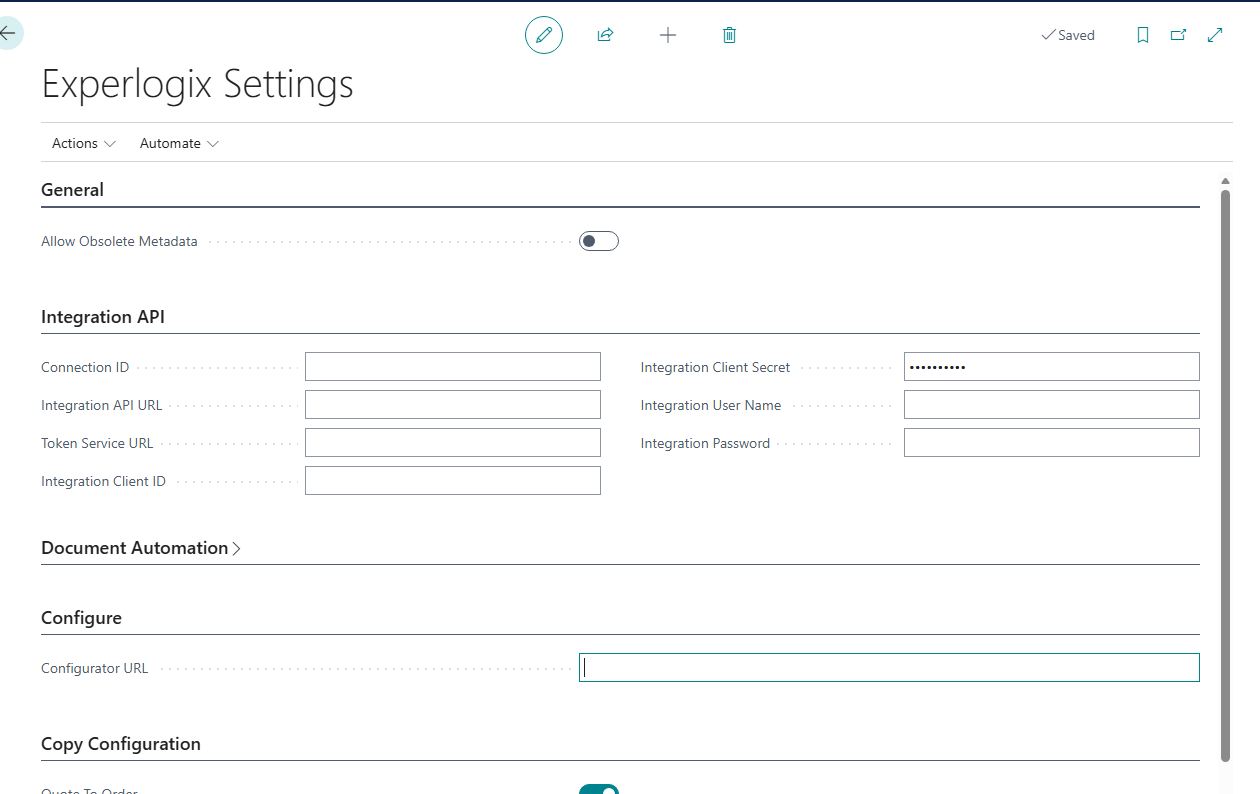
The update gets saved automatically.
This completes the Microsoft Dynamics 365 BC setup in the Host system.
Adding Integration Settings Details
This section provides details for adding Integration API settings.
Prerequisite
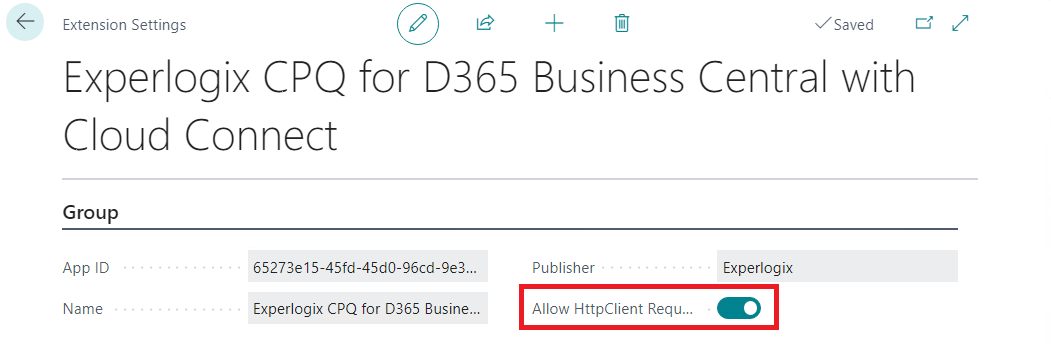
To enable the Integration API settings, ensure that on the 'Experlogix CPQ for D365 Business Central with Cloud Connect' screen in the Extension Settings, 'Allow HttpClient Requests' is enabled by the administrator.
To Add Integration API Settings Details
-
Navigate to the Experlogix Settings screen.
-
In the Integration Settings section, in the Integration API URL field, enter the Unified Integration API URL.
-
For the remaining Integration API tab fields, fill in the details as described in the Generic Configurator Settings section:
|
Microsoft Dynamics 365 BC Setting |
Web Configurator Setting |
|---|---|
|
Token Service URL |
Token Endpoint URL |
|
Integration Client Id |
OAuth Client ID |
|
Integration Client Secret |
OAuth Client Secret |
|
Integration User Name |
Admin Center User Name |
|
Password |
Admin Center Password |

Experlogix supports two authentication methods for Salesforce integration:
-
Password Type
-
Requires Integration User Name and Integration Password.
-
-
Client Credentials Type
-
Leave Integration User Name and Integration Password empty.
-
Use an organization-specific Integration Client Id from Experlogix settings.
-
The system automatically saves the changes.
-
At the upper-left corner, selectAction, thenVerify to verify if the integration is configured correctly.
A success message displays.

User Roles in Microsoft Dynamics 365 BC
The Microsoft Dynamics 365 BC extension includes the following user roles for Experlogix:
-
XPL-ADMIN
-
XPL-SALES
-
XPL-PROJECT
The table below outlines the actions each Experlogix user role can perform in Microsoft Dynamics 365 BC:
Microsoft Dynamics 365 BC User Role Permissions
|
Role Name |
Description |
Configure Sales Order/Quote |
Configure Project |
Logging |
Edit Settings |
|---|---|---|---|---|---|
|
XPL-ADMIN |
A user with this role has full access to configure all entities, manage logging, and edit settings. |
No |
No |
Yes |
Yes |
|
XPL-SALES |
A user with this role can configure sales orders, quotes, create blanket orders, and manage logging but cannot edit settings. |
Yes |
No |
Yes |
No |
|
XPL-PROJECT |
A user with this role can configure projects jobs and manage logging but cannot configure sales orders, quotes, or edit settings. |
No |
Yes |
Yes |
No |
Additional BC Roles
Experlogix CPQ for D365 Business Central Roles
-
Xpl-Project – Configure Price Quote
-
Xpl-Sales – Configure Price Quote
Experlogix Documents for D365 Business Central
-
XPL-SFAdmin – Document Automation
-
XPL-User – Document Automation
-
XPL-Designer – Document Automation
Experlogix Digital Commercefor D365 Business Central
-
XPL-DCADMIN – Digital Commerce Admin
Experlogix Portal
-
XPL-PORTALADMIN – Portal Admin