
Users with sufficient permissions can navigate to the Experlogix app inside Salesforce to access and update settings pertaining to their Experlogix Cloud Connect integration including connection details and processing resource allocation. To view the Experlogix app and the settings it contains, the logged-in user must have the Experlogix Settings User permission set. To modify the settings or create a user-specific settings record, which contains user-specific connection details, the logged-in user must have the Experlogix Settings Admin permission set.
For more information on permissions and permission sets in Salesforce, see Salesforce User Roles and Permission Sets
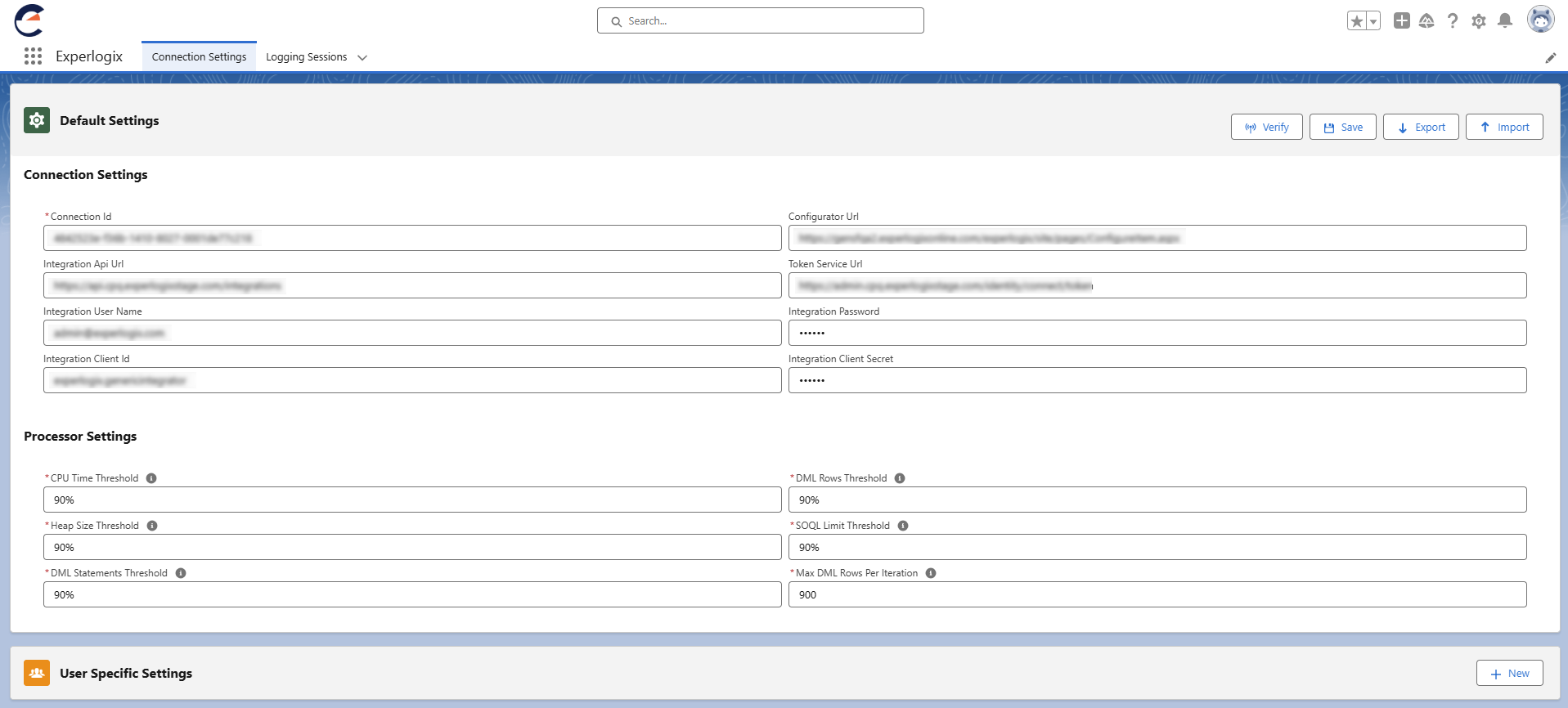
Connection Settings
Connection Settings allow Salesforce administrators to specify the connection details required to launch the Configurator and process the resulting configuration in Salesforce.
|
Setting Name |
Description |
|---|---|
|
Connection Id |
Specifies the Connection ID derived from the string on the Admin Center Integrations Connections Tab. |
|
Configurator Url |
Specifies the URL used to launch your Configurator. Use the value below, replacing the domain with your company-specific value.
|
|
Integration Api Url |
Specifies the URL of the API used to integrate Salesforce and Experlogix. |
|
Token Service Url |
Specifies the URL of the web service used to issue tokens used for the Salesforce and Experlogix integration. |
|
Integration User Name |
Specifies the username associated with the actions performed by the integrator. |
|
Integration Password |
Specifies the password for the username associated with the actions of the integrator. |
|
Integration Client Id |
Specifies the client ID used by the Experlogix integrator. For Client Credentials type, use an organization-specific Client ID and leave Integration User Name and Integration Password empty. |
|
Integration Client Secret |
Specifies the client secret associated with the client ID used by the Experlogix integrator. |
Experlogix supports two authentication methods for Salesforce integration:
-
Password Type
-
Requires Integration User Name and Integration Password.
-
-
Client Credentials Type
-
Leave Integration User Name and Integration Password empty.
-
Use an organization-specific Integration Client Id from Experlogix settings.
-
Processor Settings
Processor Settings allow Salesforce administrators to allocate Salesforce API resources for use by the Experlogix Cloud Connect integrator.
|
Setting Name |
Definition |
Default Value |
|---|---|---|
|
CPU Time Threshold |
Specifies the max percentage of allowed CPU time allocation to consume during a single transaction of configuration results processing. |
90% |
|
DML Rows Threshold |
Specifies the max percentage of allowed Data Manipulation Language (DML) Rows allocation to consume during a single transaction of configuration results processing. |
90% |
|
Heap Size Threshold |
Specifies the max percentage of allowed heap size allocation to consume during a single transaction of configuration results processing. |
90% |
|
SOQL Limit Threshold |
Specifies the max percentage of allowed Salesforce Object Query Language (SOQL) Queries to consume during a single transaction of configuration results processing. |
90% |
|
DML Statements Threshold |
Specifies the max percentage of allowed DML statements allocation to consume during a single transaction of configuration results processing. |
90% |
|
Max DML Rows Per Iteration |
Specifies the max amount process design nodes to process, before inserting to database(can happen more than once per transaction). Valid values are between 1-10,000. |
900 |
Procedures
Access Experlogix Settings in Salesforce
-
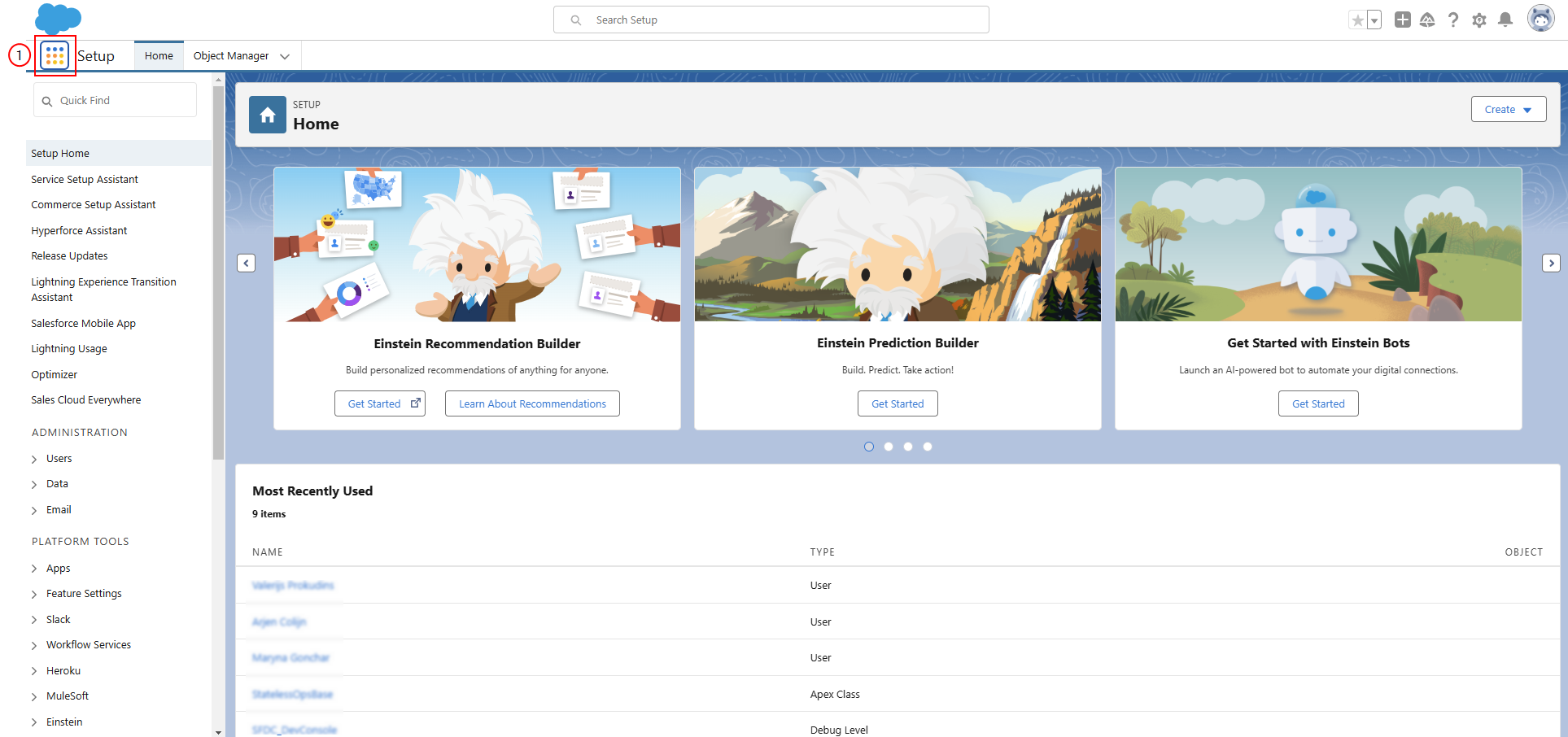
From the Salesforce home page, select the App Launcher icon.
-
Search for and select the Experlogix app.
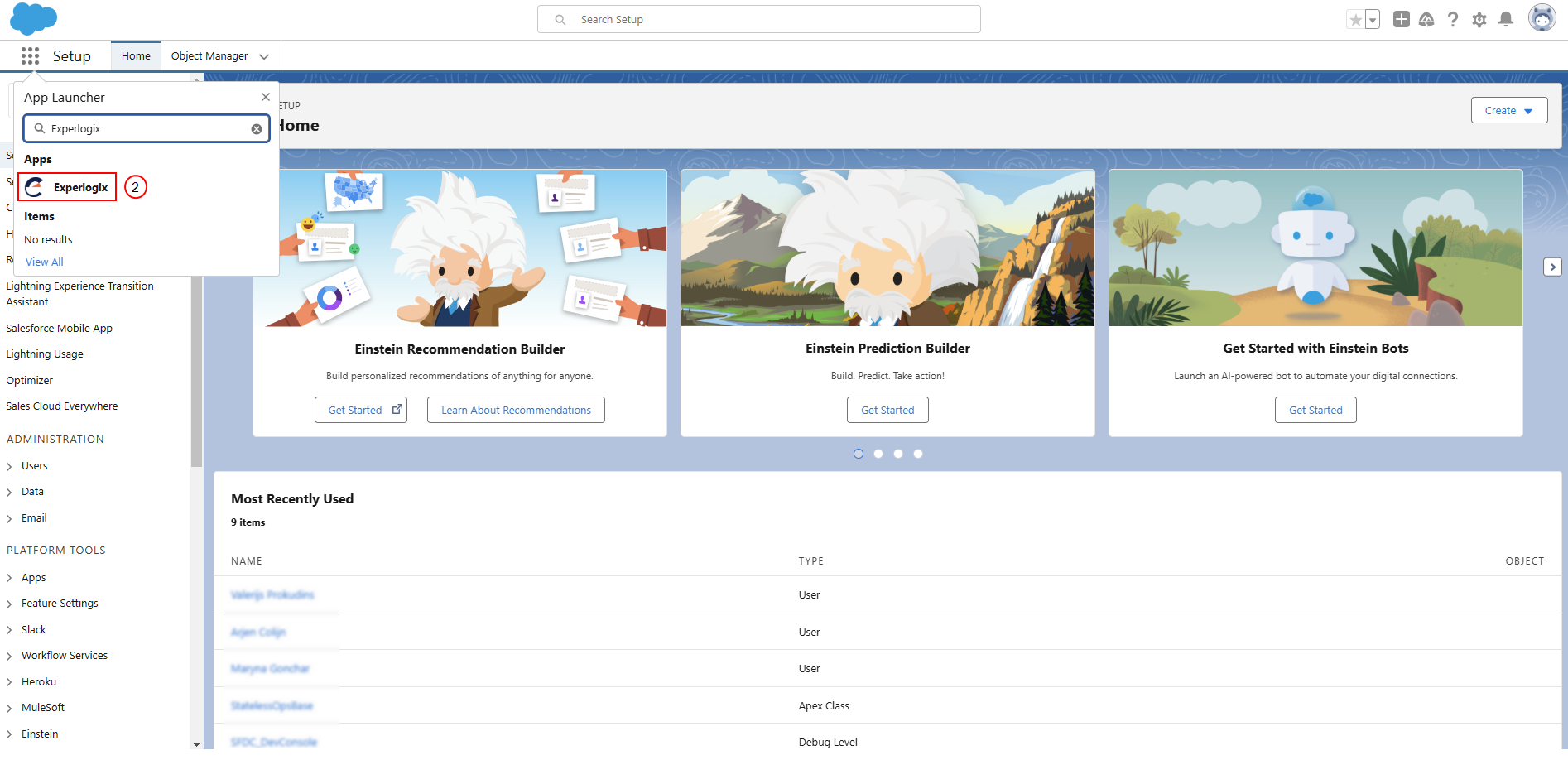
The Experlogix app opens on the Connection Settings tab.