
Using intercompany processing, Configurator users can save their configuration to Microsoft Dynamics 365 F&O and have it processed in two or more companies simultaneously. The system triggers intercompany processing when a Company Property is present in the configuration XML. If this Property has a value in the saved configuration, its value(s) is added to the Process Document sent to Microsoft Dynamics 365 F&O, where the configuration can be saved to multiple companies, provided all other requirements are met and limitations are observed.
Requirements for Intercompany Processing
-
In the Configurator, a Company Property is present and populated to trigger the intercompany processing and populate the process document with the company value(s).
-
On the Advanced tab of the Experlogix parameters page in Microsoft Dynamics 365 F&O, Intercompany processing is enabled.
Limitations for Intercompany Processing
-
You cannot state a different Microsoft Dynamics 365 F&O company to process against for the highest level of your process design. An example is a process structure with SalesOrder as a process context. It is not possible to have the sales order created in another company, as the assumption of the Configurator is that the root record exists.
-
You can only create/update/delete/read a record in one company for one node in a process-document.
-
You cannot edit a configuration and change only the Company Property value and re-save to have the configuration processed into another company. Triggering the intercompany processing logic requires at least one change in Option selection.
Logging
Intercompany processing is reflected clearly in Microsoft Dynamics 365 F&O logging. See Logging for more information on logs.
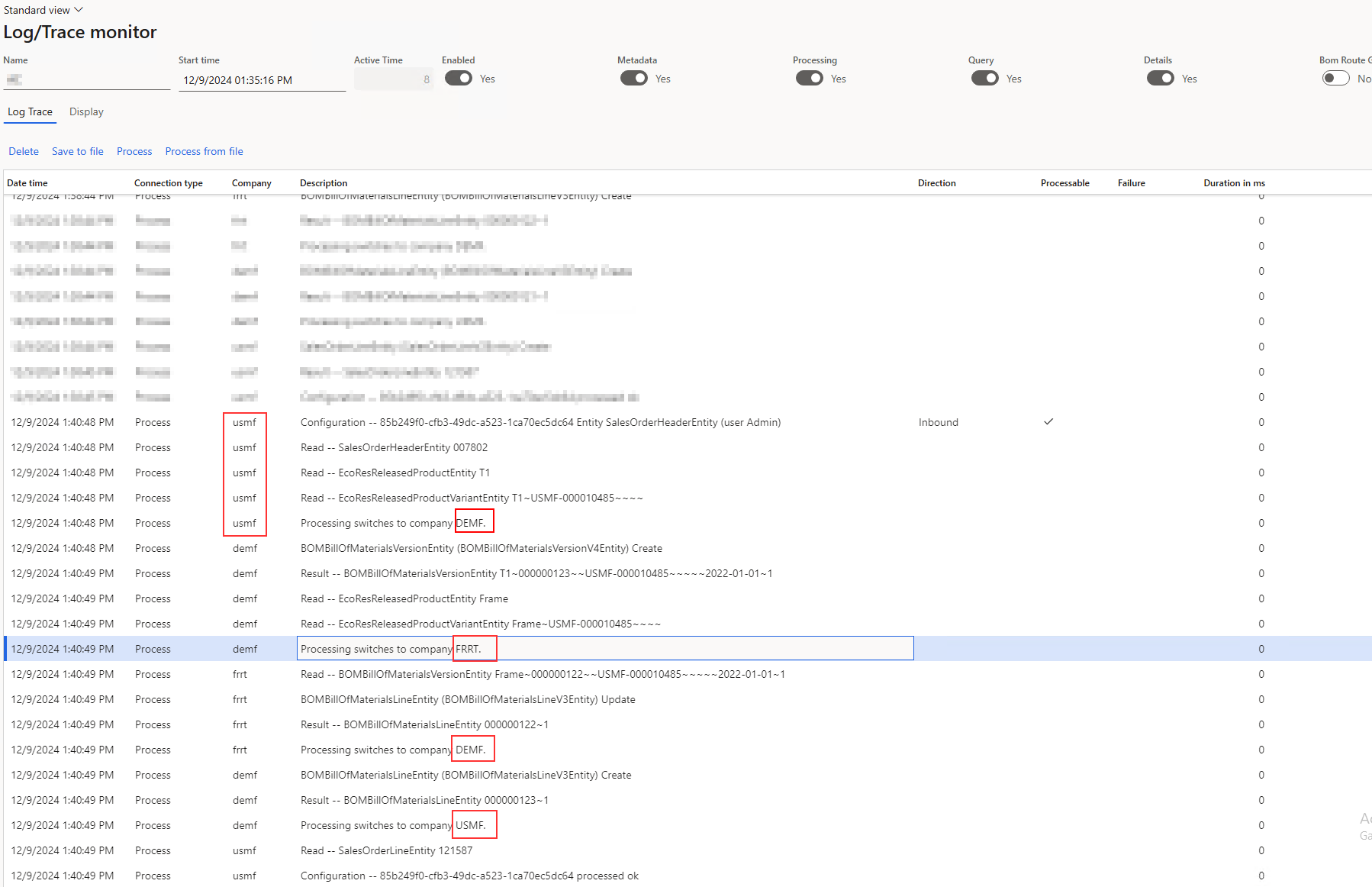
Intercompany processing is done as a single transaction with Microsoft Dynamics 365 F&O, meaning failures to process the configuration for any single company will result in Microsoft Dynamics 365 F&O rolling back the entire processing action for all companies. Error messaging displays in the logs.
Procedures
Enable Intercompany Processing
To enable intercompany processing, you must toggle the Intercompany processing setting in Microsoft Dynamics 365 F&O to Yes. This parameter is company specific, meaning that it can be setup per company.
-
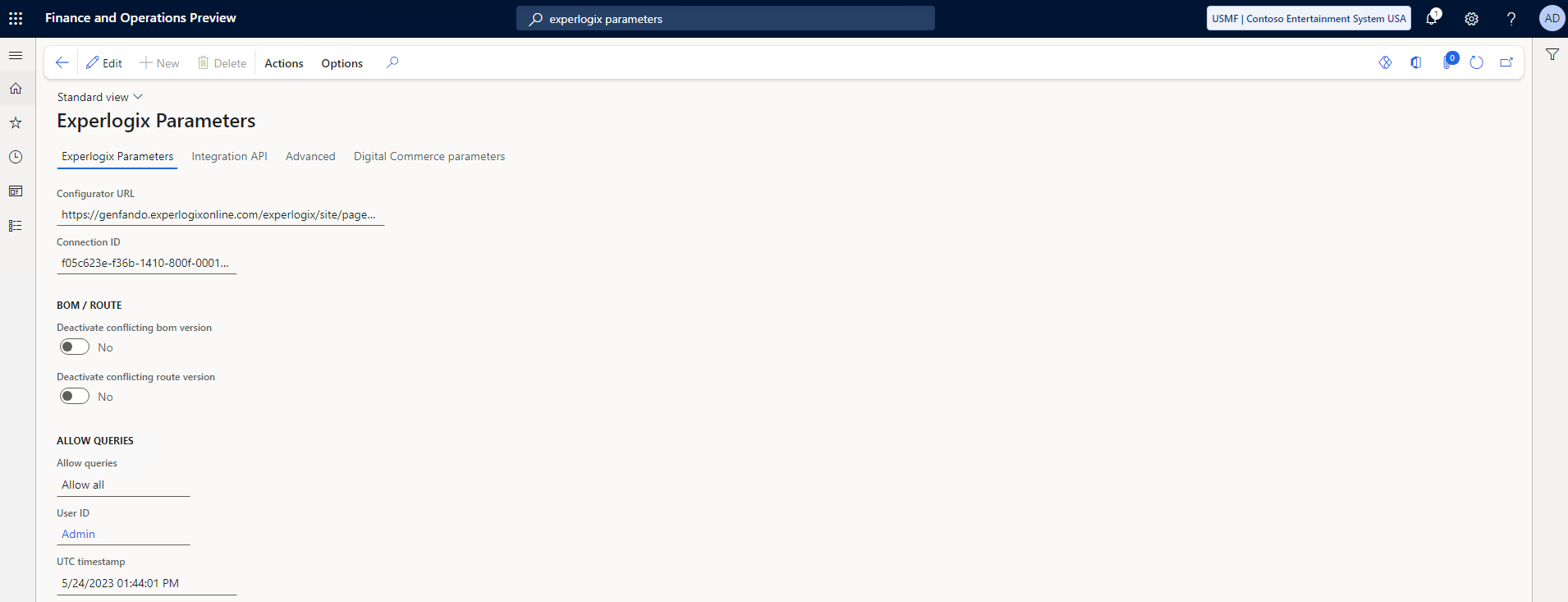
In Microsoft Dynamics 365 F&O, search for and select the Experlogix Parameters page.
-
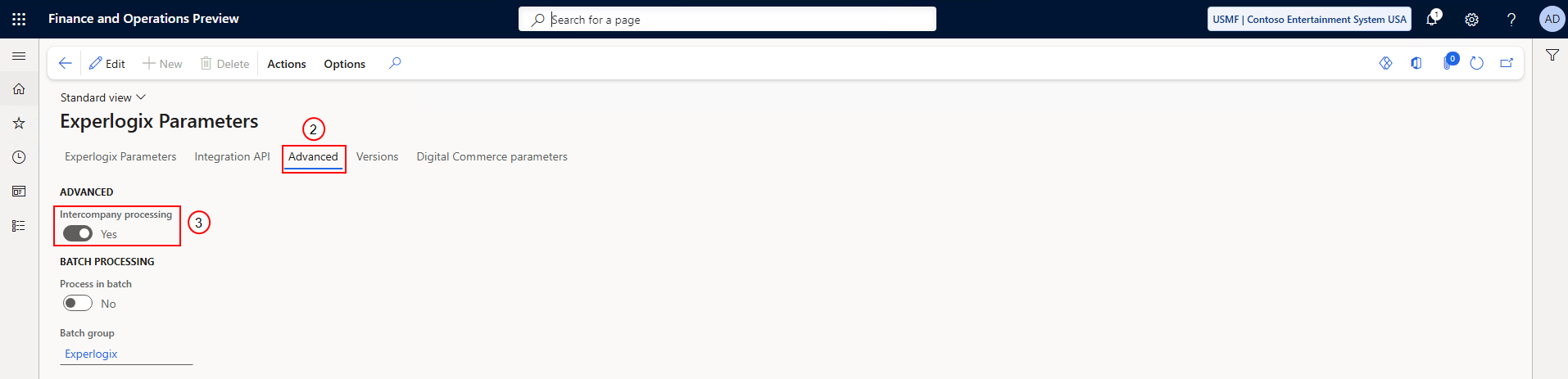
Select the Advanced tab.
-
Toggle Intercompany processing to Yes.