
Matching within Microsoft Dynamics 365 F&O enables reuse of existing BOM and Route structures when creating product variants. The system determines whether to reuse or create a new variant based on the combination of BOM and Route:
-
If a configuration uses BOM-A and Route-A, then Variant A is created.
-
If a configuration uses BOM-A and Route-B, then a new Variant B is created.
-
If a configuration uses BOM-B and Route-A, then a new Variant C is created.
-
If the same configuration (BOM-A and Route-A) is created again, the existing Variant A is reused.
This behavior ensures that each variant corresponds uniquely to a specific BOM and Route combination, while still allowing reuse of existing structures through versioning.
Supported and Unsupported Structures
-
Multi-level BOM structure - Matching of a multi-level BOM structure fails when a BOM line contains only a variant reference instead of a sub-BOM structure. F&O Cloud Connect performs structure-based matching and expects each level in the hierarchy to be defined by a BOM (and Route). For example:
├─ Item 1 ├─ Sub BOM B │ ├─ Item 2 │ └─ Sub BOM C │ └─ Item 3 -
Route Structure - In some cases, Dynamics 365 F&O creates a new Route even when an identical one exists because Route matching is based on full structure comparison. Since structure matching is enabled, the process document must include all values across the entire Route hierarchy. If any values are missing (e.g., generated by number sequences), the system cannot fully compare the structures, resulting in a new Route being created instead of reusing the existing one.
In the above structure each level has a BOM definition (and Route, if applicable), therefore, this is a supported BOM structure.
 ├─ Item 1
   └─ Variant Vx
In the above structure, the BOM line references a variant instead of a sub-BOM, so no hierarchical BOM or Route structure is available for matching, therefore this is an unsupported structure.
The use of number sequences is only supported for the RouteId field.
Standard Matching Setup
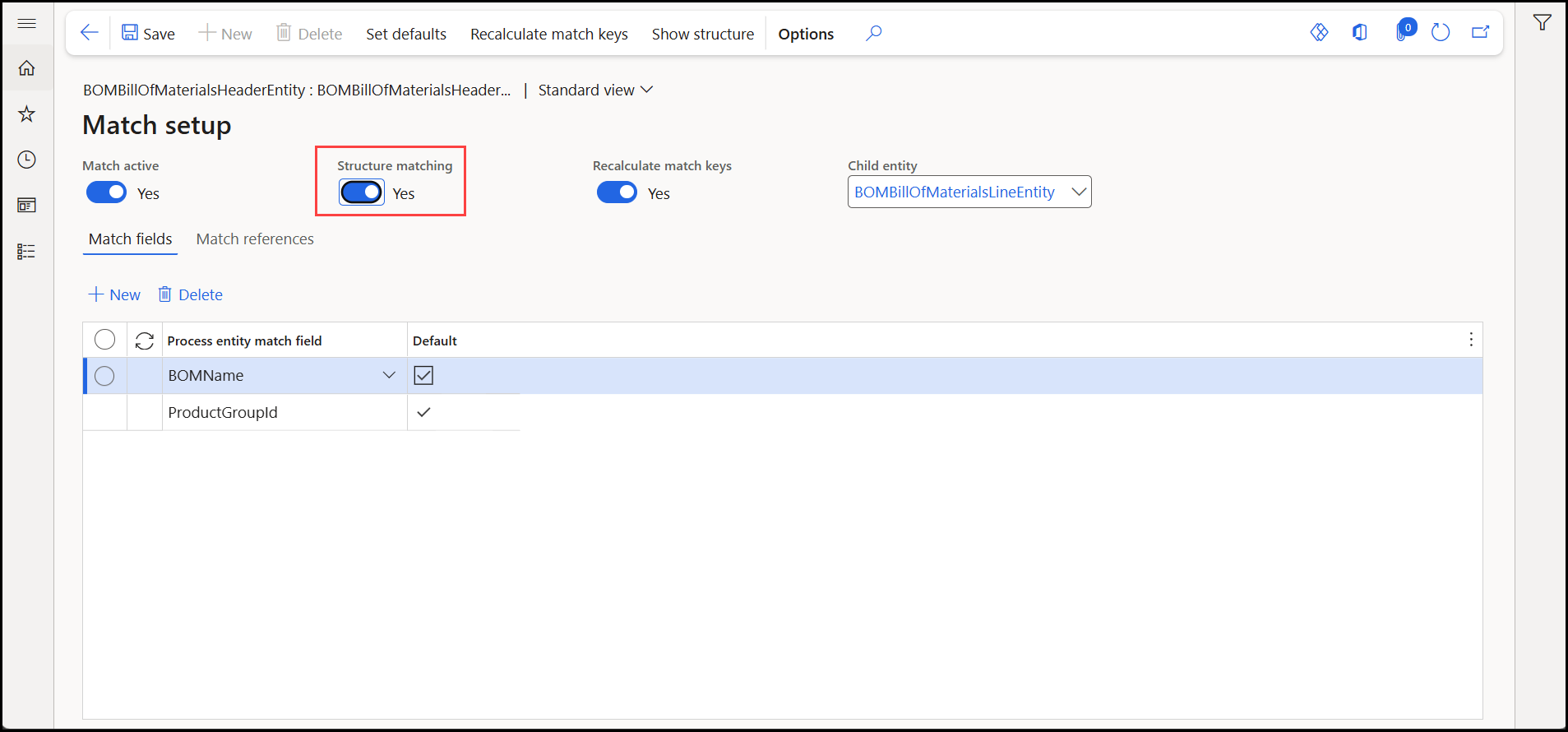
The table below provides a list of fields per entity enabled for matching.
Sample navigation: In Microsoft Dynamics 365 F&O, Modules > Experlogix Integrator > Experlogix processing entity > Action > Match Setup.
|
Entities |
Match Active |
Structure matching |
Match Fields |
|---|---|---|---|
|
BOMBillOfMaterialsHeaderEntity |
Yes |
No |
|
|
BOMBillOfMaterialsLineEntity |
Yes |
NA |
|
|
RouteHeaderEntity |
Yes |
Yes |
|
|
RouteRouteOperationEntity |
Yes |
NA |
|
|
RouteOperationPropertiesEntity |
Yes |
NA |
|
|
EcoResReleasedProductVariantEntity |
Yes |
NA |
Match Reference:
|
|
EcoResReleasedProductVariantEntity |
Yes |
NA |
- |