
The Experlogix User Specify Parameters page is only accessible to users with Experlogix Administrator and Experlogix Configurator User roles.
Add a User-Specific Parameter
A user with Experlogix CPQ Modeler CPQ and Experlogix CPQ User Modeler roles can access the settings and perform new, edit, or delete actions.
Procedures
Access the Settings page
-
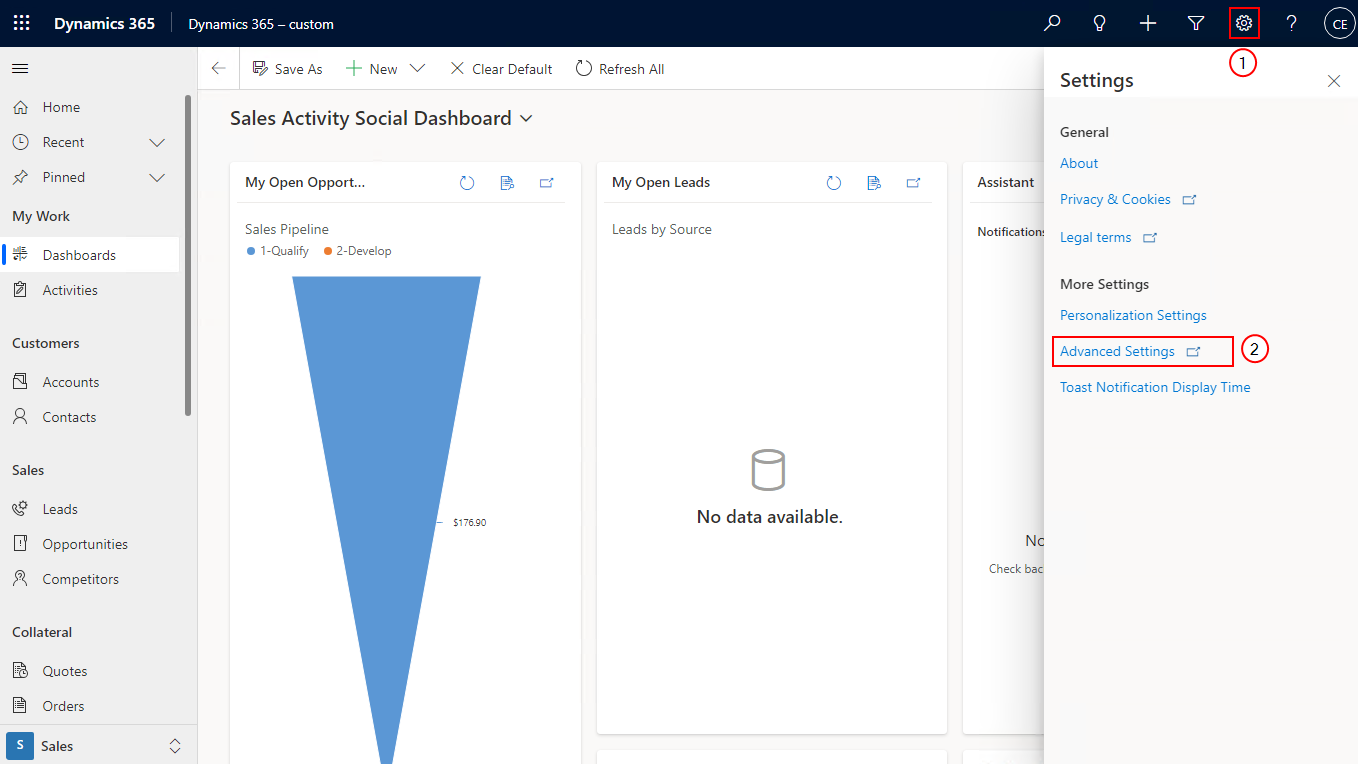
On the Microsoft Dynamics 365 CE home page, select the Settings icon.
-
Select Advanced Settings.
-
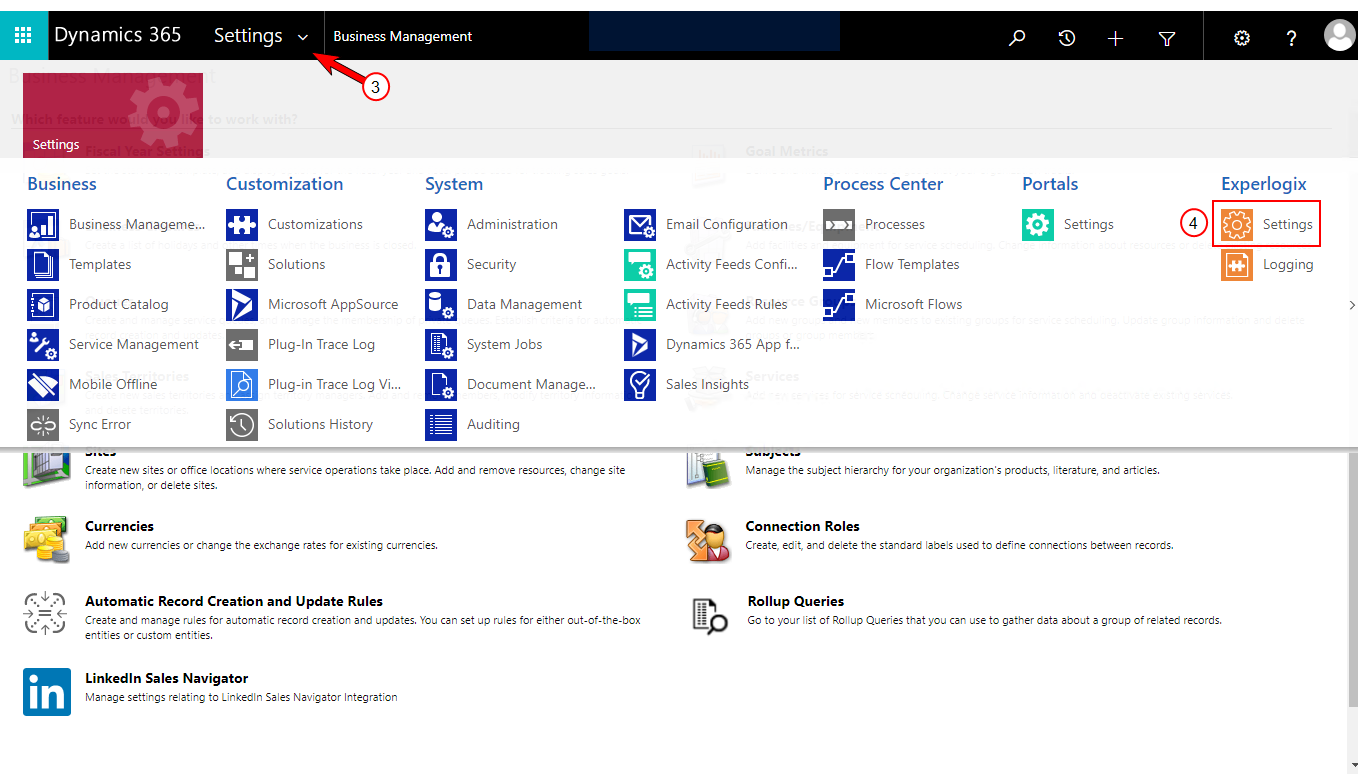
Select the Settings dropdown arrow at the upper-left corner to view the Settings option.
-
Under the Experlogix column, select Settings.
Create new settings
-
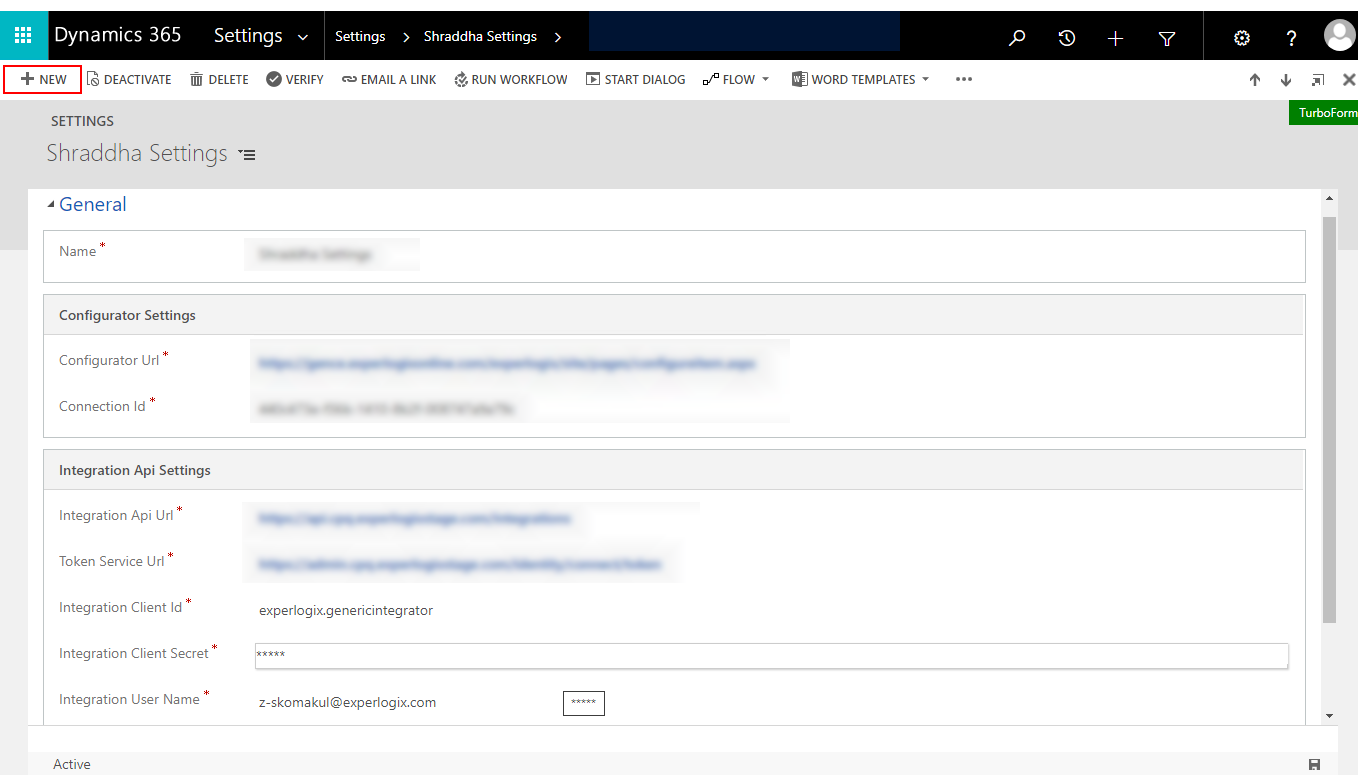
On the Settings page, select NEW.
-
Complete the fields listed below.
|
Field |
Description |
|---|---|
|
Name |
User-defined name for the setting. |
|
Configurator Url |
URL for accessing the configuration interface. |
|
Connection Id |
Unique identifier used to establish and manage the connection. |
|
Integration Api Url field |
URL endpoint for accessing the integration API. |
|
Token Service Url |
URL for the service that provides authentication tokens. |
|
Integration Client Id |
Client ID used for authentication and authorization. |
|
Integration Client Secret |
Client secret associated with the integration client ID. |
|
Integration User Name |
User name of the Admin Center user/service account whose identity is used for authentication and authorization. |
|
Integration Password |
Password of the Admin Center user/service account whose identity is used for authentication and authorization. |
|
User |
The individual for whom the settings or parameters are being configured. |
-
Select Save.