
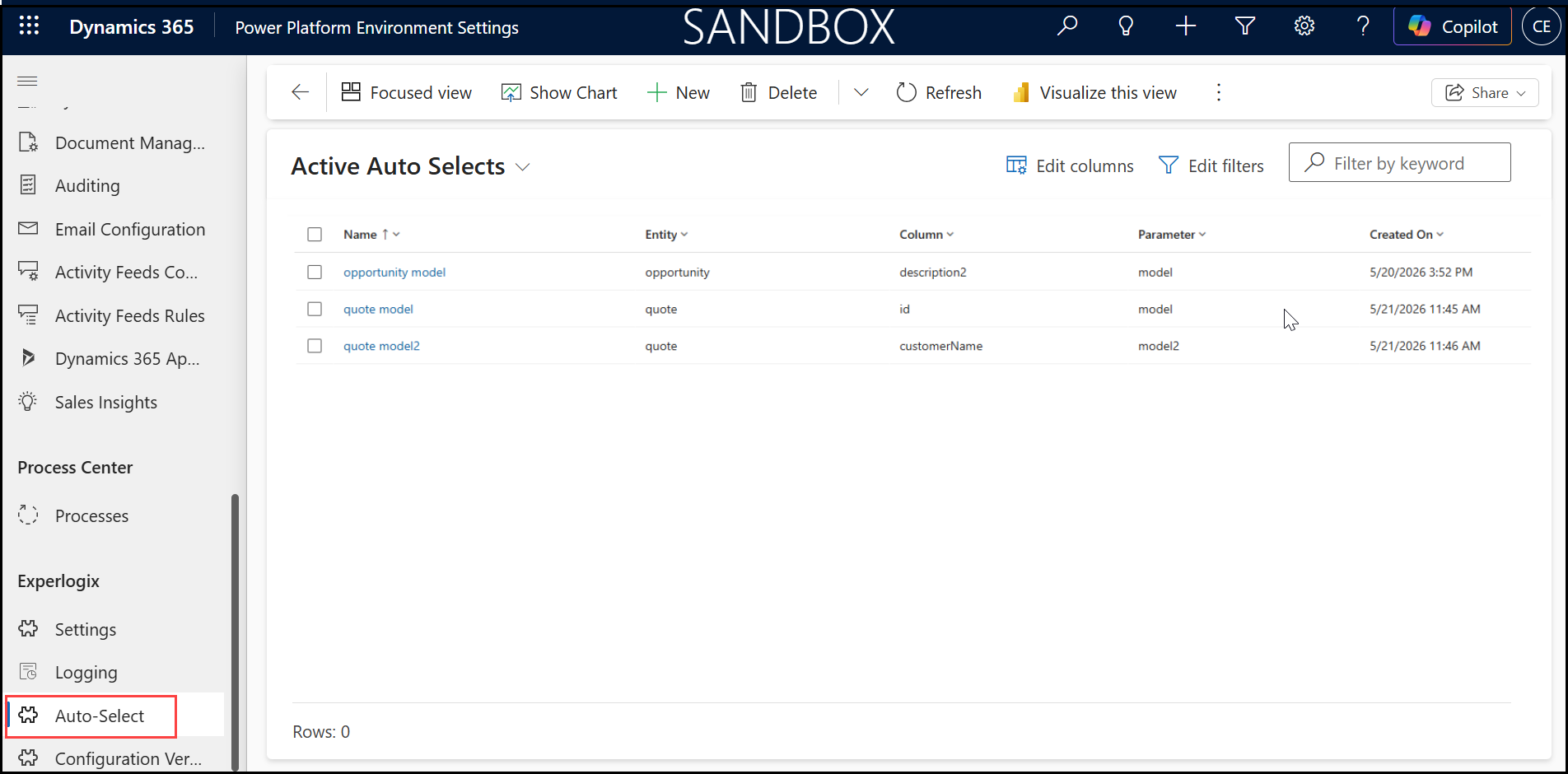
The Auto-Select section displays query parameters, letting users store information per parameter in a table. It also stores Form and Menu Item configurations for CPQ Parameters, enabling access and maintenance of parameter details in a table.
Settings and Access Permissions
-
The table supports ‘Entity, Field, and Parameter’ fields.
-
If users do not have any of the required roles listed above, an error dialog stating Insufficient permission is displayed for both scenarios.
-
Role Permissions for ‘Query Parameter’ and for ‘Form and Menu Item' Auto-Select:
|
|
Experlogix CPQ Modeler |
Experlogix CPQ User |
Experlogix CPQ User Field Service |
Experlogix CPQ User Project Operations |
|---|---|---|---|---|
|
Read |
Yes |
Yes |
Yes |
Yes |
|
Edit |
Yes |
No |
No |
No |
|
Delete |
Yes |
No |
No |
No |
Advanced Settings
For the ‘Form and Menu Item Auto-Select’, Advanced Settings is visible for the users who have system administrator role.
Duplicate Validation
A CE developer can check for duplicates in the system by creating a plugin on 'create and update of xpl_autoselect'. The plugin ensures each 'Entity + Parameter' combination is unique in the existing records and throws an error if a duplicate is found, preventing the user from saving a second record with the same combination.
Configuration URL Setting
A user with Experlogix CPQ Admin role can enrich the Configurator URL using values from CE, so that manual selection of Options in CPQ is no longer required.
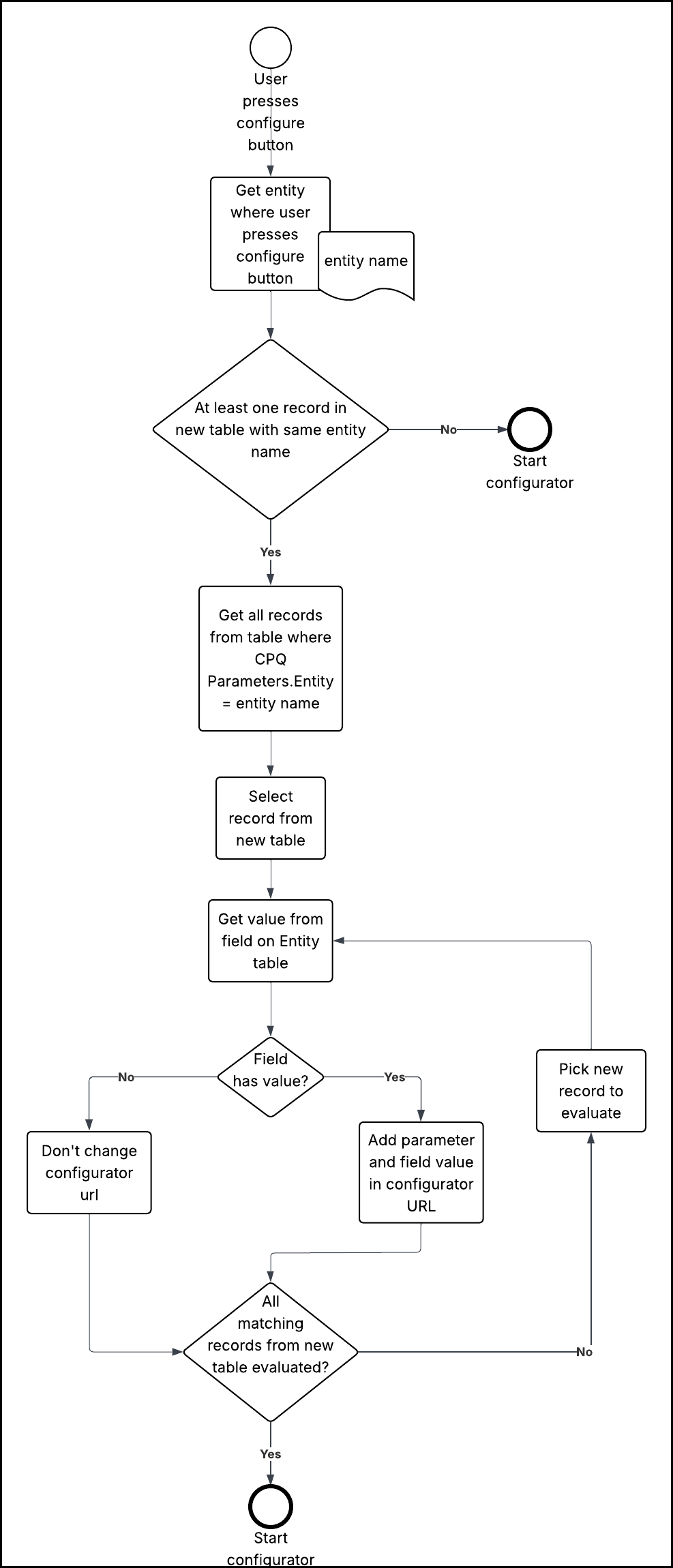
When a user initiates the Configurator, the system evaluates the parameter mappings stored in a CPQ parameter table. For each mapping, the system retrieves the corresponding field value from the entity table and conditionally appends it as a query parameter to the Configurator URL. Finally, the Configurator is launched with a dynamically enriched URL, reflecting the available data from CE.
-
If a value is present, the system adds that value as a parameter to the Configurator URL.
-
If the field is empty, the system skips that parameter and leaves the URL unchanged for that record.
The flowchart below demonstrates the above process:
Upon launching the Configuration url, only active records are added from Auto-select table and the inactive records are not considered for the url.