
Tracing enables the application to record run-time information do monitor the system's health and troubleshoot issues. However, before trace logs are written to the plug-in trace, the Microsoft Dynamics 365 CE Plug-in trace needs to be activated first. This topic provides the steps for enabling the Plug-In Trace Logs in Microsoft Dynamics 365 CE:
-
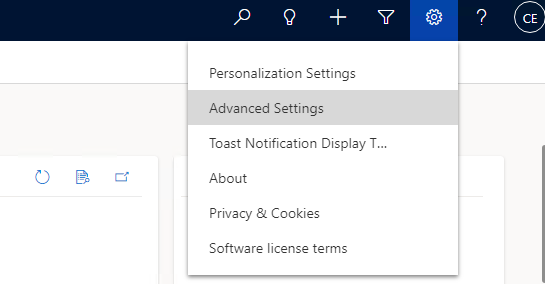
On the Microsoft Dynamics 365 CE home screen, at the upper-right corner of the screen, click the Settings icon.
-
Select Advanced Settings.
-
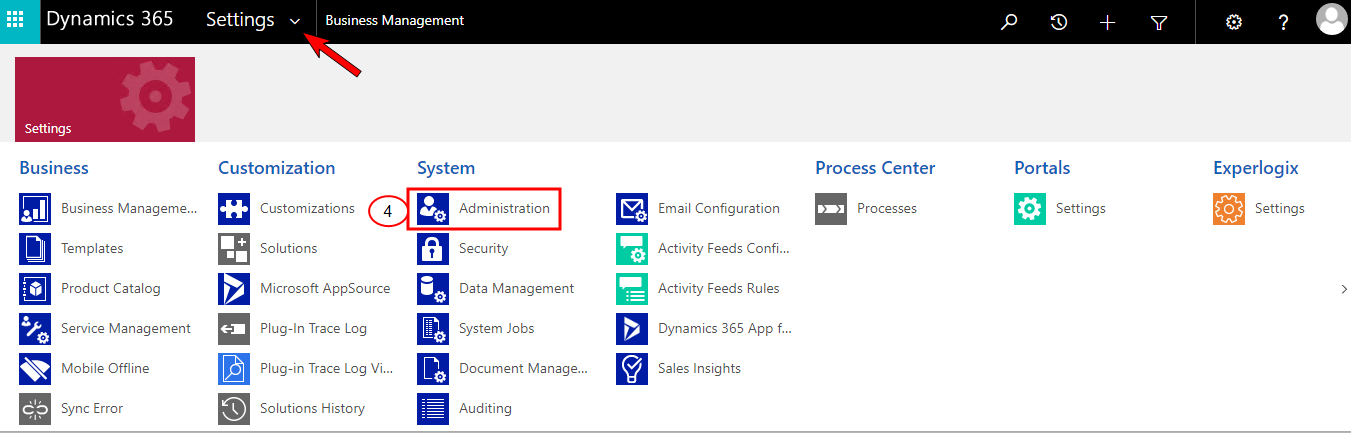
At the upper-left corner, click the Settings dropdown arrow to view the Settings options.
-
Under the System column, click Administration.
-
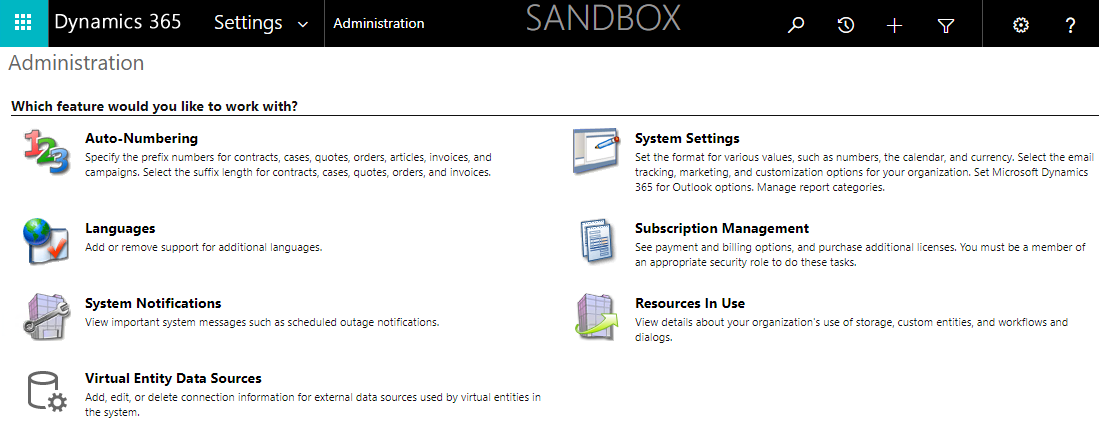
Click System Settings.
-
Select the Customization tab.
-
In the Plug-in and custom workflow activity tracing section, in the Enable logging to plug-in trace log dropdown, select All.
-
Click OK.
The Plug-In Trace logs are enabled in Microsoft Dynamics 365 CE.
If you wish to access the the logs, please refer to Accessing the Plug-In Trace Log Viewer in Microsoft Dynamics 365 CE.