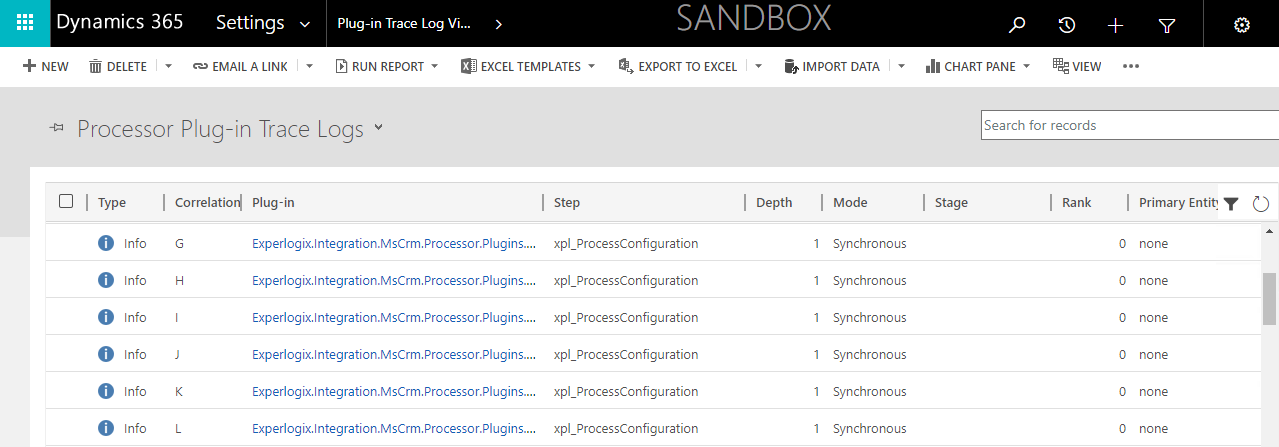
The Plug-in trace logs enabled in Microsoft Dynamics 365 CE can be viewed in the Trace Log Viewer. The Trace Log Viewer lists the recent processing done by Experlogix Cloud Connect.
-
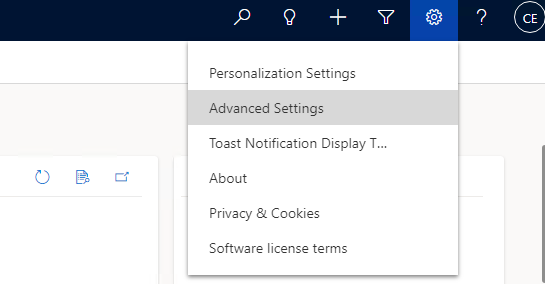
On the Microsoft Dynamics 365 CE home screen, at the upper-right corner of the screen, click the Settings icon.
-
Select Advanced Settings.
-
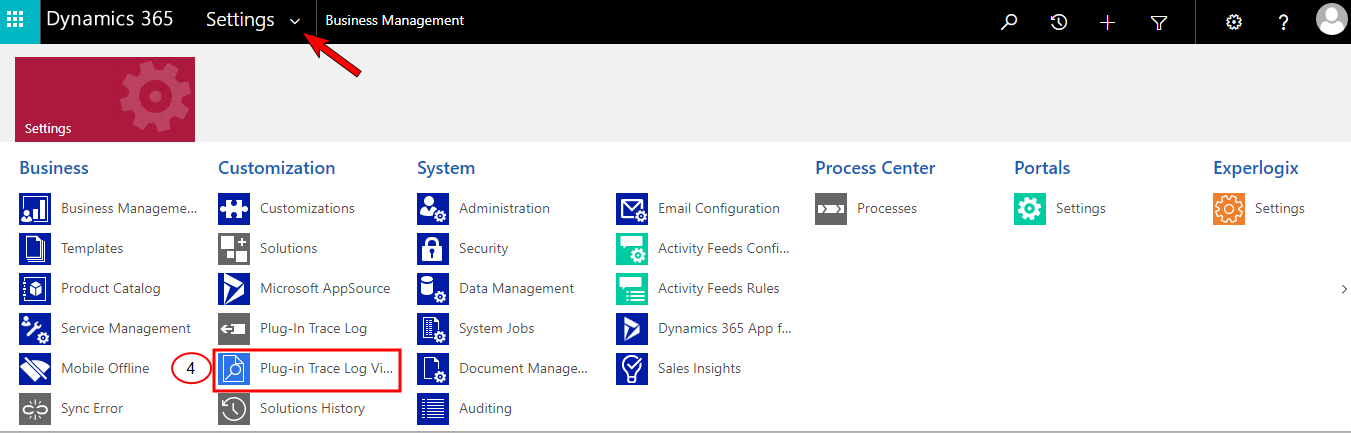
At the upper-left corner, click the Settings dropdown arrow to view the Settings options.
-
Under the Customization column, click Plug-in Trace Log Viewer.
-
From the System Views dropdown, select Processor Plug-in Trace Logs.
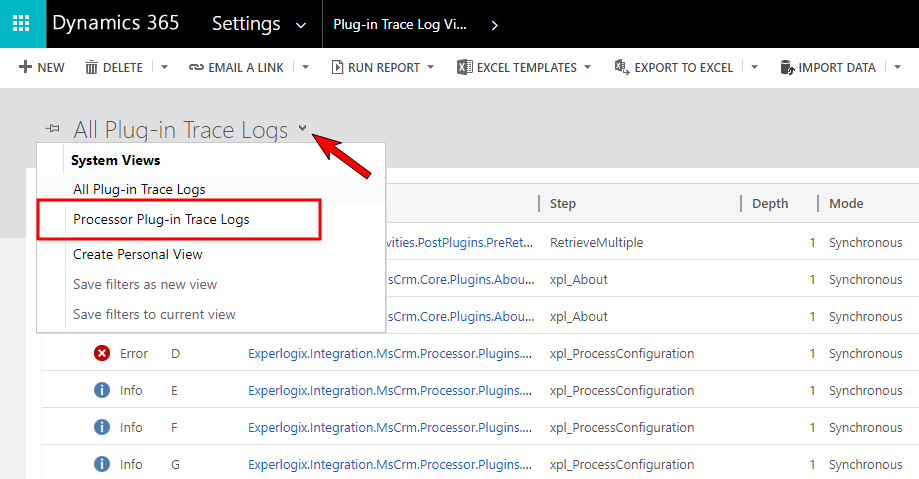
A list of the recent processing done by the Experlogix Cloud Connect in CE displays.