
This topic explains how to easily copy configurations from one record to another, which helps save time when creating sales orders. While this guide focuses on Sales Orders, the copy functionality also applies to other entities such as Quotes, Invoices, and Purchase Orders. You can also copy configuration and process state from the source record to the destination record of the corresponding entity. See Copy Configuration Endpoint for more information.
Supported Forms and Entities
The following entities are available for configuration in Cloud Connect CPQ:
|
Integration |
Configure |
Outbound |
|---|---|---|
|
Microsoft Dynamics 365 CE |
|
Any table or entity |
|
Microsoft Dynamics 365 F&O |
|
Any table or entity |
|
Microsoft Dynamics 365 BC |
|
Any table or entity |
|
Salesforce |
|
Any table or entity |
The Copy functionality allows you to efficiently transfer configurations and process states from one record to another, saving time when creating Sales orders. Use the following steps to copy an existing sales order record.
-
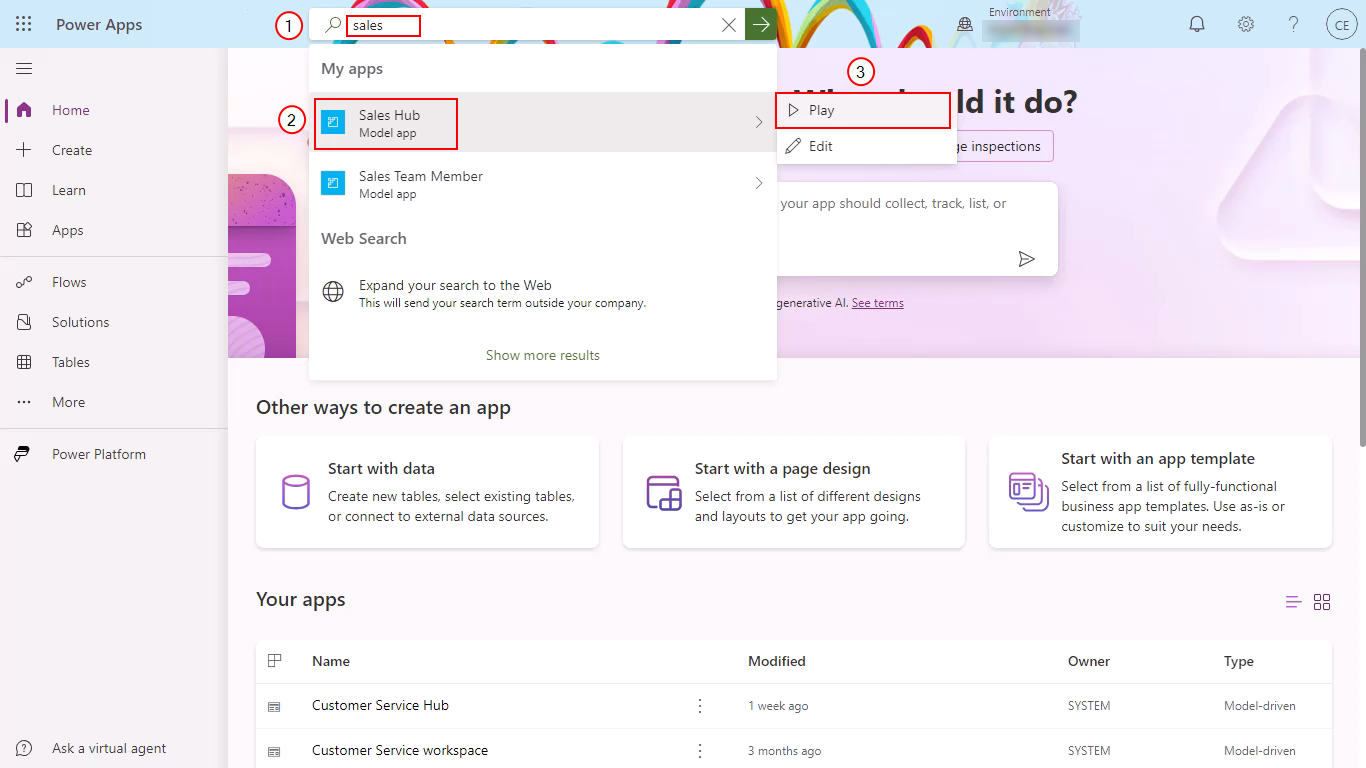
On the Microsoft Dynamics 365 CE home page, at the top, search for Sales.
-
From the search results, select Sales Hub .
-
Select Play.
-
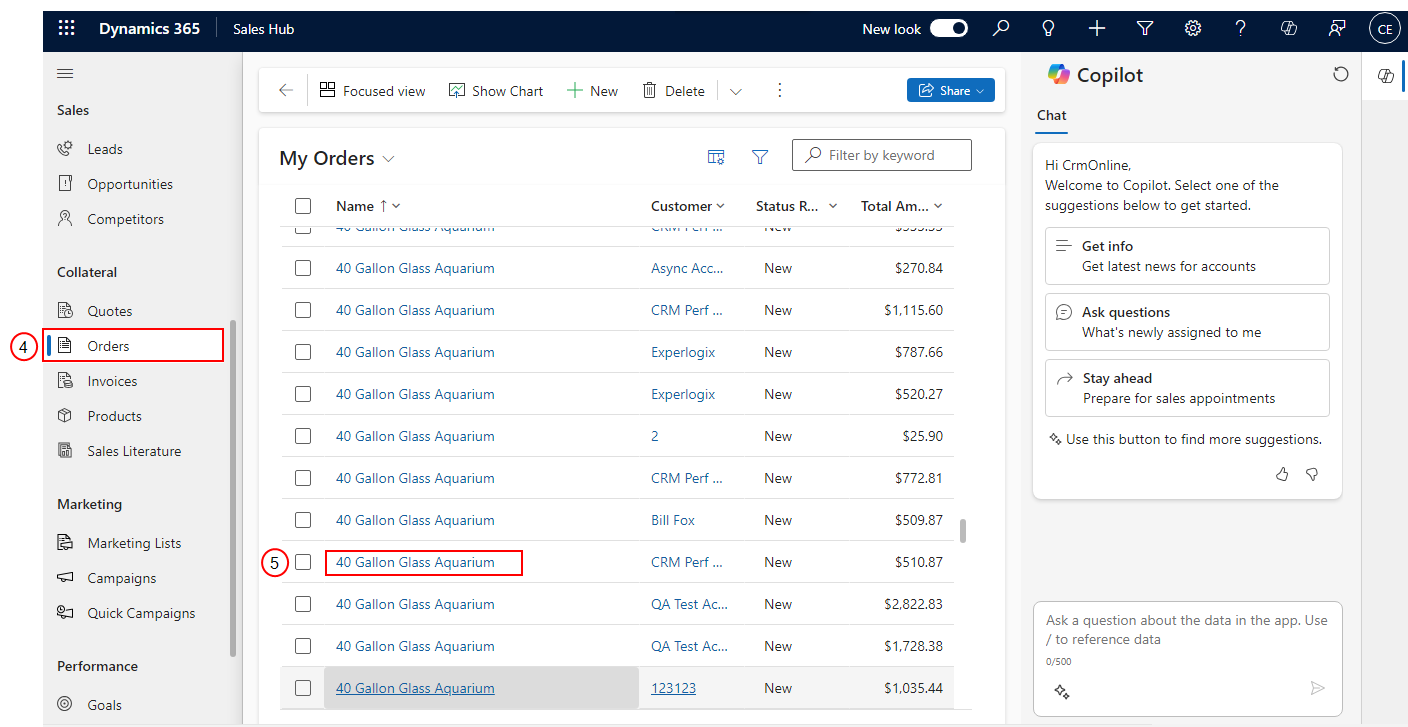
On the Sales Hub page, in the left pane, select Orders.
-
Search or select an order from the order list.
-
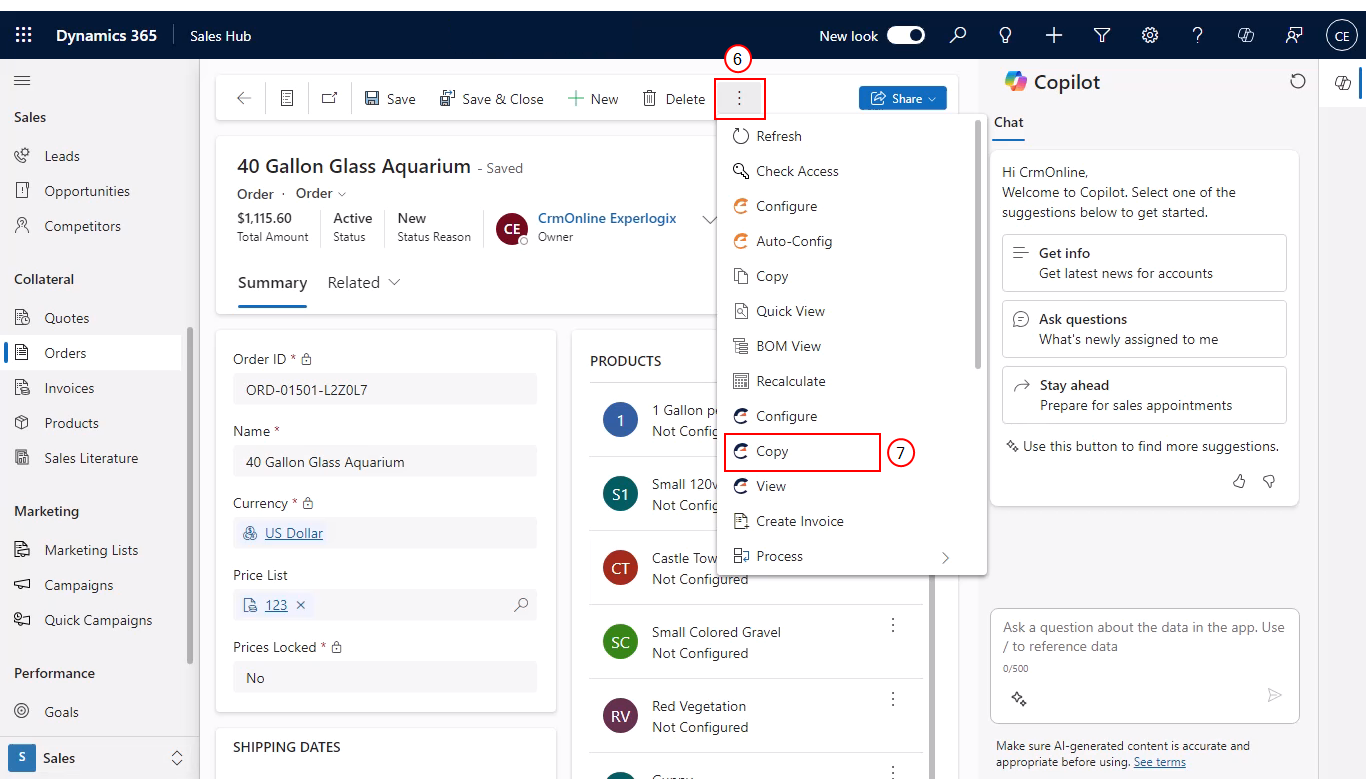
Select the ellipses next to the Delete button.
-
Select Copy.
-
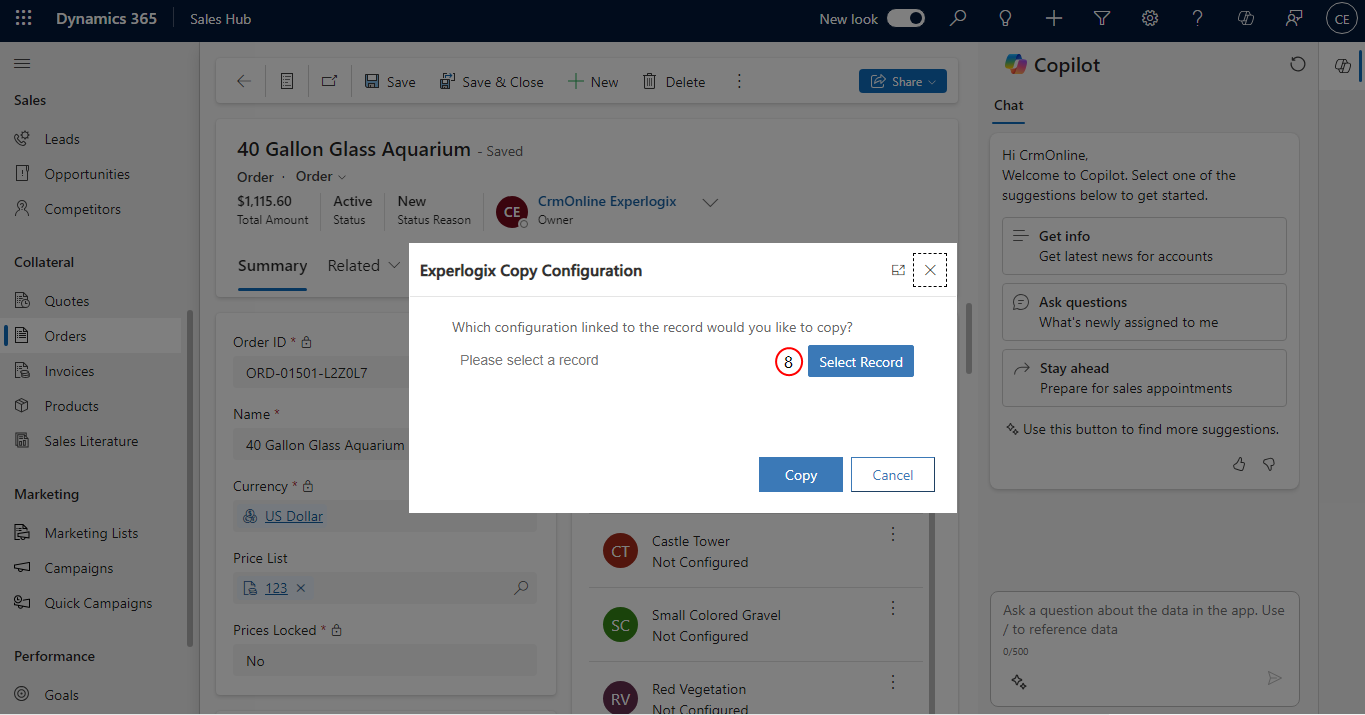
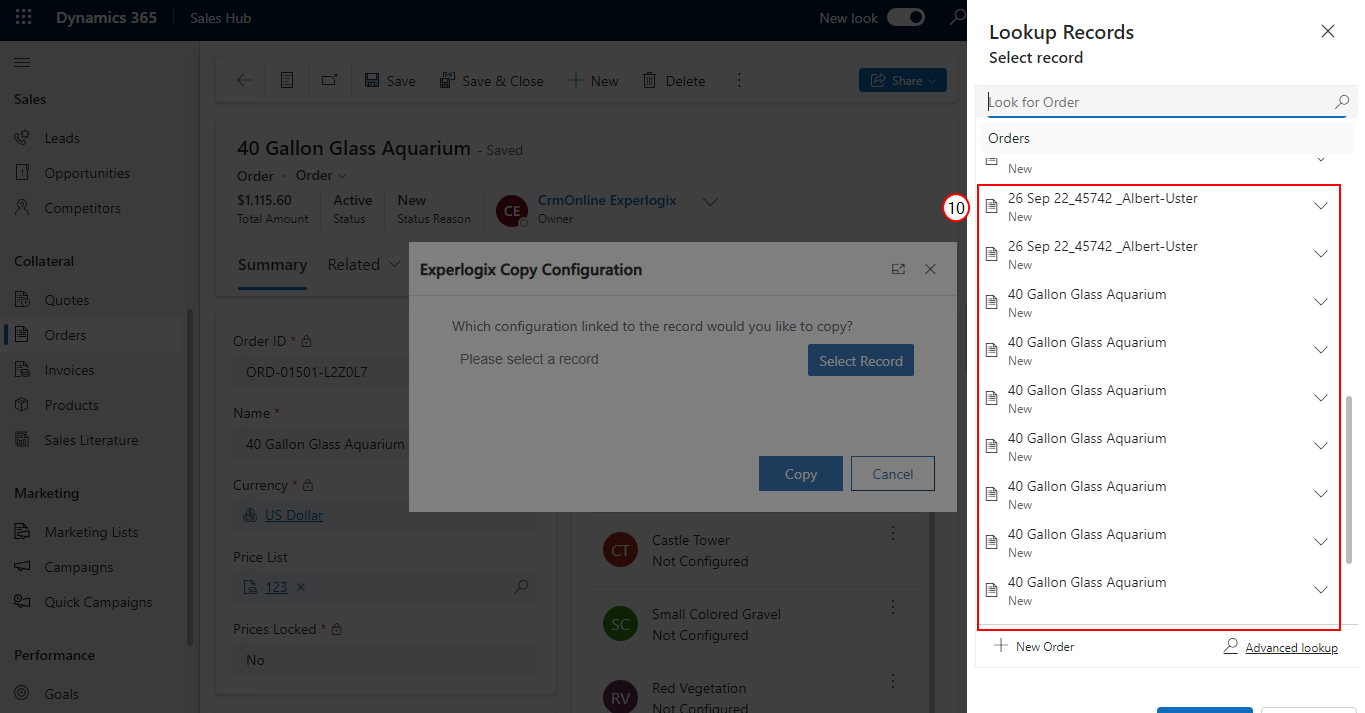
Select Select Record.
-
Select a record from the available options.
-
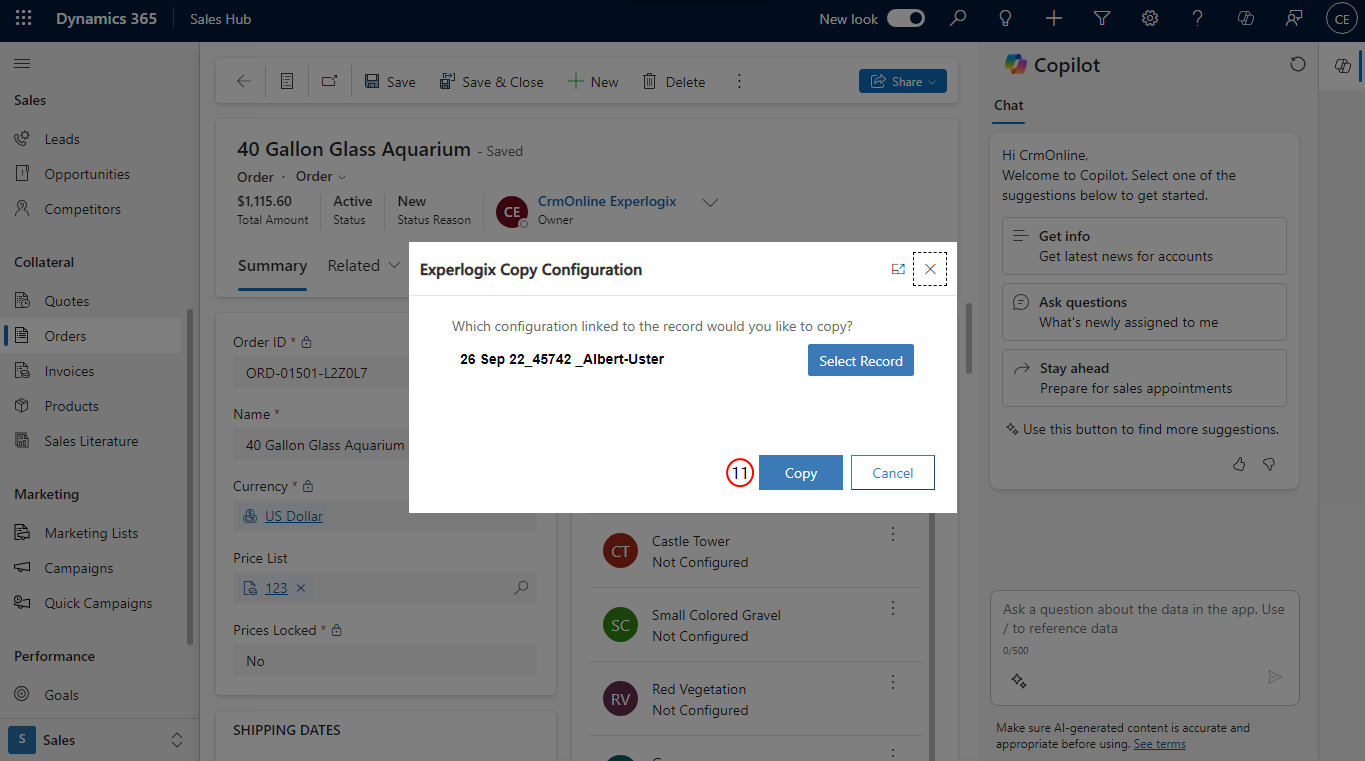
Select Add.
-
Select Copy.
The sales order is copied, and Configurator opens in a new browser tab.