
A user with the Experlogix CPQ User Field Service role can configure a work order in Microsoft Dynamics 365 CE. This page provides details on configuring a work order in Microsoft Dynamics 365 CE.
Enable the Configure button on the Work Order screen
-
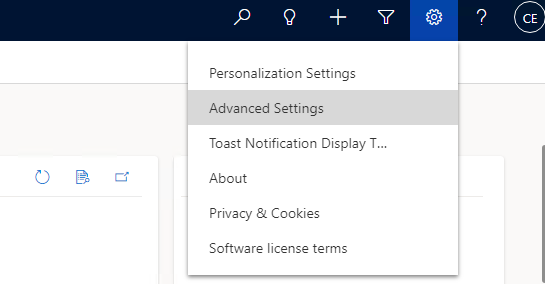
On the Microsoft Dynamics 365 CE home screen, at the upper-right corner of the screen, select the Settings icon.
-
Select Advanced Settings.
The Settings screen displays. -
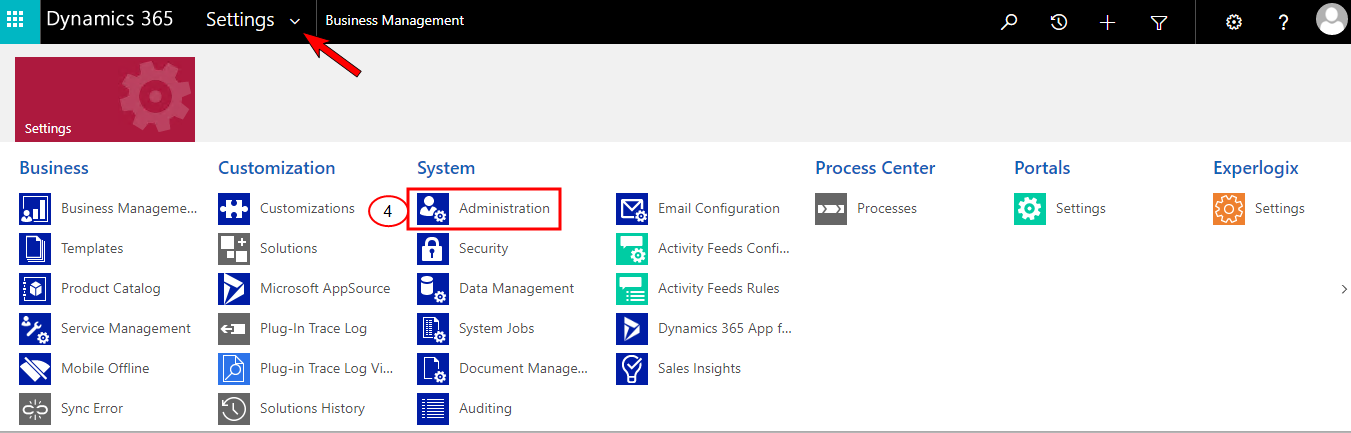
At the upper-left corner, select the Settings dropdown arrow to view the Settings options.
-
Under the System column, select Security.
The Security screen displays. -
Select Security Roles.
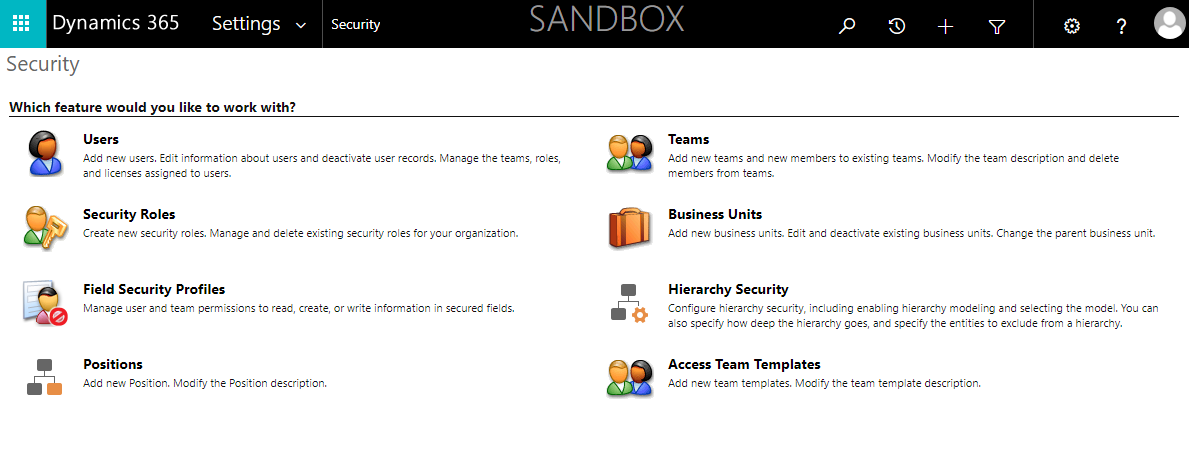
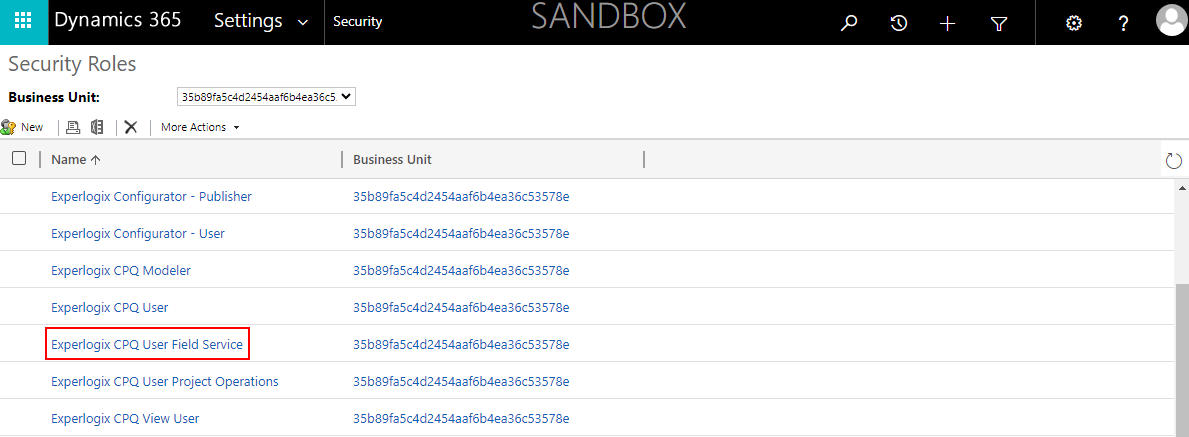
The Security Roles screen displays. -
Select the Experlogix CPQ User Field Service link.
-
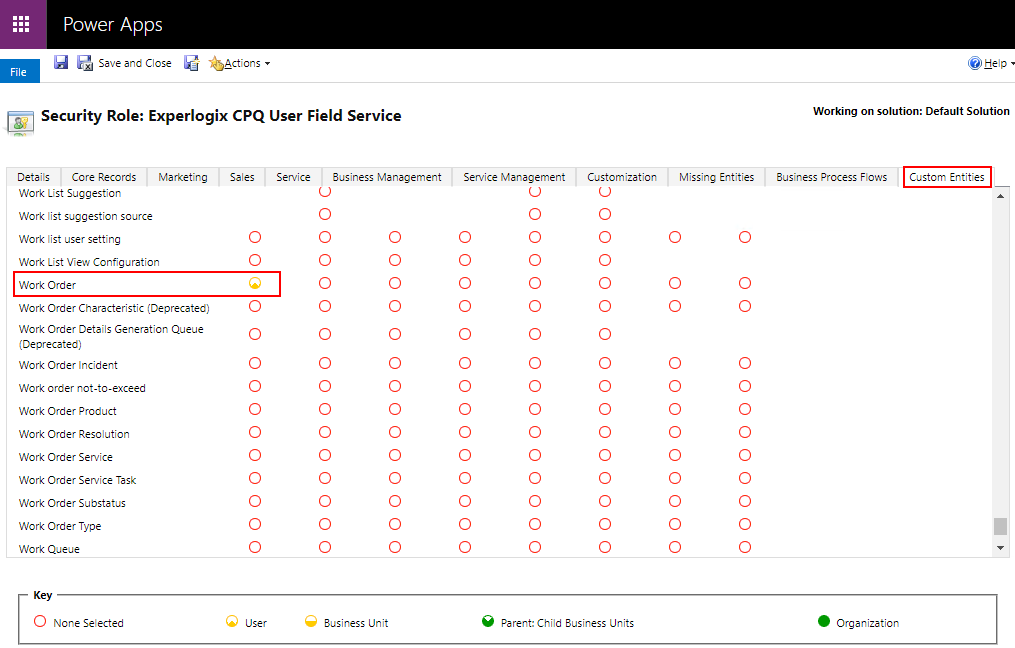
Select the Custom Entities tab.
-
Select the Yes option in the Create column for Work Order.
-
Select Save and Close.
When accessing the Work Order screen in Microsoft Dynamics 365 CE, the Configure button is available for the users with the Experlogix CPQ User Field Service role.