Use the list below for information regarding common problems encountered by users integrating Experlogix with Microsoft Dynamics 365 F&O using Cloud Connect. For general, non-integration-specific Cloud Connect troubleshooting information, see Cloud Connect Troubleshooting.
Empty Error Message When Saving to MsAx
Symptom
When saving a configuration to MsAX(Microsoft Dynamics 365 F&O), the message is empty as shown below:
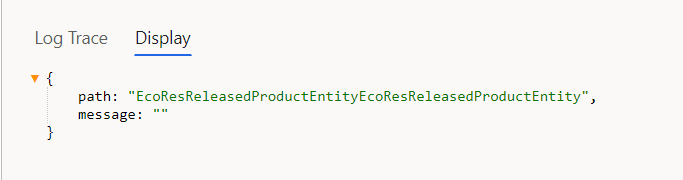
The path in the message may be different.
Cause
Products with a Planning level higher than 0 cannot be used as Template (or Base record).
Solution
Use a product that has a Planning level of 0 as Template (or Base record) in the Process Map. Products intended to serve as Templates or Base records in the Process Map should have a Planning Level of 0. This ensures they are recognized as top-level items without dependencies on other components.
Logger Does Not Show Decimals for Values like 6.00 or 5.00
Symptom
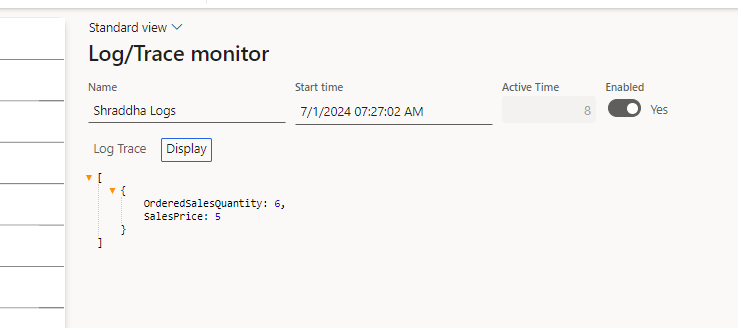
In the JSON Viewer in the Microsoft Dynamics 365 F&O Logger, a value like 6.00 or 5.00 displays without the trailing zeros. A value like 3.95 displays all decimal values.
Cause
This behavior stems from how JavaScript handles number representation. In JavaScript, numbers like 6.00 and 5.00 are considered equivalent to 6 and 5, respectively, because trailing zeros do not affect the value of a number. As a result, when such numbers are parsed and displayed, the trailing zeros are omitted. This is a common characteristic of JavaScript's number parsing and formatting mechanisms.
Solution
Currently, there is no direct solution to alter this inherent behavior of JavaScript's number handling within the Logger's JSON Viewer.
Cannot Find Enabled Pricing Tree. Please Correct Pricing Tree Setup
Symptom
In Microsoft Dynamics 365 F&O, for a customer with the Pricing management feature enabled, processing a salesorderline or salesquotation line, gives the following error:
Status Error - Cannot find enabled pricing tree. Please correct pricing tree setup.
Cause
-
Your Cloud Connect and CPQ instance are on Microsoft Dynamics 365 F&O version 10.0.42 or higher with Pricing management enabled AND
-
You are using the inherited Price Tree
Solution
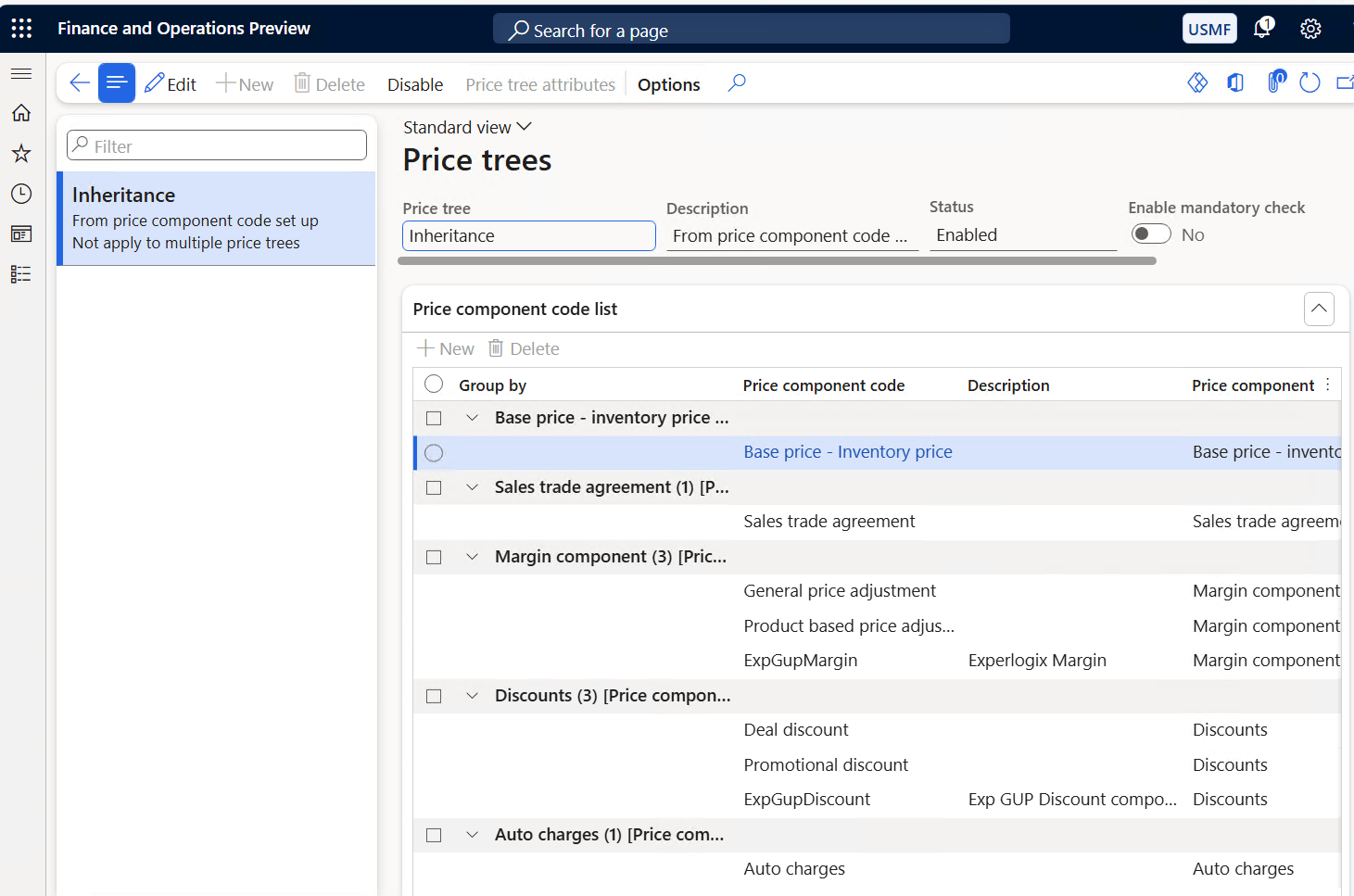
Please make sure a Price Tree is created other than the inherited Price Tree. This is what the Inherited Price tree could look like. See Set up a company to use multiple price structures (preview) and Configure a price structure for more information on the Price Tree.
Cannot Insert Duplicate Key Row in Object Integration.ConfigurationLink
Symptom
When processing to Microsoft Dynamics 365 F&O, the following error is shown, "An error occurred while updating the entries. See the inner exception for details. Cannot insert duplicate key row in object 'integration.ConfigurationLink' with unique index 'IX_ConfigurationLink_ConnectionId_ConfigurationSetId_Entity'. The duplicate key value is (d8689d24-e011-4f73-b4b3-602a8f2cc5ca, eec62030-5ce5-46be-9ed4-db29dcc0ba92, CustCustomerGroupEntity). The statement has been terminated."

Cause
The connectionType is set to 'Company configuration / state' whereas it needs to be 'Global configuration / state'. Company configuration / state means that there can only be one configuration for a connectionId and recordId. With this setup, you cannot process the same configuration to multiple companies, as it violates the rule 'one configuration for a connectionid and recordId'.
Solution
Use the following steps to set the connectionType to 'Global configuration / state':
-
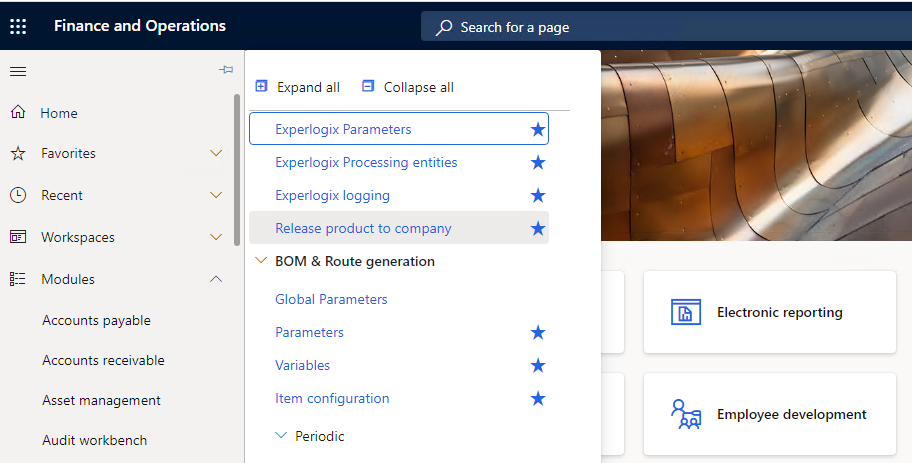
In Microsoft Dynamics 365 F&O, in the left pane, select Modules.
-
From the options displayed in the left pane, select Experlogix Integrator. The Experlogix Integrator options display.
-
Select Experlogix Processing entities.
-
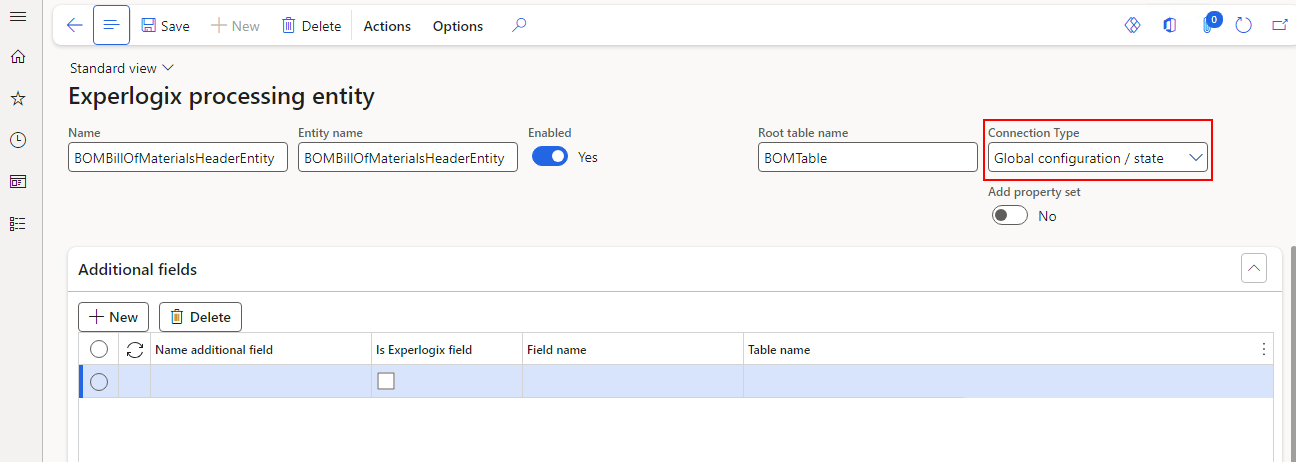
Select the root entity that you're configuring.
-
In the ConnetionType field, select Global configuration / state.
-
Select the Save button in the upper-left corner.
Match – The product ‘productgoeshere’ cannot be released as it has already been released in the entity
Symptom
When processing data in Microsoft Dynamics 365 F&O with Match set to true for the EcoResReleasedProductEntity, the following error occurs:
Error message:
Error - The product 'Frame' cannot be released as it has already been released in the legal entity
Cause
Microsoft Dynamics 365 F&O cannot find a matching released product because no match key exists for the product. As a result, Microsoft Dynamics 365 F&O attempts to create a new released product.
Since the product already exists in the legal entity, Microsoft Dynamics 365 F&O blocks the creation and throws this error.
Solution
Recalculate the Microsoft Dynamics 365 F&O match keys so that Microsoft Dynamics 365 F&O can correctly identify existing released products.
-
Open the Experlogix Processing Entity form.
-
Navigate to Match setup.
-
Select Recalculate match keys.
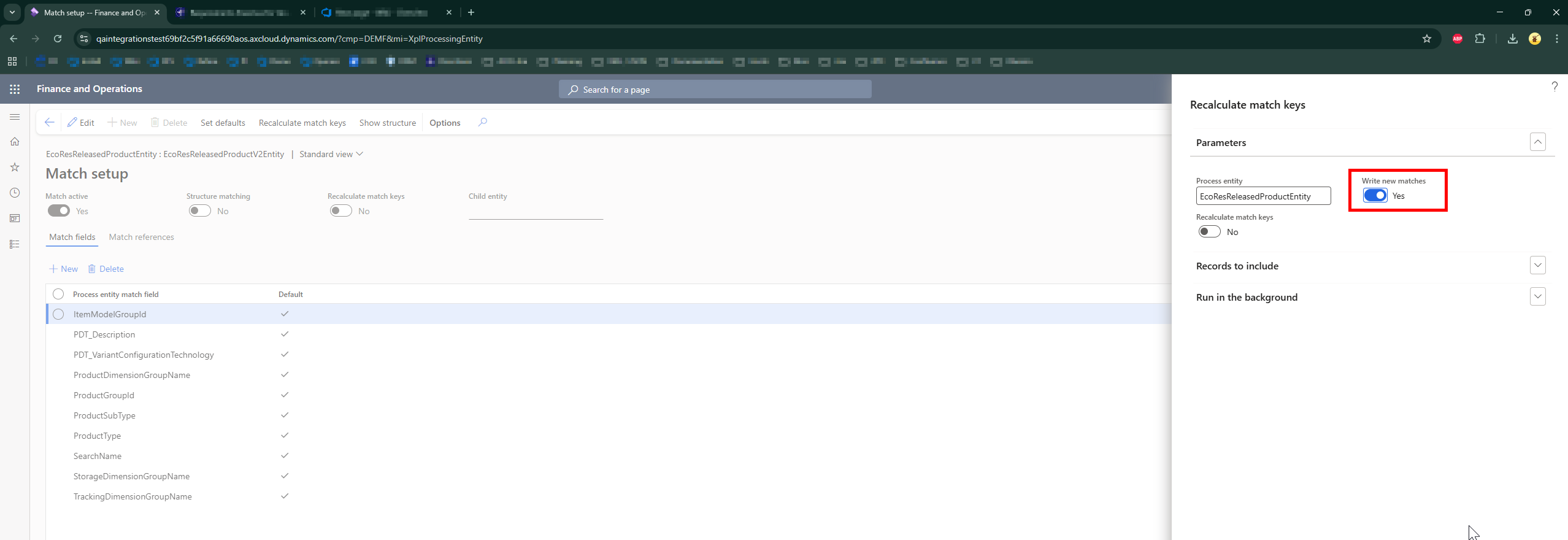
After recalculating the match keys, FO successfully matches the existing released product and the error no longer occurs.
Custom field Shows as Locked in Data Entity
Symptom
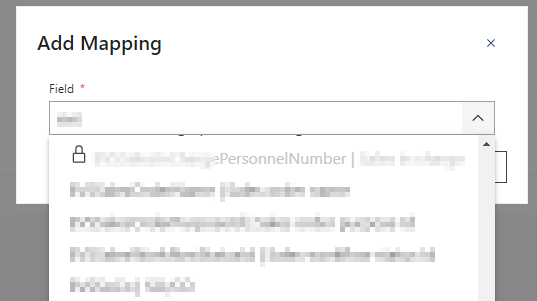
When opening a Process Map for a Microsoft Dynamics 365 F&O entity, the field cannot be added and displays with a lock icon.
Cause
-
The field is not mapped for the Data entity.
-
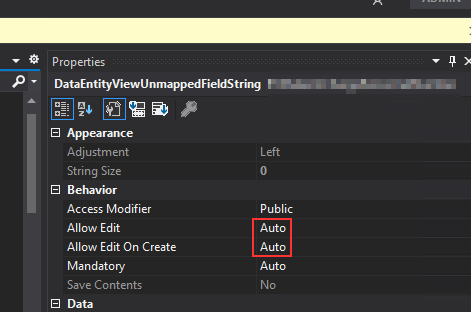
The Data entity is not configured to Allow Edit and to Allow Edit on Create.
Solution
-
In Visual Studio, access the appropriate folder.
-
Open the required file. For example, DataEntityViewUnmappedFieldString file.
-
In the Solution Explorer, at upper-right corner, select the Properties
icon.
-
In the Properties section, ensure that Allow Edit and Allow Edit On Create is set to Yes at a field-level.
Please refer to this Microsoft Dynamics 365 F&O Community post for more information on this issue.
Creating a Salesline or SalesOrderLineEntity takes Incrementally Longer
Symptom
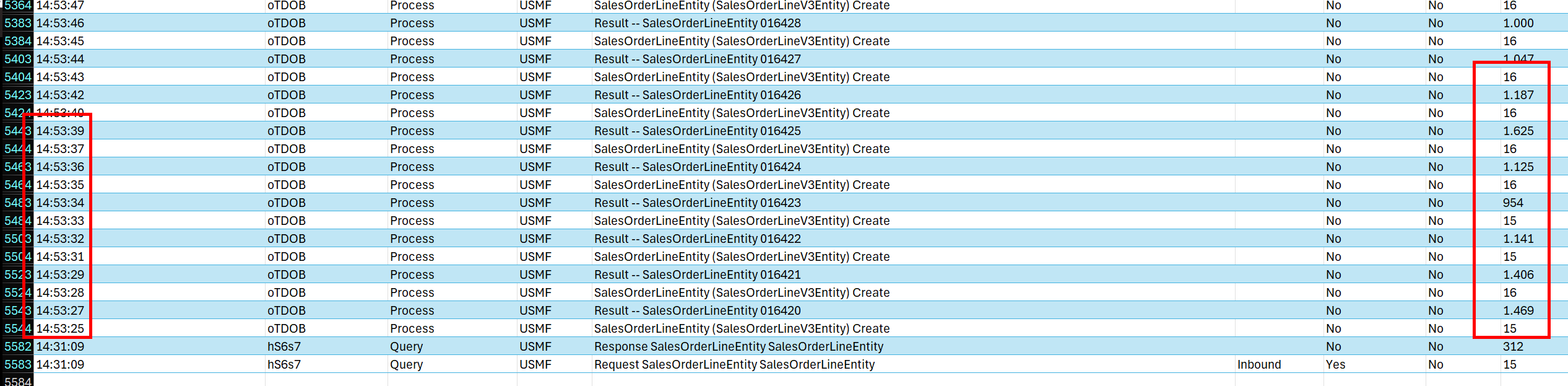
Performance degrades when creating multiple SalesOrderLine or SalesOrderLineEntity records in Finance and Operations (FO); each successive line takes longer to process.
Cause
FO automatically triggers a full price recalculation for the entire sales order—including all lines—after each new line is added. This repeated recalculation increases processing time as the order grows.
Solution
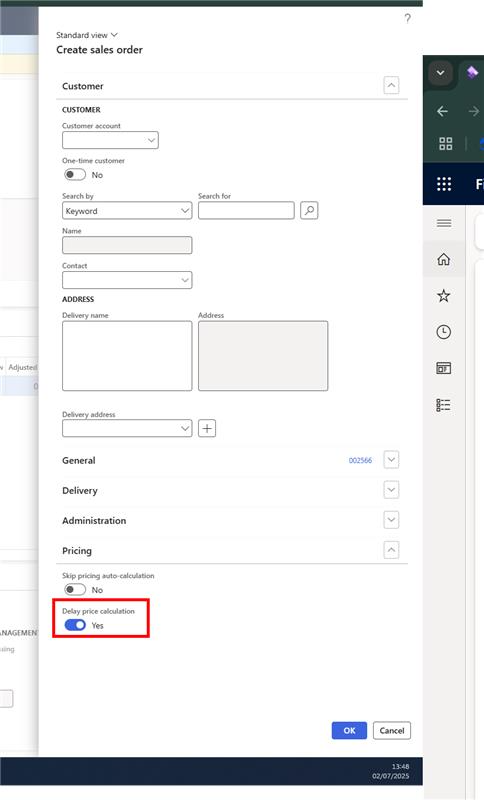
To improve performance, enable the Delay price calculation option when creating the sales order header. This defers price calculations until all lines are added. For more information, see Microsoft's documentation on this topic here.
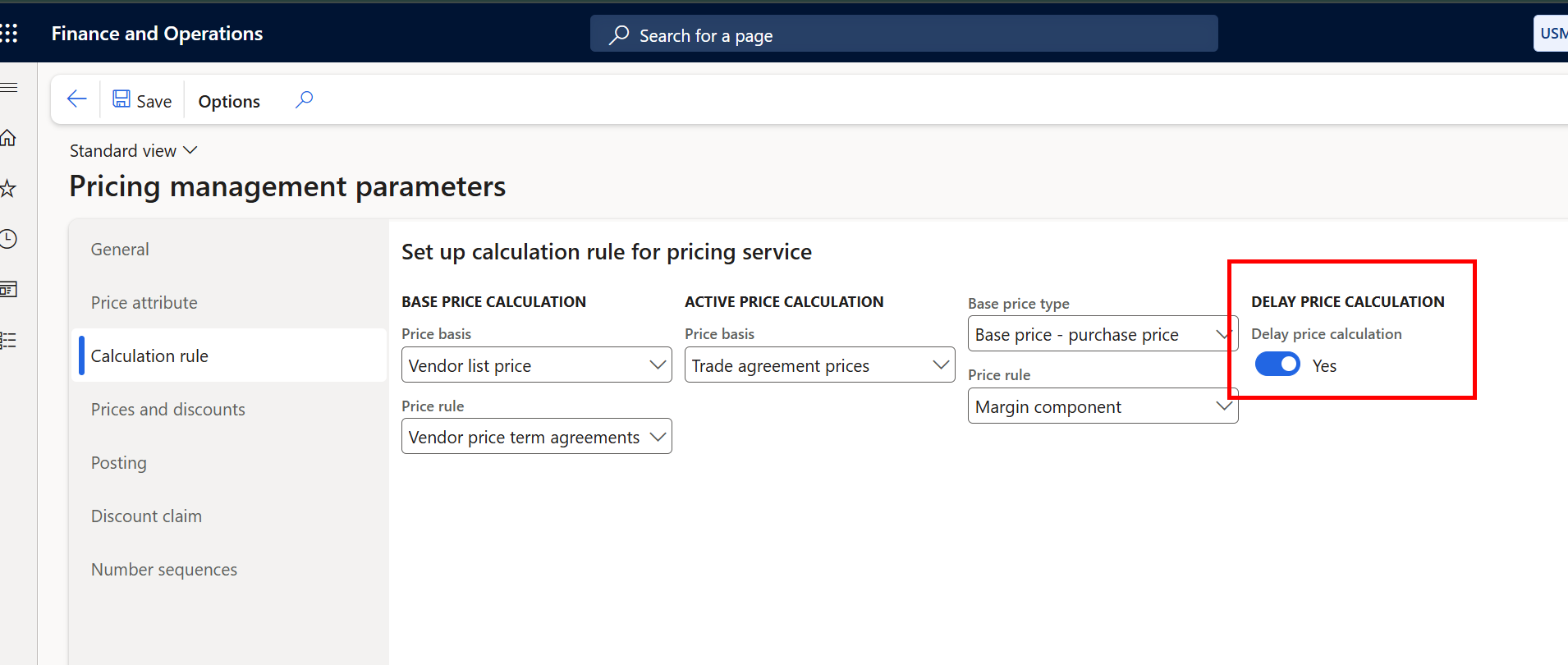
To enable this setting, go to Pricing Management > Setup > Pricing management parameters > Calculation rule tab then set Delay price calculation to Yes.
Creating a BOMBillsOfMaterialsVersionEntity Times Out
Symptom
The user will receive the following error message when creating the BOM in FO: Still running Tests.MsAx.Process.BOMBillsOfMaterialsVersionEntity.Bom-Bills-Of-Materials-Version after [a number of] seconds. Creating BOMs takes an excessive length of time.
Cause
Improper settings cause the insert of the BomVersion record to be time consuming due to the BOM circularity check, especially when a lot of BOMs are almost the same.
Solution
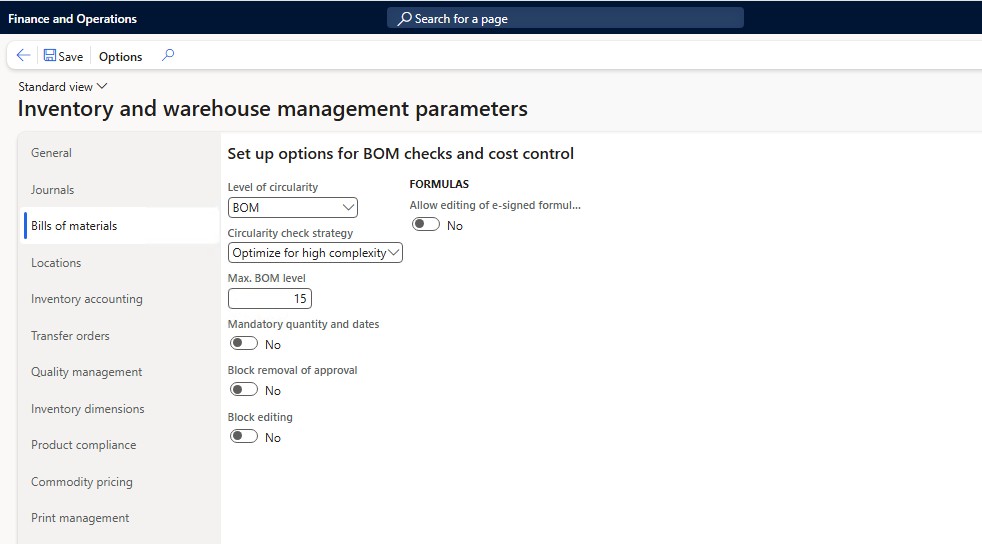
In Microsoft Dynamics 365 F&O, navigate to Inventory Management > Setup > Inventory and warehouse management parameters and set the following values:
-
In the Level of circularity field, select BOM.
-
In the Circularity check strategy field, select Optimize for high complexity.
Running MRP does not Consider Sub-BOM/Route
Symptom
When running the MRP for F&O, the sub-BOM and sub-Route are not being considered and getting created by the FO BRG and the active BOM/Route is used instead. This causes a faulty run of MRP which potentially leads to wrong orders.
Cause
This is a Finance & Operations setting, so please get in touch with the Dynamics partner as they should fix this.
Solution
-
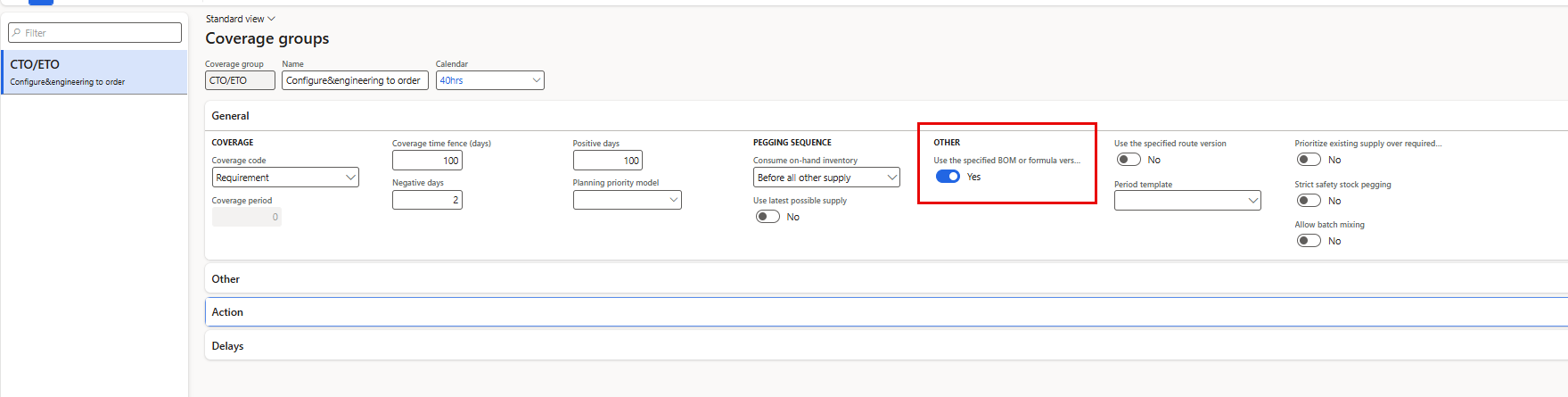
In F&O, navigate to Master planning > Setup > Coverage > Coverage groups.
-
Select the relevant coverage group. Ensure General > Other > Use the specified BOM or formula version is set to Yes.
Configuration Does Not Exist After Copy or Quote to Sales Order
Symptom
When using Cloud Connect with Microsoft Dynamics 365 F&O, a user performs one of the following actions:
-
Uses the Copy button
-
Converts a Sales Quote to a Sales Order
When opening the Configurator on the destination record, no configuration is shown, although a configuration exists on the source record.
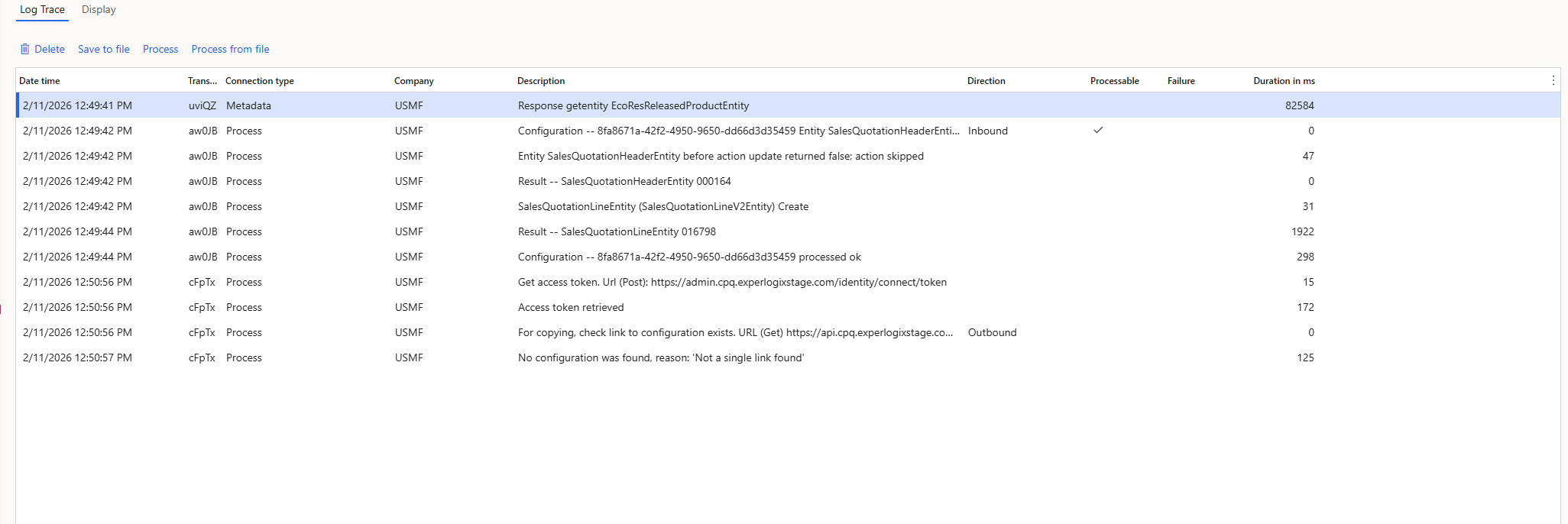
Microsoft Dynamics 365 F&O displays the following error message: "No configuration was found. Reason: "Not single link found"."
Cause
This issue occurs when the configuration uses one of the following connection types:
-
Global configuration / state
-
Global configuration / company state
For these connection types, the configuration link created by the Integration API does not contain a company property. As a result, Microsoft Dynamics 365 F&O cannot resolve a single configuration link when copying a record or converting a sales quote to a sales order.
Solution
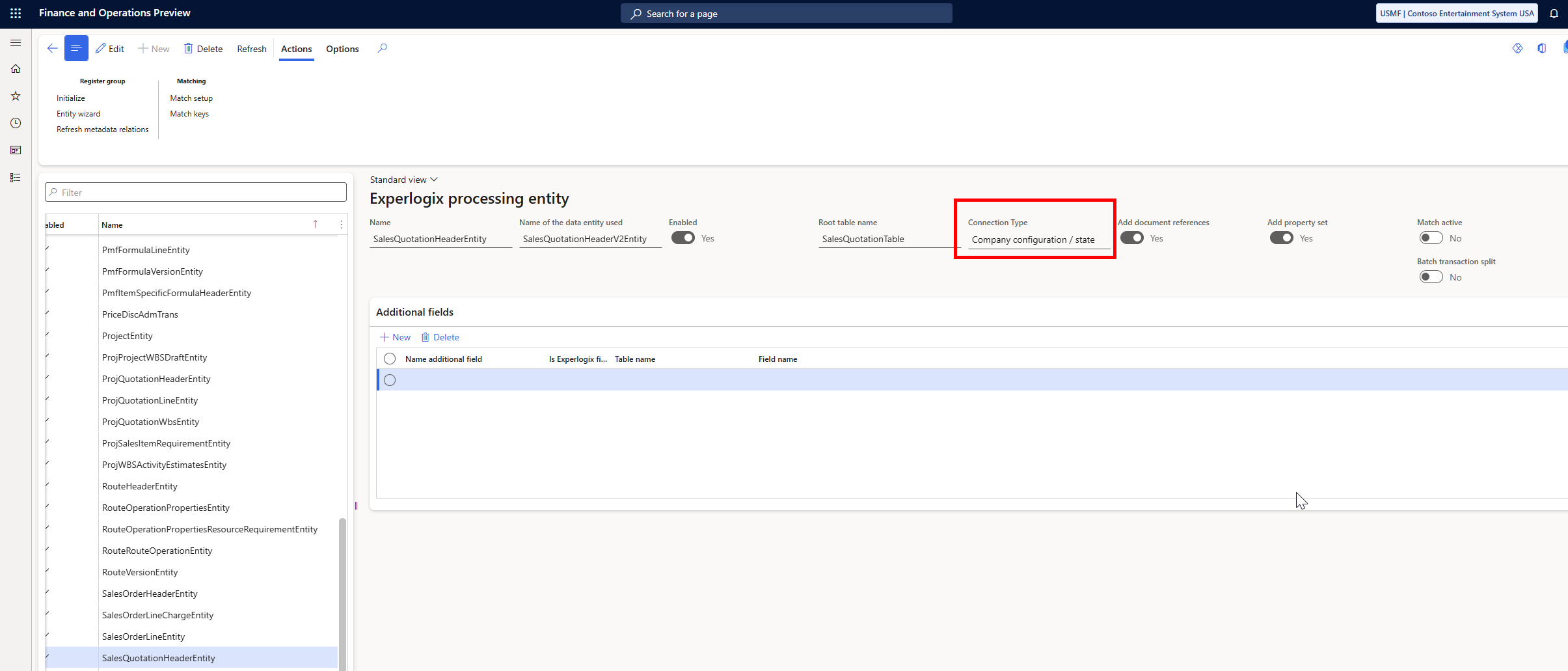
Verify the field Connection Type for the processing entity of the source record.
-
Identify the connection type used by the source record.
-
If the connection type is set to Global configuration / state or Global configuration / company state, set the processing entity for the source to:
Company configuration / state.
-
Open the Process Designer and clear the Integration API cache at the Process Integration menu.
-
Save a new configuration.
-
Retry the Copy or Quote to Sales Order process.
Match - Route doesn't match whereas it is expected to match
Symptom
When processing a Route using a Cloud Connect Microsoft Dynamics 365 F&O integration, the processor creates a new Route, but is expected to reuse an existing Route. This occurs even though structure matching is enabled.
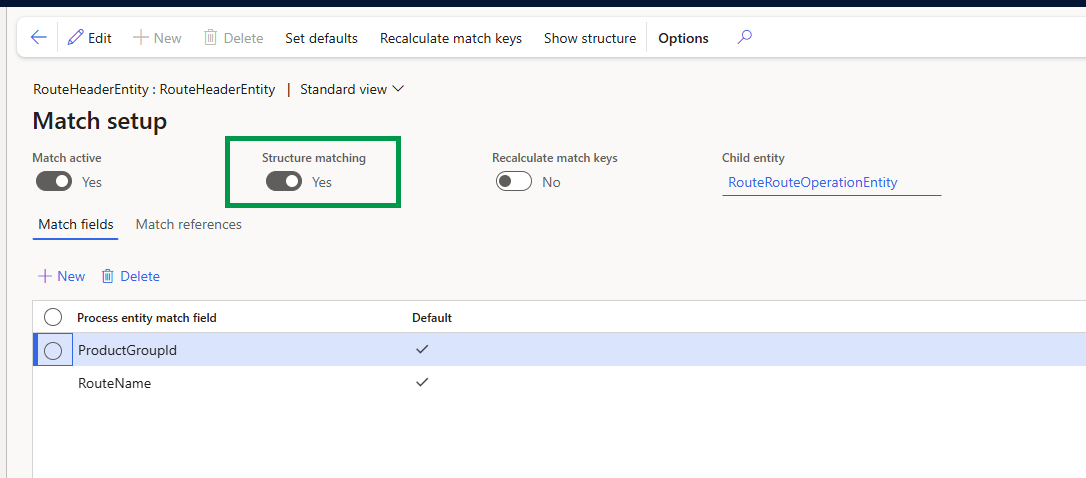
Cause
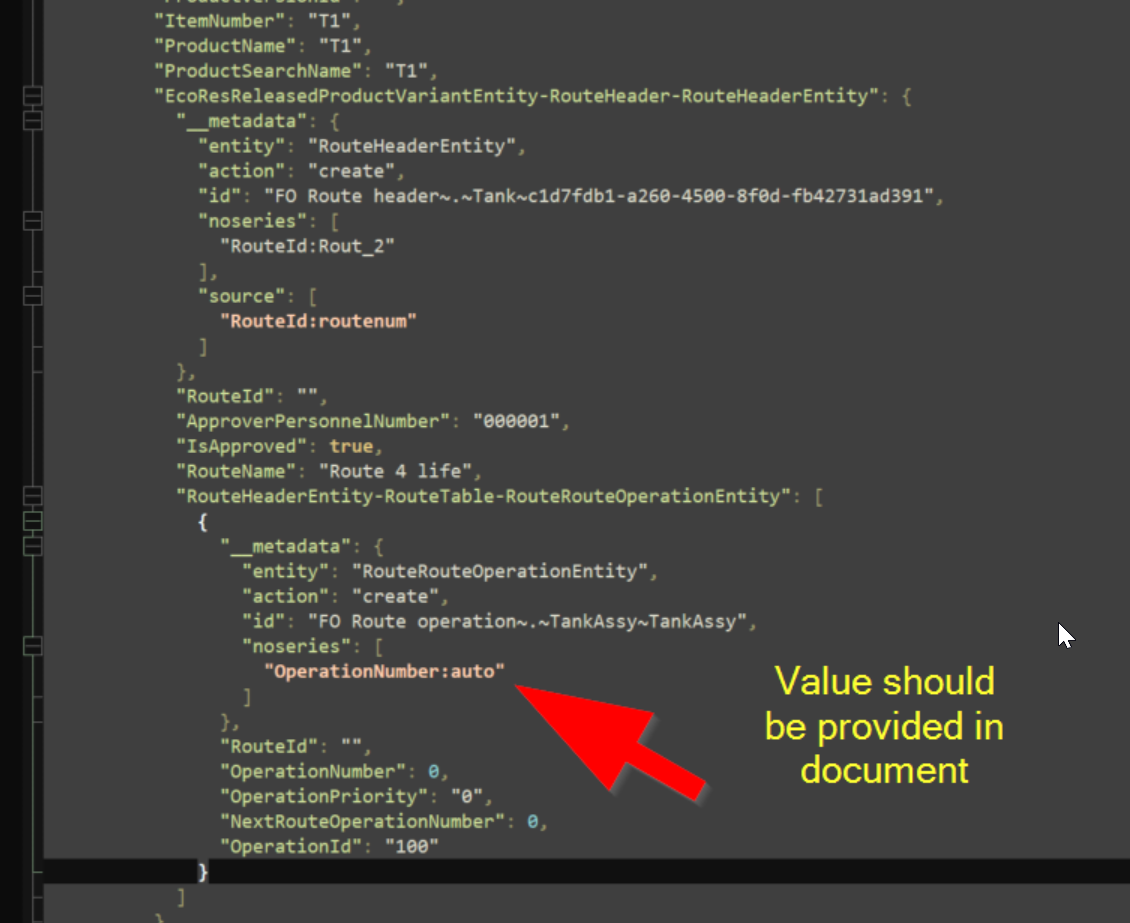
This behavior occurs when structure matching is enabled for the Route processing entities RouteVersionEntity or RouteHeaderEntity. When structure matching is enabled and the Route structure contains more than two levels, all values used for matching must be explicitly provided in the process document.
If the process document uses numberseries:auto for a structural field (for example, OperationNumber), the value is generated during processing and is not present in the process document. As a result, the structure cannot be fully matched and the processor creates a new Route.
Exception: RouteId is the only field where number series usage is allowed.
Solution
Update the process document to provide explicit values for all structural fields that are part of the Route structure.
Remove numberseries:auto from the OperationNumber field and provide the value directly in the process document. Below is an example of a faulty process document.