
Use the list below for information regarding common problems encountered by users integrating Experlogix with Microsoft Dynamics 365 CE using Cloud Connect. For general, non-integration-specific Cloud Connect troubleshooting information, see Cloud Connect Troubleshooting.
Caller User Does Not Have Create Permissions to Total Amount Field
Problem: The following error appears when attempting to create a work order using Cloud Connect CE with Microsoft Dynamics 365 CE: Caller user does not have create permissions to Total Amount field.
Prerequisites
-
Working with Cloud Connect CE and Microsoft Dynamics 365 CE.
Cause
This error occurs because the Total Amount field on the Work Order entity is column-secured, and the application user does not have create permission through the correct Column Security Profile.
Solution
To resolve the error, complete the following steps:
Assign the Column Security Profile
-
Go to the Power Platform Environment.
-
Select your environment.
-
Go to Settings.
-
Expand Users + permissions.
-
Open Column Security Profiles.
-
Select Field Service - Administrator.
-
Select Users.
-
Add the application user used to communicate between Cloud Connect CE and Microsoft Dynamics 365 CE.
Validate the Fix
-
Return to the integration configuration page in Cloud Connect.
-
Attempt to save the configuration again.
-
If the issue persists, submit a support ticket.
Multiple Records Found
Problem: Clients cannot save a configuration without encountering the error: An error occurred when retrieving the Configurator settings (Multiple records found).
Prerequisites
-
Access to Cloud Connect CE.
-
Access to Microsoft Dynamics 365 CE.
Symptoms
-
When saving a configuration to Microsoft Dynamics 365 CE, the client encounters the error message: An error occurred when retrieving the Configurator settings (Multiple records found).
Possible Causes
-
If Microsoft Dynamics 365 CE encounters multiple active settings, it triggers an error. The system expects only one active setting. Having more than one active setting causes a conflict.
Solution
-
To resolve the error and ensure only one active setting exists, complete the following steps:
-
From Microsoft Dynamics 365 CE, go to the Power Platform Environment.
-
From the side navigation menu, go to Experlogix, and then select Settings.
-
In Active Settings, verify that only one list of settings is active.
-
(Optional) Deactivate any additional active settings.
Next Steps
If none of the above steps resolve the issue, consider the following options:
-
Submit a support ticket: Open Support Portal
-
Contact your system administrator for further assistance.
Experlogix Cloud Connect CE Settings Disappearance
Symptom: The Experlogix Cloud Connect CE settings disappear in the new interface after a change made by Microsoft, which will be generally available in January 2025.
Cause
Changes in the Power Platform environment settings cause this issue.
Solution
-
Open Admin Center.
-
Select an environment.
-
Go to Settings.
-
Select Product > Features.
-
Scroll down to the section Environment Settings Behavior - Advanced Settings Redirection.
-
Turn it off and save the settings.
-
Use the base URL + /main.aspx?settingsonly=true to access the old view. The Verify button might fail, but the settings are correct. Try using the Verify button in the old view.
Next Steps
If none of the above steps resolve the issue, consider the following options:
-
Submit a support ticket: Open Support Portal
-
Contact your system administrator for further assistance.
Not Possible to Process if a Host Record is Deleted
Symptom
It is not possible to process to a CE Quote if you manually delete a quote detail from the CE Client. When trying to save the configuration, you receive a "Your configuration did not save successfully" message.
Cause
Processor is attempting an update of a record, but the record does not exist in CE anymore.
Solution
Cloud Connect does not support the restoration of records in a host system from a saved configuration. The record must exist in the host system for configuration data to be processed successfully.
CE Integration OK (502)
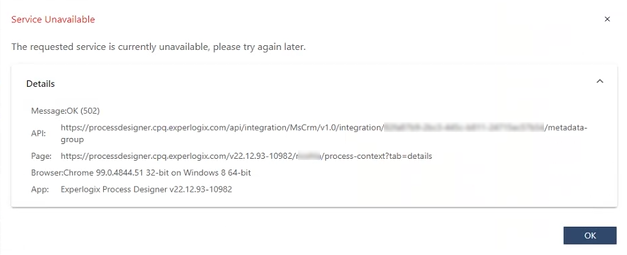
Symptom: In Process Designer, the OK (502) error displays for Microsoft Dynamics 365 CE integration:
Cause
This error is displayed as the host integration is not setup.
Solution
Setup the host integration as per the instructions available at Process Integration Details Tab.
Duplicate Quote or Sales Order Lines Created When Saving a Configuration
Symptom
Duplicate quote detail or sales order line records are created when saving a configuration in Microsoft Dynamics 365 CE. This typically occurs after revising a quote or when a sales order is created from a quote and then reconfigured.
Cause
The Line Item Number field is not mapped in the process design for quote detail or sales order line entities. Without this mapping, Microsoft Dynamics 365 CE treats existing line records as new during the save operation, which results in duplicate line records.
Solution
To resolve the issue, add a field mapping for Line Item Number in the Process Designer.
-
Open Process Designer.
-
Find the process map for Quote Detail or Sales Order Line.
-
Add the following field mapping for Line Item Number:
|
Name |
Field |
Data Type |
Mapping Type |
Foreign Entity |
|---|---|---|---|---|
|
Line Item Number |
lineitemnumber |
Integer |
Number Series |
Detail |
-
Save the process design.
-
Reconfigure and save the quote or sales order again.
Existing line records are updated correctly, and duplicate quote or sales order lines are no longer created.