
The Copy Configuration feature allows users to duplicate the configuration and process state from a source record to a destination record within the same entity. This significantly reduces the time required to create new records—such as quotes, sales orders, or projects—by reusing existing setups.
While this guide focuses on Sales Orders, the copy functionality is also available for other entities including Quotes and Projects. By leveraging this feature, users can streamline record creation and maintain consistency across related documents.
Supported Forms and Entities
The following entities are available for configuration in Cloud Connect CPQ:
|
Integration |
Configure |
Outbound |
|---|---|---|
|
Microsoft Dynamics 365 CE |
|
Any table or entity |
|
Microsoft Dynamics 365 F&O |
|
Any table or entity |
|
Microsoft Dynamics 365 BC |
|
Any table or entity |
|
Salesforce |
|
Any table or entity |
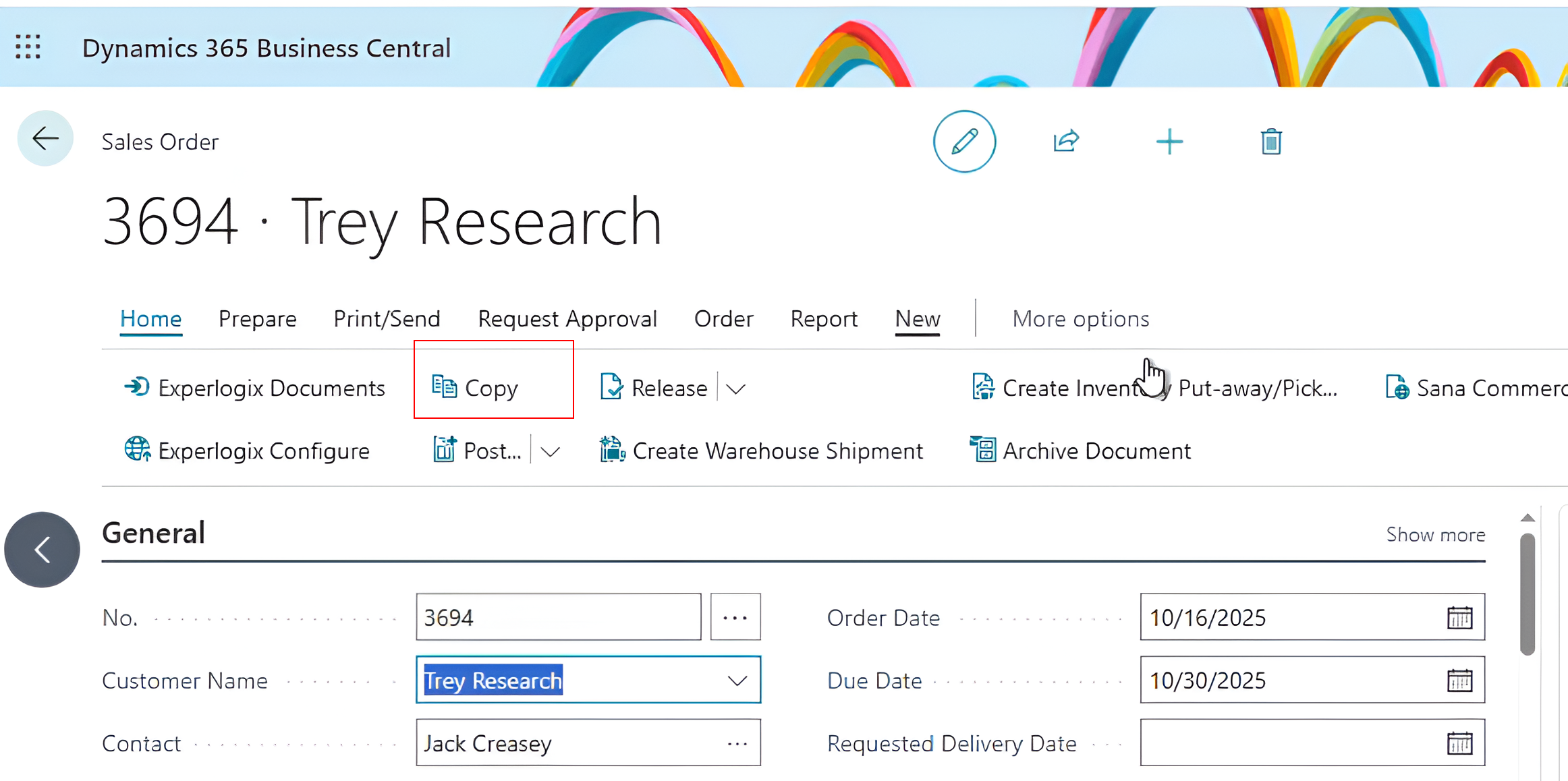
Copy Button
The Copy button displays in records where users can leverage the copy function. Only users with the XPL-SALES or XPL-JOB roles in Microsoft Dynamics 365 BC can see the Copy button. Even if the records support copying, the button is absent if the user does not have the required role.
Requirements
-
The record to be copied must already be configured.
-
The record to be copied is one of the following entity types:
-
Sales order
-
Sales quotation
-
Project
-
-
The user must have one of the following roles:
-
XPL-SALES
-
XPL-PROJECT
-
Limitations
-
The copy function does not process the configuration. It is designed to copy a configuration, allowing you to make changes and save the updated configuration for processing.
-
There cannot be a configuration already attached to the record.
-
Configurations can only be copied to entities of the same type. For example. from one Quote to another Quote.
Functionality Highlights
-
The system saves the record before initializing the copy function.
-
If you close the Configurator after a successful copy, the configuration stays linked to the new record. If you reopen the record, the configuration displays.
-
The copy function supports logging.
Copy Record Configurations for Sales Order
Use the following steps to copy an existing sales order record.
-
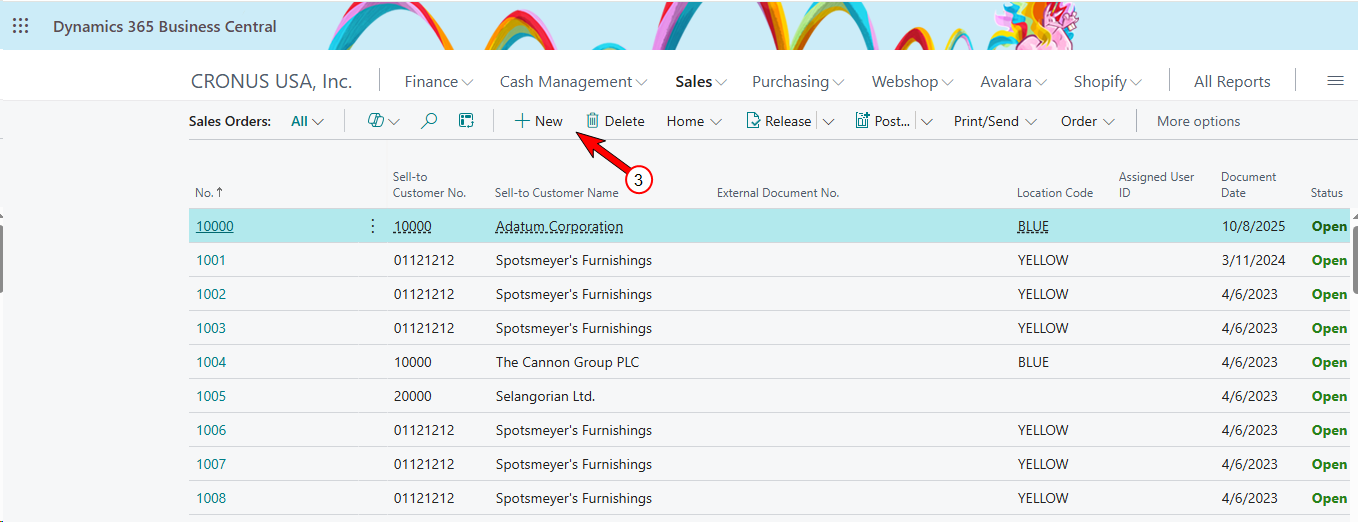
In Microsoft Dynamics 365 BC, at the top, select the Sales dropdown.

-
Select Sales Order.
-
Select New.
-
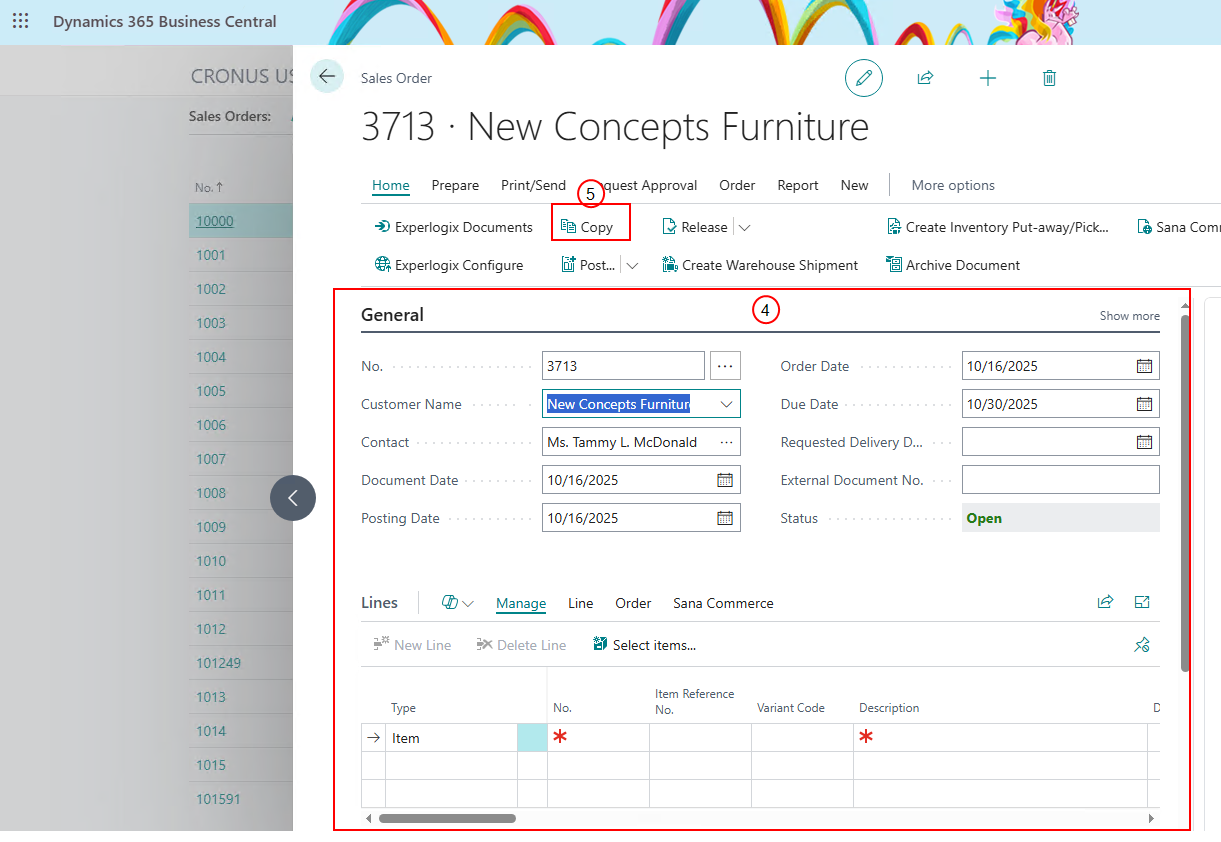
Populate all mandatory fields in the newly created sales order.
-
Select Copy.
-
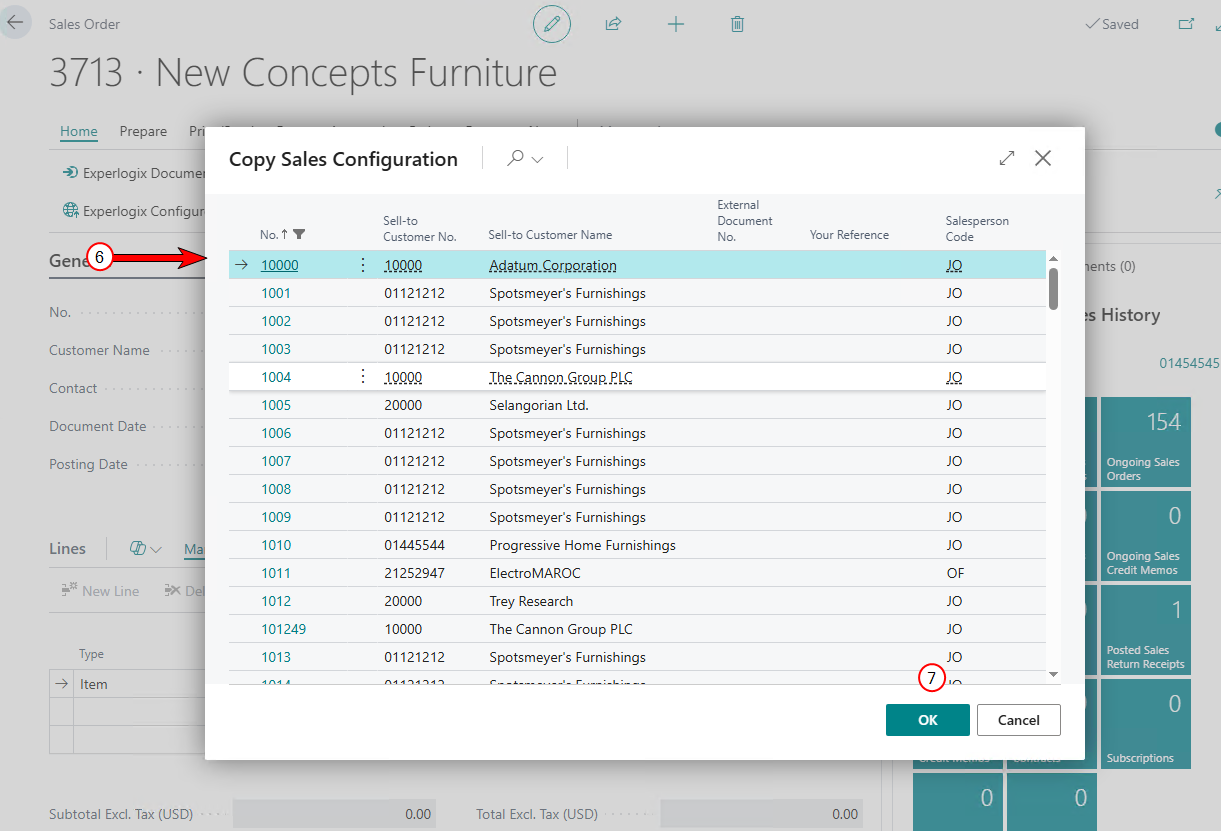
From the available sales orders list, select a sales order. Fields and select an order.
-
Select OK.