
Blanket Sales Orders in Microsoft Dynamics 365 BC allow businesses to manage long-term agreements with clients by creating a single order that can generate multiple shipments over time. Traditionally, configuring these orders required customizations or manual steps. With the Experlogix Configure button, users can now directly configure and convert Blanket Sales Orders into detailed configurations, streamlining the process and improving efficiency.
Requirements
-
Configure URL is set in Microsoft Dynamics 365 BC.
-
The user must have XPL-SALES role.
Configure URL in Experlogix Settings
-
On the Microsoft Dynamics 365 BC home page, at the upper-right corner of the screen, select the Search icon.

-
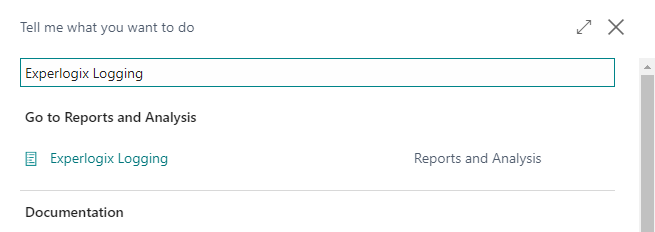
In the Search field, type Experlogix Settings.
-
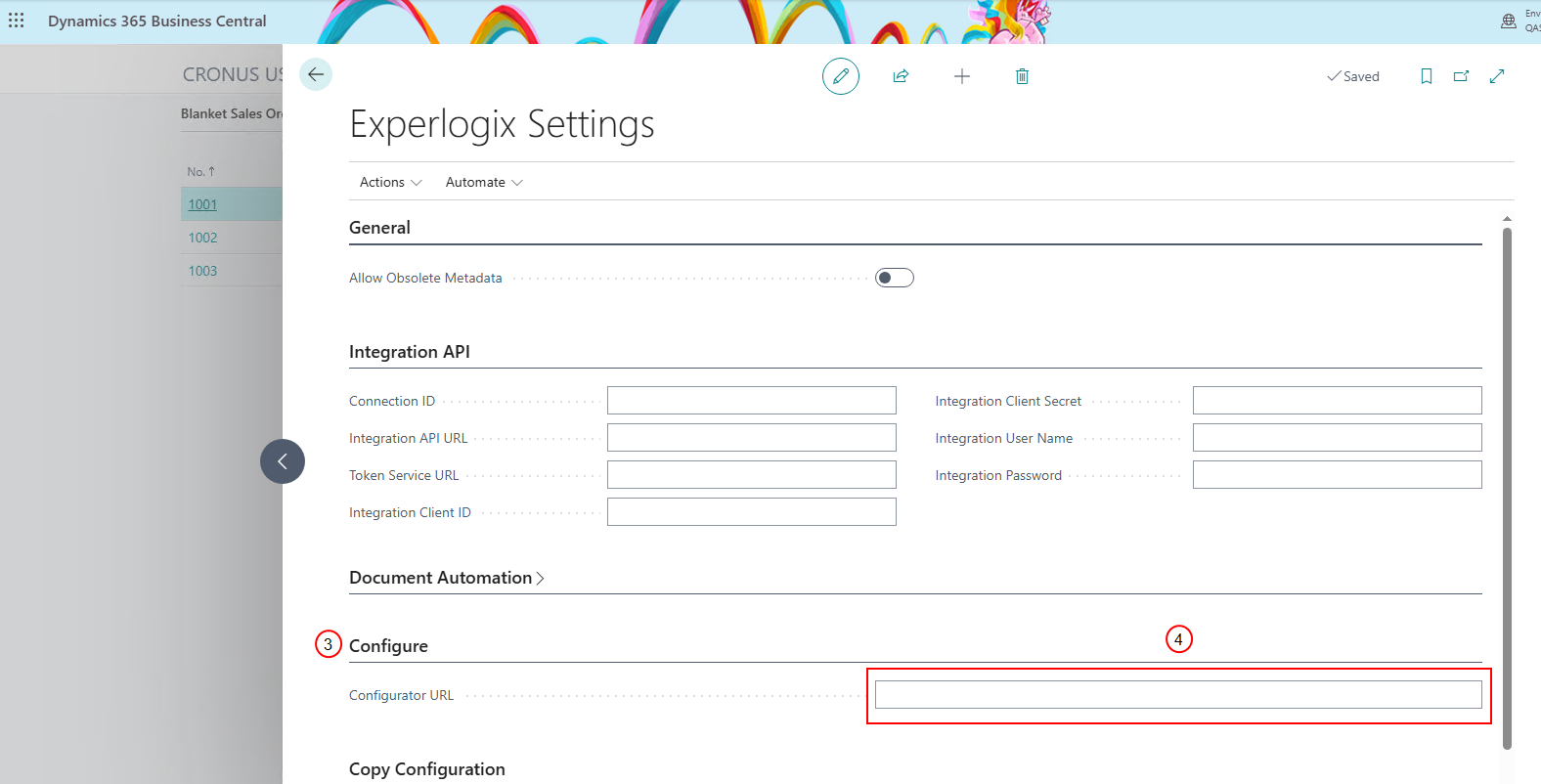
From the displayed options, select Configure.
-
Enter the Web Configurator URL in the Configure URL field.
-
Verify the integration.
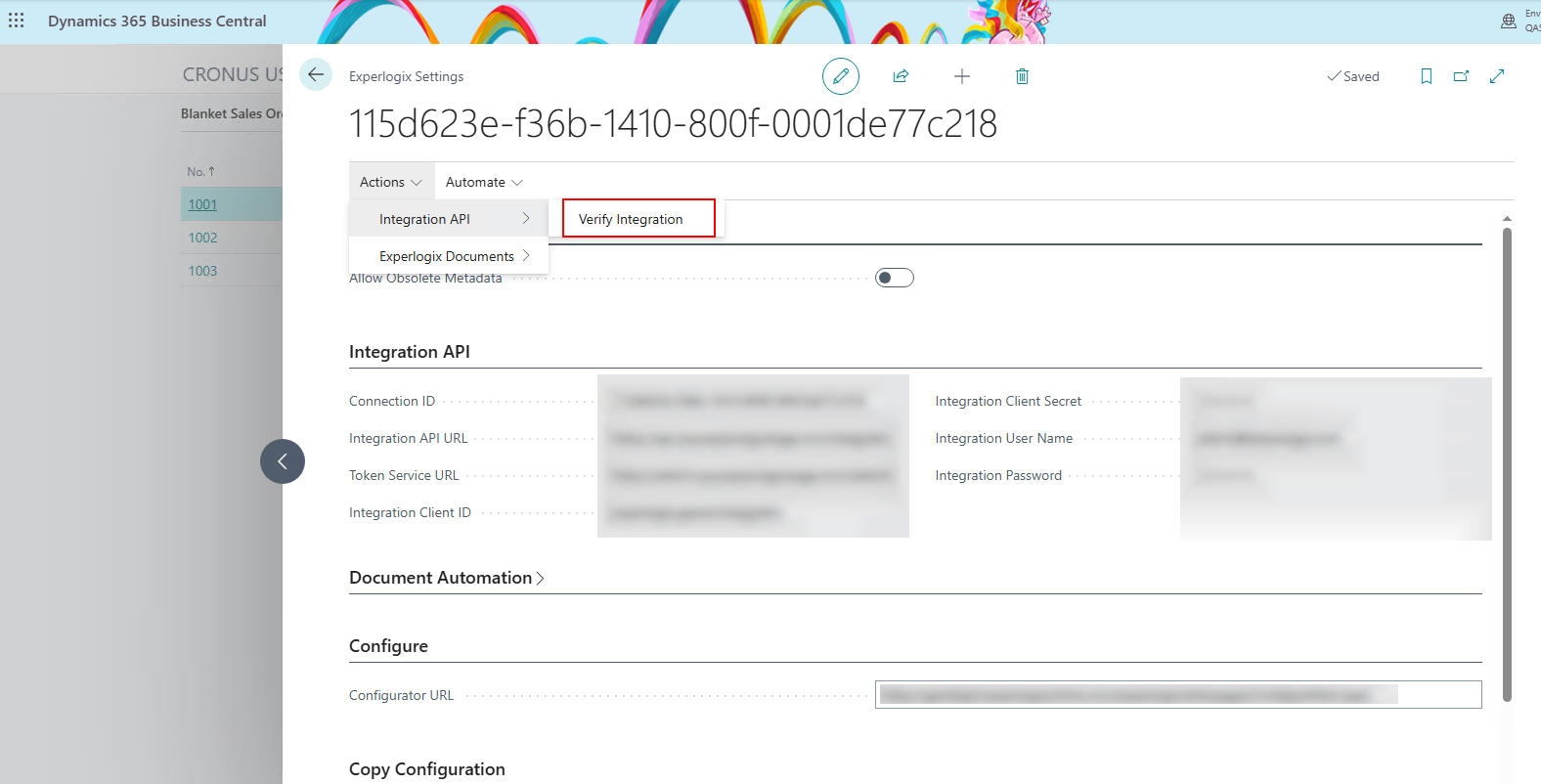
The integration is successful.
Configure Blanket Sales Orders
-
In Microsoft Dynamics 365 BC, at the top, select the Sales dropdown.

-
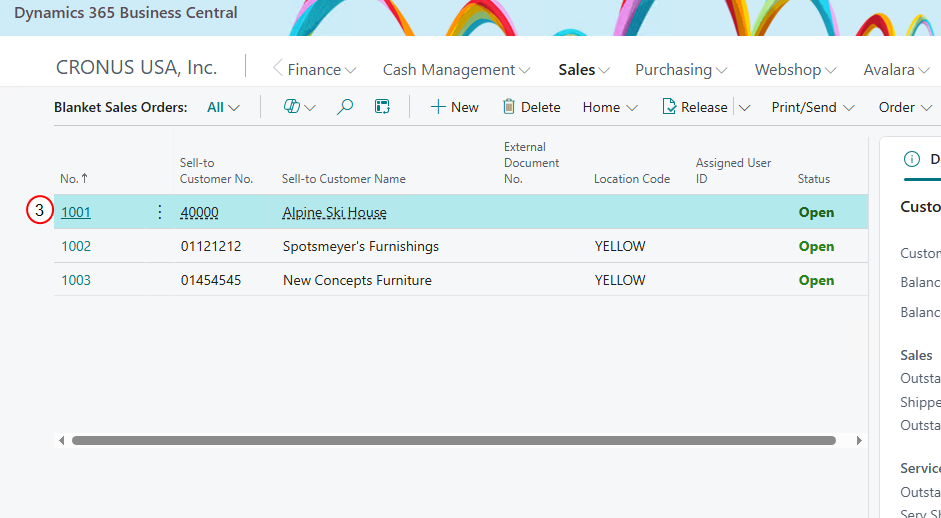
Select Blanket Sales Order.
-
Select an existing Blanket Sales Order from the list.
-
Select Experlogix Configure.
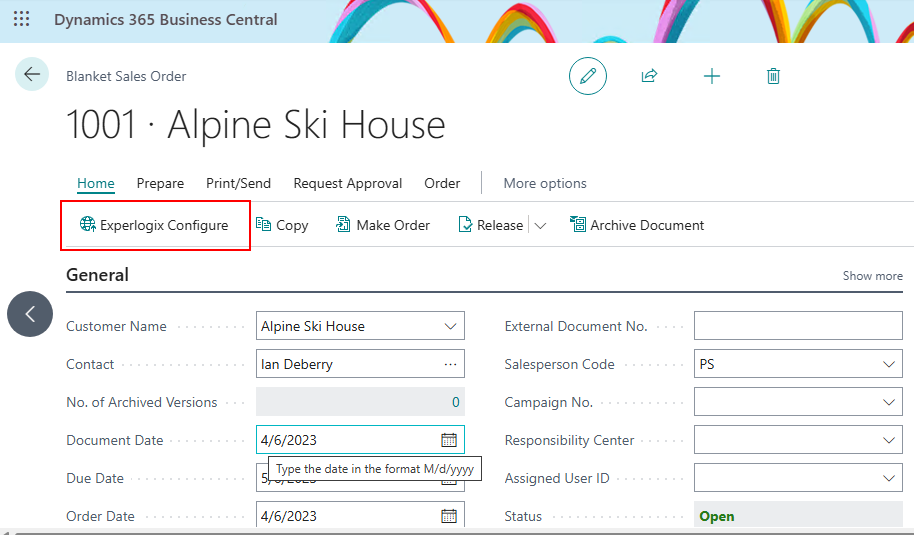
You will be redirected to the Experlogix Web Configurator interface.