
The Export and Import buttons allow users to efficiently manage their settings by importing settings from a file or exporting current settings to a file. This ensures consistency and ease of setup across different systems.
Exporting the Salesforce Settings
-
Launch Salesforce Host system.
-
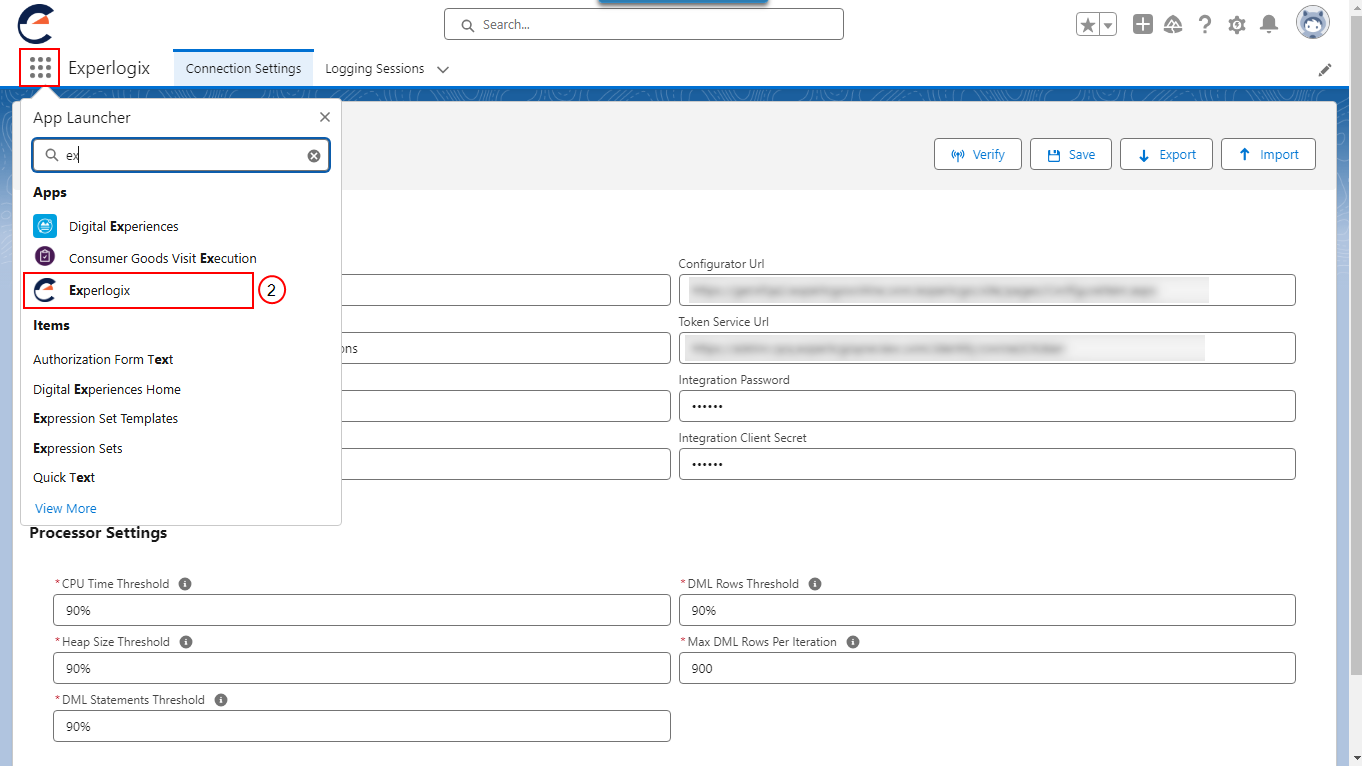
Select App Launcher and search Experlogix.
-
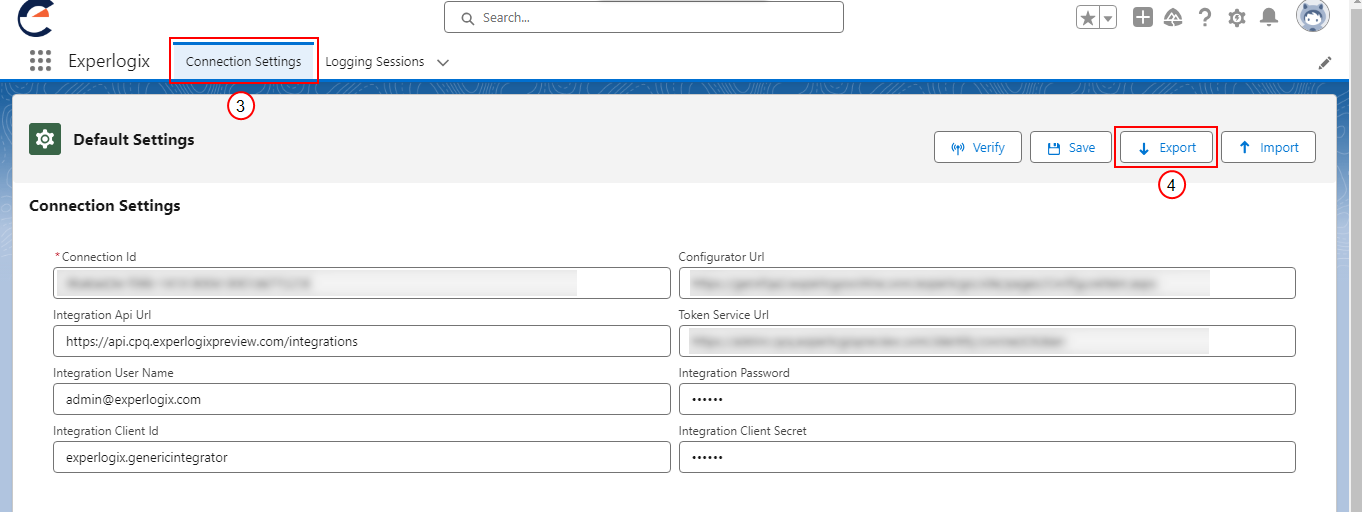
On the Experlogix App Connection Settings page, select the Connection Settings tab.
-
Select Export. The system will generate a JSON file containing all fields except sensitive information like client secret and integration password.
-
Open the downloaded file and verify its content against the Experlogix Connection Settings.
Importing the Salesforce Settings
-
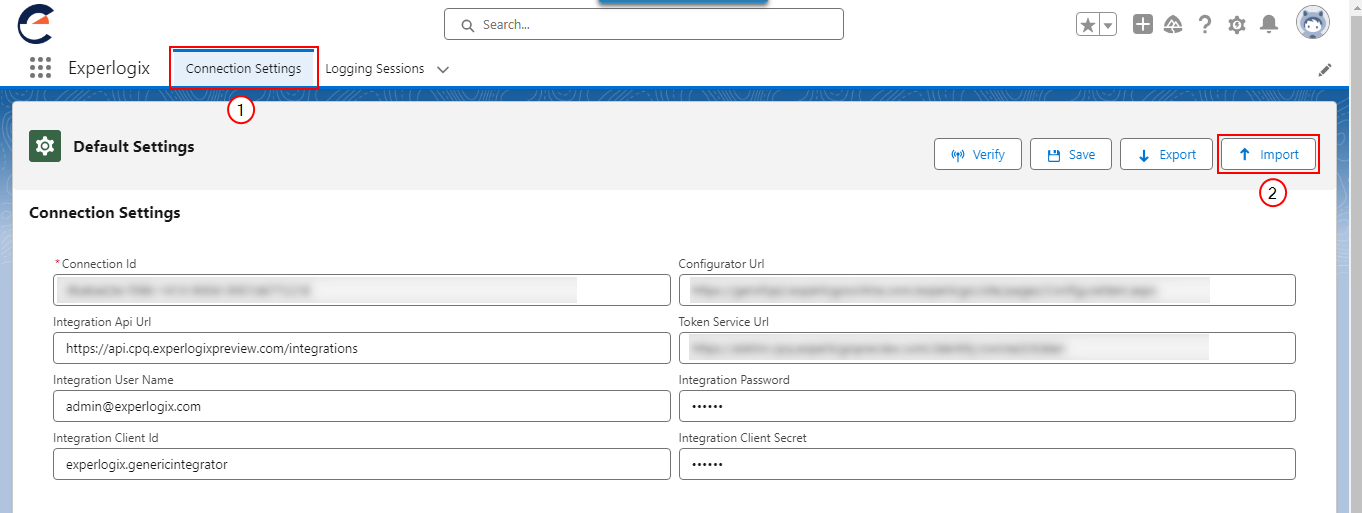
On the Experlogix App Connection Settings page, select the Connection Settings tab.
-
Select Import.
-
Choose the file you want to import.
The supported file format is JSON.
-
Ensure the file content matches the required data structure.
Following these steps, users can effectively utilize the Import and Export buttons to manage their Salesforce settings. These functionalities enhance the overall user experience by providing a streamlined process for configuration management.
For security reasons, the import process excludes sensitive information such as passwords and client secrets. Therefore, you must manually enter this information after importing the settings.