
Dynamic actions allow you to control the visibility and behavior of actions based on specific criteria, ensuring relevant actions are available at the right time. For example, you can configure dynamic actions to display buttons only when certain conditions are met. When dynamic actions are enabled, changes made on Page Layouts will not be reflected. To enhance user interaction and improve workflow efficiency, follow these step-by-step instructions to integrate a button into your layout using dynamic actions.
-
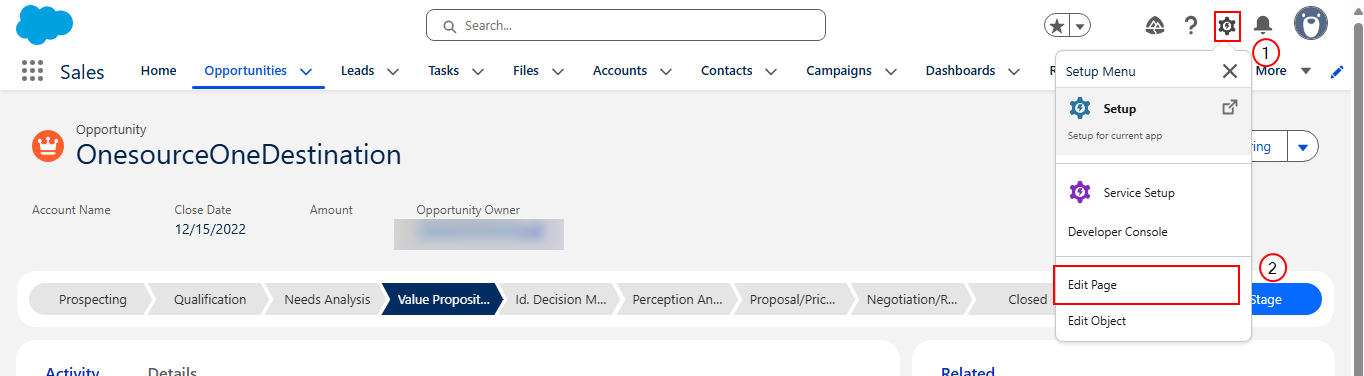
In Salesforce, for an active record, in the upper-right corner select the Settings icon.
-
Select Edit Page.
-
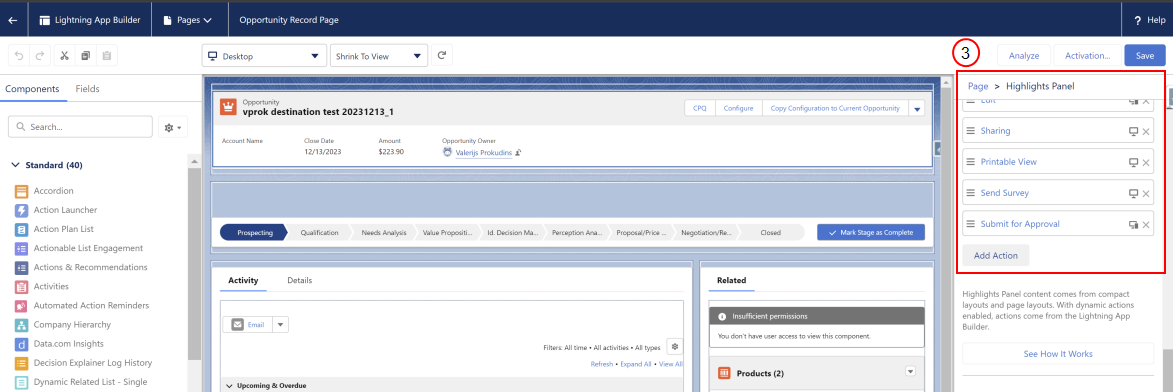
Select the header component within the highlights panel on the right.
-
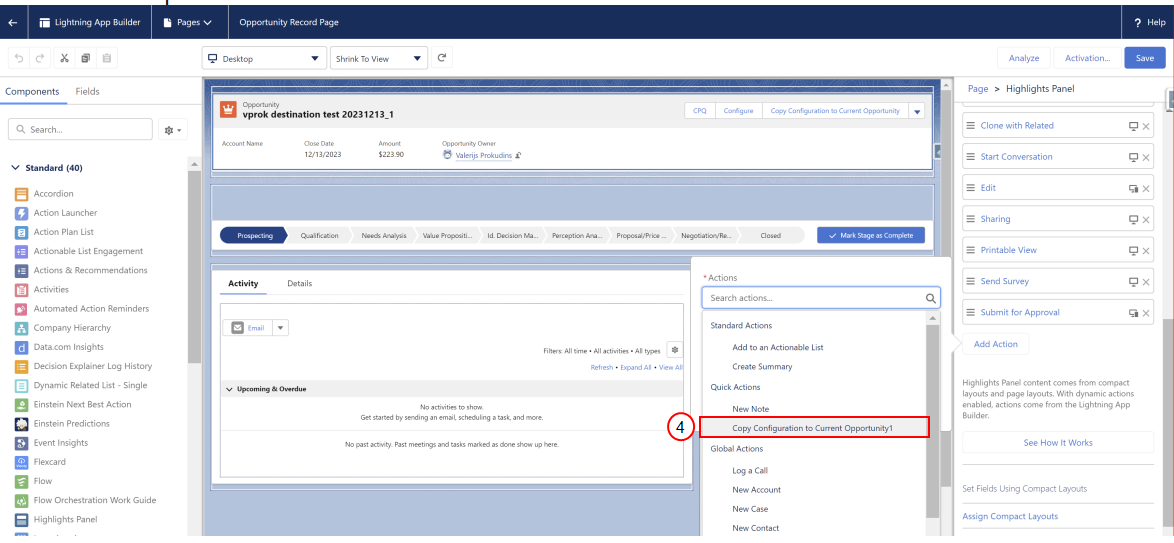
Select the desired action from the available options.
-
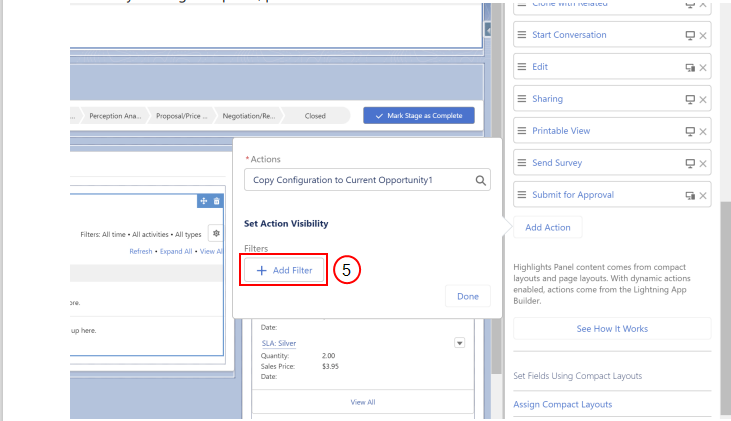
Select Add Filter.
-
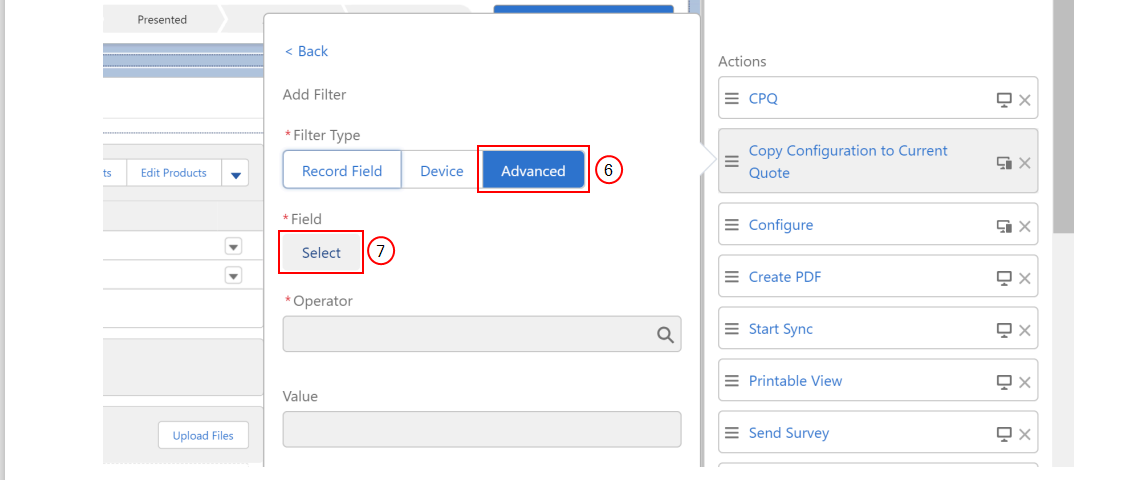
Select Advanced.
-
Select Select.
-
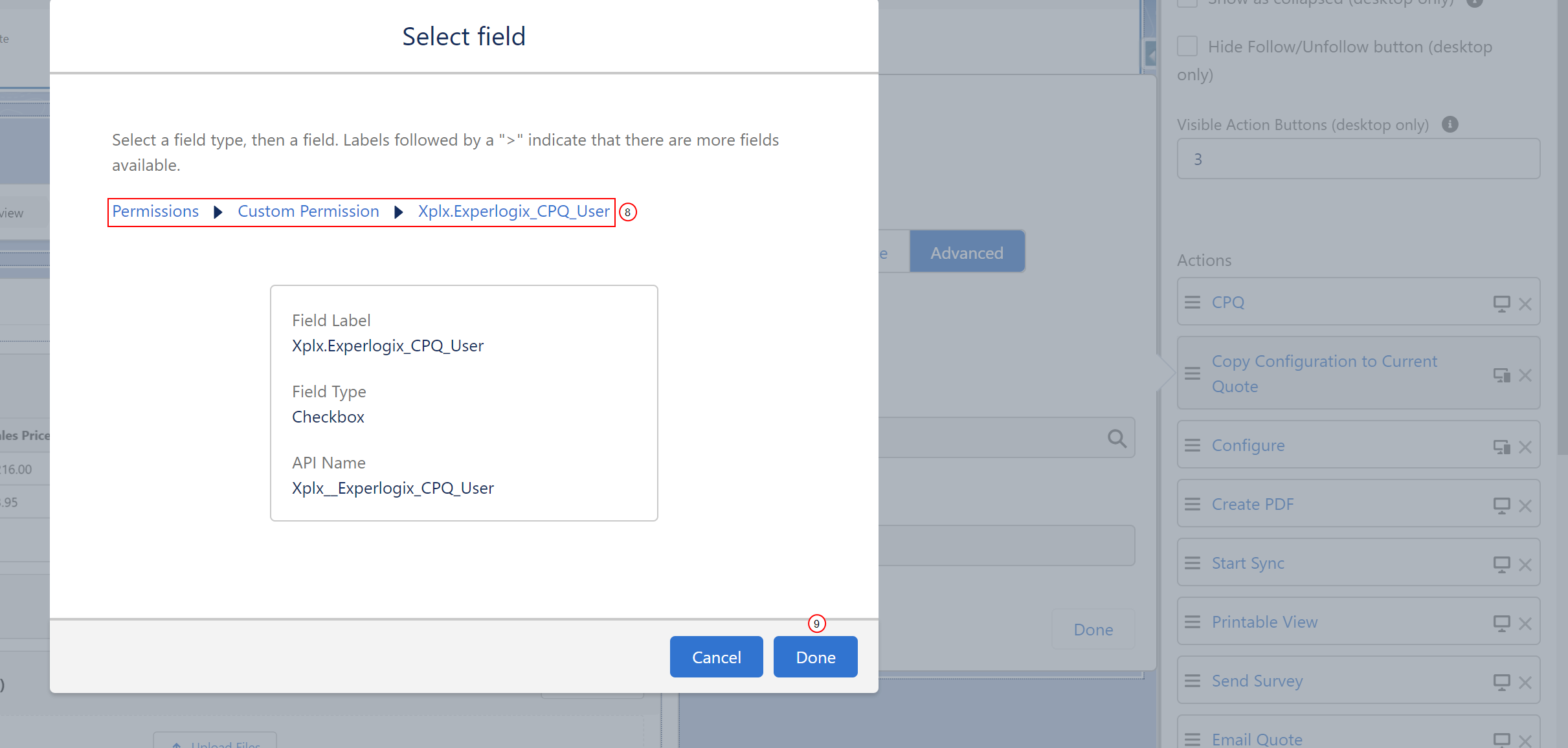
Navigate to Permissions > Custom Permissions > Xplx.ExperlogixCPQUser.
-
Select Done.
-
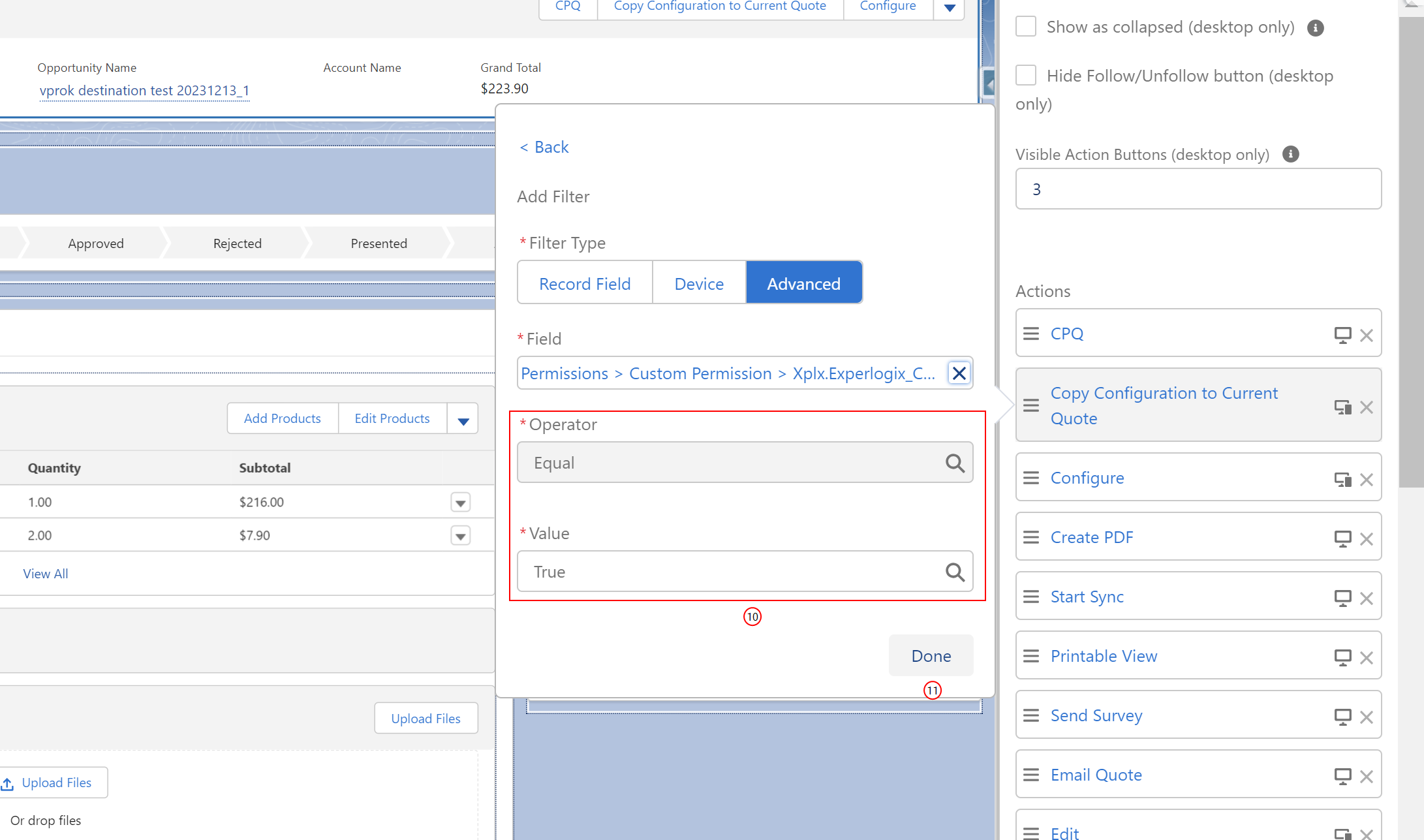
Ensure the condition is set to equal to true.
-
Select Done twice to confirm.
-
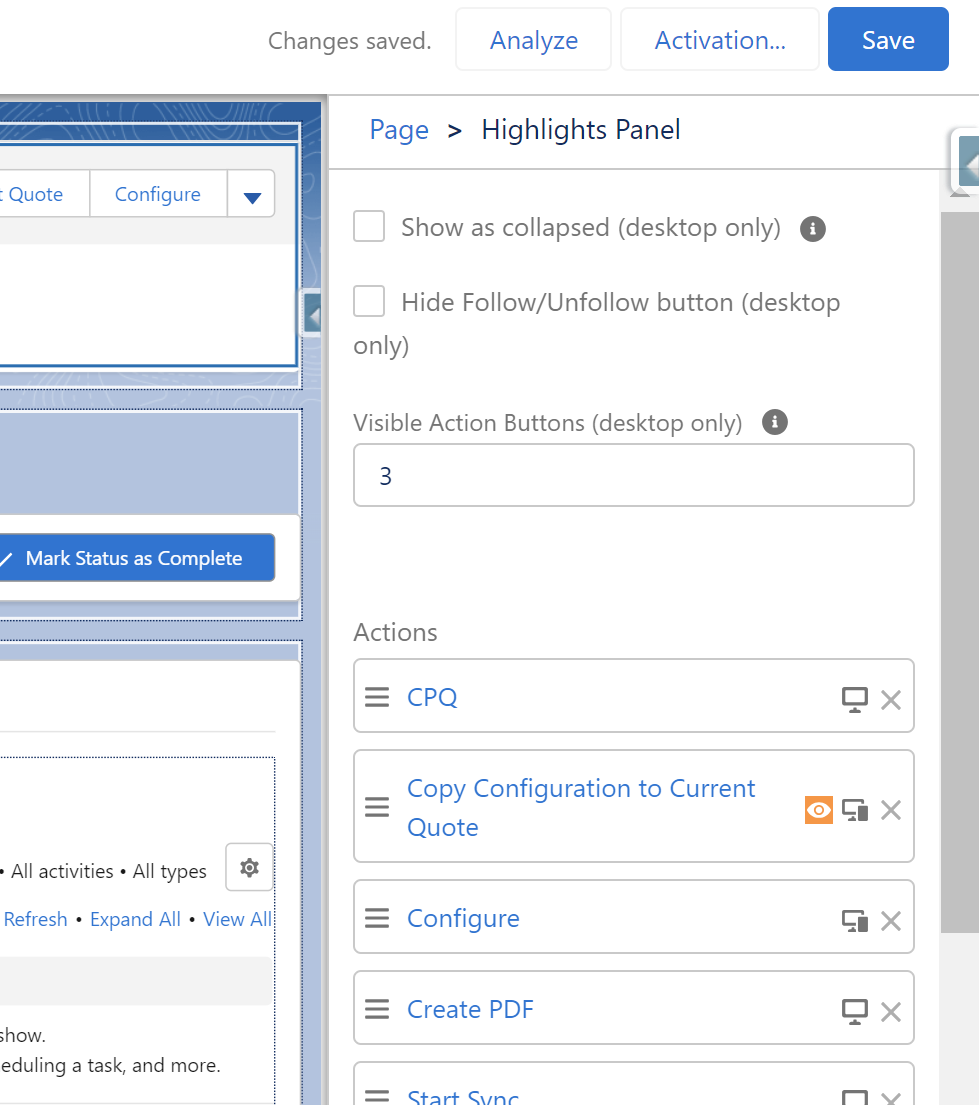
Confirm that the Copy Configuration to Current Quote button now displays a visibility filter icon.
-
Select Save.
This process ensures the button appears only when the specified conditions are met, provided the condition is set to true, enhancing your application's functionality and user experience.