This page provides an example of a Power Automate flow from a Microsoft Dynamics 365 CE to a Microsoft Dynamics 365 F&O Sales Order when the records exist in the destination host.
Setup
Set up the following to execute the example flow:
-
Set up the Aquarium database, available for download here.
-
The Process Design JSON file is available here.
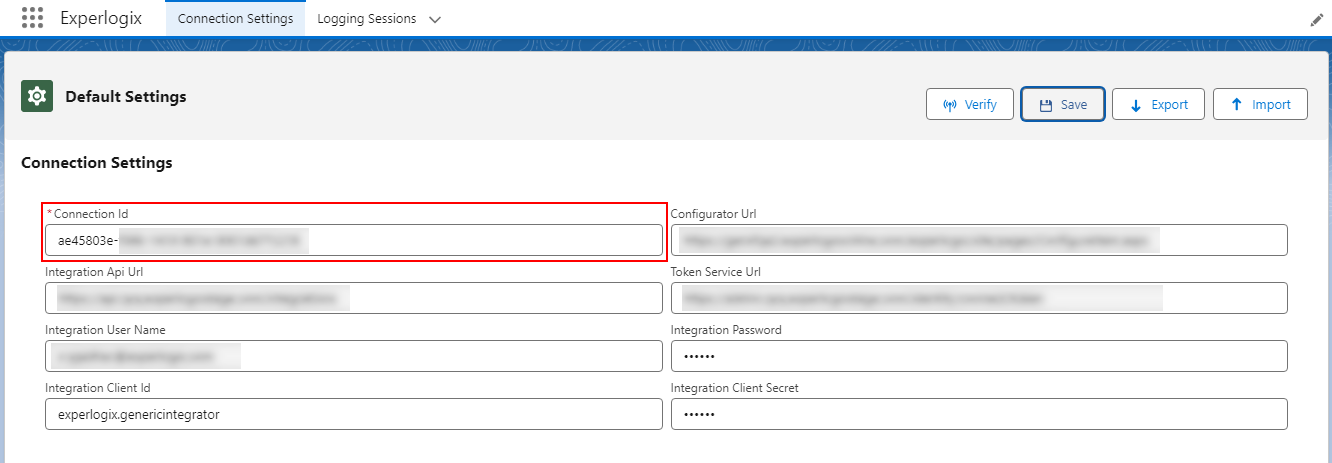
The process structure differs between Microsoft Dynamics 365 CE and Microsoft Dynamics 365 F&O. Ensure you put your connection IDs in the Process Design and the database. First, enter the connection IDs in the Process Design. Then, update the database with the same IDs. Finally, load both configurations to your environment.
The following image displays the example structure:
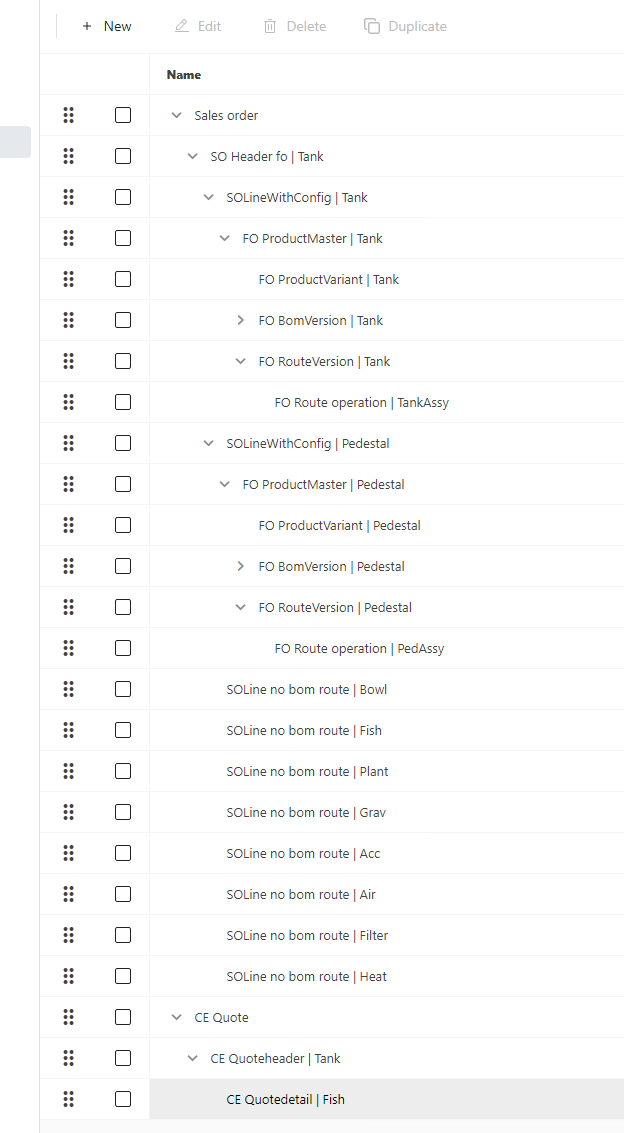
Microsoft Dynamics 365 CE Sales Quote to Microsoft Dynamics 365 F&O Sales Order Flow
The Microsoft Dynamics 365 CE Sales Quote to Microsoft Dynamics 365 F&O Sales Order Flow includes the following.
-
Configuring a quote in Microsoft Dynamics 365 CE
-
Creating a header record in Microsoft Dynamics 365 F&O
-
Copying the Configuration using Power Automate.
The following example provides an overview of the steps.
-
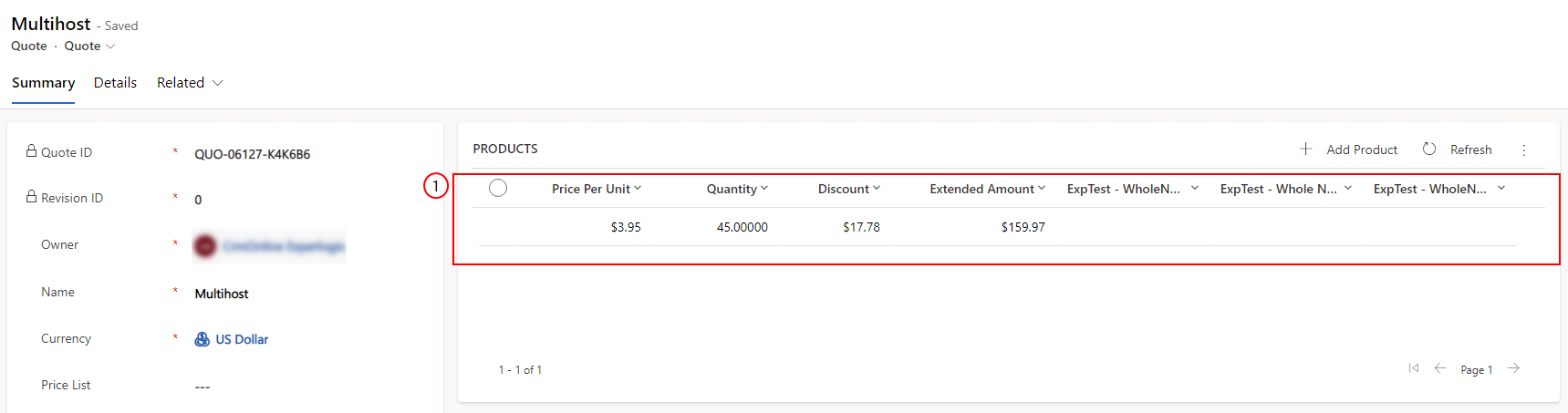
In Microsoft Dynamics 365 CE, configure a Quote as shown in the following image.
-
Create a Header record in Microsoft Dynamics 365 F&O, as shown in the following image. The Record ID for this example is 003447.
-
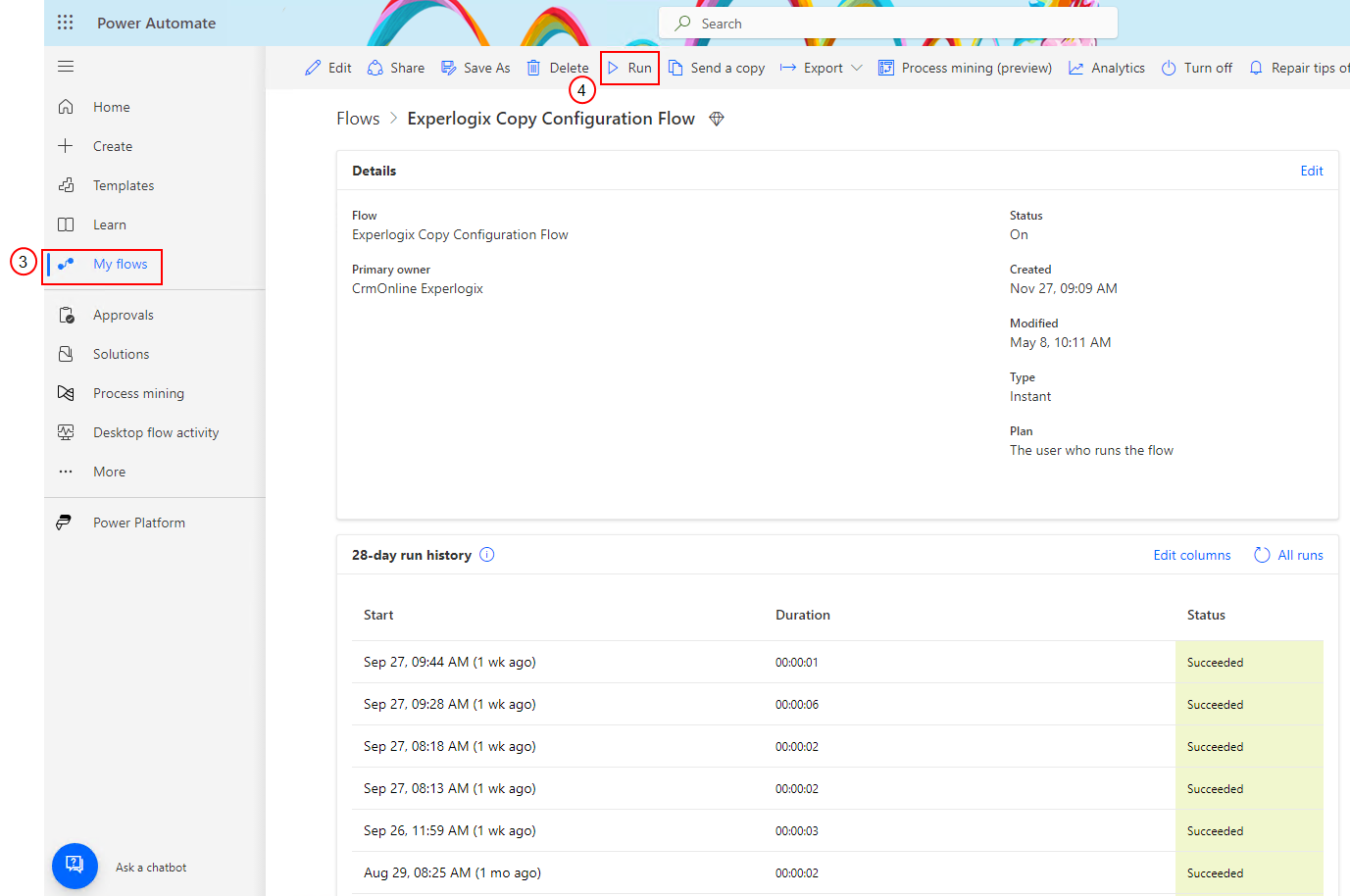
In Power Automate, access the Experlogix Copy Configuration flow.
-
Select Run and enter the following data.
|
Parameter |
Input |
Example Data |
|---|---|---|
|
Source Entity Name |
Entity in source host. |
quote |
|
Source Record Id |
Record Id in the source entity. |
3ceb1717-985b-ee11-be6f-6045bd006366 |
|
Source Company |
Company in source host. Leave the field blank if a company is not applicable. Field is not required. |
|
|
Destination Connection Id |
Connection Id of the destination host. |
d8689d24-e011-4f73-b4b3-602a8f2cc5ca |
|
Destination Entity Name |
Entity in the destination host. |
SalesOrderHeaderEntity |
|
Destination Record Id |
Record Id in destination entity. |
003458 |
|
Destination Company |
Company in destination host. Leave the field blank if a company is not applicable. Field is not required. |
USMF |
|
Replace |
Replace the configuration if it already exists. |
true |
|
Process State |
Copy the process state. Not applicable in this case, as the scenario is from host A to host B. |
false |
|
Source Connection Id |
Connection Id of source host. |
440c473e-f36b-1410-8b2f-008747a9a79c |
-
Select Run.
-
Select the ellipsis to open the contextual menu on the Experlogix Copy Configuration Flow page and select Run history. The Run history page displays the status as Succeeded.
-
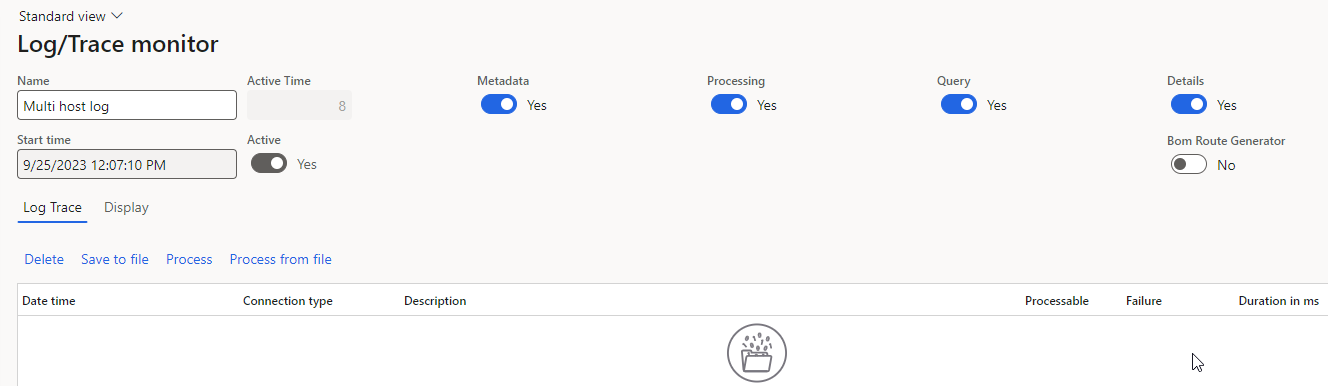
In Microsoft Dynamics 365 F&O, to view the processing, enable Logging for processing.
-
In Power Automate, access the Experlogix Process Configuration flow.
-
Select Run and enter the following data.
|
Parameter |
Input |
Example Data |
Where to retrieve the value |
Mandatory |
Remark |
|---|---|---|---|---|---|
|
Entity Name |
Entity in destination host. |
SalesOrderHeaderEntity |
Process Context in process designer 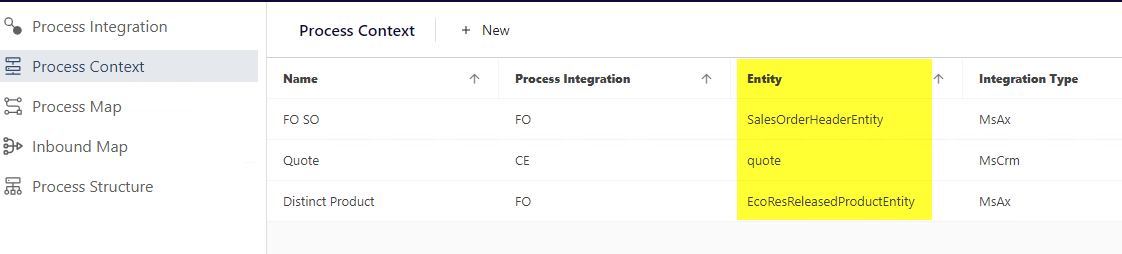
|
Yes |
|
|
Record Id |
Record Id in destination entity |
003459 |
|
Yes |
|
|
Project Name |
Name of the integratorData in the Integration API |
multihost |
Name of Design Center database / project |
No |
If provided, please also provide the 'Integrator Data Document Name' and 'Document version' |
|
Company |
Company in the destination host. Only relevant to Microsoft Dynamics 365 F&O |
USMF |
Only applicable to Microsoft Dynamics 365 F&O, is the name of the company |
No |
|
|
Connection Id |
Connection Id of the destination host. |
d8689d24-e011-4f73-b4b3-602a8f2cc5ca |
See Parameter form for more information |
Yes |
|
|
Document Version |
Version of the integration Data. If you don't specify a version, the latest version is used |
|
Please get in touch with Professional Services to find this value |
No |
If provided, please also provide the 'Integrator Data Document Name' and 'Project Name' |
|
Index |
Index number of the line item of the configuration.xml. If left blank, it will process all line items. |
|
Numbering starts at value 0 |
No |
|
|
Integrator Data Document Name |
Name of the process-design |
CPQ_integratorData |
hard-coded |
No |
If provided, please also provide the 'Document Version' and 'Project Name' |
-
Navigate to the host logging and disable it.
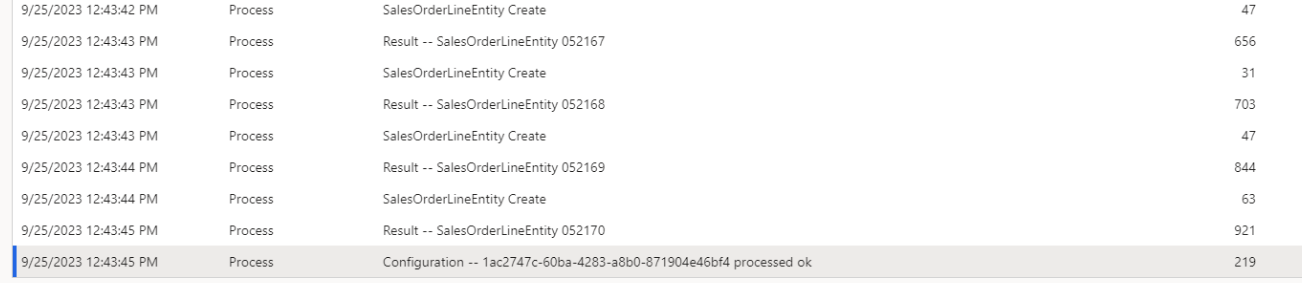
Please follow the various steps of processing available on the Logging page.
-
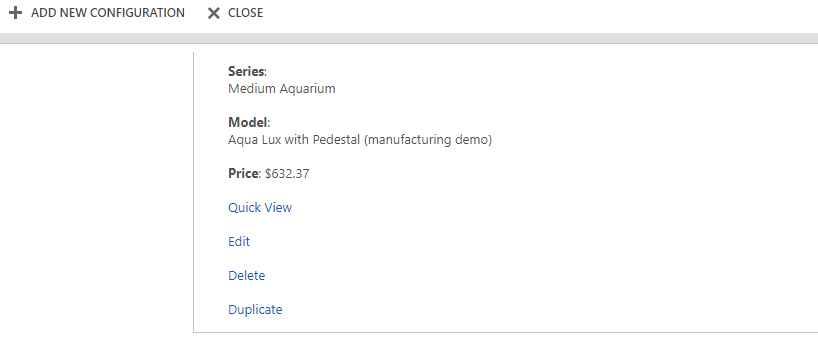
Navigate to the destination recordid and select Configure.
You are now able to reopen the Configuration in the destination host.
Parameter form
The following settings are essential to launch the Configurator successfully. Users can effectively initiate the Configurator within their specified environment by utilizing these settings. Additionally, users have the flexibility to input environment details according to their specific requirements. These settings ensure a seamless and efficient configuration process tailored to meet individual needs.
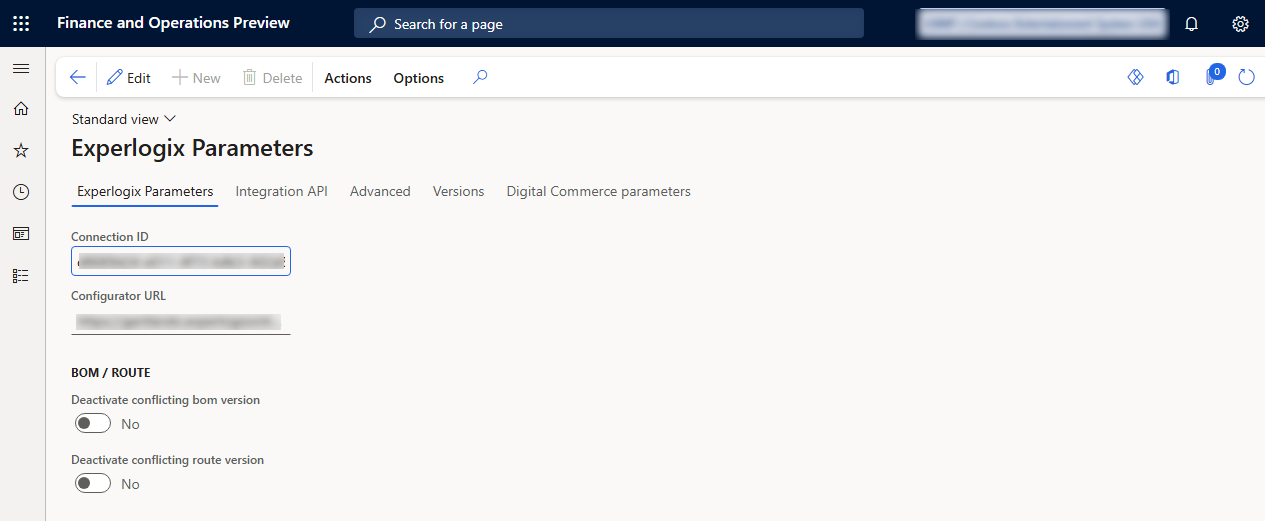
Microsoft Dynamics 365 F&O
Navigate to Experlogix Integrator > Experlogix Parameters.
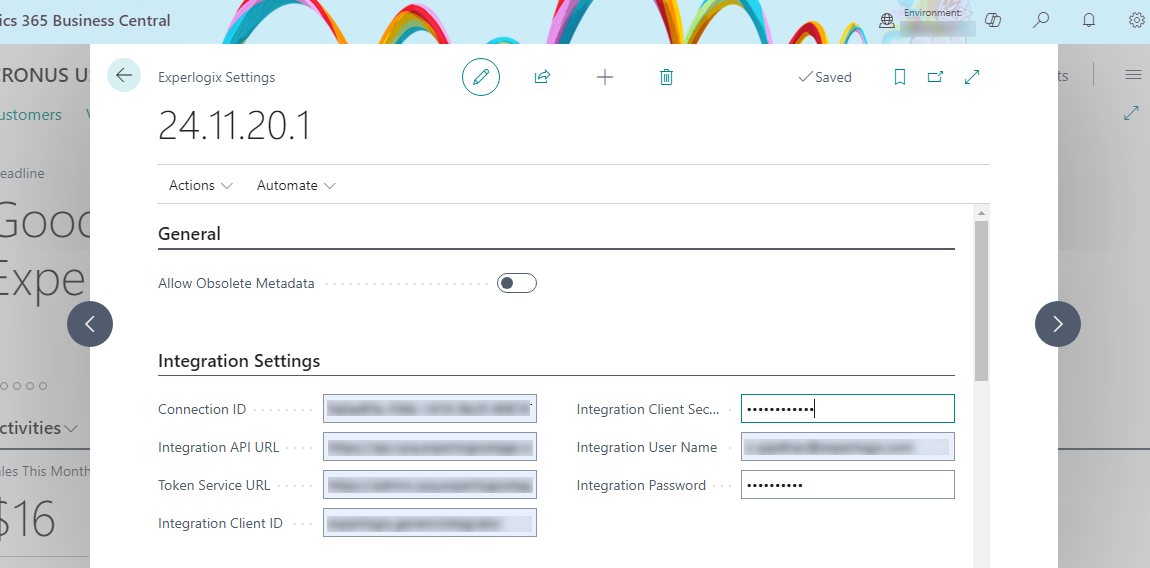
Microsoft Dynamics 365 BC
In the Search bar, search for and select Experlogix Settings.
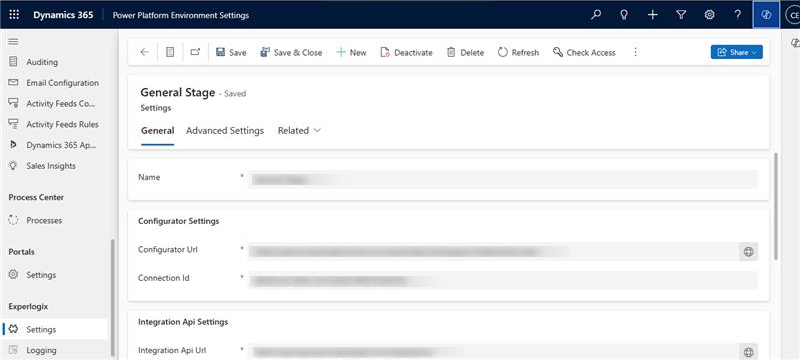
Microsoft Dynamics 365 CE
Navigate to Settings > Advanced settings > Explerlogix > Settings.
Salesforce
Navigate to the Experlogix App > Connection Settings > Default Settings > Connection ID.