
Release Date: September 11, 2025
WARNING - Please Read
This release splits add-on functionality that leverages Dynamics 365 Sales features from the Core solution into a new solution, Experlogix CPQ Sales. For this reason, clients who use the affected add-ons will need to follow additional steps to deploy this Cloud Connect upgrade. See release item 90558 for more information on the changes and Migrating to New Solutions for information on the upgrade process.
Migrating to New Solutions
This section outlines the steps required to migrate Cloud Connect CPQ solutions from a legacy version to the latest release which splits the previous Core solution into two components:
-
Experlogix CPQ Core – Core CPQ functionality without dependencies on Sales entities.
-
Experlogix CPQ Sales – Solution contains the plugins that run on events in CE, such as:
-
Opportunity to quote
-
Revision of a quote
-
Quote to sales order
-
Note: Only install this solution if you need this behaviour and the CE Sales app is installed.
The goal is to ensure that Cloud Connect CE solutions are compatible with Dataverse environments that do not include Dynamics 365 Sales apps.
New Deployment while Retaining Existing Experlogix Settings
Using this deployment method will preserve existing setting values. If you do not wish to retain your existing settings, skip Export Existing Settings and Import Saved Settings.
Export Existing Settings
-
Open the target environment and launch the Power Platform Environment Settings app.
-
Navigate to the Experlogix section and open Settings.
-
See Import and Export Experlogix Settings for information on exact steps to export settings.
Remove Previous Solutions
-
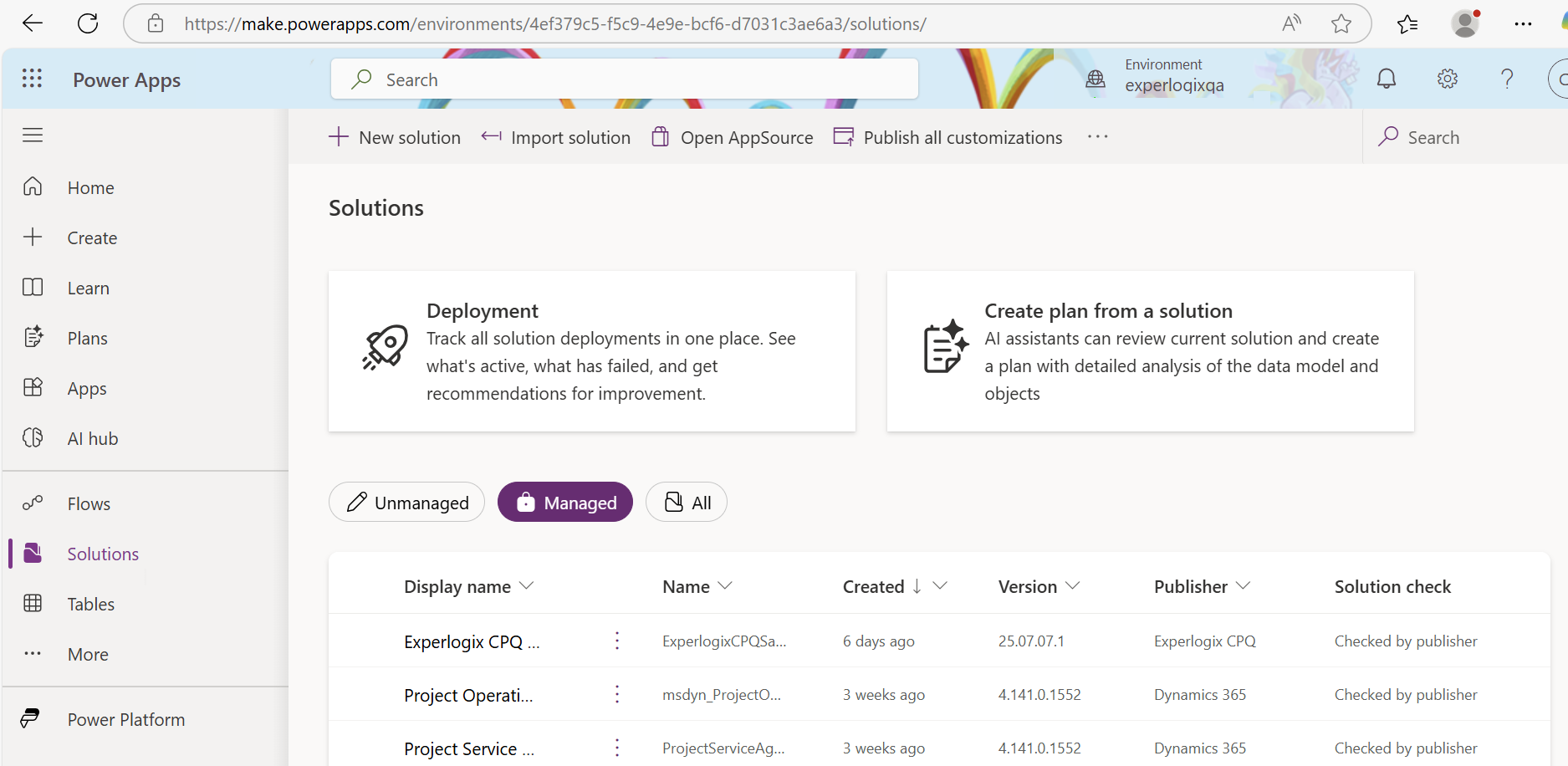
In Power Apps Portal, select the target environment.
-
Navigate to Solutions and select the Managed view to display on managed solutions.
-
Delete the Experlogix solutions in the following order:
-
Button Solutions (for Sales, Project Operations, Fields Service)
-
Experlogix CPQ Core
-
Import and Install New Solutions
-
Select Import solution and upload the new version of Experlogix CPQ Core.
-
Install solutions as needed in the following order:
-
ExperlogixCPQCore
-
ExperlogixCPQSales (Only install when CE Sales app is present and if configuration needs to be copied on opportunity-quote, revise quote, and quote to sales order using standard CE business process)
-
Buttons solutions (for Sales, Project Operations, Fields Service)
-
Import Saved Settings
-
Open Experlogix Settings in the environment.
-
Manually create a new General Settings record with the appropriate values.
-
Import the settings exported in Export Existing Settings.
-
Select Verify to validate settings.
|
ID |
Release Type |
Release Title |
Release Description |
|---|---|---|---|
|
90477 |
Feature |
Added a message for successful recalculate operations |
CE now displays a message for the user indicating a successful recalculate operation. If the operation times out or there is an error, no success message displays. |
|
90558 |
Feature |
Moved plug-ins to new Experlogix CPQ Sales solution |
Opportunity to quote > carry over configuration, Revise quote, and Create sales order based on quote plug-ins are now contained in the Experlogix CPQ Sales solution instead of the Core solution so CE users without a Sales license can use the Core solution. See Migrating to New Solutions for information on the migration process. |
|
90788 |
Feature |
Added a new Dynamics 365 Sales setting, "Revise quote" |
If true, the Revise quote setting tells the system to create a copy of a configuration when using the standard revise quote functionality. |
|
90789 |
Feature |
Added a new Dynamics 365 Sales setting, "Quote to order" |
If true, the Quote to order setting tells the system that configuration data should be copied to a sales order when it is generated based on a configured quote. |
|
90793 |
Feature |
Added a new Dynamics 365 Sales setting, "Opportunity to quote" |
If true, the Opportunity to quote setting tells the system that configuration data should be copied to a quote when it is generated based on a configured opportunity. |
|
90366 |
Fix |
Fixed an unexpected character limitation on the Integration ClientId field. |
The Integration ClientId field now supports up to 122 characters. |